Web panel
Turn it on with two lines (see Getting started), open the printed URL on your desktop, and you get the full inspector in a browser — while the app runs on a simulator, an emulator or a physical device.
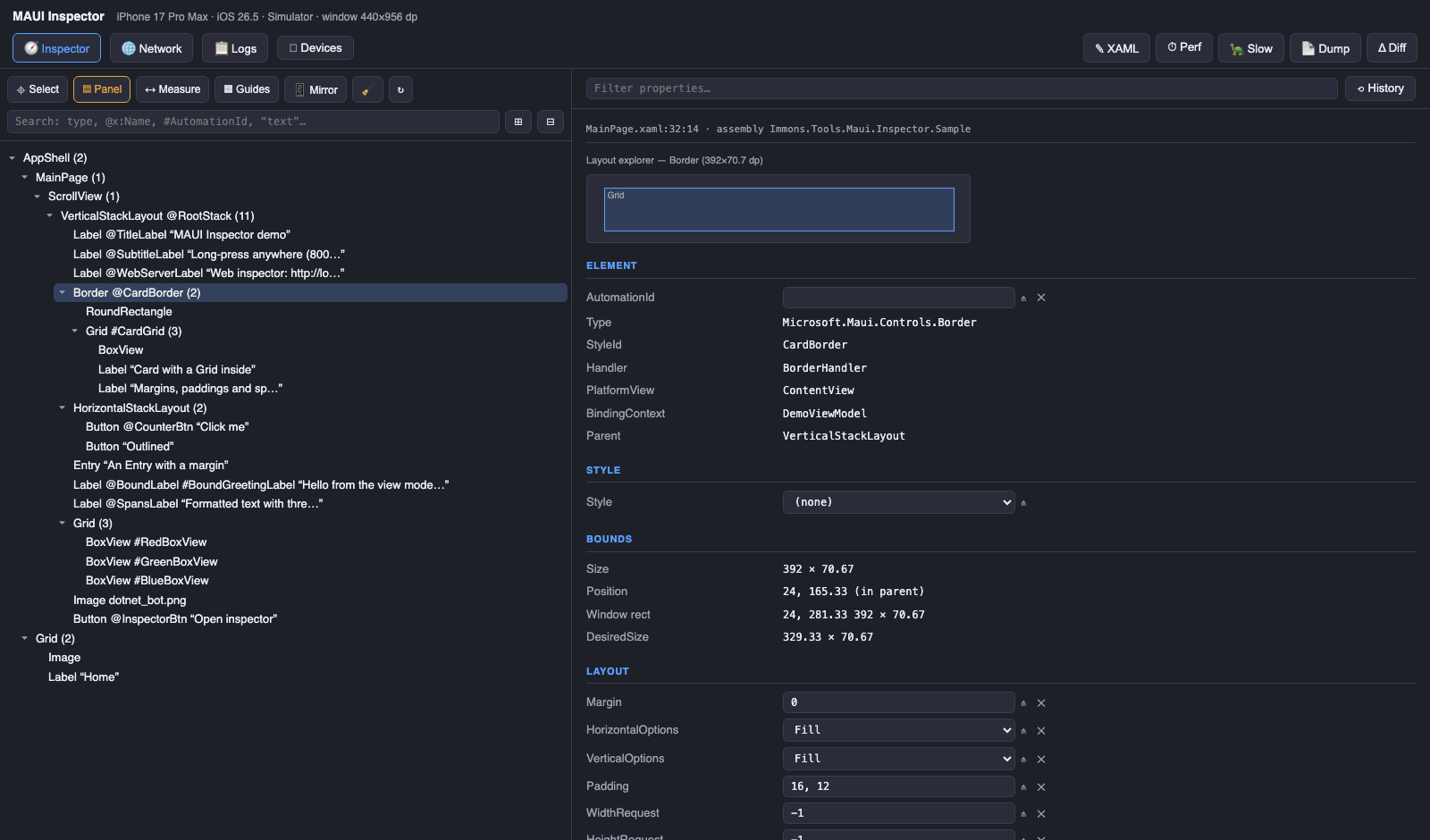
The right side of the header shows the device the panel is talking to, with a green dot while the
connection is alive. When the app stops, restarts on another port or loses its adb forward, the
dot turns red and the label reads disconnected — previously the panel kept accepting clicks that
quietly went nowhere. A third, amber state covers the case that looks identical from the outside:
iOS suspends a backgrounded app including its HTTP server, so requests neither succeed nor fail,
they simply never return. The panel times those out and says app in background instead of staying
green on stale data. The Devices view lists each target with its address and marks the ones
that no longer answer, with one button to drop them (ports are recycled between runs, so stale
entries accumulate).
The header shows which package build is running (v0.9.18) next to the title. The panel also asks
nuget.org for the newest published version and turns that into v0.9.18 → 0.9.19 available when you
are behind — a plain GET of a public index, silently skipped when there is no connection.
A device picker next to the title points the whole panel — tree, properties, mirror, resources, history — at any other running instance it can find (same scan as the Devices view). Comparing the tablet and the phone rendition of a screen no longer needs two tabs: pick the other device, inspect, pick This device to come back.
The tree, the property sheet and the device stay in sync both ways: click an element in the
browser and it highlights on the device; long-press on the device and the browser follows.
Single-key shortcuts toggle the modes — S Select, M Measure, G Guides, P on-device
Panel (plus Ctrl/Cmd+Z undo, Ctrl/Cmd+C/V copy & paste, Delete to remove the selection). The
properties list keeps its scroll position when the selection changes, so comparing the same
section across elements doesn't mean scrolling down again. Property edits apply live — and,
with the sync tool running, they are
written back into your XAML sources.
The other views are covered in their own chapters: Cookbook (the app's
design system as live samples), Network & mocks, Logs (streams
ILogger output) and Devices for multi-device hot reload.
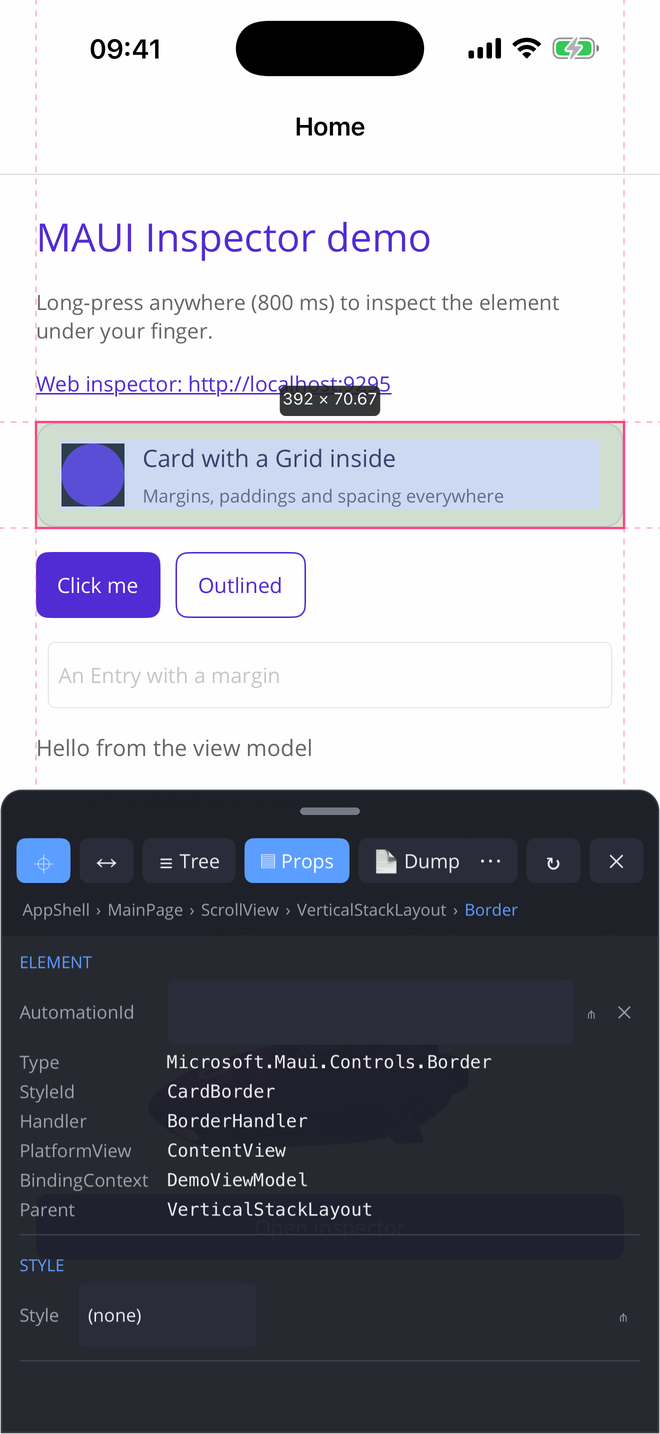
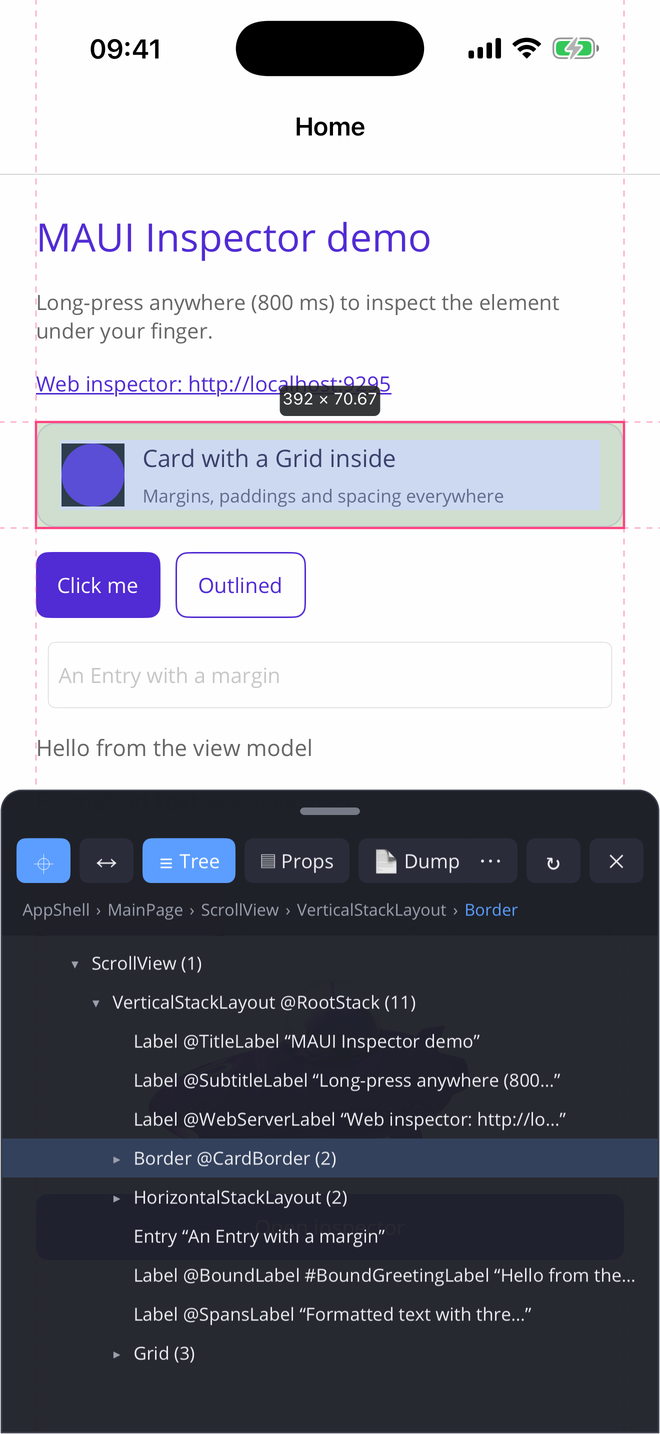
No laptop? The same inspector runs as an overlay inside the app — long-press anything to inspect it.
| Box model + properties | Visual tree | Per-platform editing |
|---|---|---|
 |
 |
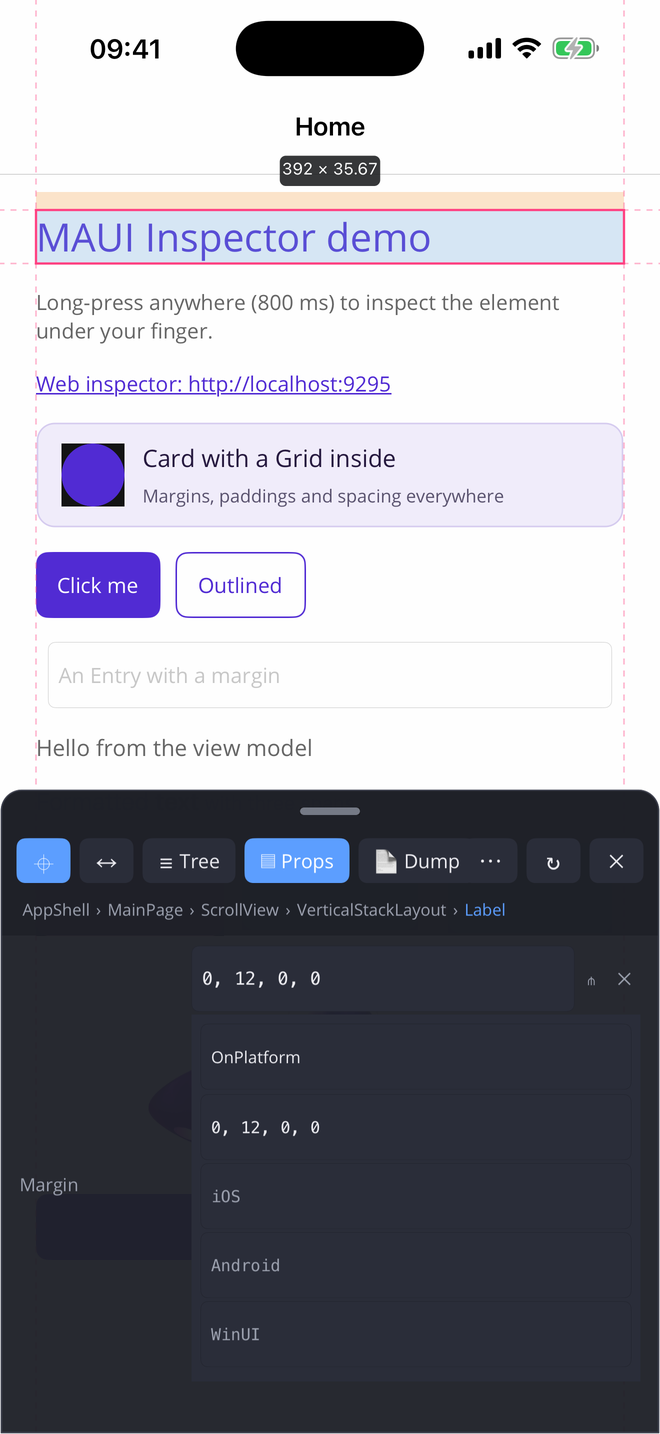 |
The on-device panel is feature-matched with the web one: live editors with ⋔ per-platform /
per-idiom composer, ✕ clear, ⛓︎/⋔︎ badges for bound and per-device values, and a ⋯ row with
Guides, XAML write-back, Perf and Slow toggles.