Repository navigation
Phone Remote Control
English | Deutsch
You are standing at the machine and the computer with ortino.CAM is out of reach? With your phone you see what the machine is doing, move it in small steps to a spot (for example to set up the workpiece), set the work zero in X and Y, and stop it.
Honest about the status: According to feedback from the operator, stop, jogging (X, Y and Z, up and down) and setting the work zeros are confirmed on a real machine (Ultimate Bee with xPRO V5, with one phone on Wi-Fi). Not confirmed individually are pause and resume, the display of position and progress, several paired phones, and other phones and browsers (which phone and which browser were used was not recorded). Everything else is checked against the simulator and automatic tests.
The connection is not encrypted. Use the remote control only in your own, trusted Wi-Fi, only on a machine with a reachable emergency stop, and switch it off when you do not need it. The stop button on the phone does not replace the emergency stop and is never the only safeguard. See the disclaimer.
- Switch on: step “Cut” → card Phone remote → switch on. When the program starts it is always off, and nothing is saved. The card exists only in the desktop program.
-
Check the Wi-Fi: Phone and computer must be in the same local network. If the displayed address is wrong (several network cards, VPN), enter the IPv4 address of your computer on the Wi-Fi under “Change address” (private addresses only, such as
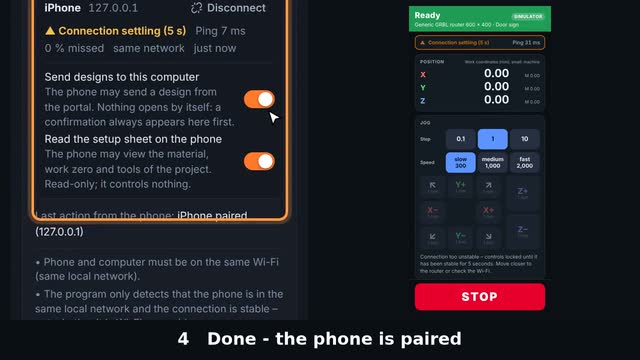
192.168.x.x). - Pair: Scan the QR code on the card with the phone's camera and open the link. The page pairs itself. The code is valid once and for five minutes. After that the card shows a new one by itself, or you click “New code”.
- Firewall: If Windows asks about the firewall the first time you switch it on, allow access for private networks only.
Up to four phones can be paired. The card lists them with the connection quality. “Disconnect” makes a device worthless at once, “Disconnect all” ends all pairings. When you switch off and when you quit ortino.CAM, all pairings are gone. The next time you switch it on, you pair again.
| May | Details |
|---|---|
| View | State (ready, cutting, paused, alarm …), positions, feed rate, spindle speed, progress of the program |
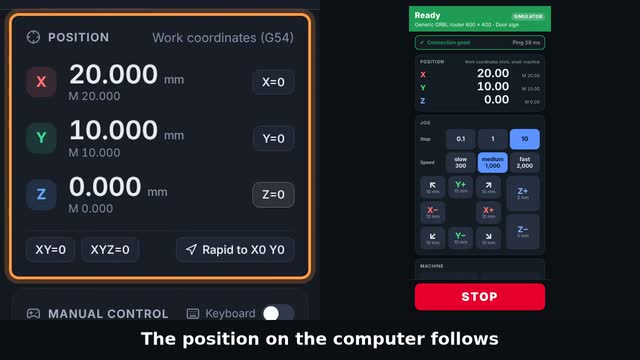
| Jog | X, Y and Z individually, in X and Y also diagonally (the four arrows in the corners of the cross: both axes move the same step, so exactly 45°; Z always moves alone). Steps in XY 0.1 / 1 / 10 mm, in Z 0.1 / 1 / 5 mm. Speed slow (300), medium (1000), fast (2000 mm/min), never above the limit of your machine. No continuous jogging: Every tap is a limited distance. Only when idle. |
| Cancel a move | at any time |
| Set work zero X and Y | only when idle, with a confirmation on the phone |
| Pause, Resume, Stop | The red stop button is always visible. “Resume” does not work while a tool change is waiting at the computer. |
| Spindle off | switch off only, never on |
Expressly not: start a program, homing, probing, clear an alarm, switch on the spindle, set the Z zero, move to a position, free-form G-code lines, tool change, change the project. These are deliberate limits. They stay at the computer, where the start check runs. From the phone the server accepts only the seven kinds of commands named above and checks every value.
Since 0.8.0 the remote control has two further rights that are meant for the upcoming phone app. There is no app yet that uses them; they have only been checked with tests and the simulator, not with a real phone.
- Send a design to this computer: The phone can send a link to a design from the portal to the computer. Nothing opens by itself: A notice appears in the program (the window flashes), and it is opened only after your confirmation at the computer. At most 6 sends per minute and phone, at most 3 open notices.
- Read the setup sheet on the phone: Material, work zero, tools in order of use and clamping notes of the loaded project, read only. It controls nothing, and the app sets the ticks locally.
Both rights can be chosen for each paired phone on the card “Phone remote” and are allowed by default. The emergency stop rules and the limits above do not change because of this.
- Distance budget: Per phone, at most 60 mm of travel is allowed in every window of 5 seconds (a diagonal step counts with its diagonal: 10 mm diagonally is 14.1 mm), with a minimum gap of 250 ms between two steps. A few taps while setting up stay unthrottled. Anyone who keeps tapping beyond that gets “Too much distance in a short time”, and the command does not go to the machine. You move longer distances at the computer.
- Connection quality: The phone reports a “heartbeat” every half second. If the connection is unstable, the control (jogging, zero, resume) locks at once and only unlocks again when it has been good for 5 seconds without a break. Always allowed remain stop, cancel a move, pause, spindle off and the status. The thresholds are assumptions, not measurements.
- Failure during a move: If the heartbeat stays away for longer than 1.5 seconds, the program aborts the current move. A running program does not stop when the phone drops out.
-
Same network only: The program checks that the phone is in the same local network (same
/24network) and that the connection is stable. It cannot distinguish whether it is Wi-Fi or cable. If your phone is in a different address block of your home network, it is rejected.
Protected: no open port without you switching it on, a random port, pairing code with 128 bits (five minutes, once), access key with 256 bits (only in memory, in the phone after pairing), lockout after five failed attempts, protection against page requests from other websites. Administration (switching on and off, pairing) is reserved for the user interface. Claude, the local interface and scripts never reach it.
Not protected, and you must know this:
- No encryption. Anyone who can listen in on your Wi-Fi sees positions and commands and can capture the phone's access key.
- In a guest Wi-Fi or a network without device isolation, other people's devices are in the same address range. Use the remote control only where all devices are trusted.
- Whoever has the unlocked phone can control the machine, like the radio remote control of a machine. The access key stays valid in the phone until it is disconnected, the server is off, or the device was idle for eight hours.
- Pairing by QR code only proves that someone sees the screen. Anyone who photographs the code can pair. That is why there is the message “Phone paired” and the device list.
- A device in the same network can load the remote control server and block it temporarily, including the stop on the phone.
- The program cannot check where the machine is or who is standing in front of it.
The soft limits and alarms of the controller apply unchanged.
| Observation | Possible cause and solution |
|---|---|
| The phone cannot reach the address | Not on the same Wi-Fi. Windows firewall has blocked the program (allow the app, private networks only). Guest network with device isolation in the router. Wrong address: “Change address”. |
| The page loads, but pairing fails | Code expired or used: “New code” and scan again. Four devices already paired: disconnect one. “Too many failed attempts”: wait 60 seconds. |
| “No longer paired” | Disconnected, switched off or idle for eight hours: scan the QR code again. |
| Buttons locked, “Connection unstable” | Closer to the router, other Wi-Fi band. Free again after 5 seconds of good connection. |
| “Too much distance in a short time” | Wait a few seconds, move longer distances at the computer. |
| Buttons locked, “Program running” or “Alarm” | Jogging only works when idle. You clear an alarm at the computer. |
| Phone in a different address block | Put phone and computer in the same /24 network. |
Whether the page keeps transmitting in the phone's power-saving mode has not been investigated. It does not transmit in the background; the control then locks.
-
Pair the phone remote with a QR code · 19 s -
Jog the machine from your phone · 11 s
All videos: Videos.
- Milling on the machine
- Report security vulnerabilities in the remote control: please not as a public issue, but as described in the security policy.
- Reporting a test with a real phone and machine helps us a lot: Contributing and testing.