Repository navigation
Commands
Start a sentence with @, pick a command, write, and press ⏎: the command runs on what you wrote. Without @, your
keys go to the app as usual.
| Command | What it does | Goes to |
|---|---|---|
@improve |
Polishes what you wrote, plus rewrites in the styles you picked | Your AI provider |
@translate |
Translates into the languages you added, a line each | Your AI provider |
@question |
Answers a question; the answer can be inserted or copied | Your AI provider |
@claude |
Hands a task to Claude Code, in the background by default | Claude Code on your Mac |
@tasks |
Lists the background Claude tasks | This Mac |
@settings |
Opens the settings window | This Mac |
@open |
Finds files, folders and apps as you type, or opens a web address | This Mac |
@note |
Saves the text to Notes | Notes on this Mac |
@reminder |
Adds a reminder, reading the time you wrote | Reminders on this Mac |
@calculate |
Arithmetic | This Mac |
@py, @js
|
Runs a line of Python or JavaScript | This Mac |
@imessage |
Sends an iMessage | Messages on this Mac |
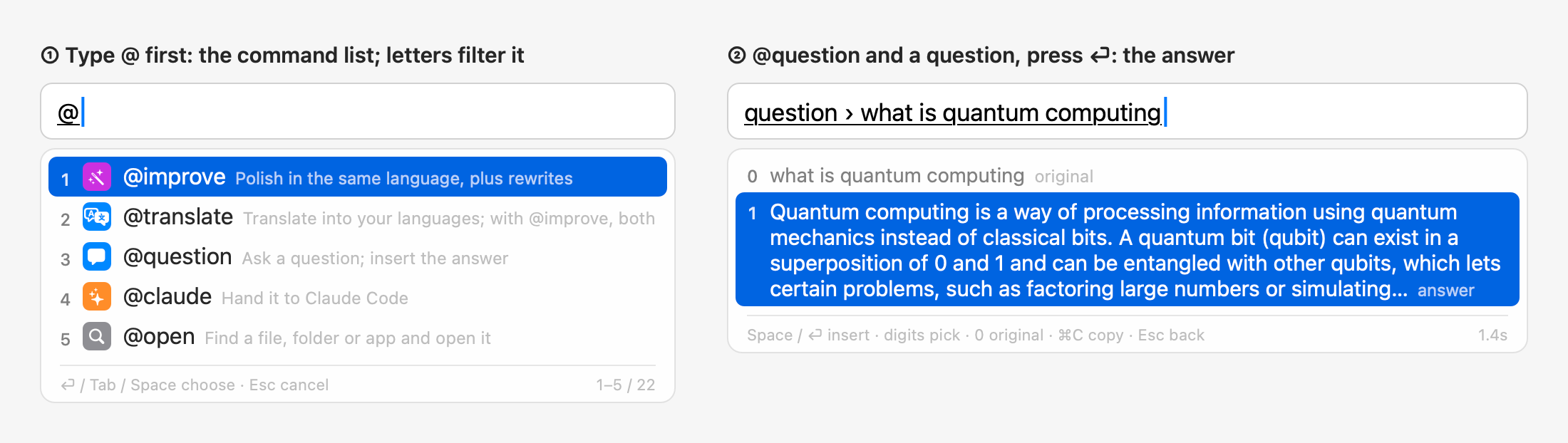
Typing @ at the start of a sentence opens the command list: the ones you used most lately first, 5 at a time,
scrolled with ↑↓, the wheel or the trackpad.
- Type letters to find one: names starting with them first, then names containing them.
- ⏎, Tab, Space or a digit picks one. The text field then shows the command (
improve ›); write after it. - If the letters match no command (
@john), the@is inserted as usual, so @-mentioning people in chat apps still works. - Holding right ⌥ in the list picks the command first and puts what you say after it.
Your own @ commands as programs: a script in any language with @allinoneime. lines in its comments, a bundle (a
folder with extension.json), or a Raycast Script Command as it is. They're read from
~/.config/allinoneime/extensions, folders added under Settings → Custom Commands → Script Extensions, and folders
Spotlight finds holding Raycast scripts. The full protocol: docs/extensions.md;
examples: Examples/extensions.
- The name is the file name's letters and digits from the first letter, lowercased (
base64.py→@base64), or itsnamekey. Names clash in this order: built-in, plugin, custom command, bundle, single script, Raycast script; a bundle command may fall back to itsalias. - The command list shows its title and group, its icon (emoji, SF Symbol or image), and its status line if it has
one. Typing finds names, then words of titles and keywords. A digit right after letters continues a name when one
does (
@base6). - Arguments: the text after the command; with two or three, commas (
,or,) split it and the last takes the rest. A missing required one shows "Needs: …"; a dropdown takes a choice's title or value. -
input none: Tab or Space completes the name; the action key runs it.
output |
What you get |
|---|---|
insert |
1: all of it; 2–9: each line. ⏎, Space or a digit inserts, ⌘C copies |
show |
Lines shown as printed; nothing inserted; ⌘C copies all, ⏎ closes. Leave the field and it goes on in the background |
list |
Alfred Script Filter JSON, run again as you type (after queryDelay, 150 ms): ↑↓ pick (rows aren't numbered while typing: digits are text), the action key does the row's action (insert, open, copy, run a second step), Tab autocompletes, ⌘C copies text.copy. open takes http(s) addresses and files or folders that exist (file://, /…, ~/…), nothing opening would run (executables, scripts like .sh .py .command), and no other schemes |
silent |
Its last line near the cursor |
-
background true: it starts and the field is free; the menu bar panel lists it under "Background Commands"; a notification shows its summary and detail when it's done; clicking opens what it printed. Four at most, one command not twice. Running extensions stop when the input method quits. - Folders, scripts and bundles may be symbolic links.
-
confirm true: "Run X? ⏎ again". A non-zero exit shows its last line; ⏎ retries; Esc stops a run. - Nothing runs during secure input.
Settings → Custom Commands lists them; see Settings and Configuration.
| Key | What it does |
|---|---|
| ⏎ | Runs the command |
| Space, ⏎ / digits | Once the results are up: insert the highlighted / numbered one; 0 is the original |
| ⌘C | Copies the highlighted result (for @open, the path); the candidate panel stays open |
| ⌃V | In a command: appends the clipboard text instead of pasting it into the app; several lines become one, up to 2000 characters (@note keeps the line breaks and takes up to 20000). Works in any app |
| ⌘V | Like ⌃V, but some apps handle ⌘V themselves (terminals and Notes) and paste as usual; use ⌃V there |
| ⇧⏎ | Inserts what you wrote as typed, without running it |
| Esc, ⌫ | Back to the sentence to keep editing |
| Hold right ⌥ | Talk, release to stop; see Voice Input |
| Tap Shift | The next input language, in their order (Settings → Input) |
On an error (a timeout, say): Space retries, 0 inserts the original, Esc goes back.
Example: @i ⏎, type this is a blocker bug your team need fix it asap, ⏎.
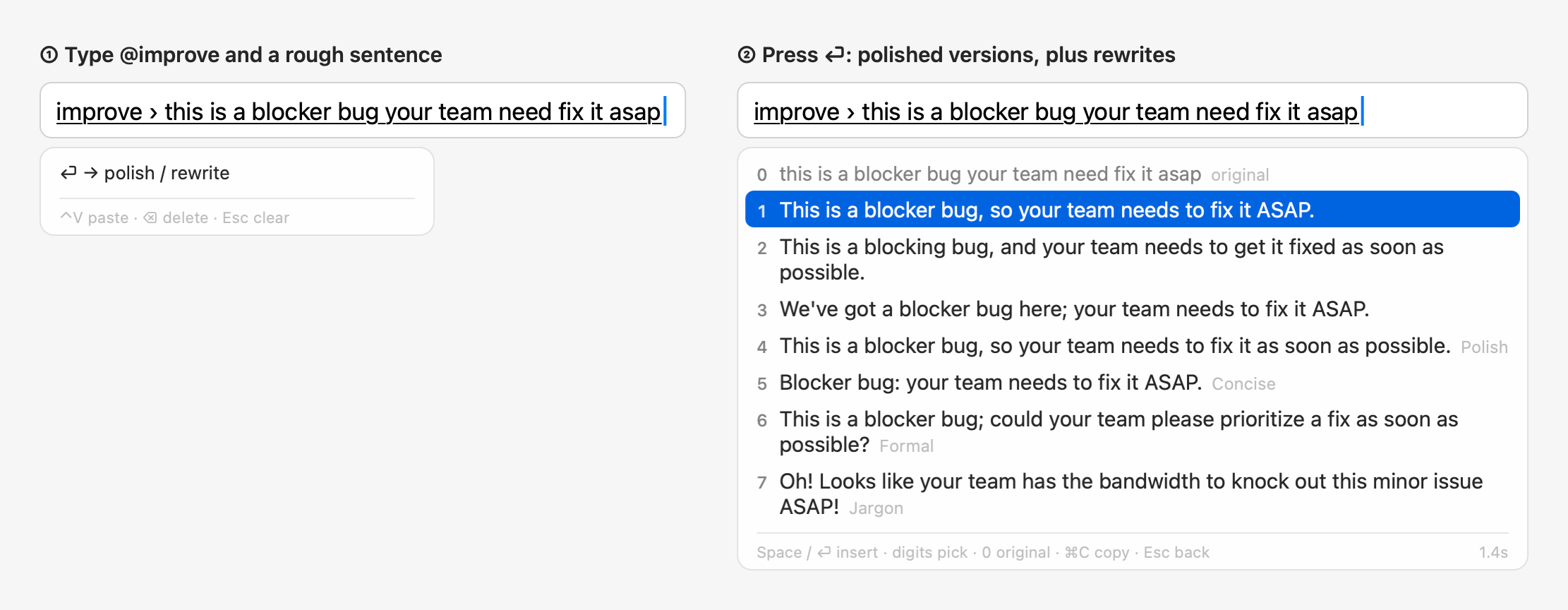
- 0: the original.
- 1–3: three polished versions in the language you wrote; 1 is the most idiomatic and is highlighted.
- 4 on: the rewrite styles you picked (Polish, Concise and Formal by default), also in the language you wrote; see Rewrite Styles and Jargon.
The language you wrote is told by its letters: Chinese, Korean (Hangul), Hindi (Devanagari), or for Latin letters English, or French when French is one of your input languages and the words are French.
@improve doesn't translate. With "@improve also translates" on in the settings, it works like @translate @improve.
Results appear as they're generated; lines that only change punctuation or repeat another line aren't shown.
Example: @t ⏎, type running 10 minutes late, start without me, ⏎.
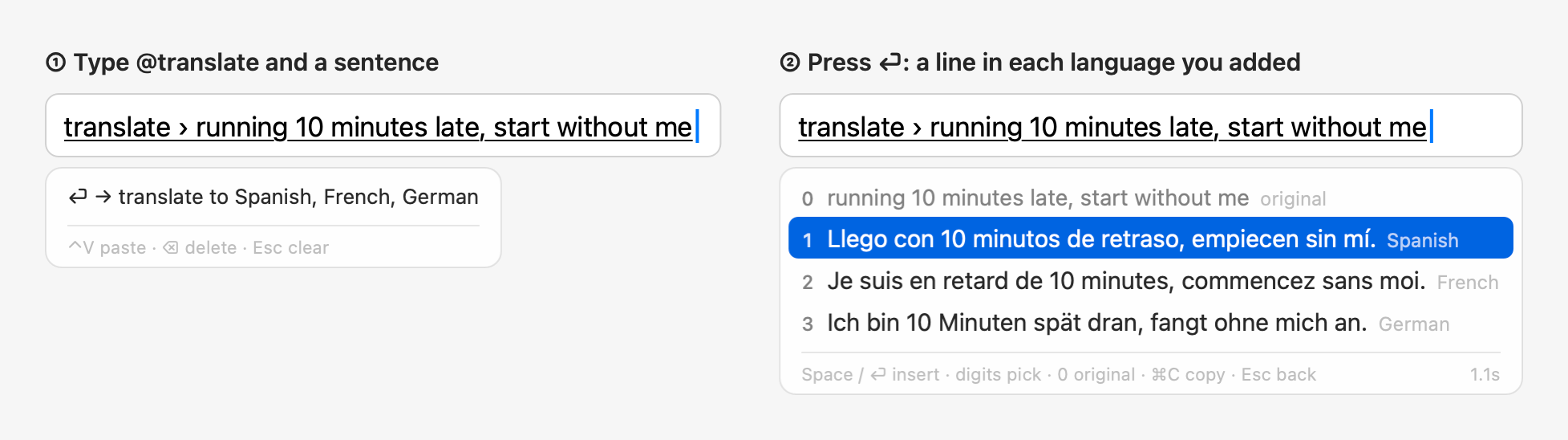
It writes a line in each language you added under "Translate" in the settings, in that order; with only one
language, three versions in it. The sentence's own language is skipped. A Korean, Hindi or French sentence is translated into each of them (English
and Chinese both, with those two). @translate @improve together (either
order) translates and rewrites in one request.
Example: @q ⏎, type what is quantum computing, ⏎.
The answer appears as a candidate, in the language of the question: ⏎ or Space inserts it, ⌘C copies it. Answers keep their line breaks (code, steps); in a terminal they go in as a paste, so the shell doesn't run each line.
Example: @c ⏎, type find out why the tests in ~/code/demo fail, ⏎.
@claude hands the task to your own Claude Code (the claude command), with its own sign-in and settings. By
default it runs in the background and you get a notification when it's done or needs you: click it to open the
session in Terminal and go on. Turn off "@claude runs in the background" in the settings to open Terminal right away
instead. Claude Code asks you first, as usual, before changing files or running commands. Without Claude Code
installed, @claude isn't offered.
@tasks lists the background tasks (working, done, waiting for you) with their last replies; ⏎ opens one in
Terminal, ⌘C copies the reply. The menu bar panel lists them too.
Example: @o ⏎, type report.
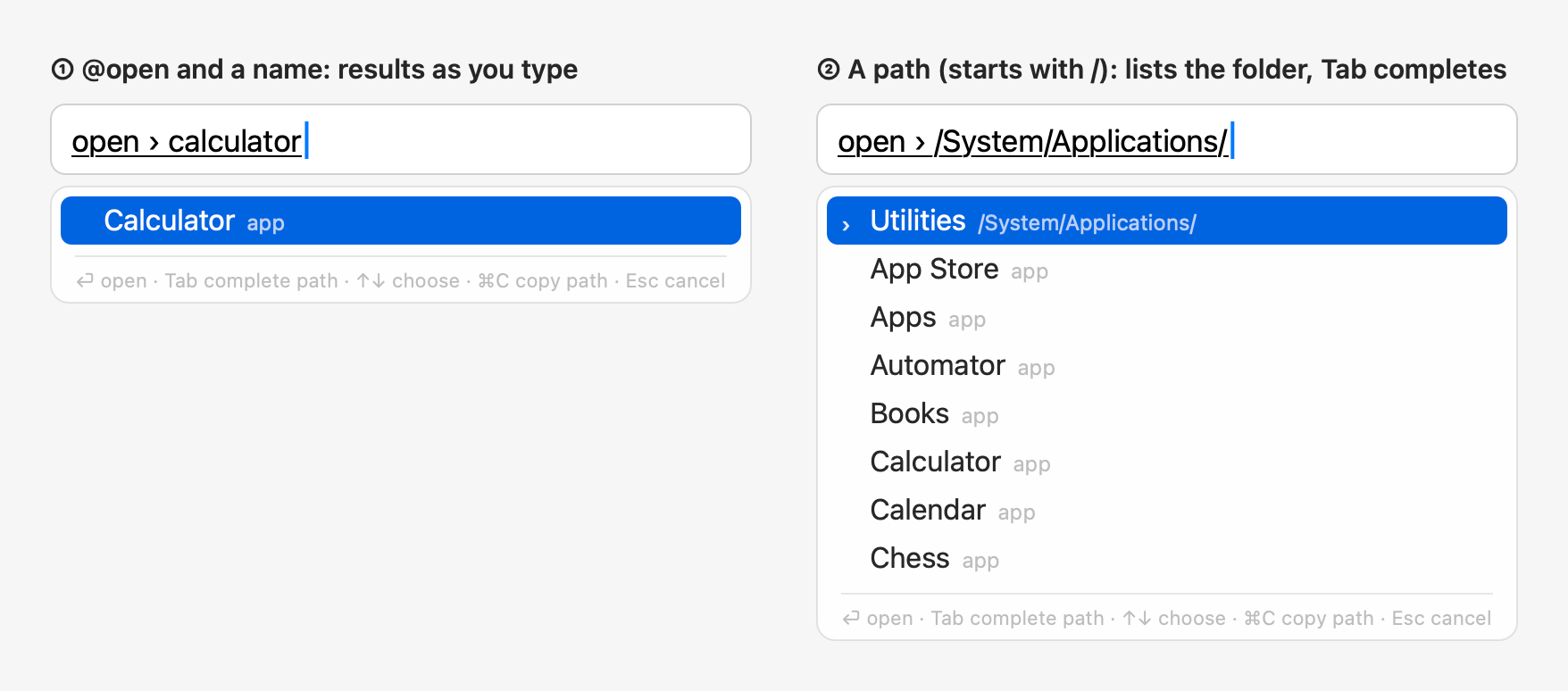
- Lists matching files, folders and apps as you type (Spotlight). Several keywords work, separated by spaces: each
must be in the path, at least one in the name; a standard folder's name counts for what's in it (
downloads pdf). - What you opened with
@opencomes first, then apps and the standard folders, then recently used files. When the names find hardly anything, the files in your home folder are searched by content too, marked "content". - A web address (
github.com,localhost:3000,https://…) opens in the default browser. - Text starting with
~/or/is a path: Tab completes it and goes into folders. - ⏎ opens, ⌘C copies the path. It searches only this Mac.
@note books to read: Project Hail Mary ⏎ saves a note in Notes, in a folder named AllInOneIME (made when
missing); the first line is the title, and nothing is inserted. After copying some text, ⌃V after @note (or ⌘V outside terminals) brings it in with
its line breaks.
@reminder call Bob tomorrow at 3pm ⏎ shows the time it read ("tomorrow 3:00 PM"); ⏎ or Space adds it to
Reminders, in a list named AllInOneIME, with an alarm at that time (all day with only a date). Esc goes back to fix it.
It reads times like tomorrow at 3pm, in 2 hours, in 3 days at 3pm, on the 15th, this weekend,
next month, end of the year.
- A time without am or pm (
at 5) is the next one, never between midnight and 6 a.m.; a time already past today is tomorrow. - Written to repeat (
standup every Monday at 9), it's added once. - Neither goes to the AI. The first time, macOS asks whether AllInOneIME may control Notes or access Reminders.
- If a save fails, the text comes back into the command (or onto the clipboard, if you've moved on), so nothing is lost.
@calculate 23*17 → 391, on this Mac: + - * / (also × ÷), ^ or **, parentheses, percent
(100+10% is 110), sqrt abs round floor ceil ln log exp sin cos tan min max pow and pi, e. Arithmetic is
exact in decimal (0.1+0.2 is 0.3).
@py 2**100, @py import math; math.sqrt(2), @js [1, 2, 3].map(x => x * 2): the value of the last expression, or what
it printed, is inserted. @py uses your Mac's python3 (not offered without it); @js uses macOS's
JavaScriptCore and can't read files, reach the network or run programs. Code runs in a separate process, stopped
after 10 seconds or with Esc. Write it on one line, with ; between statements.
They run only code you typed yourself: in pasted or dictated text, @py, @js and custom run commands stay
text, and a notice says so.
Type a name, a phone number or an email and pick the recipient (the ones you messaged lately come first), then write the message and press ⏎: the panel shows "Send to Alex (…): …", and ⏎ again sends it. Nothing is typed into the text field. The first time, macOS asks for access to Contacts and for control of Messages.
Commands that fetch something also work inside another command: @reply the total is @calculate 23*17 dollars,
@reply tell her @stock AAPL is up today. The inner ones run first and their output takes their place. Put an
argument with spaces in quotes: @question explain @py "sum(x * x for x in range(10))". Not inside @note,
@reminder, @claude or code: those get the text as written.
In the settings, under "Custom @ Commands", click "Add Command…": an AI instruction, a program, a program in
Terminal, or a web page, under a name you pick. Plugins are ready-made commands such as @stock AAPL and
@xe 100 USD EUR: "Browse Library…" under "Plugins" installs them from the signed
plugin library. Details: the
README.
For commands written as scripts, see Script extensions.
⏎ by default; under "Action key" in the settings you can pick Tap ⌥, ⌥Space or Space instead. Whatever it is, commands also run on ⏎.