Repository navigation
Voice Input
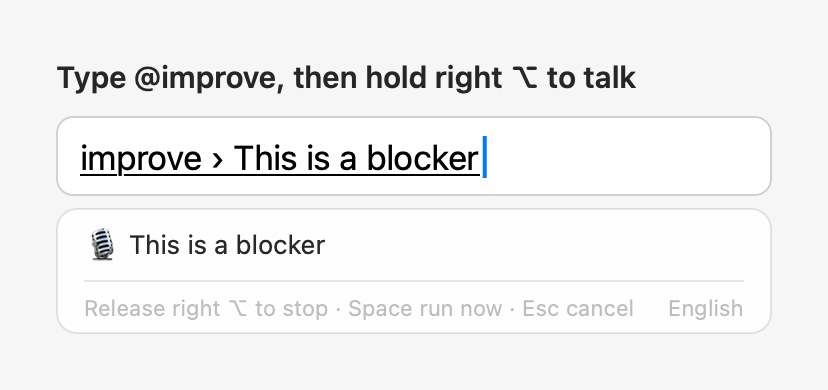
Hold right ⌥ to talk, release to stop. Recognition uses macOS's built-in SpeechAnalyzer and runs on this Mac; audio is never uploaded.
- macOS 26 or later. On older systems, this section of the settings only shows "Needs macOS 26 or later."
- Microphone access; see the table below.
- The speech model for the language: en_US in English mode, zh_CN in Chinese mode. macOS manages the models and all apps share them; one is downloaded automatically, once, the first time you use it. You can also click "Download (once)" under "Voice Input" in the settings beforehand.
- "Hold right ⌥ to talk, release to stop" turned on in the settings (
voiceInput, on by default).
| Where you speak | The recognized text |
|---|---|
| No command being written | Inserted when you release |
In a command (e.g. after @improve ) |
Added after it; press the action key to run |
- While you speak, the text shows live in the text field, and the candidate panel shows 🎙 and what it heard.
- The language you speak follows the current input mode: English in English mode, Chinese in Chinese mode (with both input languages, tap Shift to switch first).
- Spaces are added between English words automatically; pinyin you are still typing is picked first.
- Holding right ⌥ in the command list (e.g. after typing
@q) picks the command first, then records. - To run as soon as you finish speaking: in a command, press ⏎ without releasing right ⌥ (when the action key is ⏎), or Space (when the action key is ⌥Space). Recording stops, and the text is sent as soon as it is recognized.
- Released after less than about 0.2 s: nothing is recorded, and a notice says "Hold right ⌥ to talk". When the action key is "Tap ⌥", a quick tap runs the action.
- Another key pressed while holding right ⌥ (an ⌥ shortcut, ⌥←, etc.): treated as a shortcut, nothing is recorded.
- Pressing another key while recording cancels the recording. After you release and before recognition finishes, Esc cancels; any other key keeps what has been recognized so far.
- Where secure input is on, such as password fields: nothing is recorded, and a recording in progress stops. See Privacy.
If the result is slow to arrive after you release, it waits 5 seconds; while the text is still growing it keeps waiting, up to about 20 seconds, then keeps what it has heard.
| Notice | What to do |
|---|---|
| Allow the microphone in the dialog, then hold right ⌥ again | First use: choose Allow in the system dialog |
| No microphone access: System Settings → Privacy & Security → Microphone → turn on AllInOneIME | Denied before; turn it on as the notice says, or click "Denied: Open System Settings" in the settings |
| First use: downloading the English speech model. You'll be told when it's ready | Wait for the download; then it says "English speech model ready: hold right ⌥ to talk" |
| Downloading the English speech model: …%. You'll be told when it's ready | The download isn't finished yet |
| Didn't catch that, try again | No text was recognized |
| No microphone available | Check the sound input device |
| Voice input needs macOS 26 or later | The system is too old |
To have macOS ask for microphone access again: tccutil reset Microphone com.aipinyin.inputmethod.AIPinyin.
Reinstalling and upgrading (including from AIPinyin) keep the access already granted, because the bundle ID is still com.aipinyin.inputmethod.AIPinyin.