Explorer
The Explorer panel is the primary navigation surface for a SERP project. It presents the full project model — specs, deployments, resolved services, and HMI components — as a hierarchical tree, and provides toolbar actions for the most common build, validation, and runtime tasks.
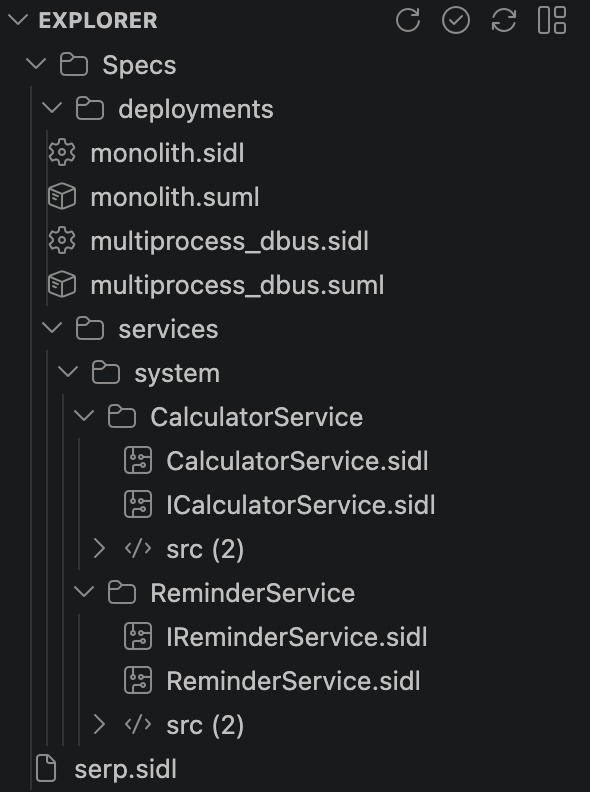
The Explorer appears automatically in the VS Code activity bar when a SERP workspace is open (detected by specs/serp.sidl). Click the SERP icon in the activity bar to reveal it. AI sessions live in a separate panel — see SERP AI Sessions.
The tree has four top-level branches (plus an Errors branch when diagnostics exist):
The raw spec tree, mirroring the specs/ directory: deployments/, services/<group>/<service>/. Each service folder shows its .sidl file, its owned interfaces' .sidl files, and — once Design Contracts are in use — the matching .design.yaml / .state.yaml files sitting right next to them.
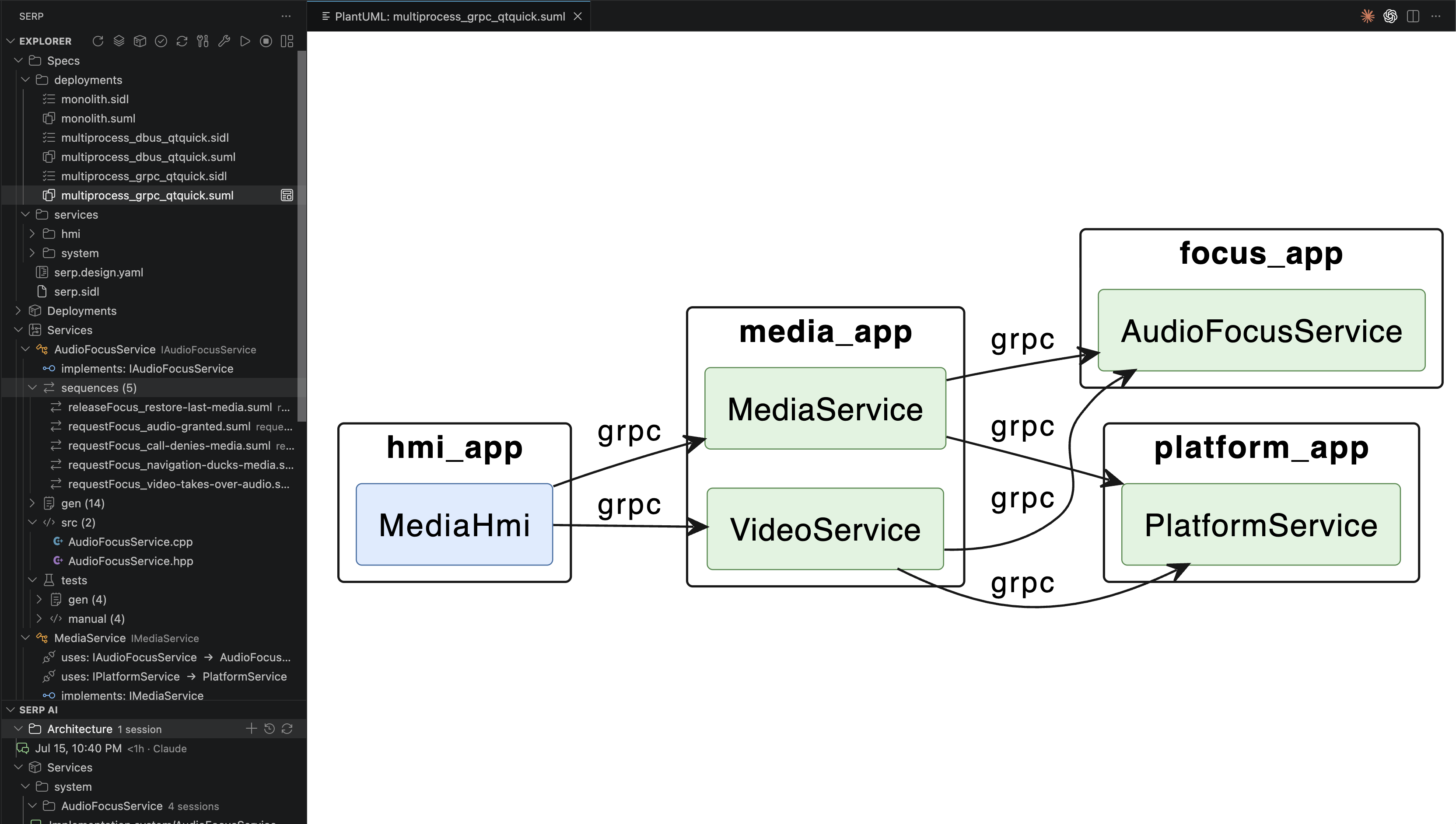
Every deployment defined in the spec, resolved and browsable — the active one is marked with →. Expanding a deployment shows its processes (which services each hosts) and clients, plus that deployment's generated app.cpp/CMakeLists/lifecycle files. This is also where you build, run, and stop — there's no separate "Active Deployment" branch; it's folded into this one.
Every service, resolved once, independent of any one deployment:
Services
└── AudioFocusService   IAudioFocusService
    ├── implements: IAudioFocusService
    ├── sequences (5)
    ├── gen (14)
    ├── src (2)
    │   ├── AudioFocusService.cpp
    │   └── AudioFocusService.hpp
    └── tests
        ├── gen (4)      ← generated component tests, one per sequence — see Test Engine
        └── manual (4)   ← your own hand-written tests
Each entry shows owned/used interfaces with provider mapping, its sequences, generated files, and both generated and hand-written tests under a dedicated tests folder.
HMI components get their own top-level branch, split out from Services — each HMI process shows its own src/gen, and each component under it shows its uses: mapping (interface → the service that implements it) plus its own generated and source files.
Refresh · Select Deployment · Select Build Profile · Validate Specs · Generate · Build · Clean Build · Run · Stop · Open Dashboard
Generate and Build honor the per-project testing preferences in SERP AI Settings: turning off "Generate tests during generation" skips generated sequence tests; turning on "Run tests after build" runs ctest against the active deployment automatically after a successful build.
Right-click a deployment: Diagram (inline) · Build · Clean Build · Run · Restart · Status · Set Active Deployment. (Opening the spec file is the node's default single-click action, not a separate menu item; there's no per-deployment Stop in the context menu — Stop is toolbar-only.)
Diagram renders the deployment's PlantUML topology inline, right in the editor:
Open Dashboard (toolbar, command serp.explorer.openGraph) opens an interactive connection graph: processes as cards with live CPU/MEM, services as clickable chips. Click a service chip for a detail panel with Open Impl / Open Session; click a process card for Start/Stop/Restart. See Architecture Dashboard for the full picture.
The extension watches specs/ for changes. Saving any spec file refreshes the tree automatically — no manual Refresh needed.
Running Validate Specs decorates affected tree nodes with error/warning icons and forwards full diagnostics to the VS Code Problems panel (Ctrl+Shift+M / Cmd+Shift+M).
- Architecture Dashboard — Live deployment view with process cards and dependency arrows
- Build Profiles — Choosing which runtime mode to build with
- SERP AI Sessions — Starting and managing scoped AI sessions from a service/HMI/deployment node
-
Design Contracts — the
.design.yaml/.state.yamlfiles shown next to specs - Test Engine — the generated vs. manual tests shown under each service