Explorer
The Explorer panel is the primary navigation surface for a SERP project. It presents the full project model — deployments, services, interfaces, and AI sessions — as a hierarchical tree, and provides toolbar actions for the most common build and validation tasks.
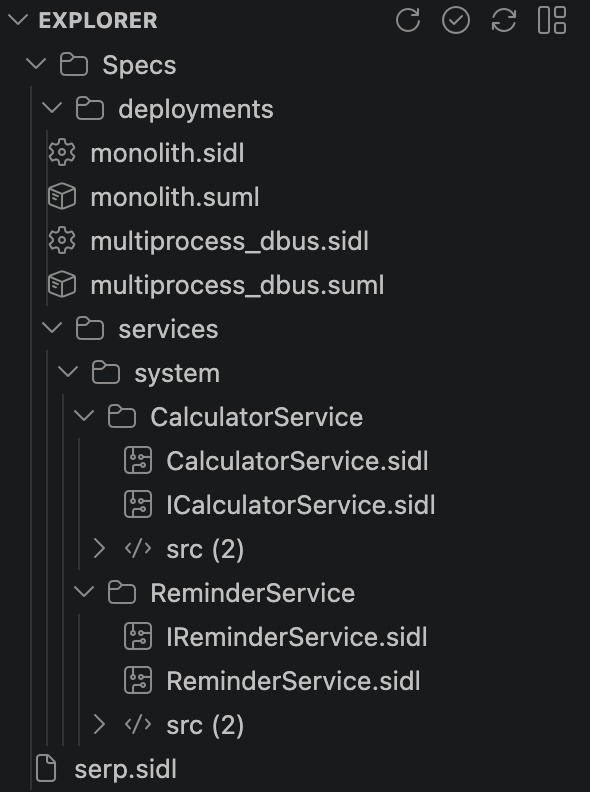
The Explorer appears automatically in the VS Code activity bar when a SERP workspace is open (detected by specs/serp.sidl). Click the SERP icon in the activity bar to reveal it.
The tree is organized into four top-level branches:
Lists every deployment defined in serp.sidl. Expanding a deployment shows its processes, and expanding a process shows the services that process hosts.
Deployments
└── MyApp
    ├── core-process
    │   ├── AudioService
    │   └── SettingsService
    └── hmi-process
        └── MainHMI
Lists all services defined across all spec files. Each service entry links to:
- Its
.sidl.yamlspec file - Its implementation file under
src/ - Its generated base class under
gen/
Lists all interface contracts defined in the workspace, with links to the corresponding .sidl.yaml files.
Lists all active AI sessions in the workspace. Each entry shows the session's role, the element it is scoped to, and its current status. See SERP AI Sessions for details.
The toolbar at the top of the Explorer panel provides the following actions:
| Action | Description |
|---|---|
| Refresh | Reload the project model from specs. Useful after editing .sidl.yaml files manually. |
| Validate | Run serpgen validate against all spec files. Errors and warnings appear inline in the tree and in the VS Code Problems panel. |
| Generate | Run serpgen generate-workspace to regenerate all source stubs and generated files, then refresh the tree. |
| Build | Build the active deployment using the selected build profile. |
| Run | Start all processes in the active deployment. |
| Stop | Stop all running processes in the active deployment. |
The same actions are available via keyboard shortcuts — see Plugin Overview.
The extension watches the specs/ directory for file changes. When any spec file is modified and saved, the project model is automatically refreshed and the tree updates without requiring a manual Refresh.
Clicking a service chip (either in the Explorer tree or in the Architecture Dashboard) opens the Service Detail Panel, which shows:
-
Interface — the interface the service implements, with a link to the
.sidl.yamlcontract file -
Implementation file — link to the source file under
src/ -
Generated base class — link to the generated file under
gen/ - Active AI sessions — any currently running AI sessions scoped to this service, with quick-start buttons
When Validate is run and serpgen reports errors, the affected tree nodes are decorated with error or warning icons. Clicking the node reveals the error detail. Full diagnostics are also forwarded to the VS Code Problems panel (Ctrl+Shift+M / Cmd+Shift+M).
- Architecture Dashboard — Live deployment view with process cards and dependency arrows
- Build Profiles — Choosing which runtime mode to build with
- SERP AI Sessions — Starting and managing scoped AI sessions