Repository navigation
Log Viewer
Home · Getting started · App settings
Simple Sys Log shows recent log entries on a Homey dashboard. You need Homey Pro, Homey v12.3.0 or newer, and Better Logic Library (BLL) running for the widget to read the file-backed log. The widget is not available on Homey Cloud. A dashboard widget is separate from the log grid in app settings.
- Write a test entry and check it in the app settings. If you already have entries, note the message of a recent one.
- Edit the Homey dashboard, add a widget, and select Simple Sys Log from Simple (Sys) Log. Start with Default for Design and Theme.
- Keep Using scroll on Android? off for the native viewer. Save the widget and confirm the test entry appears. For scrolling in the Homey Android app, use the Web widget setup instead.
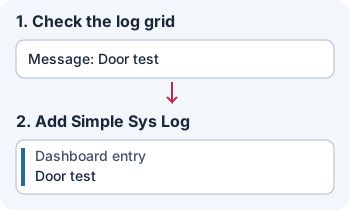
Illustration: confirm one entry in app settings before looking for it on the dashboard.
| Setting | Default and effect |
|---|---|
| Entries per page | 25. A positive whole number. Without paging, this caps the number of newest matching entries loaded. With paging, it is the page size. |
| Height (pixels) | 500; accepts 100–5000. The native list scrolls within this height while the toolbar stays at the top. |
| Light or dark mode | Automatic follows the dashboard. Choose Light or Dark to override it. |
| Design, Theme | Default for each. A design controls layout and typography; a theme controls colors. Create custom choices in the designer. |
| Date and time format | Uses the design's timestamp format unless you pick a BLL format here. You can also type a custom BLL format and select it. This does not change the day separator's format. |
| Search mode | Simple. Choose None to hide search or Advanced for combined terms. |
| Show filters | On. Turning it off hides and disables the interactive Level and Date filters, not search or the saved widget settings below. |
| Enable paging | Off. Adds Previous and Next below the entries when enabled. |
| Minimum severity | Debug shows all. For example, Warning shows Warning and more urgent levels by default. An explicit Level selection replaces this threshold until cleared. |
| Facility | All. Choose one category to restrict the list. |
| App / Group filter, Hostname filter | Blank matches all. Enter part of a name; matching ignores case. |
| Using scroll on Android? | Off. Enabling it replaces the native list with links for a Web widget. |
- Open the filter menu. Under Level, choose one or more exact severity levels. No selected levels means the widget uses Minimum severity again.
- Under Date, set From, To, or both. The bounds include the whole selected calendar days. Leave a bound empty for an open-ended range. For one day, choose the same date twice. Select real dates, no later than today, and do not put From after To. Clear the date range to show all dates again.
- Search for text such as
door opened. Search ignores case and checks message, app/group and hostname within the currently loaded entries. If you don't find an older entry, clear the search and narrow the dates or try another page, then search again.
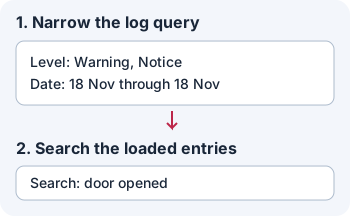
Illustration: Level and Date narrow the log query; search scans only the entries the widget loaded.
Level and Date apply to new entries as well as the initial view. They are
remembered per widget instance, independently of widget settings. With
Advanced search, use AND, OR, NOT, phrases in double quotes, and
parentheses. Adjacent words act like AND. For example:
("front door" OR garage) AND NOT test
Simple search treats the entire input as one text fragment. To search more than the current widget page, use the log grid.
Turn on Enable paging and choose a size such as 10 in Entries per page. With more than ten matching entries, Next opens older results and Previous returns toward newer results. Changing Level or Date returns you to the first page. Live entries are shown on the first page, not inserted into a page of older results. Without paging, the widget keeps only the configured number of matching newest entries. When new entries arrive at the top, the viewer follows them if you are near the top and otherwise tries to keep your current reading position.
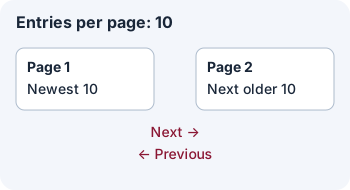
Illustration: Next moves to older entries; a new Level or Date filter starts the view at page one.
Next: make a custom design, import a TWF, or set up scrolling on Android.