Repository navigation
Widget Templates
Home · Widget designer · Log viewer widget
TWF stands for The Widget File. It is shareable text for a design, a theme or both. It does not contain your log entries, dashboard filter choices or Android links. Use the entire text from a SimpleSysLog / LogViewer template. The app accepts its v1 format, including text copied from a fenced code block; templates for other apps or widget families are not interchangeable.
- Copy a complete TWF, including its opening and closing markers. For a first test, create one yourself using the steps below.
- In Settings → Widgets, open Templates → Import, paste the TWF, then choose Read template.
- Review the design/theme and preview. Choose which parts to install when both are present. Give the imported items distinct names and Save.
- In the dashboard widget's settings, select the newly saved item under Design, Theme, or both. Check that the log still shows your entries.
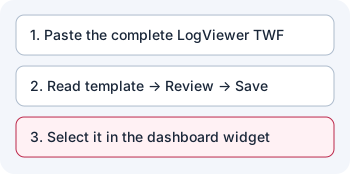
Illustration: importing adds choices to the designer; it does not switch an existing dashboard widget for you.
- Save any design or theme edits. Go to Templates → Export and select the design, theme, or both.
- Choose Create TWF and wait for preview generation. The preview images are light first, then dark, with example entries for all eight severity levels. They do not use your real log.
- Use Copy TWF to share only the template text. To share the illustrated forum post, use the automatic rich clipboard copy when it succeeds, or Copy post and images to retry. On insecure HTTP, automatic copy is skipped; follow the manual-copy instructions or reopen settings over HTTPS.
- To post when the exchange topic is accepting submissions, use the forum's rich-text editor, paste once, add a description if you like, and wait for both images to upload. Copying just the TWF replaces the copied forum post; copy the post again before using the forum shortcut.
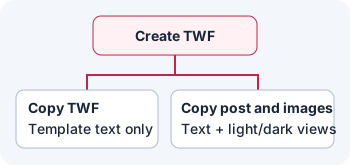
Illustration: copy the TWF for installation elsewhere, or copy the whole post to include the light and dark previews.
Open Templates inside the Templates screen. Search or sort the list, use favorites to keep track of a design you like, and toggle previews if you want a visual comparison. Use Refresh to reload community entries and open a template's source post for context. The app reads and validates templates from the Simple (Sys) Log exchange topic. An empty catalog can mean no valid templates have been posted; you can still export a TWF and import it directly. Follow the topic's posting guidance.
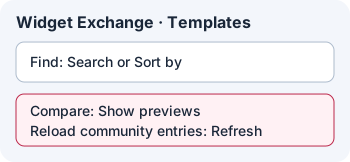
Illustration: search or sort the list, turn on previews to compare results, and refresh to check for new entries.
Next: apply the saved design or theme or troubleshoot a failed import.