Repository navigation
Getting Started
Setup takes a few minutes and you only do it once. You'll install the Mac app, allow a few permissions on both devices, and pair the phone.
- Download the latest Ekipad Host from the
Releases page (
.zipor.dmg). - Unzip it (or open the disk image) and move Ekipad Host to your Applications folder.
- Open it.
Ekipad Host needs macOS 14 or later. The virtual game controller needs macOS 15 (see Routes and Controller Modes).
Getting the link onto the Mac from your phone: Ekipad on the iPhone has a Send to Mac button (on the banner while no Mac is paired, and in Settings as Send Mac app link). It opens the share sheet, so you can AirDrop the download link straight to the Mac or send it to yourself with Messages or Mail.
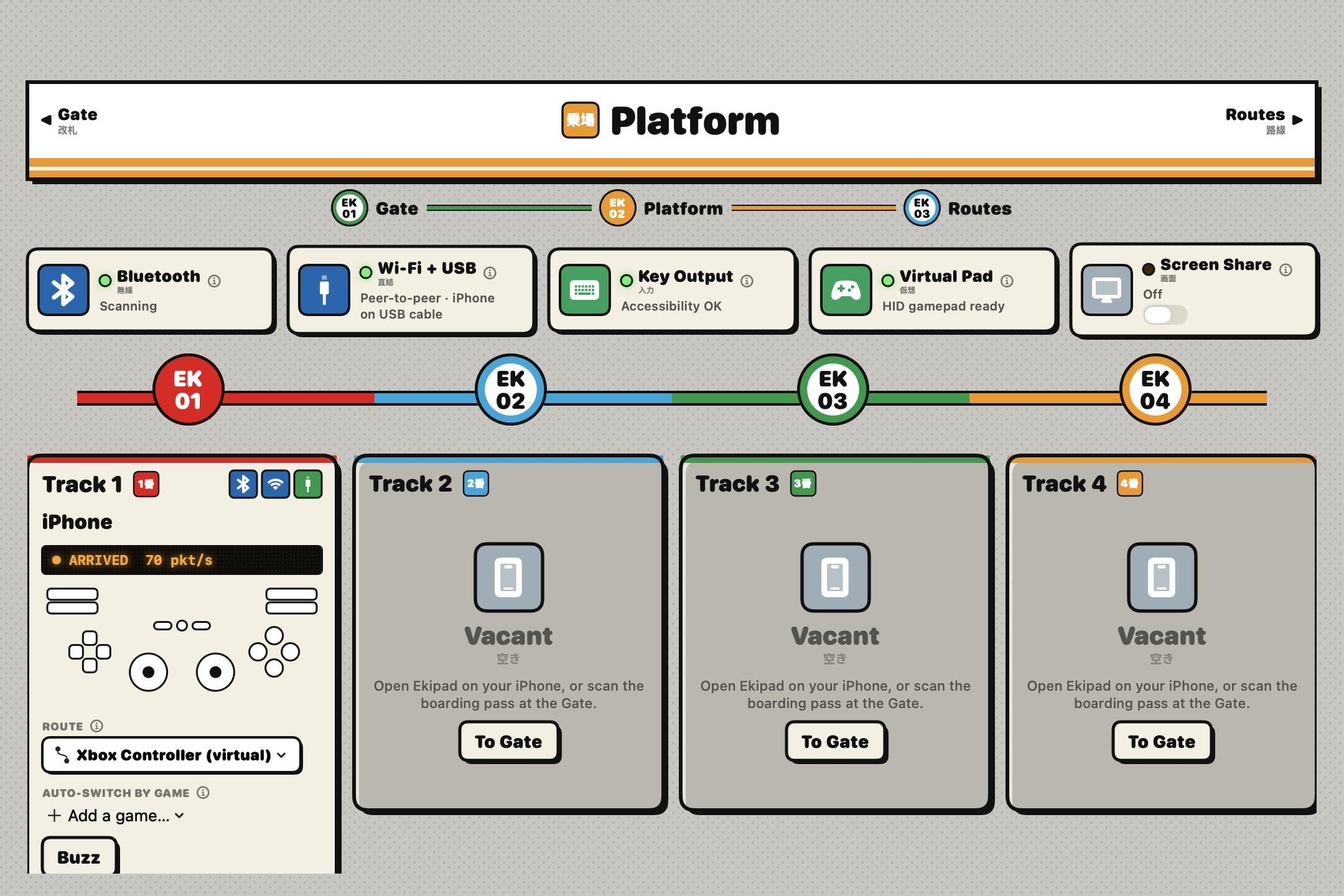
The first time you open Ekipad Host, a short tour rides along a line of six stops: Welcome, Gate (pairing), Platform (each phone's track and what it controls), Routes, Auto-switch by game, and One permission. The window flips to each page as you go. Replay it anytime from Help → Ekipad Tour or Show Tour in the menu bar.
After the tour, Ekipad Host explains the two permissions it needs to reach your phone (Two permissions to connect). Click Continue and allow both when macOS asks:
- Bluetooth finds your iPhone and receives its buttons without Wi-Fi. There's nothing to pair in System Settings: phones connect by themselves.
- Local Network talks to your iPhone over peer-to-peer Wi-Fi, and streams the screen when you ask.
Ekipad Host needs one more permission before it can press keys, move the mouse, or create the virtual controller. macOS calls it Accessibility; Ekipad Host calls it Key Output.
- In the status strip at the top of the window, the Key Output tile says Needs permission. Click Allow (the last tour stop has the same button).
- Click Open System Settings. It opens at Privacy & Security → Accessibility.
- Turn on Ekipad Host.
Within a couple of seconds the tile turns green and reads Accessibility OK. Ekipad only sends what your phone's buttons are mapped to; it never reads what you type.
Look for the controller icon in the menu bar (filled while a phone is connected). Closing the window doesn't quit the app, since a phone may still be playing. Turn on Open at Login in that menu to have it start with your Mac; it then starts quietly in the menu bar without opening the window.
Ekipad needs iOS 17 or later.
The first launch shows a four-stop tour: Welcome aboard, Connecting, Make it yours and Handy extras. The first stop has a button to send the Mac app link to your Mac. Tap Skip tour if you've seen it. Replay it from Settings → Device → Show tour.
Next, Ekipad explains its two permissions (Two permissions to connect). Tap Continue and allow both when iOS asks:
- Bluetooth connects to your Mac without Wi-Fi, so the controller works anywhere.
- Local Network finds your Mac over peer-to-peer Wi-Fi, the fastest wireless link, and receives screen sharing.
The camera is only requested later, if you choose to scan a pairing QR code.
With both apps open, the phone finds the Mac by itself. The first time, the Mac has to let it in. The quickest way: the phone shows up at the top of the Mac window, "iPhone is at the gate": click Allow.
That's it. The phone takes the first free track on the Mac's Platform page, and the phone's header shows the Mac's name. From now on it connects automatically whenever both apps are open. Other ways to pair (QR code, pictogram code) are on the Pairing page.
On the Mac's Platform page, each phone's card has a ROUTE menu that decides what the phone controls. If your Mac supports it, phones start on the virtual Xbox Controller, which most games understand. Otherwise they start on a keyboard route. See Routes and Controller Modes.
Keep Ekipad open and in front on the phone while you play. It closes its connections when it goes to the background, and reconnects when you come back. The screen doesn't auto-lock while Ekipad is open.
Tip: Every title with an ⓘ in either app explains itself when you tap or click it.