Repository navigation
Layouts
A layout (配置) is where the controls sit on the phone's screen. You can keep as many layouts as you like and edit every one of them. Layouts work without a Mac, so you can set them up anywhere.
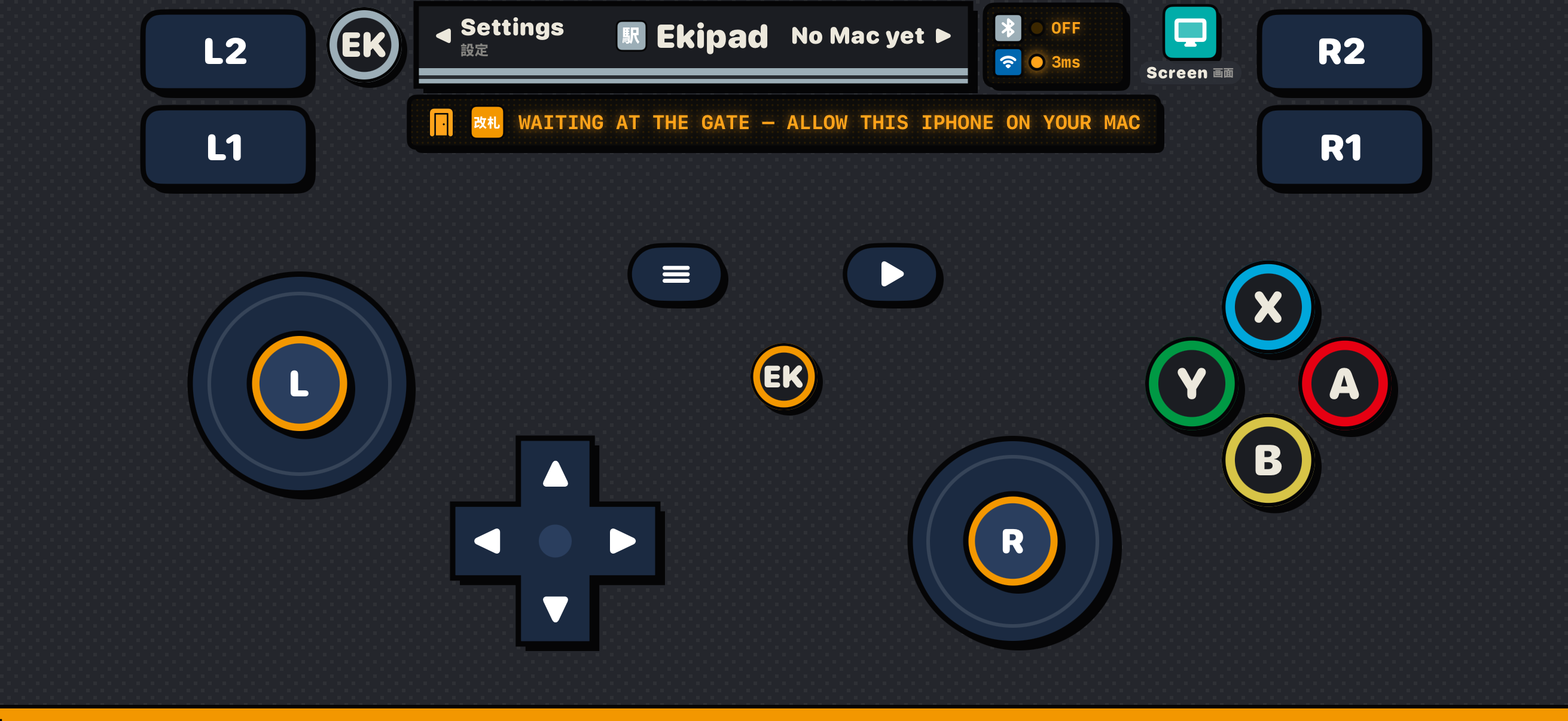
A layout can hold: two analog sticks (L STICK, R STICK), an 8-way D-PAD, the ABXY face buttons, L1, R1, L2, R2, START, SELECT and HOME. Two more are hidden in every preset until you add them: separate L3 and R3 buttons, and a TOUCHPAD square.
How they behave:
- Real multi-touch. Press as many controls at once as you have fingers.
- Slide between buttons. Roll your thumb from one button to the next, or start on empty space and slide onto a button, and it counts.
- Floating sticks. A stick centres itself wherever your thumb lands on it, so you don't have to hit the middle.
- Stick click (L3/R3): double-tap a stick and hold on the second tap. The click lasts as long as you hold, and you can still move the stick while clicking. (Or add the separate L3 and R3 buttons.)
- Touchpad: drag on it to move the Mac's pointer, tap it to click.
- Haptics: a light tap on every press (turn it off in Settings → Haptics).
- Deadzone: how far a stick has to move before it counts. Raise it in Settings → Deadzone if a stick drifts.
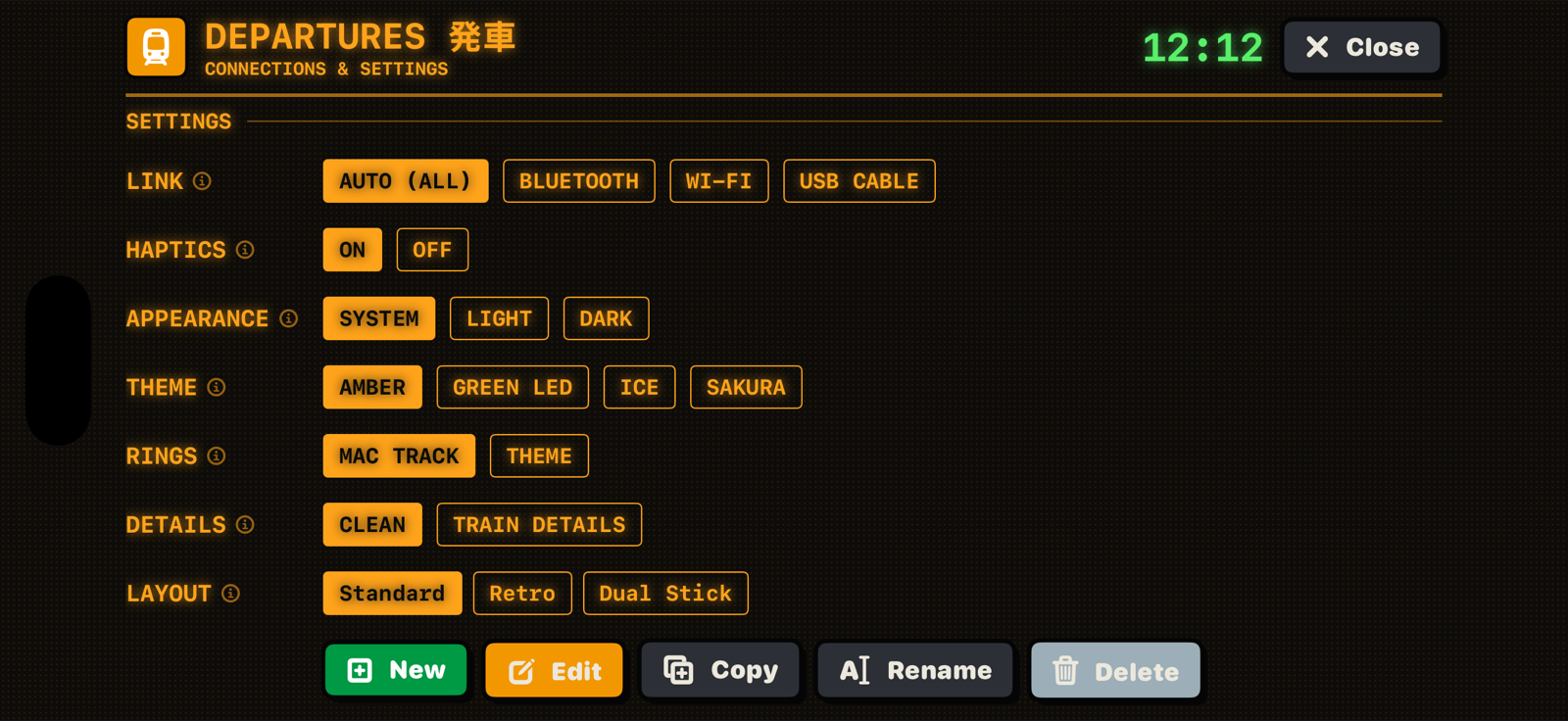
Open Settings (tap Settings on the left of the station sign) and look at the Layout row. Tap a layout to use it. The buttons under it:
| Button | Does |
|---|---|
| New | Makes a fresh layout from the Standard preset, named Layout and a number, and opens it in the editor |
| Edit | Opens the current layout in the editor |
| Copy | Duplicates the current layout (… Copy) and switches to the copy |
| Rename | Gives the current layout a new name |
| Delete | Deletes the current layout (you always keep at least one) |
Ekipad starts with three layouts, one per preset:
| Preset | Shows |
|---|---|
| Standard | Both sticks, D-pad, ABXY, L1/R1/L2/R2, Select, Start and Home |
| Retro | A large D-pad and face buttons, L1/R1, Select and Start. The sticks, L2/R2 and Home are hidden. |
| Dual Stick | Two large sticks on the sides, with a smaller D-pad and face buttons between them, plus shoulders, Select, Start and Home |
Every layout remembers which preset it came from. Reset in the editor puts it back to that preset.
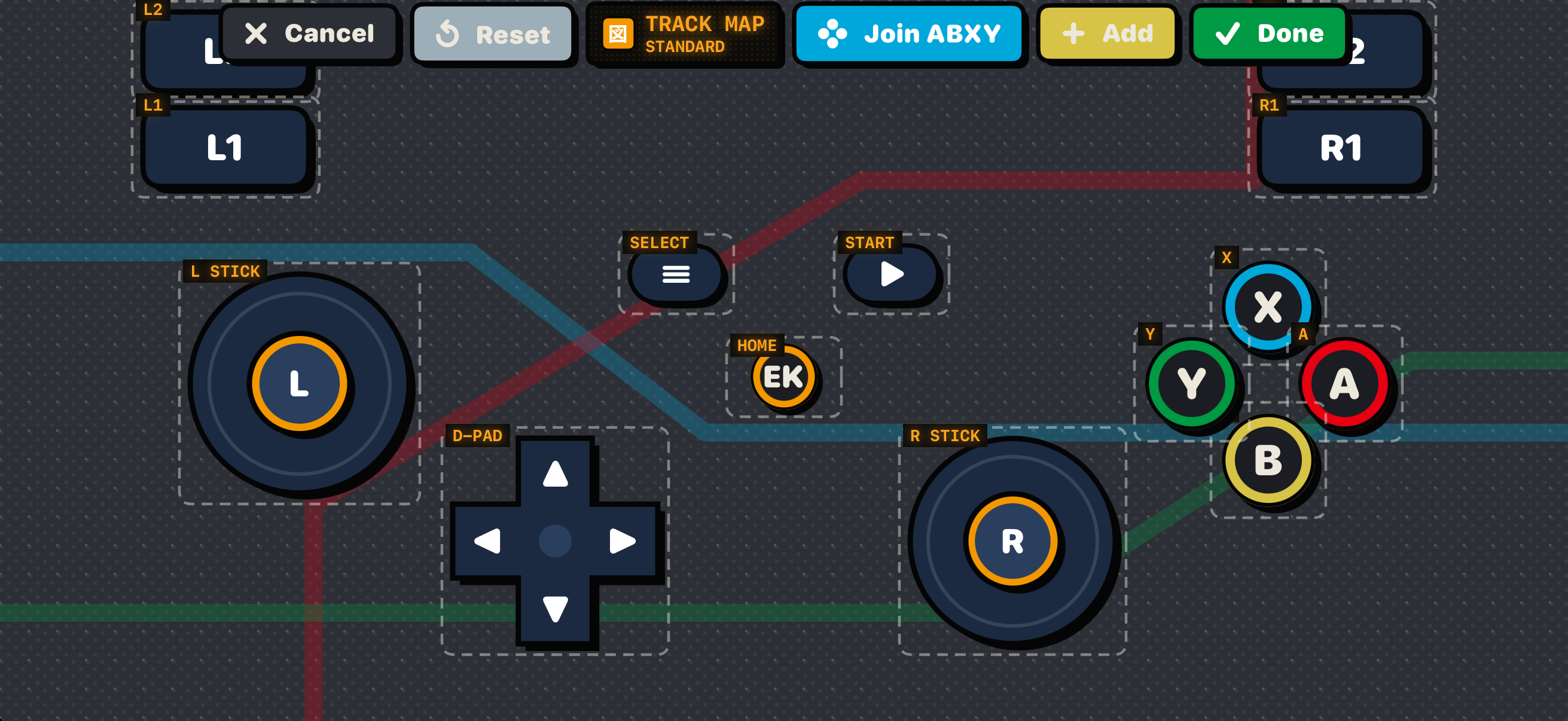
The editor shows your layout on a track map, with each control outlined and labelled.
- Move: drag a control. It snaps to a grid and can't leave the safe area, so nothing ends up under the notch or the rounded corners.
- Resize: pinch a control, or select it and use SIZE − / +.
- Fade: select a control and use OPACITY − / + (20% to 100%).
- Hide: select a control and tap HIDE.
- Add: the Add menu lists the hidden controls. Pick one to put it back on the map. (Everything is on the map means nothing is hidden.)
- Split / Join: Split turns the ABXY diamond into four separate buttons that you can place and size one by one. Join puts them back together.
- Reset (↺) returns the layout to its preset.
- Done (✓) saves the layout and makes it the active one. Cancel (✕) leaves without saving.
Tap a control to select it (its inspector appears under the toolbar) and tap empty space to deselect. While you drag a control under the toolbar, the toolbar fades so it never hides what you're placing.
Positions and sizes are stored relative to the screen, so the same layout fits every iPhone size cleanly.
These settings change how the pad looks (see Settings Reference):
- Appearance: SYSTEM, LIGHT or DARK.
- Theme: AMBER, GREEN LED, ICE or SAKURA, for the boards, lights and accents.
- Rings: MAC TRACK colours the rings around the sticks and buttons in your player colour from the Mac; THEME uses the theme colour.
- Details: CLEAN keeps the pad plain; TRAIN DETAILS adds panel seams, rivets and screws.