Repository navigation
Pairing
Pairing tells your Mac that a phone is allowed in, and tells the phone which Mac to trust. You do it once per phone. After that, the phone connects by itself whenever Ekipad and Ekipad Host are both open.
The Mac's Gate page (改札, the ticket gate) is where pairing happens. It shows the Boarding Pass (a QR code and a four-pictogram code), How to Board, and the Season Passes list of paired phones.
There are three ways to board. Use whichever is handy.
- Open Ekipad Host on the Mac and Ekipad on the iPhone.
- The phone finds the Mac and waits at the gate. The phone's banner blinks WAITING AT THE GATE — ALLOW THIS IPHONE ON YOUR MAC.
- On the Mac, a striped banner appears at the top of the window: "iPhone is at the gate · Not paired yet · let this iPhone board?" Click Allow.
You can also allow a waiting phone from the menu bar icon: Allow iPhone at the gate.
Clicking Deny turns the phone away (its banner reads THIS MAC TURNED THIS IPHONE AWAY — PAIR AGAIN), and the Mac ignores it for about ten minutes, whichever way it tries to pair. If you denied it by mistake, quit and reopen Ekipad Host to clear that.
The QR code on the Boarding Pass carries the Mac's key, so it's the most direct way to pair.
- With Ekipad: on the phone open Settings (tap Settings on the left of the station sign), then Pairing → Scan QR, and point it at the Mac's Boarding Pass. The board reads PAIRED WITH your Mac.
- With the iPhone Camera app: point the Camera at the code and tap the Ekipad link it offers.
The first time you tap Scan QR, Ekipad explains why it wants the camera: only to read the pairing code. Nothing is recorded or saved. If you'd rather not allow the camera, use the pictogram code.
The Mac's menu bar has Show Boarding Pass (QR) to jump straight to the code.
Under the QR code is a row of four pictograms, such as TRAIN · MOUNTAIN · FISH · BELL. There are twelve pictograms in all: Train, Mountain, Fish, Leaf, Sun, Moon, Umbrella, Star, Boat, Plane, Tea and Bell.
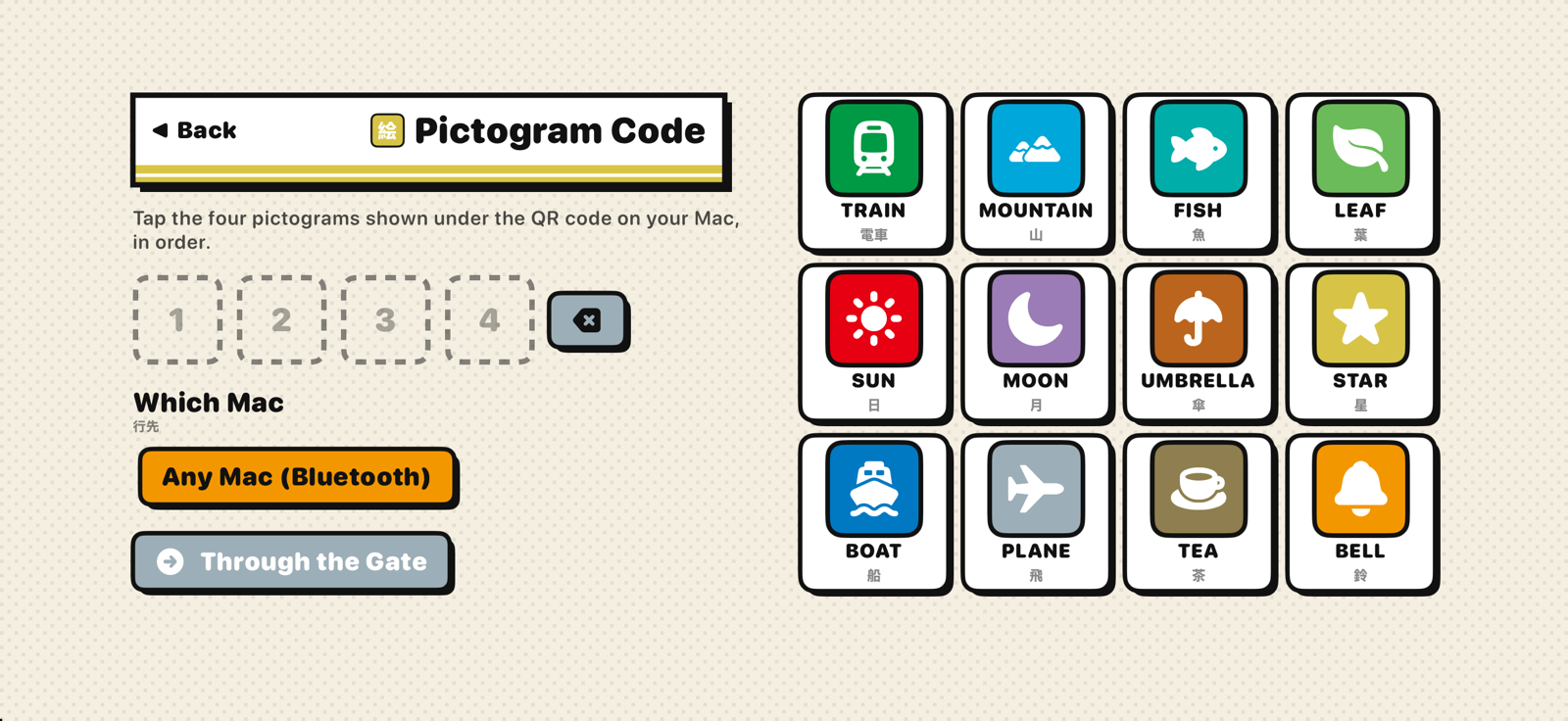
- On the phone open Settings → Pairing → Pictogram Code.
- Tap the four pictograms shown on your Mac, in order (the ⌫ button removes the last one).
- Under Which Mac, pick your Mac from the list, or leave Any Mac (Bluetooth) selected.
- Tap Through the Gate.
The code works over Wi-Fi or Bluetooth. Over Bluetooth, the phone proves it knows the code without sending it. If someone types a wrong code, the Mac's gate banner says Wrong pictogram code · let it board anyway?, and after too many wrong tries it says Too many wrong codes · locked for 30 s.
New Code on the Boarding Pass makes a fresh QR and pictogram code. Phones that are already paired keep working.
Each paired phone that's connected takes a free track on the Mac's Platform page: EK 01 to EK 04 (Track 1 to Track 4). Each track has its own player colour (red, blue, green, orange) and its own route, so up to four people can play at once. The phone's header shows its track number, and with Settings → Rings → MAC TRACK the rings around its sticks and buttons take the track colour, so everyone can tell whose controller is whose.
The SEASON PASSES 定期 board on the Gate page lists every paired phone, with ● for phones that are connected right now and ○ for the rest.
To remove a phone, click [REVOKE] next to it. It's disconnected straight away and has to pair again to come back. Revoking also changes the Boarding Pass code, so the old code can't be reused.
On the phone, Settings → Pairing shows the Mac it's paired with (★ and the Mac's name, plus its pictogram code). Once paired, the phone only connects over Wi-Fi to that Mac.
- Forget unpairs the phone. This only changes the phone: the Mac still lists it under Season Passes until you revoke it there.
- To switch to a different Mac, scan that Mac's QR code. It replaces the old pairing.
Each phone and each Mac has its own key, kept in the Keychain. Every connection starts with a challenge, and every input packet is signed, so nobody nearby can pretend to be your phone or your Mac. That's also why a phone must be let in once: by your click, by the QR code (which carries the Mac's key), or by the pictogram code.
If the phone ever shows THIS MAC'S KEY CHANGED — SCAN ITS QR CODE AGAIN, the Mac it remembers now presents a different key. Scan the QR code on the Mac's Gate page again to re-pair.