Repository navigation
Routes and Controller Modes
The phone sends buttons and sticks. Ekipad Host decides what they do on the Mac. Each phone has a route (路線), picked on the Mac:
- a virtual game controller, which games see as real controller hardware, or
- a keyboard & mouse route, which presses keys and moves the mouse, for games and apps that don't read controllers.
All of this happens on the Mac, in Ekipad Host. Ekipad needs Key Output (Accessibility) allowed for both kinds (see Getting Started).
On the Mac's Platform page, each connected phone has a track card. Its ROUTE menu has two sections:
| Section | Choices |
|---|---|
| Game controller | Xbox Controller (virtual) · Generic Gamepad (virtual) |
| Keyboard & mouse (types keys) | Every route on the Routes page: SW Port, Emulator P1, Emulator P2, WASD PC Game, Mouse, plus any you make |
The choice is remembered per phone. A phone that hasn't picked one starts on Xbox Controller (virtual) when the virtual controller works on this Mac. Otherwise Track 1 starts on Emulator P1, Track 2 on Emulator P2, and Tracks 3 and 4 on WASD PC Game.
The Buzz button on the card vibrates that phone, handy for telling phones apart. The card also shows a small live picture of the controller, so you can check that presses arrive.
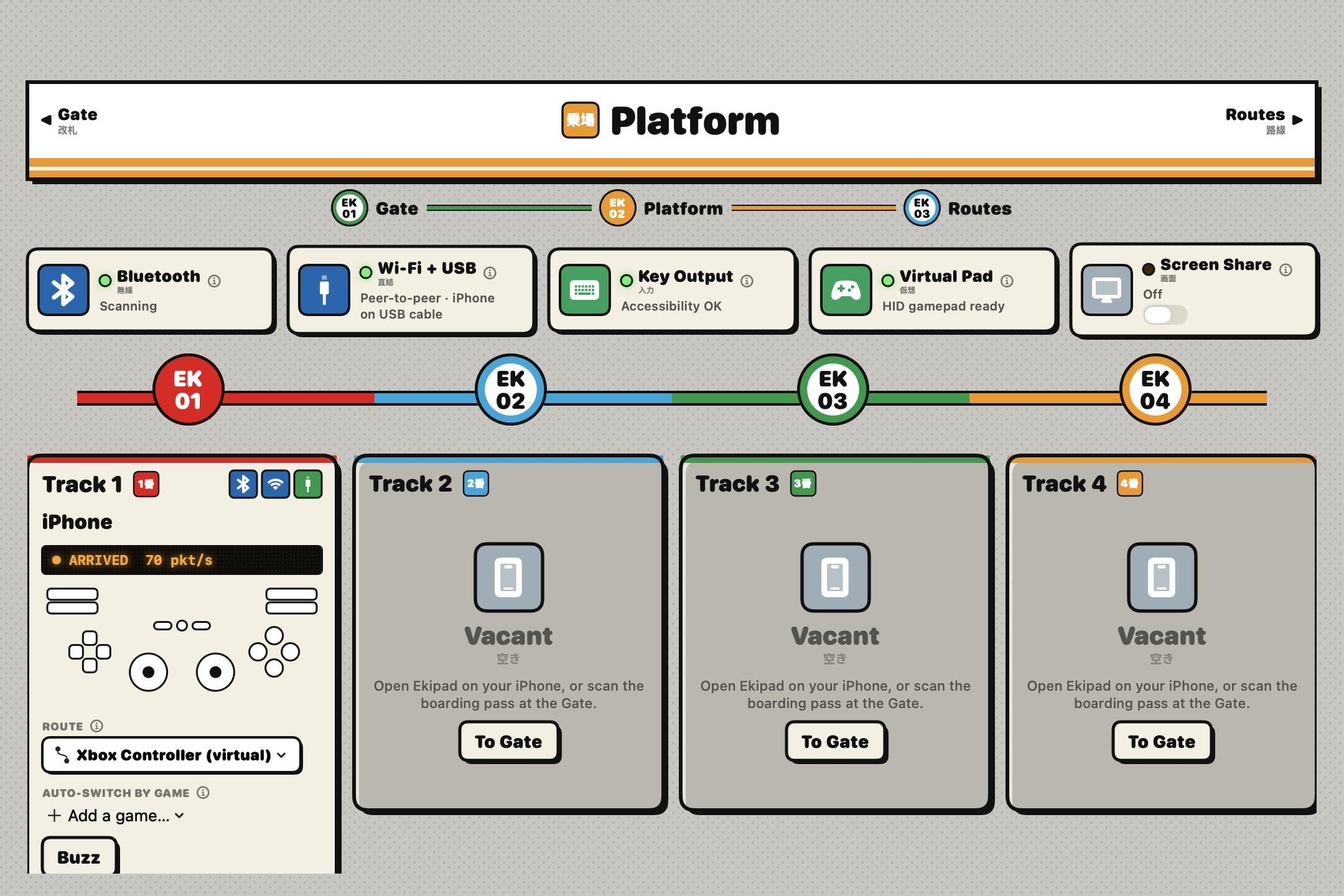
The Mac sees an Xbox Wireless Controller. Steam, SDL-based games, native ports, emulators and Apple's game controller support recognise it, so most games just work, including gamepad-only games. One virtual controller is created per phone. When a game rumbles the controller, the phone vibrates (with Settings → Haptics on).
Needs: macOS 15 or later, and Key Output allowed. The Virtual Pad tile in the Mac's status strip shows HID gamepad ready when it works. If it says Needs Key Output, click Allow there.
Face buttons map by position. Ekipad's face buttons follow the classic 1990s-console layout: A on the right, B at the bottom, X on top, Y on the left. On an Xbox controller A is at the bottom. Ekipad maps them by where they sit, so the button you physically press is the one the game shows:
| You press on Ekipad | The game sees |
|---|---|
| B (bottom) | A |
| A (right) | B |
| Y (left) | X |
| X (top) | Y |
Select, Start and Home arrive as the controller's View, Menu and Xbox buttons, and stick click (L3/R3) as stick presses. L2 and R2 are on/off: a press pulls the trigger all the way.
A plain game controller with no brand. SDL games, Steam and emulators read it, but Apple's game controller framework doesn't. Try it if a game or emulator misbehaves with the Xbox one. It has the same requirements.
A route turns each controller input into a key, a Shift+key combo, or a mouse click, and can turn each stick into direction keys, mouse movement or scrolling. Use one for games with keyboard controls, emulators set up for the keyboard, or browsing from the couch.
WASD PC Game: for PC games with keyboard and mouse controls.
| Input | Does |
|---|---|
| Left stick | W A S D |
| Right stick | Moves the mouse (mouse look) |
| A · B · X · Y | Space · C · R · E |
| L1 · R1 | Q · F |
| L2 · R2 | Right click · Left click |
| L3 · R3 | Shift · V |
| Start · Select | Esc · Tab |
| D-pad up · right · down · left | 1 · 2 · 3 · 4 |
Emulator P1: common emulator defaults for player 1. Bind them once in your emulator.
| Input | Does |
|---|---|
| D-pad and left stick | Arrow keys |
| A · B · X · Y | X · Z · S · A |
| L1 · R1 · L2 · R2 | Q · W · E · R |
| Start · Select · Home | Return · Right Shift · F1 |
Emulator P2: a second player on the same keyboard, with no overlap with P1.
| Input | Does |
|---|---|
| D-pad and left stick | I · K · J · L (up · down · left · right) |
| A · B · X · Y | N · B · H · G |
| L1 · R1 · L2 · R2 | T · Y · F · V |
| Start · Select | U · O |
Mouse: use the Mac with the sticks.
| Input | Does |
|---|---|
| Left stick | Moves the pointer |
| Right stick | Scrolls |
| A · B · X | Left click · Right click · Middle click |
| Y | Space |
| D-pad | Arrow keys |
| L1 · R1 | Page Up · Page Down |
| Start · Select | Return · Esc |
SW Port: a keyboard layout for native ports of console games that read the keyboard. Such ports usually read game controllers too, and the virtual Xbox controller is the better choice for them. This route is the keyboard fallback.
| Input | Does |
|---|---|
| Left stick | W A S D |
| Right stick | Shift + arrow keys |
| D-pad | Arrow keys |
| A · B · X · Y | J · K · U · I |
| L1 · R1 · L2 · R2 | Q · E · Z · C |
| L3 · R3 | F · G |
| Start · Select | Return · Tab |
The Routes page lists every route on the left (ROUTES 路線 · CONTROL PROFILES) and edits the selected one on the right.
- + New makes an empty route. Copy duplicates the selected one (a good way to start from a built-in). Reset puts the built-in routes back to their defaults. Delete (top right of the editor) removes the route you're editing; the last remaining route can't be deleted.
- Click the name to rename it, and pick a line colour from the row of dots.
- Left Stick / Right Stick: Keys (the stick presses the direction keys listed below it), Mouse (moves the pointer), Scroll, or Off.
- Pointer Speed (0.2× to 3×): how fast a stick in Mouse mode, and the phone's trackpad, move the pointer.
- To change a binding, click it, then press a key. Hold Shift while pressing a key for a Shift+key combo. A modifier key on its own (Shift, Control, Option, Command) binds when you let go of it. Right-click a binding to choose Left Click, Right Click or Middle Click, or Clear it.
Changes apply straight away to phones using that route.
Each phone can switch routes by itself depending on which app is in front on the Mac. For example: a racing game → Xbox Controller, an emulator → Emulator P1.
- On the phone's track card (Platform page), or in the AUTO-SWITCH BY GAME card on the Routes page, click Add a game….
- Pick one of the Running apps, or Choose an app… to pick one from Applications.
- A rule appears: When Game is open, use route. Choose the route from its menu. New rules start on the phone's current route.
Whenever that game is the app in front, the phone uses the rule's route. The rule shows is open ●, and the track card shows ▶ GAME ROUTE: GAME. Everywhere else the phone uses its normal route, whose menu is then labelled ROUTE (OTHER APPS). Clicking on Ekipad Host's own window doesn't count as switching apps. Remove a rule with its ⓧ button. Rules are kept per phone.
| Keyboard & mouse routes | Virtual controller | |
|---|---|---|
| Emulators | ✅ | ✅ |
| Native console-game ports | ✅ keyboard fallback (SW Port) | ✅ as a controller |
| Games with keyboard controls | ✅ one route per game | ✅ if they also take controllers |
| Gamepad-only games, Steam Input | ❌ | ✅ |
If a key ever seems stuck, choose Release all keys from the menu bar icon.