Repository navigation
Mouse and Screen
Besides being a game controller, the phone can be a trackpad for your Mac, and it can show the Mac's screen.
The Pad | Mouse switch on the phone's header picks what your thumbs control. The lit half is the mode you're in.
- Pad (操作): your game controller layout.
- Mouse (鼠): the Mouse layout, a trackpad for the Mac's pointer.
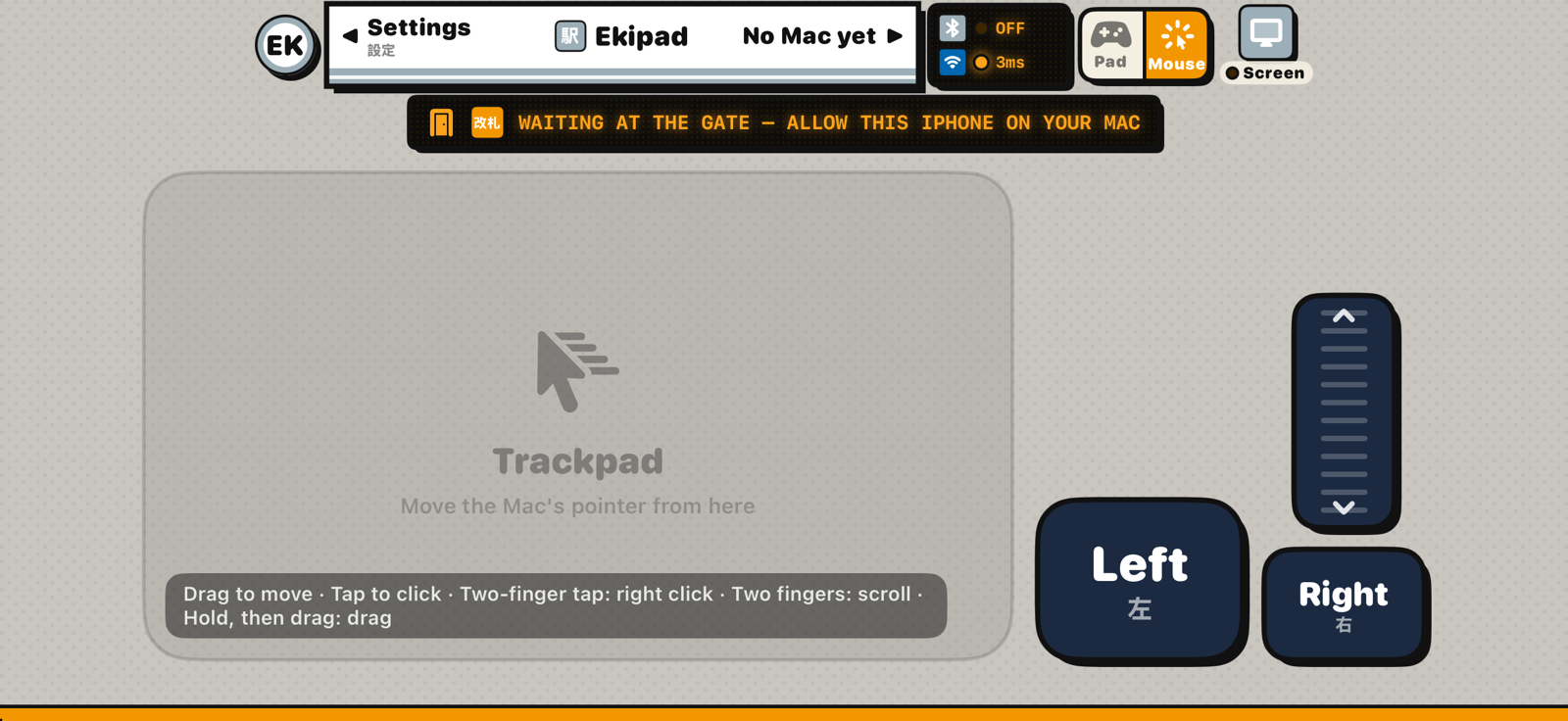
The whole screen tracks your finger, and on the right are big Left and Right click buttons and a scroll strip under your thumb.
| Gesture | Does |
|---|---|
| Drag one finger | Moves the pointer (faster swipes move it further) |
| Tap | Left click |
| Two-finger tap | Right click |
| Drag two fingers | Scroll |
| Press and hold, then drag | Drag with the button held (for moving windows or selecting text) |
| Left / Right buttons | Click, or hold one while the other thumb moves the pointer |
| Scroll strip | Drag up or down, like a scroll wheel |
The Mouse layout works with any route: the pointer moves no matter what the phone's route is.
Pointer speed: set it on the phone in Settings → Pointer (×0.5 to ×4). The Mac also multiplies it by the current route's Pointer Speed (see Routes and Controller Modes).
If gyro aiming is set to MOUSE, tilting the phone also moves the pointer while the Mouse layout is showing. See Gyro Aiming.
Screen mode streams the Mac's main display to the phone (low-latency H.264 video) over peer-to-peer Wi-Fi, so the phone needs Wi-Fi switched on. It only goes to your own paired phones that are connected right now, and you can switch it off on the Mac anytime.
- In the Mac's status strip, the Screen Share tile says Needs Screen Recording. Click Allow.
- Click Open System Settings. It opens at Privacy & Security → Screen & System Audio Recording. Turn on Ekipad Host.
- Back in Ekipad Host, the Screen Share tile now has a switch, which starts out on. The tile reads Ready.
While a phone is watching, the tile shows an arrow and that phone's name. Turn the switch off to stop sharing and block it.
Tap Screen on the header (its lamp lights and it reads Screen on). The Mac's display appears, and the phone switches to the Mouse layout, since screen sharing is mostly for using the Mac. Tap Screen again to turn it off; the phone goes back to the Pad.
To play over the picture instead, tap Pad while the screen is on: your controller layout appears on top of the Mac's screen. Settings → Overlay sets how see-through the controls are in Screen mode (15% to 100%; 55% to start with).
While the video connects, the phone shows what it's doing:
| Message | Means |
|---|---|
| LOOKING FOR YOUR MAC'S SCREEN | Searching for the Mac over Wi-Fi |
| CONNECTING TO SCREEN SHARING | Found it, starting the stream |
| SCREEN SHARING IS OFF OR NOT ALLOWED ON THIS MAC | The Screen Share switch is off, or Screen Recording isn't allowed. See above. |
| VIDEO ERROR | The stream failed. Turn Screen off and on again. |
Screen sharing stops when Ekipad goes to the background and resumes when you return to it.