Repository navigation
Customizing Homebase
Home is built from sections:
| Section | Shows |
|---|---|
| Jump back in | What you played or opened most recently, large |
| Pinned | Games and apps you pinned, in your order |
| Library | Your games |
| Apps | Your apps |
Settings → Customize Home turns sections on or off (A) and moves them up or down (◄ ►).
Highlight any game or app, press Start (or right-click), and choose:
- Pin to Home: adds it to the Pinned section.
- Pin to sidebar: adds it under the main tabs in the sidebar (up to four).
- Move left / Move right: reorders your pins.
Pins are per profile, so everyone gets their own Home.
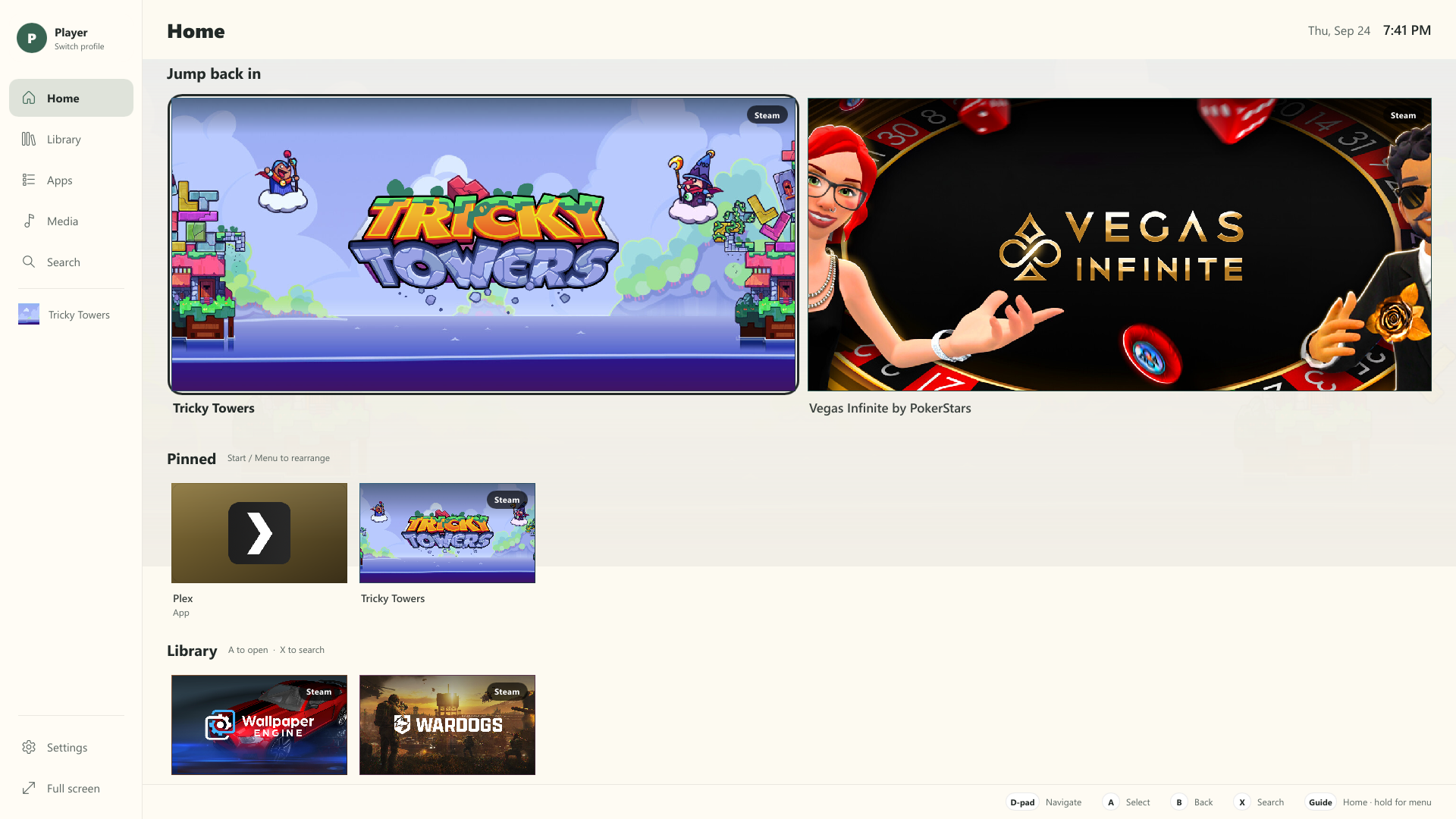
Three themes are built in: Midnight (deep blue), Graphite (neutral dark) and Linen (light). Pick one in Settings → Theme or in your profile. Themes are per profile.
More themes can be installed as .hbpkg packages; see
Building from Source.
- Text size: scales all text.
- Reduce motion: turns off animations.
- High contrast: stronger outlines and text.
- Homebase works with screen readers through Windows UI Automation.
Settings → Controller buttons remaps Select, Back, Search, Options and the section buttons, with Reset to defaults. See Controls.