Repository navigation
Filling and saving forms
PDF Tools fills AcroForm forms — text fields, checkboxes, radio buttons, drop-down lists and list boxes — and saves the values into the PDF file, like any other document you edit in VS Code.
A PDF with editable form fields opens in Fill mode (you can change this with pdfTools.default.mode, see Settings); the mode you pick for a file is remembered. Fields can be filled in every mode: Fill mode only adds the form tools.
- Highlight fields tints every fillable field; turn it off for a cleaner view.
- Previous / Next field (Tab and Shift+Tab also work inside the form).
- Next required empty field jumps to required fields that are still empty; the button shows how many are left.
- Clear form sets every field back to its default value (usually empty), after a confirmation.
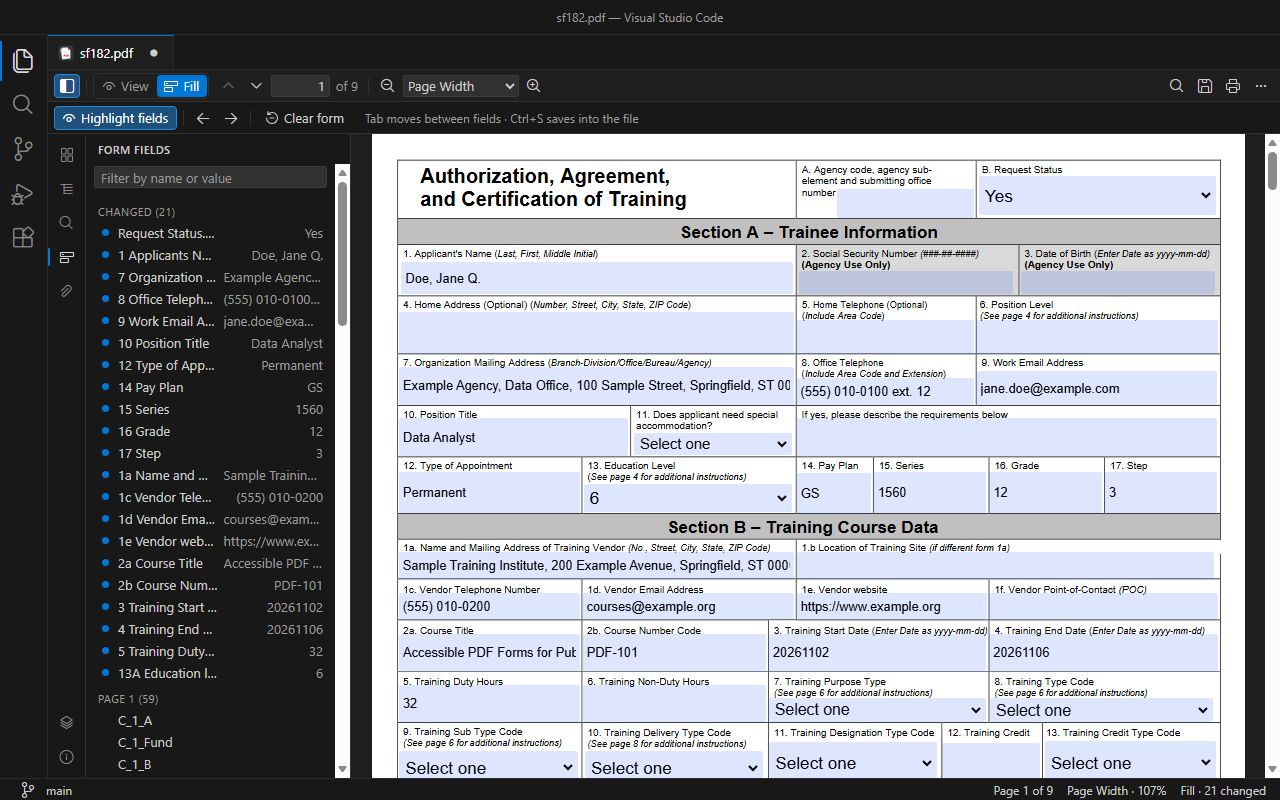
The sidebar's Form Fields panel lists every field with its value, grouped as:
- Changed — values you changed and have not saved yet;
- Required, empty;
- then by page.
Filter by field name or value; click a field to go to it.
- Save: the toolbar's Save button, Ctrl+S, or Save in the … menu. The tab shows the usual dot while there are unsaved changes, and auto save works.
- Save As… (Ctrl+Shift+S) writes a filled copy.
- File: Revert File discards unsaved values.
- Hot exit: unsaved values survive a VS Code restart.
Changes are written as an incremental update: the original content of the file is preserved byte for byte, and the values are appended.
Several editors on the same file stay in sync: a value typed in one appears in the other. When the file changes on disk, PDF Tools reloads it — or asks first if you have unsaved changes.
Export Form Data… and Import Form Data… (… menu, Form section) save all values to a JSON or XFDF file and load them into another copy of the same form — for example to fill a new copy of a sheet with last year's answers. See Exporting.
- XFA forms (dynamic forms made with Adobe LiveCycle/AEM Designer) are not supported: PDF Tools shows a warning. A PDF that contains both an XFA and a standard form is filled through the standard form.
-
Characters the field's font cannot encode. Many forms use the non-embedded Helvetica font, which covers Western European characters only. Values with other characters (for example
ōorū) are saved, but the field is marked to be redrawn by the viewer that opens the file (NeedAppearances). Viewers that honor it show the value; some simpler viewers may show the field empty until it is edited. - Signature fields cannot be signed.