Repository navigation
Getting started
- In VS Code: open the Extensions view (Ctrl+Shift+X), search for PDF Tools by Ryadel and click Install.
- From a terminal:
code --install-extension Ryadel.pdf-tools.
Requires VS Code 1.125 or later.
Open any .pdf file from the Explorer: PDF Tools is the default editor for PDFs. To use another editor for one file, right-click it and choose Open With….
If another PDF extension is installed (for example vscode-pdf), VS Code asks once which editor to use. Choose PDF Viewer (from PDF Tools) and confirm it as the default — see Troubleshooting and FAQ.
Toolbar, first row (always the same): sidebar, View/Fill mode switch (only for PDFs with a form), page navigation (the page box also accepts page labels such as iv), zoom, find, Save (enabled when there are unsaved changes), print, and the … menu.
Toolbar, second row: the tools of the current mode.
- View: fit to width, fit page, rotate, text selection or hand tool, scrolling (vertical, horizontal, wrapped, one page at a time) and spreads (none, odd, even).
- Fill: highlight fields, previous/next field, next required empty field, clear form. See Filling and saving forms.
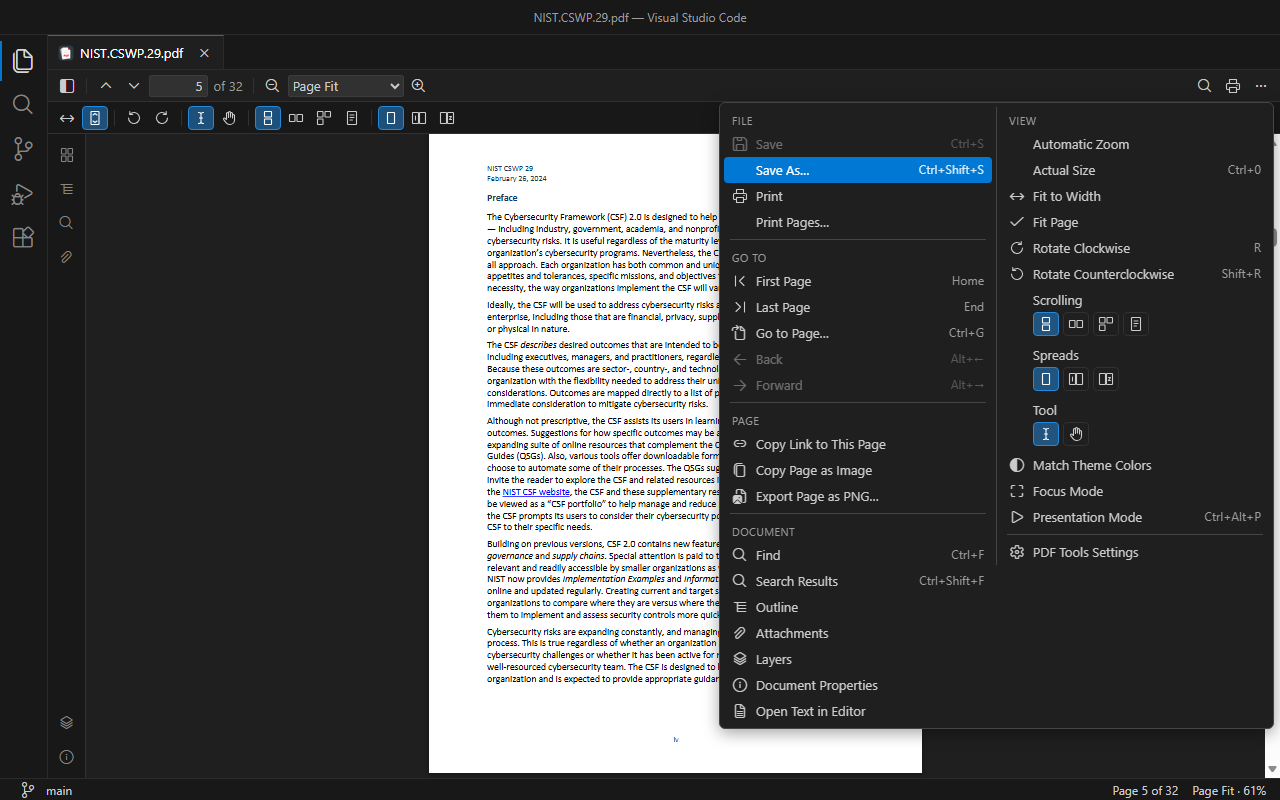
The … menu collects every action in two columns: File, Go to, Page, Document on the left; View and Form on the right.
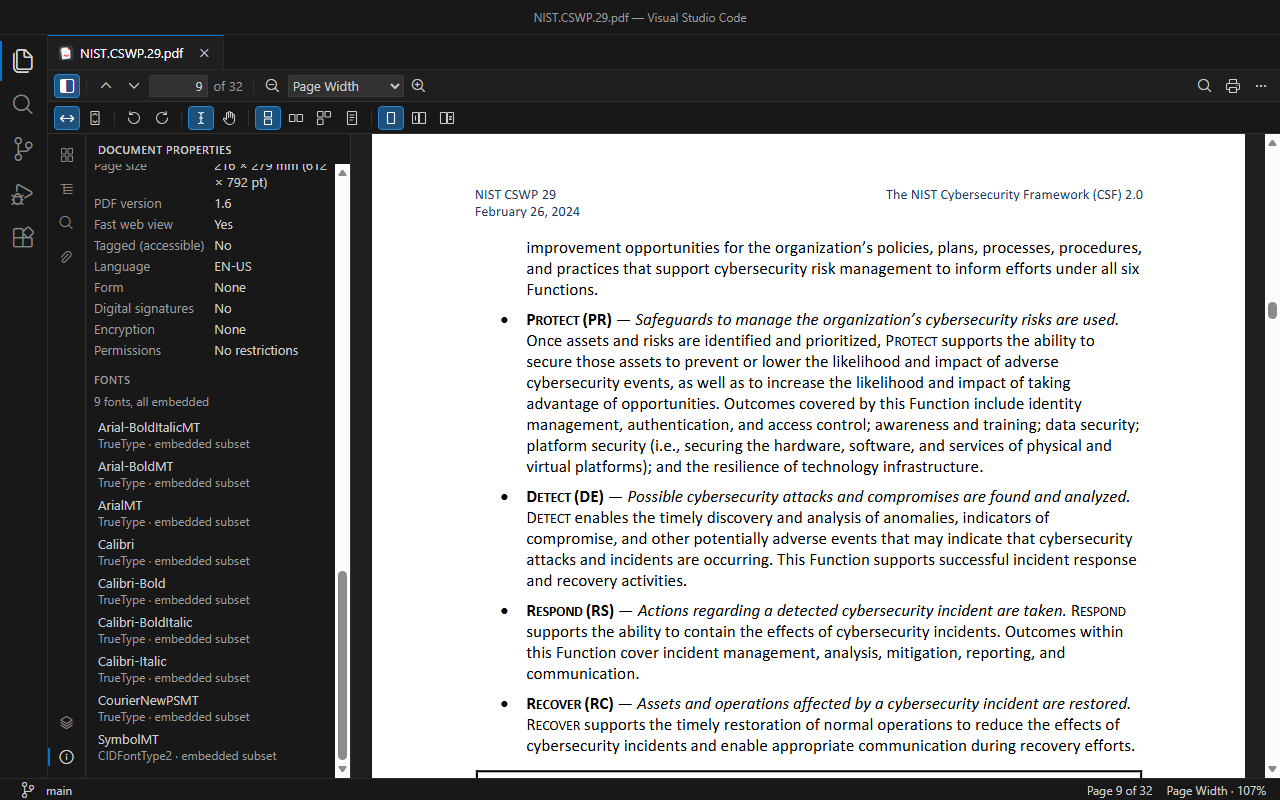
Sidebar (activity strip on the left): Pages (thumbnails), Outline (bookmarks, with a filter and Find Current Item), Search (every result with its context), Form Fields, Attachments (open in VS Code or save), Layers, Document Properties (including encryption, permissions and fonts).
Status bar: current page (click: Go to Page), zoom (click: zoom presets) and, for forms, the mode and the number of changed and required fields.
Every action is also in the Command Palette, under PDF Tools: ….
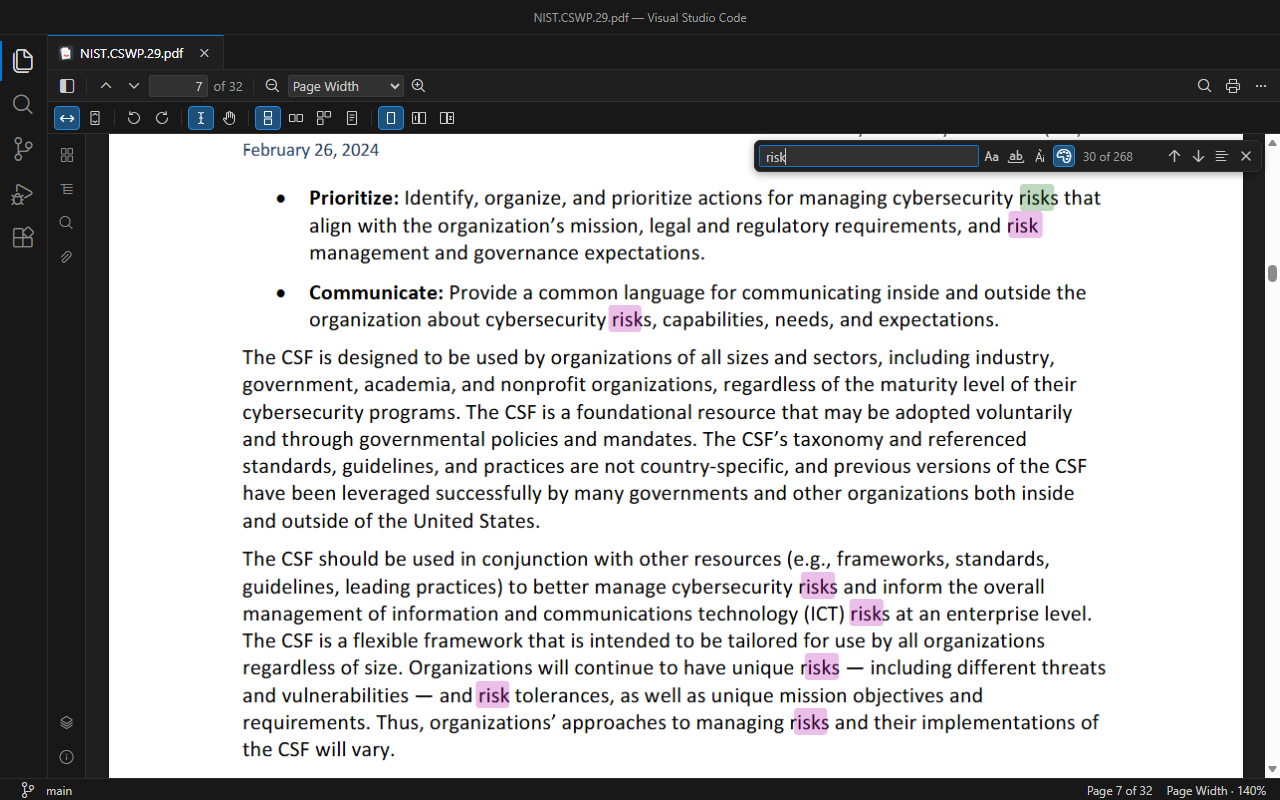
- Find (Ctrl+F) works like VS Code's: match case, whole word, highlight all, result count. It ignores accents unless you turn on Match Diacritics: onesta also finds onestà.
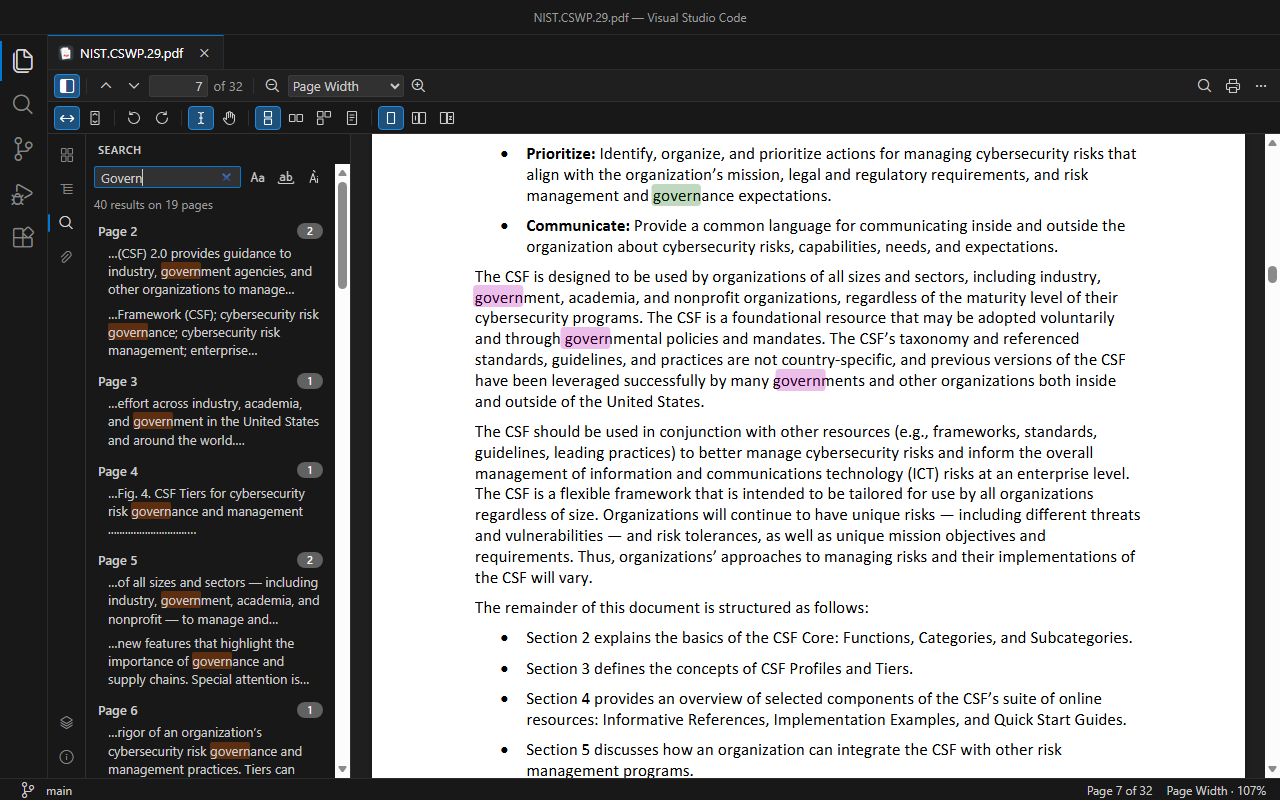
- All results (Ctrl+Shift+F) lists every match with the surrounding text, grouped by page.
- Back/Forward (Alt+←/→) returns to where you were before following a link or an outline item.
- PDF Tools remembers where you left each PDF: page, zoom, rotation, scrolling, spreads, sidebar and mode.
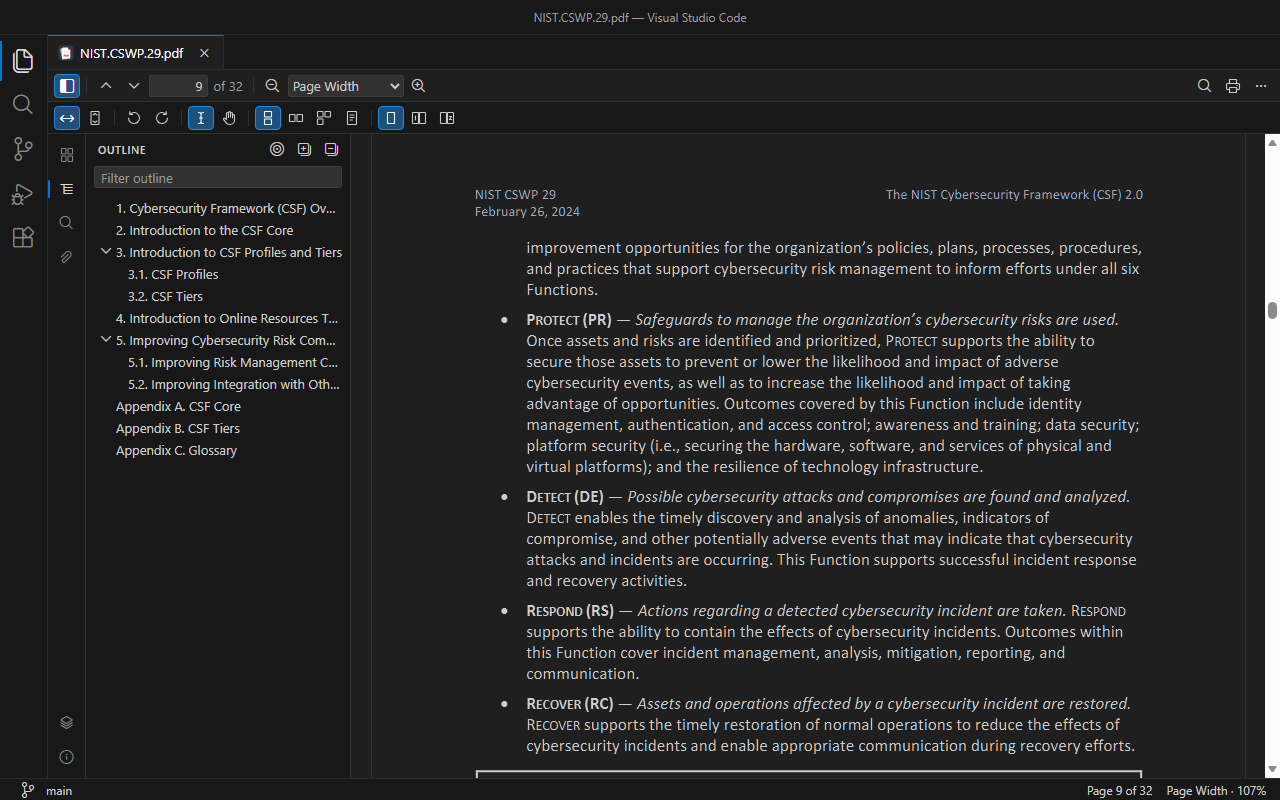
- Match Theme Colors (… menu): pages drawn with your color theme's background and text colors — dark pages in a dark theme, with the hues of images and colored text preserved. Printing and exports are not affected.
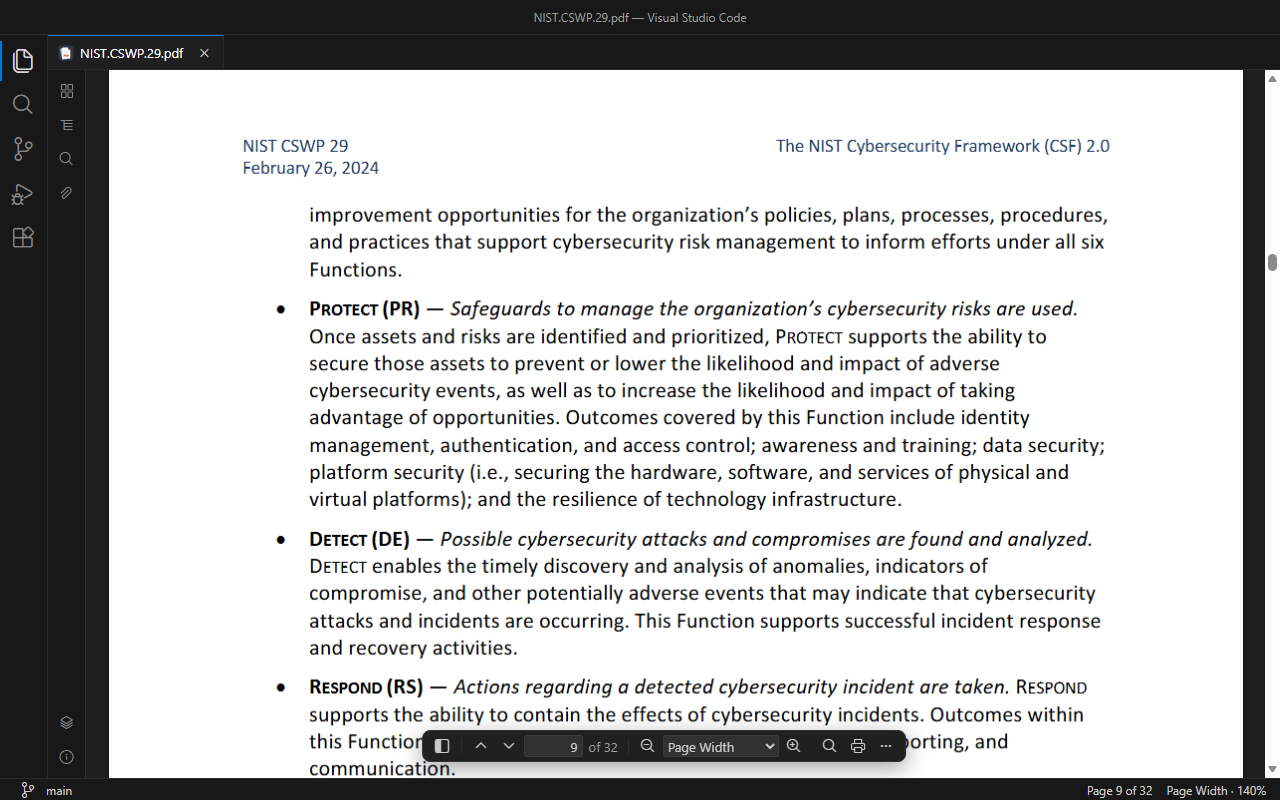
- Focus mode (… menu): the page gets the whole editor; one floating toolbar appears at the bottom when you move the mouse and hides when it is still.
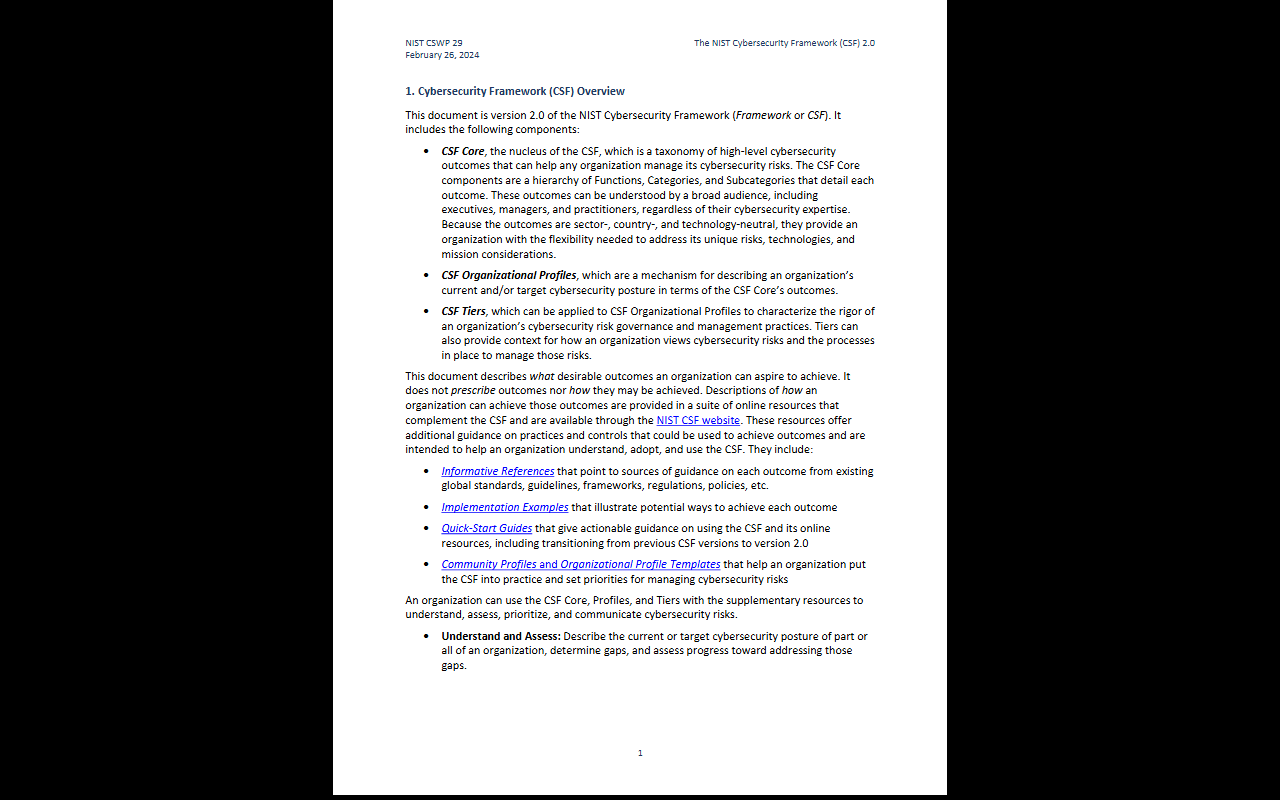
- Presentation mode (Ctrl+Alt+P): one page at a time, full screen through VS Code's Zen mode. Arrow keys, Space, the mouse wheel or a click change page; Esc ends it and restores your view.
To make Focus mode or theme colors the default, see Settings.
PDF Tools follows VS Code's display language: English, Italian, French and German.