Repository navigation
User Guide
Italiano | English | Español | Français | Deutsch
- Introduction
- Requirements and installation
- First run and interface language
- Interface overview
- Setup tab
- Live tab
- Compare tab
- Performance tab
- Race Prep tab
- Settings
- Data, privacy and offline operation
- Troubleshooting and support
- License and trademarks
ACE Setup Tool is a Windows desktop application that reads and writes .carsetup files for Assetto Corsa Evo, compares two setups, automatically diagnoses the most common problems, and relates setup parameters to MoTeC telemetry and the lap times recorded during sessions.
The program works exclusively on files already present on the PC: it reads setups, game logs, exported telemetry and EVO session results from the game's folders, interprets them and organises them. It does not modify the game, does not require an internet connection to work, and does not send setups, telemetry or driving data to any remote service.
Tip
How to use this guide
The chapters follow the order of the application's tabs, left to right as they appear in the navigation menu: Setup, Live, Compare, Performance, Race Prep. Each tab has its own chapter; general settings, privacy and support close the manual.
| Requirement | Detail |
|---|---|
| Operating system | Windows 10 or 11, 64-bit |
| Runtime | None in the standard build: .NET and Windows App SDK are bundled |
| Game | Assetto Corsa Evo installed, to read its setups, logs and telemetry |
There is nothing to install beforehand: the standard build carries both the .NET runtime and the Windows App SDK with it. Anyone who already has .NET 10 (x64) can download the -net variant instead — the same program without the embedded runtime: smaller to download and to install. To check whether .NET 10 is already present, open a terminal and type dotnet --list-runtimes: if a Microsoft.NETCore.App 10.x line appears, the -net variant will work; otherwise the standard build is the simpler choice, since it needs nothing pre-installed.
The latest installer is downloaded from the Releases section of the official repository. Installation is per-user — under %LOCALAPPDATA%\Programs\AceSetupTool — requires no administrator rights, and does not touch the game's folders.
Anyone who cannot or does not want to install software can download the portable ZIP archive from the same release, extract it and run the program without installing anything. The entire extracted folder must be kept together: next to the executable sit the .NET runtime, the Windows App SDK and the resources needed at startup.
Note
Where settings and the store live
Even in the portable build, settings and the telemetry store do not live inside the program folder, so they survive extracting a newer version over an older one.
| Settings | %APPDATA%\AceSetupTool\ |
|---|---|
| Telemetry store (SQLite database) | %LOCALAPPDATA%\AceSetupTool\ |
GitHub Releases is the only official distribution channel. Every release contains the installer, the portable build, the two lighter -net variants, and a SHA256SUMS.txt file with checksums to verify the downloaded files. Avoid downloading the executable from mirrors or links not listed in the official repository.
On first launch the application runs an initial scan of the game logs, MoTeC telemetry data and EVO results found on the PC, to build its own local store. This usually takes a few minutes, depends on how many files are already present, and runs only once: later launches update the store incrementally.
ACE Setup Tool supports five languages — Italian, English, Spanish, French and German — and on first run tries to guess the right one in this order:
- a language set explicitly in Settings, if present;
- the language the game itself records having used last, when its log states it explicitly;
- an estimate drawn from how the game requests its own localisation resources in the logs, used only when the previous point is not available;
- the language of the Windows interface, if it is one of the five supported;
- English, as a last resort.
The language can always be changed by hand from Settings → Language (see chapter 10): the change takes effect after restarting the application.
The navigation panel on the left of the main window lists the application's five tabs, in the order they appear in the program:
| Tab | What it does |
|---|---|
| Setup | Open, edit and save a .carsetup file; revision history, a driving-problem guide and an experiment journal. |
| Live | Dashboard with real-time data from the game while on track, with automatic comments on how the lap is going. |
| Compare | Parameter-by-parameter differences between two setups and, when telemetry allows it, a cautious comparison of observed performance. |
| Performance | Statistics by setup, by session and by telemetry; EVO classifications; automatic diagnostic findings; charts. |
| Race Prep | Fuel and pit-stop strategy calculation for a race, based on consumption observed in telemetry. |
The File menu at the top holds Settings and the exit command; the question mark opens the About window, with the installed version and credits.
Note
Light and dark theme
The interface follows the Windows theme automatically (light or dark); a specific theme can be forced from Settings → Appearance. This guide uses a printable layout independent of the theme chosen inside the application.
This is the main tab: a car, a track and a setup are picked from the three dropdowns at the top, and parameters are edited in real-world units — psi, degrees, millimetres, newtons per metre — instead of the raw index values used by the binary file.
Parameters are organised into sub-tabs: Tyres (pressure, camber, toe, caster for the front wheels), Electronics (TC1, TC2, ABS, engine map, brake bias and torque multiplier, differential), Fuel, Suspension (spring rate, bumpstop), Dampers (slow and fast bump and rebound) and Aero (ride height, splitter, wing angle).

Tyres sub-tab: pressure, camber and toe for each wheel, with the summary of laps recorded for the open setup.
Next to camber, toe and pressure, a small tilted-wheel icon shows at a glance whether each value sits inside its configured window, colour-coded, instead of having to read every number to tell.

Suspension sub-tab: spring and bumpstop rates for each wheel.

Electronics sub-tab: driving aids, brake bias and differential.
Fields the game recomputes on its own — for example derived aerodynamic values — are read-only: they are not settable by the user in the original file, so they are not settable here either.
Save changes writes to the .carsetup file only the parameters that were actually changed, asking for confirmation of how many changes are about to be applied; Reload discards unsaved changes and re-reads the file from disk. Export CSV and Import CSV let a setup be shared as readable text — useful for comparing it outside the program, or applying values prepared elsewhere in one go.
Export PDF produces a printable sheet with all the current values of the setup, including any changes not yet saved: those are flagged with an asterisk and a legend at the bottom of the page, so the sheet always reflects exactly what is on screen.
Open folder opens File Explorer on the selected setup's folder with the .carsetup file already highlighted, so you can copy, archive or share it without searching.
Warning
Automatic backup
When the "Back up a setup before writing to it" option is enabled in Settings, every save also keeps a copy of the previous file in the history described below.
The History sub-tab keeps byte-for-byte copies of the setup before and after every save, plus manual snapshots created with Capture snapshot. Each entry records the date, the reason (manual, before save, after save, before restore) and a SHA-256 checksum to verify its integrity. Restore reverts the file to the selected revision after asking for confirmation — and after saving a snapshot of the current state regardless, so a restore can itself be undone. Identical consecutive copies are not duplicated.
Everything happens on the local disk: no copy ever leaves the PC.
The Guide sub-tab suggests adjustments for the most common driving problems — understeer or oversteer on entry, at mid-corner or on exit, braking instability, kerb instability, tyre overheating, poor traction, low-speed grip shortage, high-speed instability — each with a short description to recognise it and a list of possible adjustments with a recommended direction (increase or decrease).
Selecting a single one and pressing Apply selected makes the assistant change the affected fields as one pending change and automatically opens an experiment in the Journal sub-tab: the journal remembers the before-and-after values, lets a test note be added, and lets the outcome be recorded once tried on track — Better keeps the change, while Unchanged, Worse and Abandon prepare the previous values as a pending change, to be saved explicitly.
Note
One change at a time
The journal accepts only one open experiment per setup: it must be completed — or abandoned — before another one can begin. This keeps several adjustments from being mixed into the same test, where it would no longer be clear which one actually worked.
When an explicit hot-pressure window is configured for the car (in Settings → Diagnostic thresholds), the program can suggest a cold-pressure correction for each wheel, computed from the median hot pressure observed over at least three representative laps of the same setup. The suggested correction never exceeds ±3 psi and, when the data is not enough or the required correction is excessive, it says so instead of inventing a value. Apply suggestions prepares the new values as pending changes, to be reviewed and saved like any other change.
While Assetto Corsa Evo is running, the Live tab reads its Shared Memory and shows session, timing, vehicle, tyre and electronics data in real time, without leaving the game. When the game is not running, the tab simply waits and the rest of the program keeps working normally: it is not a requirement for using the other tabs.
The active race flag — green, yellow, blue, red, white, black, checkered, and more — shows as a coloured badge instead of only in the game itself, together with how much time is left before the current session ends, when the game reports it.
Above the raw data, a comments and suggestions panel compares the current lap with previous ones — improving or losing time, gaining or losing per sector, average speed, brake use — as soon as at least one valid reference lap is available. ACE's Shared Memory is available on Windows only.
When the car leaves the pit box, or at the start of a new session, Live compares the electronics loaded in the car (TC1, TC2, ABS, engine map and brake bias) with the setups saved for the car and track open in the Setup tab: if exactly one matches, the Setup tab selects it automatically, so it always shows the setup actually in use. If several setups share the same electronics, the selection is left unchanged.
Two setups are picked — even from different tracks — and Compare shows the parameter-by-parameter differences, with the option of showing differences only and exporting them to CSV. If the two setups are identical, the program states so explicitly instead of showing an empty table.

Differences between the two setups are highlighted row by row.
When both setups have archived telemetry laps on the same track, the Observed A/B performance panel adds a reading of actually recorded performance alongside the static comparison: number of laps, best, median, 90th percentile and consistency (MAD) for each setup, the difference between the medians with a 95% confidence interval, and a separate verdict for pace and for consistency — A faster, B faster, equivalent, inconclusive or insufficient data.
Warning
Observational, not causal
The comparison does not control for weather, traffic, fuel load, tyre wear or driver learning: it indicates an observed association between two setups, not proof that one is genuinely better. The program states this directly in the interface.
Gathers the statistics computed from the local telemetry and log store, organised into sub-tabs.
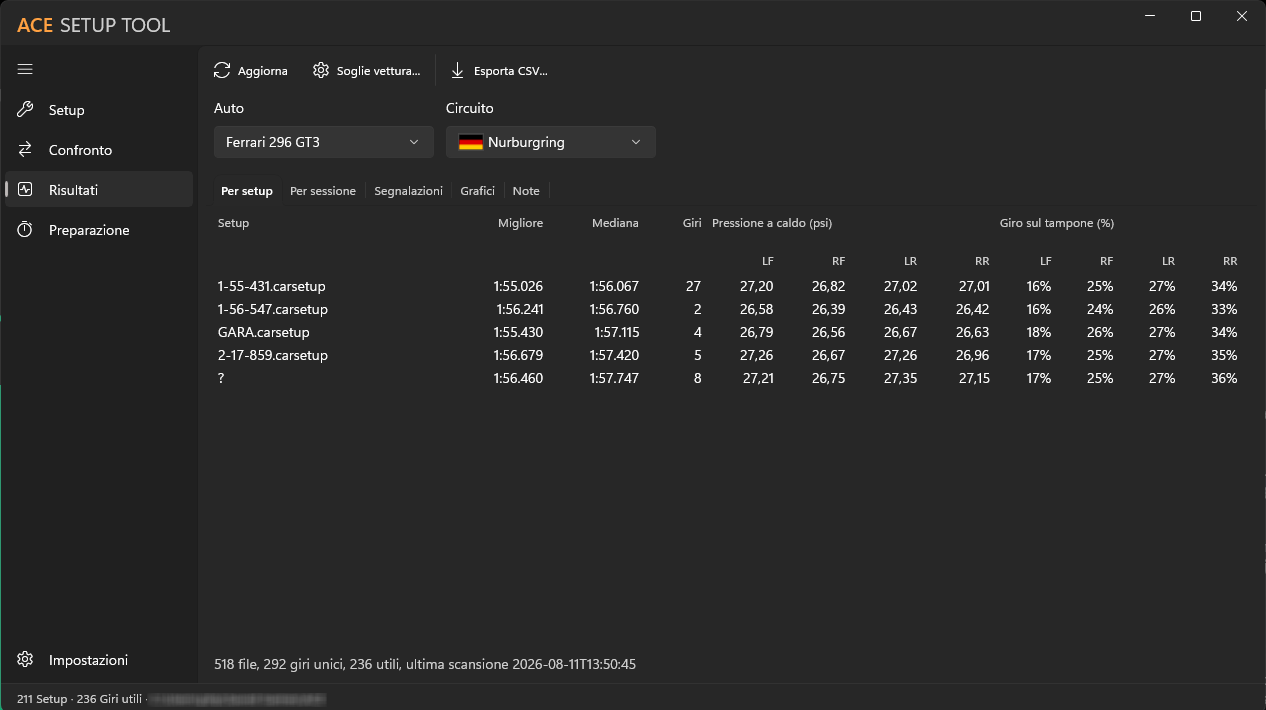
"By setup" sub-tab: lap times, pressures, temperatures and fuel use aggregated for every setup used on the selected car and track.
By setup aggregates useful laps, best and median time, hot pressures, share of the lap on the bumpstop, brake temperatures and fuel consumption for each setup tried on the chosen car and track; By session shows the same kind of data grouped by game session; By telemetry opens the animated comparison described below.
In the By setup table setups are sorted by best time, and a coloured dot appears next to each median time: green if the median is within 0.5% of the best median in the table, amber up to 2%, red beyond; grey when there is no median to compare. If a setup's MoTeC telemetry is missing or incomplete, its times are taken from the game log instead.
The program automatically imports the results of practice, qualifying and race sessions published by the game, and shows, per car and track, driver, nationality, best time, sectors, gap to the leader, pit stops and penalties. A toggle lets earlier EVO versions be included as well, when the results span more than one game update.

Findings show what to check, with severity and the measured value.
For every combination of setup and available telemetry, the program automatically checks for pressures outside the configured window, suspension imbalance, excessive time resting on the bumpstop, minimum ride height too low, camber not matching tread temperatures, brake and tyre temperatures outside threshold, and excessive use of TC or ABS. Each finding states the area, the severity, the measured value and a short suggestion on what to change.
The reference thresholds are typical starting-point GT3 values, not measured specifically on Assetto Corsa Evo: they can be customised per car from Car thresholds..., or calibrated automatically by the program from a driver's own fastest laps with Calibrate from my laps. Custom thresholds are exported and imported as JSON, so they can be shared with other drivers without accidentally overwriting what is already configured.

Throttle, brake and steering-angle traces over lap distance.
The Charts sub-tab covers, depending on the data available: lap-time distribution and progression, lap time against a chosen metric, per-wheel comparison against the reference window, speed and cumulative delta over distance, throttle/brake/steering, suspension travel and bumpstop contact, a track map coloured by speed, lap-time trend across sessions, tyre wear prediction, overlay of two laps with a delta heatmap along the track, and — when lateral G is available — delta by microsector and by corner, automatically derived from the lap.

The setup's archived lap (in blue) compared against an external MoTeC recording, with speed, throttle and brake synchronised.
By picking an archived lap of the setup and loading an external MoTeC .ld file — a teammate's lap, a reference saved elsewhere — the timeline animates both cars on the track map, synchronising speed, throttle and brake. Zoom, pan and automatic fit of the track help pinpoint where an advantage or disadvantage comes from. The track shape is reconstructed from speed and yaw telemetry: the line width is graphical only and does not reflect the real width of the track.

Automatic calculation of total laps, pit stops and fuel load based on observed consumption.
Starting from the average consumption and lap time observed in telemetry for the chosen car and track, this tab calculates estimated total laps, total duration, the number and timing of pit stops, and the recommended fuel load for the start and for qualifying. Race length is set in minutes or in number of laps; pit time loss, tank capacity and the fuel safety margin are adjustable parameters. If the calculated load exceeds tank capacity, the program flags it and suggests more stops. Without telemetry data for that car-and-track combination, the calculation cannot run: a telemetry scan must be run first from the Performance tab.

Folders, appearance, language, CSV format and diagnostic thresholds in one panel.
The program finds the game's setup, log, telemetry and session-results folders on its own; each one can be overridden manually if it is not found or a different location is wanted. Leaving a field empty means "derive automatically from the data folder".
The theme follows Windows by default, or can be forced to light or dark. The language is automatic (from the game, then the system, as described in chapter 3) or one of the five fixed choices. The Live dashboard text size can also be adjusted. Language, folders and Live text size require a restart to take effect; the program flags this and offers to restart right away.
The field separator and decimal separator used to import and export CSV: by default they follow Windows regional settings, but can be fixed explicitly to exchange files with someone using a different configuration.
This is where the global and per-car diagnostic thresholds used by the findings in chapter 8 are opened, with automatic calibration from a driver's own laps and export/import as JSON.
When a newer version is available, a clickable notice appears in the status bar at the bottom of the main window and leads straight here. The "Download and install" button downloads the package that matches the current installation (full or -net), verifies the SHA256 checksum published with the release, then closes the program, installs silently and restarts it on the new version. If anything goes wrong the program reports it and offers the release page on GitHub to download the installer by hand.
"Reopen the window where it was left" remembers window position and size between launches; "Back up a setup before writing to it" enables the automatic snapshot before saving described in chapter 5.
ACE Setup Tool reads .carsetup files, game logs, exported MoTeC telemetry and EVO session results from the game's local folders. It interprets setup files using index-to-value tables measured directly on the game, aggregates telemetry by setup, car and track, and archives it in a local SQLite database, in %LOCALAPPDATA%\AceSetupTool\.
The program does not implement its own telemetry and does not transmit setups, laps, notes or driving data to remote servers: all processing happens on the PC. The expected network traffic is a periodic check, against GitHub releases, for a newer version being available, plus the installer download when choosing to update from the button in Settings.
Check in Settings that the log, telemetry and session-results folders point to the right places, then run an update from the Performance tab: the first complete scan can take a few minutes if there are many files to read.
Some parameters only exist for certain cars, or only if the game has already written them into the original file; the program reports this instead of inventing a value. If saving fails, the .carsetup file may be open or locked by another program, including the game itself: close it and try again.
Open an issue in the Issues section of the official repository, stating the application version (visible in Settings and in the About window), the Windows version, and the steps to reproduce the problem. Do not attach telemetry, log or setup files that contain information that should not be made public.
ACE Setup Tool is proprietary freeware: it can be used free of charge under the license and EULA distributed with the program, but it is not open-source software and its source code is not distributed. All rights to the product, except for third-party components, are reserved to Adriano Gastaldello, a private individual. Third-party component licenses remain governed by their respective owners and are listed in THIRD-PARTY-NOTICES.txt, included in the distribution package.
ACE Setup Tool is an independent, unofficial project. It is not affiliated with, endorsed by or supported by Kunos Simulazioni or the publisher of Assetto Corsa EVO. Product names and trademarks mentioned belong to their respective owners.
ACE Setup Tool — User Guide, version 1.3.0 — Copyright (c) 2026 Adriano Gastaldello.