Feed configuration
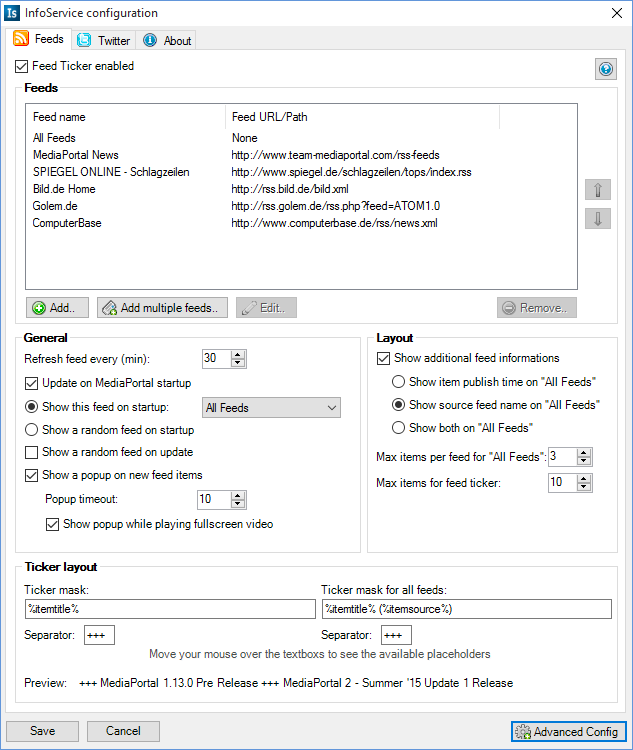
Here you can add/edit/remove your feeds. The Feed "All Feeds" is a hardcoded feed which holds the number of items of each feed you've added, which you have configured in "Max items per feed for all feeds ticker".
This determines when InfoService should update your feeds. If you set it to 30 minutes, InfoService look for feed updates every 30 minutes. Don't set it too low, because if InfoService is updating the InfoService MediaPortal screen is locked. Also it is unnecessary to update more than every 30 minutes.
Check if you wan't that InfoService updates all feeds when you start MediaPortal. Uncheck it if don't want to. This could be necessary if you have a slow internet connection.
If you wan't to show a random selected feed on MediaPortal startup, then you should select "Show a random feed on startup". If you want a specific feed or the All feeds ticker shown on MediaPortal startup, then you must select "Show this feed on startup".
Check this, if you wan't a random feed selected with every feeds update.

Check if you want to see when the feed item has been published. Uncheck if you don't want to see.
Choose this, if you want to only show the publush time in the feed item list of the "All Feeds" feed.
Choose this, if you want to only show the source feed title on the feed item list of the "All Feeds" feed.
Choose this, if you want to show the publish time and the source feed title on the feed item list of the "All Feeds" feed.
Setup the items per feed you want to see if you selected the "All feeds" feed. For example: If you set it to 3, you will see three feed items for each feed you've added in the "All Feeds" feed. This setting will also apply in the InfoService MediaPortal GUI.
If a feed has more than the items you've set here, then InfoService will cut the other items. This applys only for the ticker, not for the feed view in the InfoService MediaPortal GUI. There you will see all items of the feed.
Here you can set the layout of the ticker line. Move your mouse over the Ticker mask textbox and a little popup raises with the available placeholders. A preview of the line is shown below.
This is the separator string between each feed item.