II. Material
Each icon give you acces to the material option of the light.


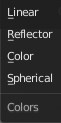
- Linear :
- Gradient apply from left to right.
- Reflector : Softbox
- Change the light to a reflector (no emission). This is use in photography for bouncing light in shadow areas. When black, can be use to block light.
- Color:
- The base color emitted by the light
- Spherical:
- Gradient apply in a spherical shape.

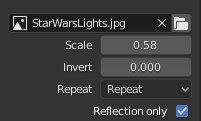
- Texture filename :
- Use an image texture for the reflection or to emit light. Can be useful with an .hdr or .exr texture with exposure value. Open a texture using the folder icon.
- Scale :
- Scale the texture.
- Invert:
- Invert the color texture. Useful for a black and white texture.
- Repeat:
- Defines how the image is extrapolated past the original bounds:
- Repeat: Will repeat the image horizontally and vertically giving tiled-looking result..
- Extend: Will extend the image by repeating pixels on its edges.
- Clip: Clip to the original image size and set all the exterior pixels values to transparent black.
- Reflection only:
- Use this texture only for the reflection (by default). Toggle off to use the texture with the lighting.

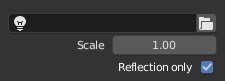
- IES filename :
- Use a IES Photometric file for the reflection or to emit light. Open a IES Photometric file using the folder icon.
- Scale :
- Scale the texture.
- Reflection only:
- Use this texture only for the reflection (by default). Toggle off to use the texture with the lighting.

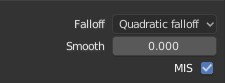
- Falloff :
- Define how light intensity decreases over distance:
- Quadratic: leave strength unmodified if smooth is 0.0 and corresponds to reality.
- Linear : distance to the light have a slower decrease in intensity.
- Constant : distance to the light have no influence on its intensity.
- Smooth : 0.0 --> no smoothing // higher values smooth more.
- Smooth intensity of light near light sources. This can avoid harsh highlights, and reduce global illumination noise.
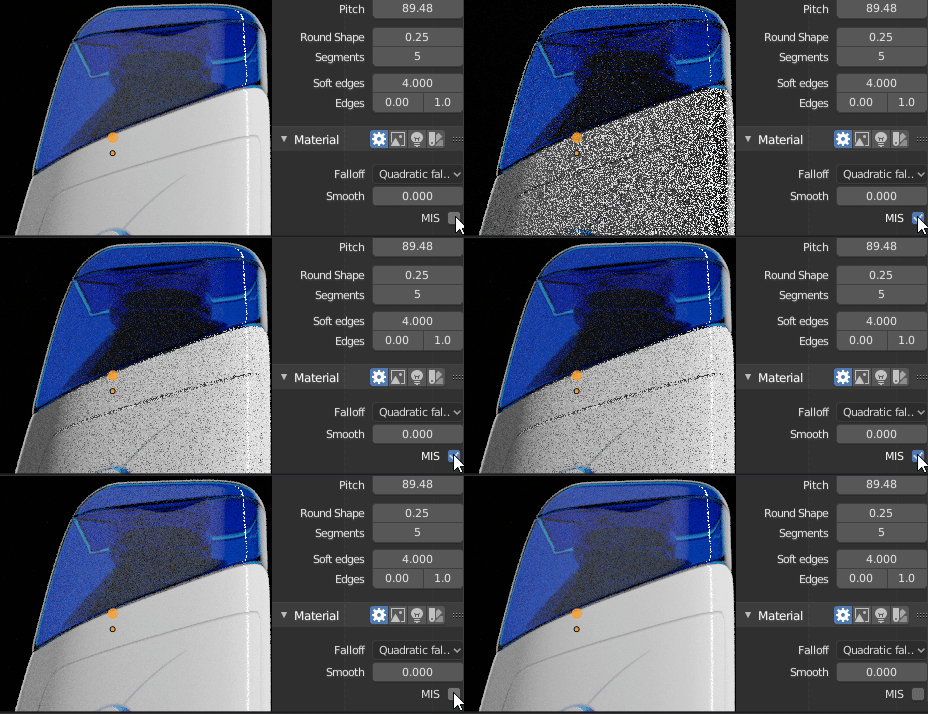
- MIS : Multiple Important Sample
- This is especially useful on large objects that emit little light compared to other light sources. For example if you mix a large panel ambient light for soft shadows and a tiny panel key light for very harsh shadows, this will result with a lot of noise if the MIS is enable on the two lights.