Repository navigation
Assistant and voice
English · Español
Ask Claupet by typing or out loud, hear the answer and have it give you a hand with your computer. Here's who answers each question and how to save tokens.
On this page: Talk to Claupet · What you can ask · Who answers · Local model · Actions on your computer · Voice · Keys
Important
Questions that go to the cloud go through Claude Code with the account you choose, and count against your plan like any message. What the app answers on its own or with the local model costs no tokens.
There are three places, and all three share the same Quick conversation:
| Where | How |
|---|---|
| The pet's bubble | Turn on Settings › Assistant › Chat with the pet and click the pet, or press Ctrl+Alt+Space (Windows). |
| The island | The Chat tab (see Notifications and the island). |
| Claupet Console | Chat, with conversations that get saved (see Claupet Console). |
The pet answers briefly, in its own way and with its own personality; the island and the Console give fuller answers.
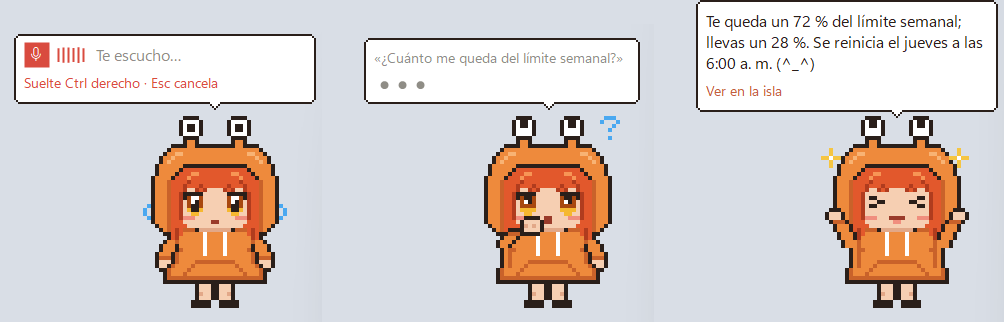
- Questions: anything you like. It can search and read web pages to answer you.
- Your usage: "how much Claude do I have left?".
- Weather, time, math and conversions: "is it going to rain tomorrow?", "15% of 200", "10 km in miles".
- A file: drop it on the pet or the island and it summarizes it for you.
- Things on your computer: volume, music, wallpaper, dark mode, screenshots, notes, reminders… (see Actions on your computer).
- Big jobs: what it can't do by itself, it hands to Claude Code. It asks "Open Claude Code in … with this task?" and opens a session with that request.
Tip
Offline, it still says hi and tells you the time and date. For anything else, it lets you know there's no connection.
In Claupet Console, Settings › Answers splits questions among three engines:
| Engine | What it is | Uses tokens |
|---|---|---|
| No AI | The app on its own: it recognizes short, clear phrases ("turn up the volume", "what time is it in Tokyo?"). Always on. | No |
| Local model | A small model on your computer (Windows). | No |
| Cloud | Claude Code with the chosen model. | Yes |
Mode sets how they're split:
| Mode | What it does |
|---|---|
| Default | No AI for the time, the date, the weather, your computer's status and Claude usage; everything else goes to the cloud. |
| Token saver | No AI for everything the app knows, the local model for the rest, and the cloud if needed. |
| Only on this computer | The same, but it never reaches the cloud, except for internet, files and tasks. |
| Custom | You choose the first engine for each type of question. |
Below that:
- If it doesn't understand › Pass to the next engine: how far a question goes when the first engine didn't understand it.
- Show who answered: a chip below each answer ("No AI · Open-Meteo", "Cloud · Haiku").
- My city: for the weather. "Automatic (by IP)", the Windows location or "Type a city…".
- Savings: how many of this week's answers didn't use the cloud.
Note
With No AI nothing leaves your computer, except the weather: the city name (or coordinates) goes to Open-Meteo and, if My city is automatic, your IP goes to ipwho.is. Internet, files and tasks always go to the cloud.
Pet model (in Settings › Assistant; Haiku by default) and Island model (in Settings › Island; "Same as your sessions" by default) choose the cloud model. Automatic picks the model and effort to fit the question: short things go to Haiku, explaining or writing to Sonnet, deep analysis or an error to Opus. Answering account picks which Claude Code account to use.
Windows only. A small model (Qwen3.5) that runs on your computer, answers simple things without spending tokens and works offline.
-
In Settings › Answers › Local model, choose the size:
Model Download Memory while answering Qwen3.5 0.8B 533 MB About 1 GB Qwen3.5 2B (recommended) 1.3 GB About 2 GB Qwen3.5 4B 2.7 GB About 3.5 GB -
Press the download link in the row below. You can see the progress and cancel.
-
Pick a mode that uses it (Token saver or Only on this computer), or choose "Local" as the pet's or the island's model.
| Option | What it does |
|---|---|
| Graphics card | Automatic (uses it if it starts with it), Always or Never (processor only). Works with any brand, dedicated or integrated. |
| Free the memory after | Minutes without use before it frees the memory (5 by default). |
Warning
The local model can make things up on general questions. Use it for simple things and leave what matters to the cloud.
Claupet does things on your computer when you ask in the chat or on the island. It's a fixed list, so a misunderstood phrase can't do something else:
| What | For example |
|---|---|
| Wallpaper, light or dark mode, app color | "turn on dark mode" |
| Volume and music | "turn up the volume", "pause the music" |
| Open apps, sites and settings | "open Spotify" |
| Screenshots or a snip (and looking at them) | "take a screenshot and tell me what the error says" |
| Add to your calendar | "schedule a meeting tomorrow at 10" |
| Notes | "note: buy coffee", "what did I note about the meeting?" |
| Reminders, even with the app closed | "remind me to drink water in 20 minutes" |
| Windows | "minimize everything", "bring up the browser" |
| The computer | lock, sleep, restart or shut down |
| Brightness | "set the brightness to 40" (laptop screen only) |
| Status | battery, disk and memory |
| Clipboard and folders | "copy this", "open Downloads" |
Changing the wallpaper, theme, color, volume or music, or opening something, doesn't ask for permission. Everything else asks the first time, on the island or in the bubble:
- Always allow: it won't ask again.
- Just this once.
- No.
Grant or take them back in Claupet Console, Settings › Assistant › Permissions: one switch per capability. Restart and shut down are confirmed every time.
Note
On macOS and Linux, actions use the system's own programs; if one is missing, the answer tells you which to install. On macOS brightness can't be changed, and on Linux with Wayland windows can't be managed.
- Turn on Settings › Assistant › Microphone. The first time, the voice model downloads (Whisper, 488 MB). Your voice is turned into text on your computer.
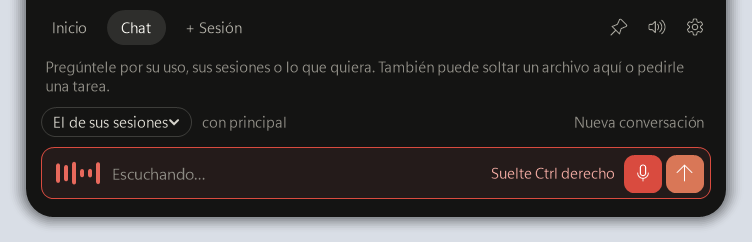
- Hold right Ctrl, speak and let go. Or tap it twice to talk without holding it: it sends when you stop talking or with another tap.
- Esc cancels.
The island also has a microphone button. Push-to-talk key changes the key (right Ctrl, Alt or Shift, or another one you record on Windows).
Tip
Microphone can't hear you? If it's muted or gives no sound at all (a virtual input, for example), Claupet tells you and points you to where to check. See FAQ.
- Turn on Settings › Assistant › Read answers aloud. You don't need the microphone: it also reads its answers to typed messages.
- Under Voice, choose Female or Male (Claupet's voice, downloaded once, about 400 MB) or the system one.
Claupet's voice runs on your computer and sometimes laughs or sighs. While it downloads, the system voice reads instead.
Windows only, with the chat or the island turned on:
| Key | What it does |
|---|---|
| Ctrl+Alt+Space | Opens the chat (on the island if it's on; otherwise in the bubble). |
| Ctrl+Alt+A | Jumps to the pending permission or question. |
| Ctrl+Alt+T | Brings up the terminal of the session that's working or waiting. |
| Ctrl+Alt+N | Opens or folds the island. |
| Ctrl+Alt+S | Mutes notifications or turns their sound back on. |
| Copilot key | With the microphone on, a tap listens; without it, it opens the chat. |
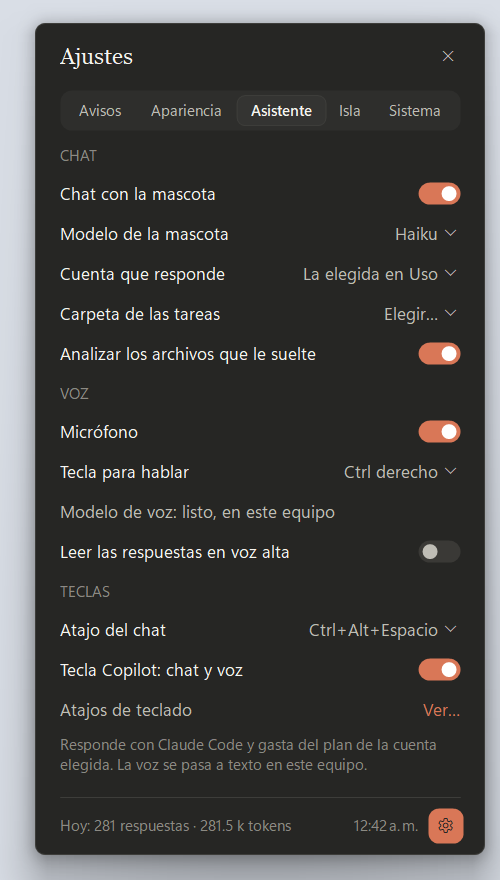
In Settings › Assistant › Keys you change the Chat shortcut, turn on the Copilot key and see the Keyboard shortcuts (if another app already uses one, it shows "in use"). To record a new key, choose Record another combination… and press it.