Repository navigation
Getting started
English · Español
The setup assistant, the icon by the clock and your Claude Code accounts: what's worth knowing on day one.
On this page: The setup assistant · The icon and its window · Your Claude Code accounts
The first time you open Claupet, Set up Claupet appears: a step-by-step assistant. Nothing changes until you press Apply, on the last step.
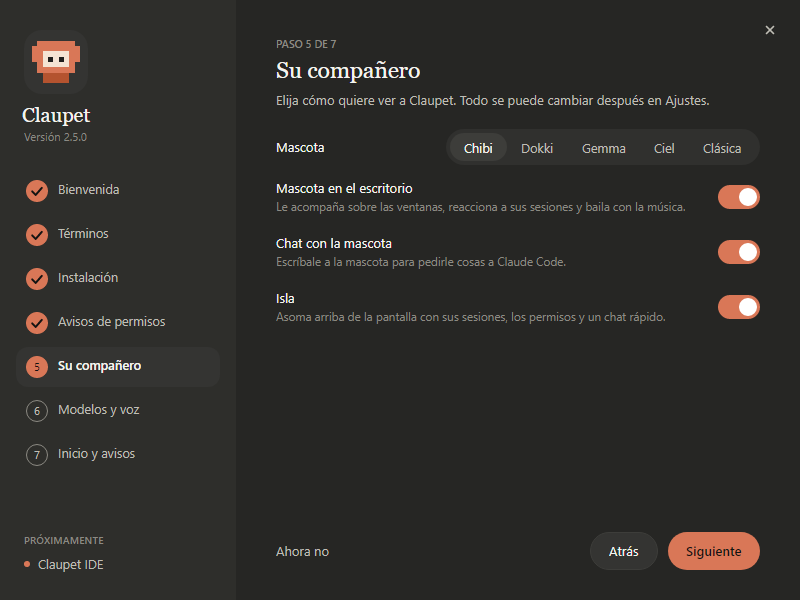
| Step | What it does |
|---|---|
| Welcome | Picks the language (Spanish or English) and shows what's new. |
| Terms | Asks you to accept the terms and conditions. If you don't, Claupet closes. |
| Installation | Windows only. The folder Claupet installs into, and whether you want a desktop shortcut (the Start menu one is always created). Install Claupet explains it. |
| Permission notifications | Adds a hook to the settings.json in each Claude Code folder so you're told when a session asks for permission. It saves a backup before changing it. |
| Your companion | The pet, whether it lives on the desktop, the chat with the pet and the island at the top edge. |
| Models and voice | Talking to it with the microphone, reading answers aloud, installing extensions and the local model (depending on the system). |
| Startup and alerts | Starting Claupet with your computer, and notifications. Apply is here. |
Tip
Want to see it again? In Claupet Console, Settings › System › Permission notifications (hook) › Set up… opens the assistant again.
Note
The voice models and the local model are downloaded separately, and only if you turn them on: the microphone's (Whisper, about 488 MB), Claupet's voice (about 400 MB) and the local model (533 MB to 2.7 GB). They download once, in the background.
Claupet lives in the Windows or Linux tray, or in the macOS menu bar.
- The icon shows how much of the selected account's 5-hour session is used. While refreshing, the pet you chose animates it.
- One click opens or closes the window, with three views at the top: Usage, Activity and History (see Usage, activity and history).
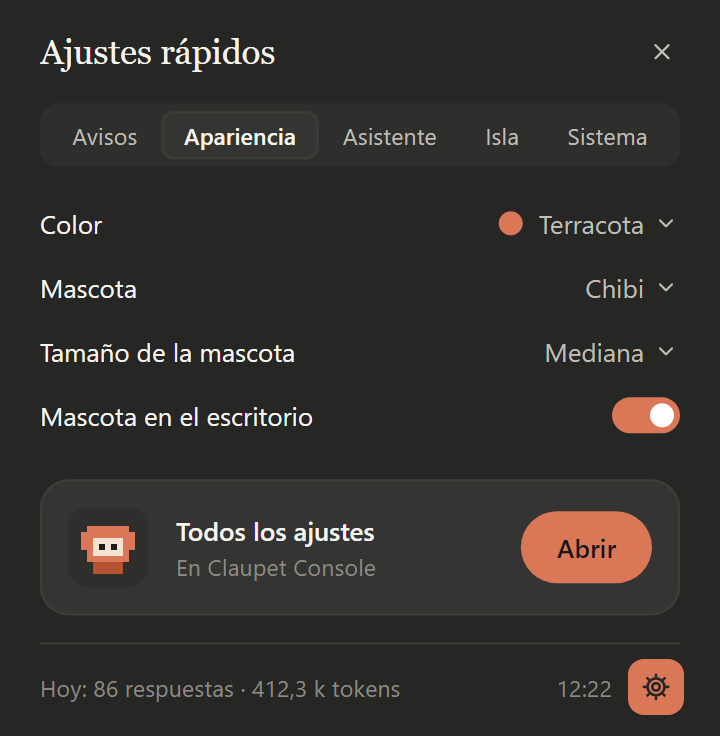
- The gear at the bottom opens Quick settings, in five tabs: Alerts, Appearance, Assistant, Island and System. At the end, All settings › Open takes you to Claupet Console.
- The icon's menu (right-click) is short:
| Option | What it does |
|---|---|
| Open | Shows the window. |
| Refresh | Checks usage again right now. If the account's session has expired, it renews it. |
| New session… | Opens Claude Code in a terminal, with the account, folder and model you choose (see Usage). |
| Claupet Console | Opens the big window (see Claupet Console). |
| Settings… | Opens quick settings. |
| Quit | Closes Claupet. |
Each Claude Code account is a config folder: ~/.claude or whichever one you set with
CLAUDE_CONFIG_DIR. Claupet finds the signed-in ~/.claude* folders on its own.
- Open the icon's window, in the Usage view, and press + (or, in Claupet Console, Settings › Accounts › Add account…).
- Choose that account's config folder (its
CLAUDE_CONFIG_DIR). - If it doesn't have its own memory yet and there's already another account, choose how its memory
works:
-
Shared: its
projectsfolder (the conversations and each project's memory) is linked to the chosen account's.CLAUDE.md, skills, agents, settings and credentials stay its own. - Separate: each account keeps its own.
-
Shared: its
Note
An account whose projects folder already has content isn't linked, so nothing gets lost.
Settings › Accounts says for each one whether its memory is its own or shared.
Right-click the account's button in the Usage view: Rename, Open folder or Remove. Removing it from Claupet doesn't touch anything in Claude Code.
Important
Claupet doesn't store passwords or touch Claude Code's credentials: it only reads them. If an account's access expires, Claupet asks Claude Code to renew it with a minimal request (with Haiku and no tools).