Repository navigation
Network
The Network app combines Wi-Fi state, access-point discovery, recovery, diagnostic history, command-line-style tests, and printer discovery in one window.
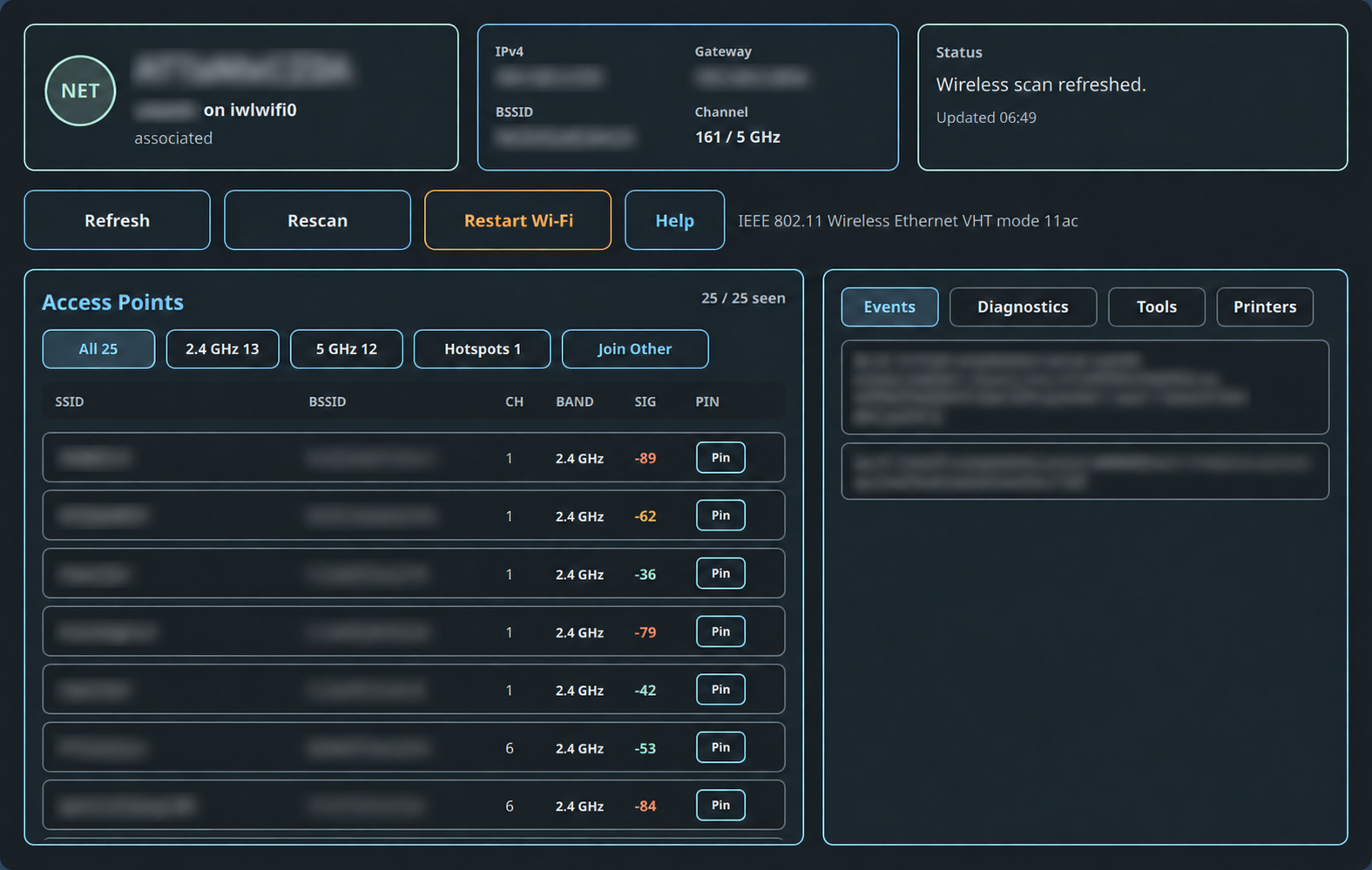
Machine-specific values in these screenshots are obscured; the live app displays the actual interface, addresses, routes, BSSID, resolver state, tool targets, and discovered devices.
Choose Network in the App Launcher or run:
sh ~/.config/bsdrunner/scripts/bsdrunner-network.shThe status header summarizes the active interface and connection state. Adjacent cells show IPv4 address, default gateway, BSSID, channel, and band. Refresh rereads state, Rescan requests a new wireless scan, and Restart Wi-Fi performs the deliberately more disruptive recovery action.
The Help dialog explains capability labels found in scan results, including RSN/WPA, HT/VHT/HE, WME, BSSLOAD, WPS, and related 802.11 terms.
Filter scan results by All, 2.4 GHz, 5 GHz, or Hotspots. Rows show SSID, BSSID, channel, band, signal, and pin state. Selecting an access point opens the join flow; Join Other permits manual SSID entry.
When several access points advertise the same SSID, BSDRunner collapses them into one summary row instead of repeating the name down the entire list. The summary shows the AP count, channel spread, band coverage, and strongest observed signal. Select the summary to expand or collapse its individual BSSID rows; joining and pinning still happen on those precise child rows. Unique SSIDs remain ordinary rows, and the band filters continue to count physical access points rather than group headings.
Pinning associates a saved profile with a specific BSSID when a stable access point matters. Hover help explains whether a row or SSID is already pinned. The join dialog keeps SSID/BSSID context visible and collects the network password only for the requested connection action.
Hover the wireless icon in Waybar for the full SSID, interface, band, channel, and IPv4 address. SSIDs containing spaces or markup characters such as & are preserved and escaped for GTK/Pango, so a name such as Comfort Inn & Suites appears exactly as advertised.
Select the icon for network actions. Right-click it for the more disruptive wireless-recovery path.
Shows recent network events and highlights timeouts, disconnects, and buffer errors. Use it after a rescan or recovery to understand what changed.
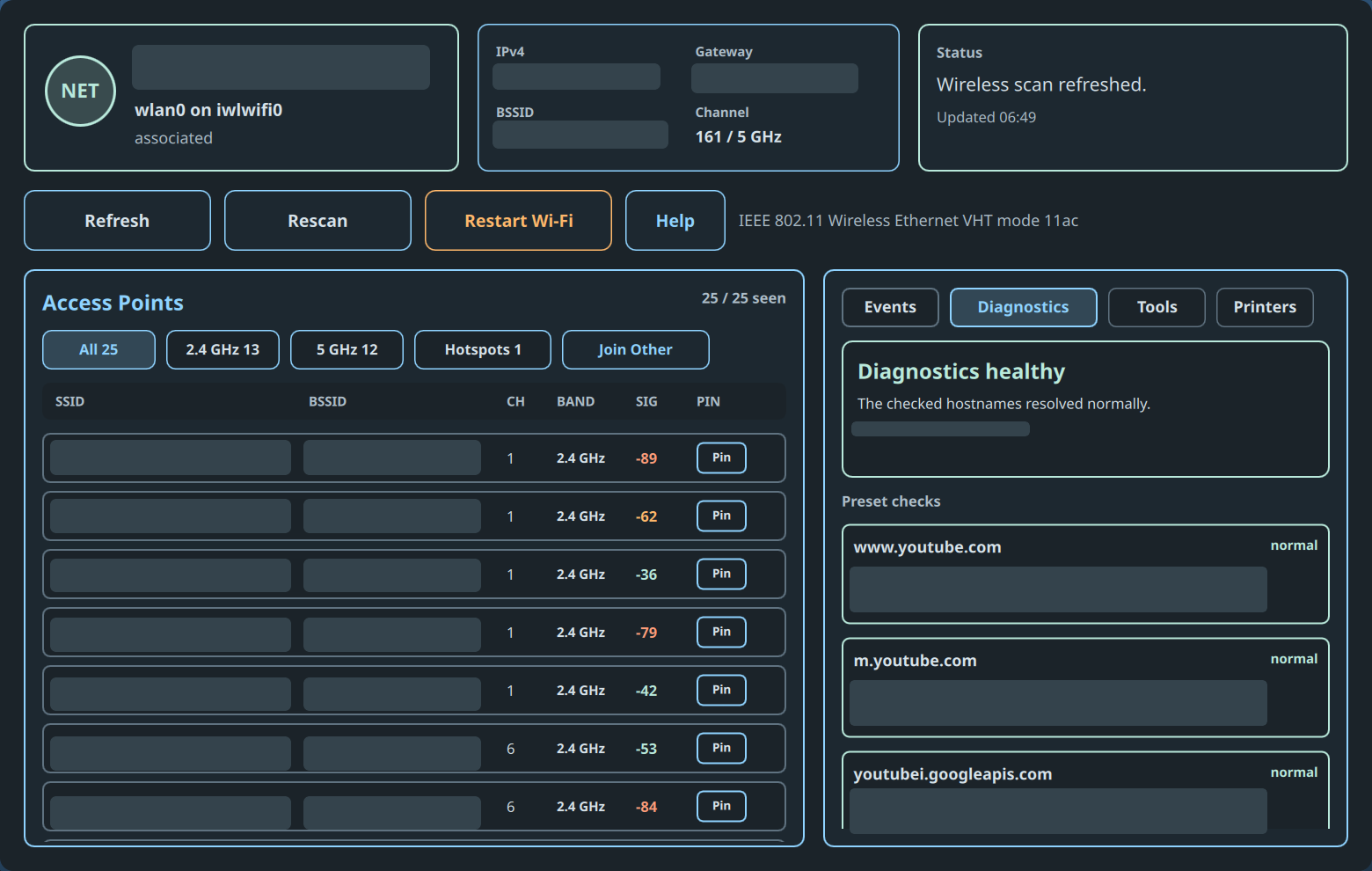
Summarizes connection-level DNS policy and its active resolvers, followed by preset checks. Each check reports hostname, expected classification, target, return code, and responding server.
This tab diagnoses which resolver path the current network supplies; it does not configure PF enforcement or Unbound forwarding. Use the Firewall app to enable or apply Block plain DNS bypasses, and use the DNS Cache app's Protection tab to inspect DoT, DNSSEC, temporary resolver exceptions, PF counters, jail policy, and the end-to-end protection test.
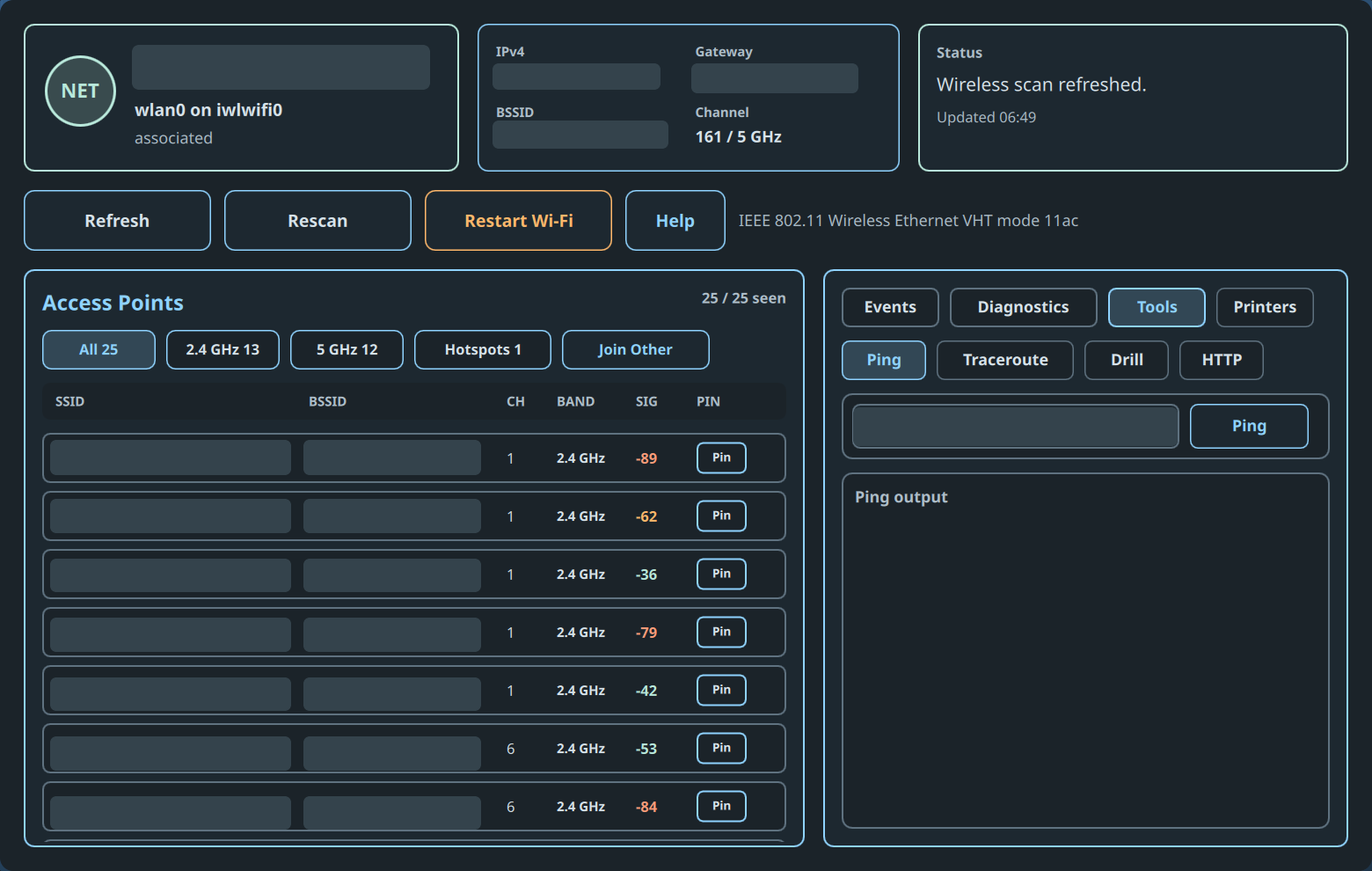
Provides Ping, Traceroute, Drill, and HTTP checks. Select a tool, enter its host or URL, run it, and read the output below. These are focused troubleshooting tools, not background monitoring.
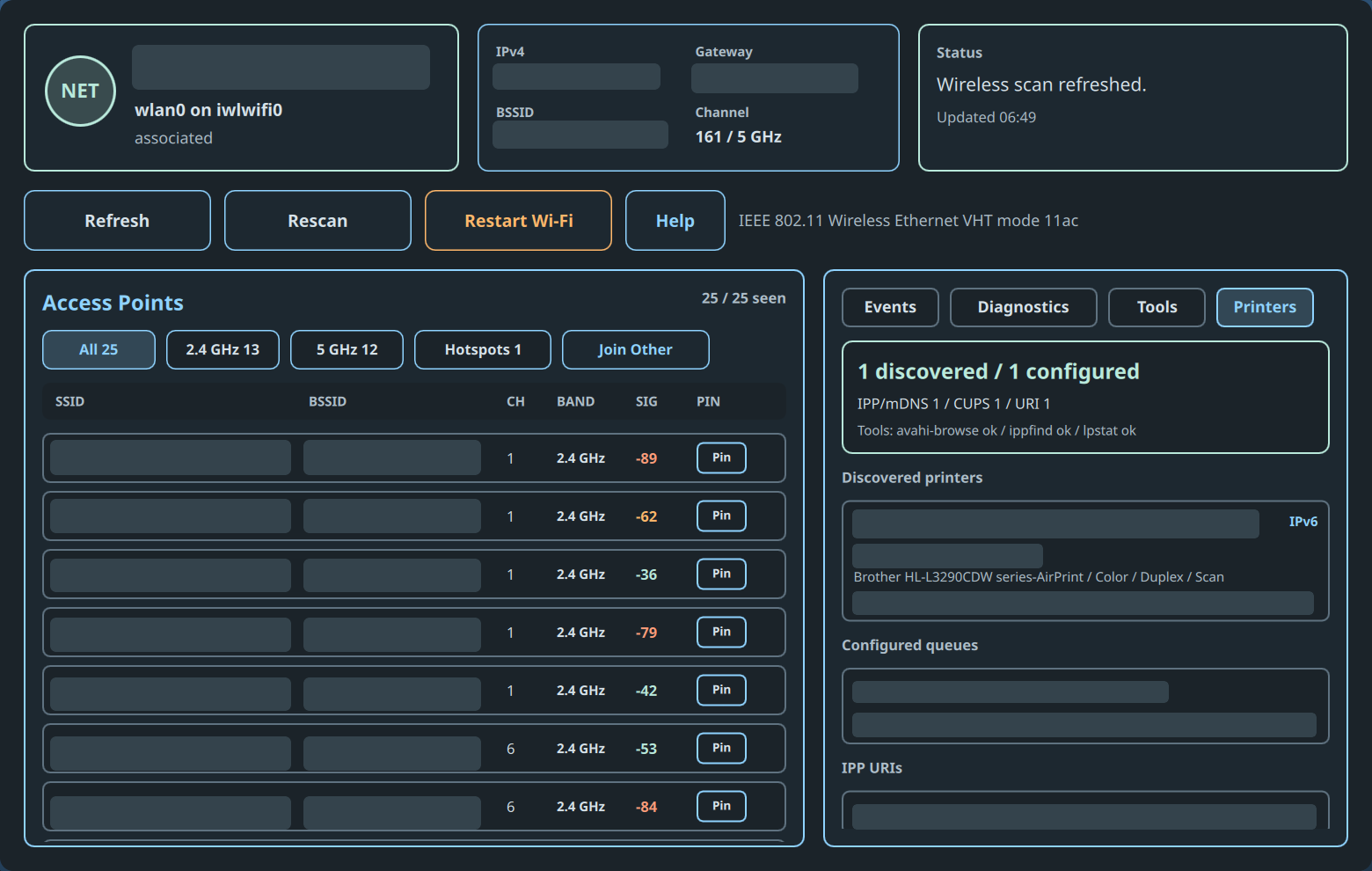
Combines mDNS/IPP discovery, configured CUPS queues, and raw IPP URIs. It also reports whether avahi-browse, ippfind, and lpstat are available. Discovered rows include protocol, address, model/capabilities, and an administration URL when advertised.
- Check the header for interface, address, gateway, and media state.
- Use Refresh, then Rescan if access points are stale.
- Read Events for a concrete failure.
- Use Diagnostics for resolver-policy problems.
- Run Ping, Drill, HTTP, or Traceroute from Tools.
- Use Restart Wi-Fi only after the read-only checks point to interface recovery.
Back to the BSDRunner Apps overview.