Repository navigation
Moving to Composed Pages
How to move a book that keeps the text of its pages in heading styles to page templates and Markdown, either with the Sandbox assistant Move the text to the Markdown or by hand, what to check afterwards, and how to replace lines baked into a picture with connectors and one-off frames with grids and modules
Generated from docs/migrating-to-composed-pages-en.mdx (updated 2026-10-20). Read it on postext.dev, where it is also available in Spanish, Catalan, Portuguese, French, German, Italian, Chinese, Japanese and Arabic. To change this page, edit the MDX and run pnpm wiki in apps/web.
Some books made with Postext before composed pages keep the words of every page inside the design settings instead of in the text. That makes them hard to edit and impossible to translate. This page shows how to move those words into the Markdown, where each page becomes a block with its own template. The Sandbox does most of the work with one button, and you check the result page by page. It also explains how to do the same by hand for a single page. The last part replaces lines painted into a picture with lines the layout draws, and frames drawn one by one with a grid or a module.
A book that keeps the text of its pages in its styles can have it moved into the Markdown, where it can be edited and translated.
Before composed pages, a textbook ported to Postext often kept each page as a hidden heading: the heading's running head placed the page's text, boxes and pictures where the printed page had them. The pages looked right, but the words lived in the configuration, so a typo meant opening a style and a translation meant copying the style. A composed page does the same job with the form in a page template and the words in the Markdown, as Composed-page books shows. This page moves an old book to that form.
You know a book is in the old form when the Checks panel lists Text held in the configuration (contentInConfig), one entry for each heading style that holds sentences, and offers Move the text to the Markdown at the head of the list.
The steps below use a small book made for this page, Our World, before composed pages: three pages of a Year 3 textbook. Each page is a heading style whose running head places a picture, a card, a title and three blocks of text, and one word has a yellow band under it. The words and the pictures are invented. Download the book and, in the Sandbox, open Books, press New and choose Open a .postext file….
Importing a book with text in its styles opens the dialog Move the text to the Markdown by itself. If you closed it, or the book was already in your list, open Checks and press the button at the head of the list. Nothing changes until you press Move the text.
- Read What changes. For the sample book it says that 16 texts (567 letters) will move, that 3 composed pages will be written, that the 3 heading styles become 1, that 3 highlight boxes become chips and that the Text held in the configuration warnings go from 3 to 0.
- Look at the options. Pages with frames in the same places share a template gives pages that are laid out alike a single base template, which the others extend. A highlight box under bold words becomes a chip turns a coloured box drawn under bold words into a chip of the book's chip style. Words on pictures become their labels is offered when the old design set short words on a picture, such as the names on a map: they become
::labellines at anchors of the picture. It is off until you turn it on, because those pages change the most. - Under Before and after the Sandbox lays each chapter out twice and draws every page that changes, the old one beside the new one. The list says which pages look different and why, when it knows. Mark in red what changed paints the pixels that differ. In the sample book all three pages are marked Looks the same.
- Press Move the text.
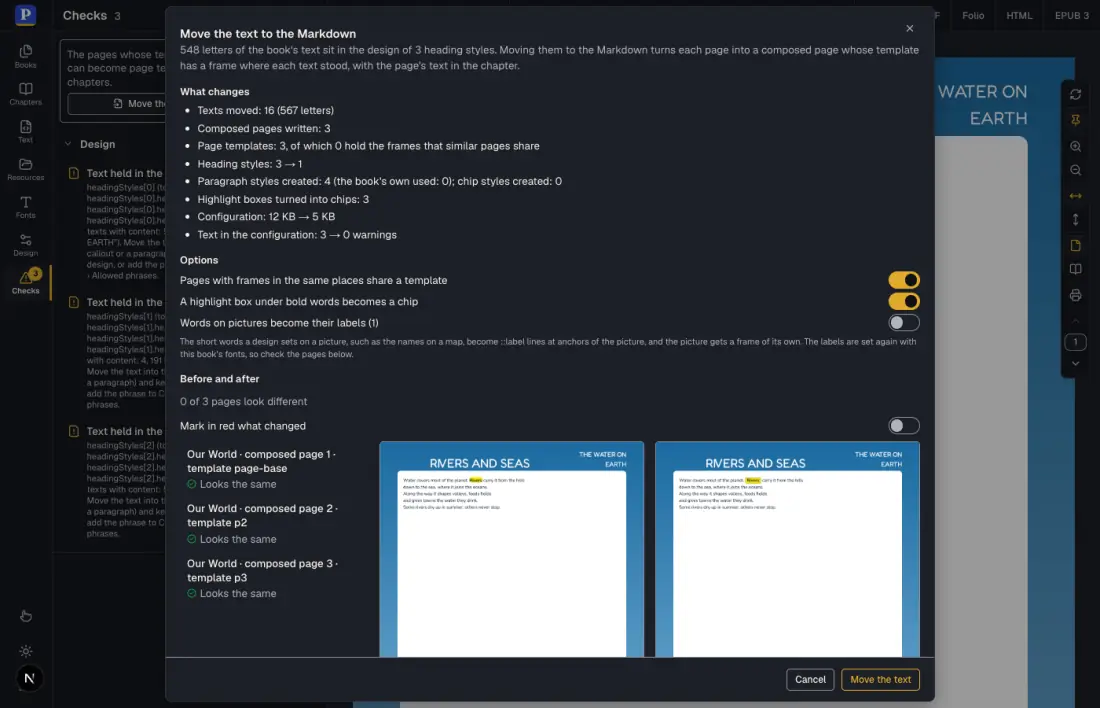
The dialog lists what it will do before it does anything.
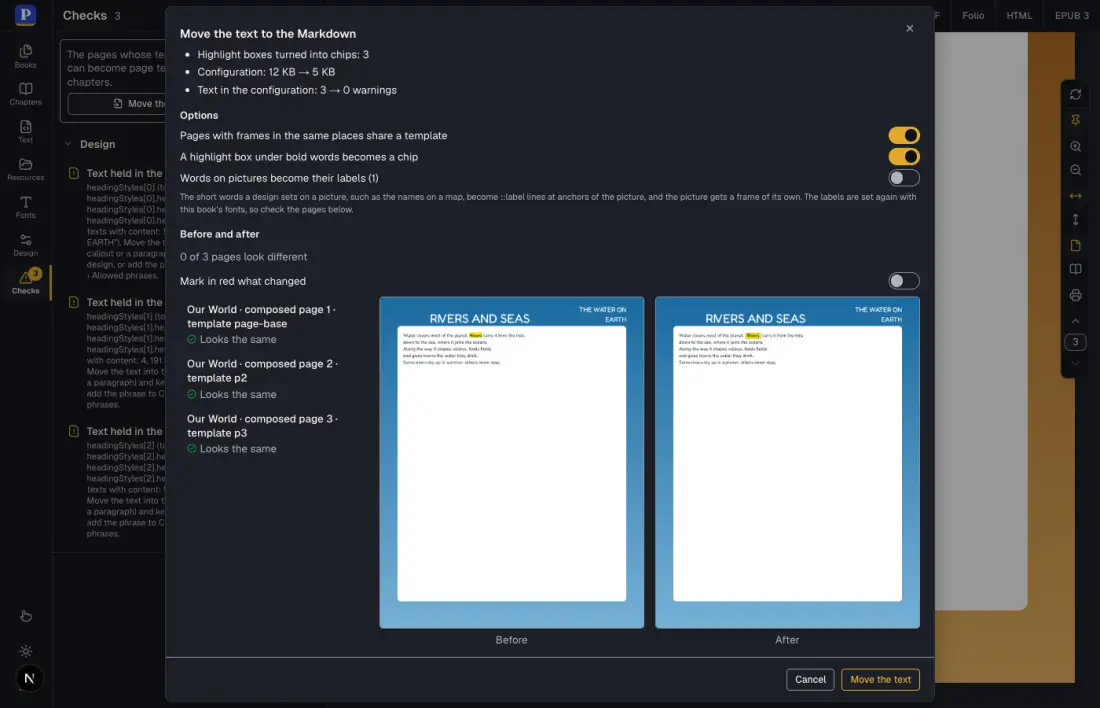
Each page is laid out with the old design and with the new one, side by side.
The move is recorded in the book's history as a step for each chapter rewritten and one for the design. Undo in the dialog takes it all back while nothing else has changed, and Cmd/Ctrl+Z takes it back a step at a time. The book as it was also stays stored until you press Keep the move in the Checks panel; until then Put the book back as it was writes the old design and text back.
Open the Text panel. The chapter now holds one block for each page:
::::page{template="page-base" background="art-p1"}
# Rivers and seas {style="topic" id="t-rivers"}

:::frame{slot="shared-2"}
:::paragraphs{style="fredoka-30-center-ffffff"}
Rivers and seas
:::
:::
...
::::
Go through the result in this order.
- The pages that look different. The list in the dialog gave the reasons it knew: a text's own box, outline or drop cap, a page whose side was not known, running text now set in the template's flow frame. Compare those pages in the canvas.
-
The templates. Design › Page & columns › Page templates lists one template per page design, and
page-basefor the frames that pages share. A page that adds nothing uses the base as it is; the others extend it. The names are built from the old ones: rename a template to something you will recognise (every page that uses it picks up the new name). -
The paragraph styles. The face, size, weight, colour, alignment and leading of each text became a paragraph style: one of the book's own when one matched exactly, otherwise a new one named after the face and the size (
nunito-11). Look at Design › Typography › Paragraph styles and rename or merge the new ones. - The headings. Heading styles that came out the same were merged and the headings were renamed; the hidden headings that only switched the running head are gone. Check the contents page if the book has one.
-
What stays in the configuration. The Left in the configuration list in the dialog lists the texts that stay there: a text that mixes words with placeholders (
Page {pageNumber}), a text hung from another element and the text of a heading design. They are not content of a page, and the Text held in the configuration warnings that remain are about them. - The labels. If you turned on Words on pictures become their labels, look at each map or diagram: the labels are set again in the book's fonts, so their size and place may differ from the old pages.
- The Checks panel. Frames whose text no longer fits show as Text does not fit its frame, with the fixes described in Composed-page books. A book copied from printed pages fits tightly, so the first text that runs a little longer needs a fix.
When you are satisfied, press Keep the move. The book can now be translated like any composed-page book.
A book with a few pages can be moved without the assistant, one page at a time.
- In Design mode make the page template. Draw a frame for each text on a composed page of the book, or follow the steps of Composed-page books. Give each frame the box style that draws its look, and the height the old text had as Smallest height.
- In Content mode write the page as a block
::::page{template="…"}and move each text of the old running head into a:::frame{slot="…"}of the new block. Keep bold and italics, and keep the line breaks of the old text with a backslash at the end of the line. - Delete the text elements from the heading style, or the heading style itself when nothing else needs it. The warning Text held in the configuration for that style goes away.
- Compare the page with the old one and open Checks.
The same migration is available from code as moveTextToMarkdown, which returns the new configuration, the chapters and the report the dialog shows; see Composed pages › Migrating a book with text in its styles. Everything the dialog does is described in Sandbox: composed pages › Moving the text to the Markdown.
An old port often keeps the lines of its diagrams in a picture: the branches of a tree, the boxes of an org chart, the leaders from a note to a map, painted into a background that the boxes sit on. The words then fit the lines only in the language and at the size the picture was drawn for: a longer word in a translation runs over a line, and a box that grows leaves its line behind. Connectors draw the same lines from the frames' boxes once the page is laid, so they follow the text.
- Draw the boxes as frames. Each box of the diagram becomes a frame of the template, with the box style of the old box. A set of equal boxes is better as a grid that repeats one frame (next section).
-
Take the lines out of the picture. Use the picture without its lines, or drop it when it held nothing else; a background that stays (paper, a colour field) becomes a decoration box or the page's
backgroundattribute. - Add a connector for each set of lines in the decoration of the template (Decoration › Add connector). Starts at is the parent box; under Goes to press each child, or Every … for every card of a grid. A tree of branches takes Route Tree; a line between two boxes, Elbow or Straight; arrows and dots are the End mark. The steps are in Composed-page books › Draw a tree with connectors.
- Point notes at the picture. A line from a note to a place on a map becomes a pointer: put an anchor on the picture at the place (the Anchors dialog), pick the note in Design mode and drag its round grip onto the anchor. The line ends at that point of the picture whatever its crop and scale; see Composed-page books › Notes on a map, with pointers and a key.
- Compare the page with the old one, in each language, and open Checks: a connector whose end is on a frame the page does not show is left out of that page, and the reflow log says so.
A port made one frame at a time has a template per page design, and the same card or box drawn again in each: six photo frames with six caption frames, a box with its picture copied into three templates. Reshape frames, in the template editor, turns them into a grid that repeats one card and into a module that any page can hold, and rewrites every page set with the template so it looks as it did.
The book for these steps is Places of the river, before grids: one page whose template draws six photo cards one frame at a time (photo1 to photo6, each with a caption pill caption1 to caption6) and a box fact with a picture fact-picture beside its text. The words are invented. Download the book and, in the Sandbox, open Books, press New and choose Open a .postext file….
- Switch to Design and open Design › Page & columns › Page templates. The template Places of the river is open.
- Under Reshape frames tick
photo1tophoto6andcaption1tocaption6, and press Turn into a grid. The Sandbox reads the cards off the page: three columns 8 mm apart, two rows. It writes a groupgridthat repeatsphotoandcaption, and says Grid grid made: 3 columns, 6 cards. Pages rewritten: 1. The page looks the same. - Tick
factandfact-picture, typefactin Module name and press Extract a module. The box and its picture move into a modulefact; the template gets a group that takes modules where they stood.
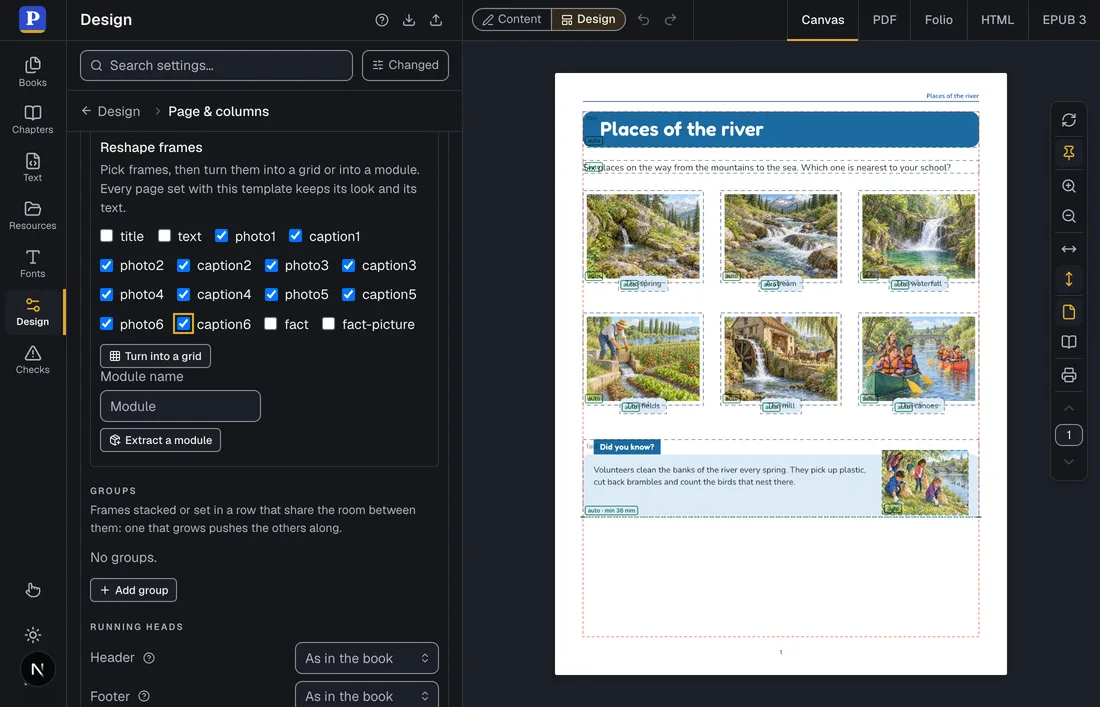
The frames picked for the grid: six cards, each a photo with its caption.
The Markdown changes with the template. Before, each piece named its own frame:
:::frame{slot="photo1"}
::resource{id="spring"}
:::

:::frame{slot="caption1"}
The spring
:::
After, each card is one photo piece with its caption inside, and the box is a module:
:::frame{slot="photo"}
::resource{id="spring"}

:::frame{slot="caption"}
The spring
:::
:::

:::module{template="fact"}
:::frame{slot="fact" label="Did you know?"}
Volunteers clean the banks of the river every spring.
:::

:::frame{slot="fact-picture"}
::resource{id="banks"}
:::
:::
A seventh card is now one more photo piece in the Markdown, and another page can hold the fact box with no frames of its own: insert it from Design › Page & columns › Modules. Both reshapes are steps of the history (one per chapter rewritten and one for the design), and Undo under Reshape frames takes them back while they are the latest. When a reshape cannot be made it says why: cards of other widths, cards that do not stand on one grid, frames inherited from another template, a template that has a modules group already. Every field the reshape writes is described in Sandbox: composed pages › Grids and modules.