Repository navigation
Sandbox Composed Pages
Editing page templates and frames on the page, connectors and shapes, leaders, pointers and keys, grids, modules and their library, reshaping frames, overlap checks and glyph tabs, the library of frame styles, checking composed pages in every edition, moving a book's text to the Markdown, and fixing a frame in one click
Generated from docs/sandbox-composed-pages-en.mdx (updated 2026-10-20). Read it on postext.dev, where it is also available in Spanish, Catalan, Portuguese, French, German, Italian, Chinese, Japanese and Arabic. To change this page, edit the MDX and run pnpm wiki in apps/web.
This page covers what the Sandbox offers for composed pages, the pages whose text is poured into frames laid out by a template. You draw and move the frames of a template right on the page, join them with lines, repeat a card in a grid, keep blocks in a module library, and tidy the frame styles in a library. The Checks panel tells you, in every language of the book, which composed pages have text that does not fit, and it offers buttons that fix a frame. A book made before composed pages can have the text of its pages moved into the Markdown in one step.
This page gathers the parts of the Design and Checks panels that deal with composed pages (::::page blocks that pour their content into the frames of a page template). The rest of both panels is on Sandbox: the Design and Checks panels; how a composed page is written is on Composed pages.
Design › Page & columns › Page templates edits pageTemplates, the layouts a composed page (::::page{template="…"}) pours its content into, without opening the configuration file.
- The list shows each template with a drawing of its frames, its id, the number of pages of the book that use it (a spread counts two) and the template it is Based on. New starts a template with one frame that takes the page's loose text; Duplicate copies the one open; Save layout as template turns the composed page you picked (or the first one laid out) into a new template whose frames stand where they came out, at fixed sizes in millimetres, keeping their styles and the rest of their fields.
-
Edit for chooses what the fields change: All pages (the template), Recto (odd) or Verso (even) (
variants.recto,variants.verso). A field the scope does not set shows the value it inherits, muted, and its reset button hands it back. A spread template (Two facing pages, with its Gutter) is drawn as one sheet across two pages with the spine band marked, and has no variants. On right-to-left and vertical books the sheet is read in the page's flow: the first page of the spread is the right one, and the facing page's area and the spine band are drawn on the side where the engine laid them out (since postext 1.40). -
Template: id (renaming it renames every page fence that names it), name, Based on (
extends), the spread switch, Frames measured from (area), Added pages use (overflowTemplate: the template of the pages a frame's content goes on to, see When the text continues), the grid, Delete template (it says how many pages name it; templates based on it keep what they inherited). -
Frames: one button per frame, Add frame, and the properties of the frame picked: name (the slot; renaming it renames the
slot="…"of every page fence that fills it, in all the chapters and in the other editions a local project keeps, since postext 1.42), May stay empty; position (anchor to the template area, the trimmed page, the bleed or another frame or group, the edge, offsets) or a grid cell; width and height (Fixed, Share of the area, Its content, Up to the edge) with their limits; box style, layer, rotation, where the content sits, columns, padding per side; Takes the page's loose text (flow), Takes (takes, the first heading), Text that does not fit goes on in (next), Other frames' text runs round it (exclude: "push") and, once it does, Push with Box or Contour (wrap, the shape of the pictures it holds); fitting (fit); grow, shrink, priority and pin for groups; continuation (overflow.continueIn,overflow.mark,overflow.fromMark): Content that does not fit goes to also lists every page fence with anid(page:<id>), and A later page by its id… takes a typed value ({attr.sigue}). Every field has its help and its reset. The other editions of a sample book are read from its bundle and have nowhere to be written: renaming a frame there changes the edition on screen only, so rename it in each edition (since postext 1.43). A frame added to a template whose groups already have members takes the width and height of the last of those members; with a stack that has none yet it is Up to the edge wide and as tall as Its content (since postext 1.43). New makes a template with one frame and picks it, so its properties are in view (since postext 1.43). - Groups: name, stacked or in a row, the space between frames, where spare room goes, and the members in page order. A group with a Box of its own shares out its spare room and lets its frames give room back inside it; without one it is the union of its frames' boxes. The members are listed in the order they are set, numbered: a frame you tick joins at the end, and the arrows beside a member move it up or down (since postext 1.43).
-
Colours of this frame (once the frame has a style) set its fill, border, tab and text colours and the tracking of its text for this frame alone (
look), and the template's Palette overrides recolour the palette-linked fills of all its frames (palette). A page fence'spaletteattribute goes on top (since postext 1.42). -
Running heads (As in the book, Hidden, Its own) and Decoration, edited like the book's header and footer; a text there may read the page's attributes (
{attr.name}). On a template that extends another, Inherited elements lists the decoration it takes from the parent with a switch for each; switching one off writes the removal for this template (or for the side being edited).
On the page, in Design mode. With the switch above the preview on Design (or Edit frames on the page in the section), a composed page shows its margins, its grid, the gutter of a spread and an arrow for each chain. A press on a frame picks it and opens its properties; a drag moves it; the eight handles of the frame picked resize it; a drag on an empty spot draws a new frame. Boxes snap to the margins, the grid and the other frames' edges and centres (hold Alt to place freely; Escape cancels the drag). The box is written back in millimetres: a frame hung from another keeps its anchor and changes its offset. When other pages use the template, the page asks where the change goes: Change the template (with the number of pages) or Only this page, which makes a template for that page based on the first one and points the page's fence at it. A rotated frame moves on the page and is sized in its fields. The fields are the keyboard way to do everything the drag does.
A story that jumps to another chapter. In a book with one chapter file per article, a story whose frame sends it to page:<id> goes on in the chapter that has that page (since postext 1.41; see Composed pages › Jumping to a later page). The canvas, the Folio and the PDF and EPUB tabs set the rest on that chapter's page, with the book's page numbers in the marks. A chapter's layout record keeps the stories it sends, so the chapter that has the page is laid out again when the article changes and not when a chapter in between does. A click on the carried words puts the caret in the article's Markdown, and the path under the preview names the later page when the caret is in the carried text. The preview of one chapter shows only what its own pages hold: the rest appears with the chapter that has the page.
A figure's own words. A click on a caption or a note that a figure writes itself puts the caret in its ::caption[…] or ::note[…] line, or in the attribute of the opening line, at the letter clicked (see Composed pages › A figure's own words).
The decoration of a page template or a module (Decoration, at the foot of the template editor) adds two kinds of element since postext 1.48: connectors, the lines that join frames, and shapes. Both are written into the configuration as you edit them; nothing needs JSON. See Configuration › Connectors for what each field does.
A connector, step by step.
- Press Add connector. The new connector runs from the template's first frame to its second, as an elbow, and its card opens.
- Starts at lists the template's frames, groups and placed elements: the start of the line, the parent of a tree.
-
Goes to is a row of buttons, one per frame and group; the pressed ones are ends of the line. A repeated frame offers Every … (
#card[*]), every card the page has. An end the list lacks (a card by its number,#card[2], or a frame taken out of the template) stays listed so it can be taken out. - Each end, the start included, has a Side (Facing, the side that faces the other end, when unset), a Point on the side (start, middle, end or a fraction from its start) and a Gap between the box and the line. Anchor of the picture ends the line at an anchor of the picture the frame holds instead of a side of its box; the point on the side is then hidden.
- Route is Straight, Elbow or Tree; an elbow and a tree also take a Bend radius and a Bar position. Then Line color (the main colour by default, palette-linked), Line width, Dash, Start mark and End mark (Dot or Arrow, with a Mark size), Over the frames (under the switch, a line says what it does when unset: over when an end stops at an anchor of a picture), and the pages that draw it.
Picking on the page. Pick on the page turns the Design mode on and waits for clicks on a page set with the template (or one based on it). The first click sets the start and clears the ends; each later click adds an end or takes it out again; Shift-click adds or takes out an end at any time; Escape, or the button again, ends the picking. A line under the button says what the next click does. While a connector's card is open, its ends show on the page: a filled dot at the start, a ring at each end, and while picking, the frames joined outlined (solid the start, dashed the ends). The ends are moved by picking or by their fields, not by dragging.
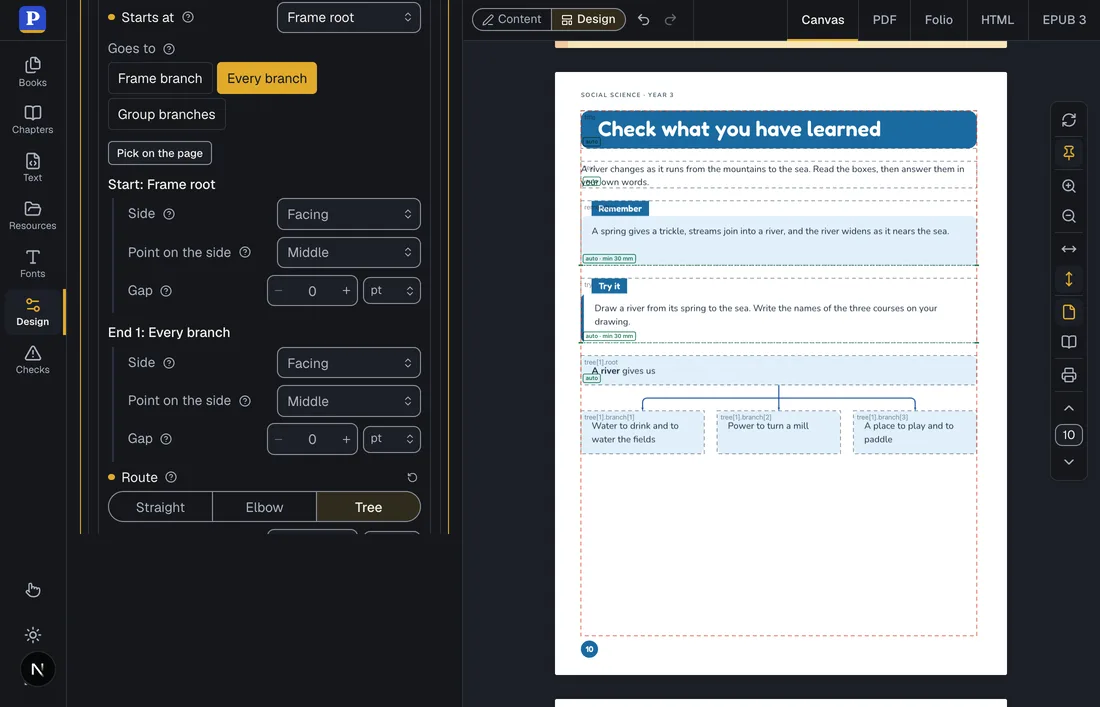
A connector's card, and its line from the root to every branch.
Shapes. Add shape (in every design slot: templates, running heads, heading and part designs) writes a bar filled with the main colour. Its card offers five presets, each drawn on its button (bar, ribbon, arrow, chevron, wave); a Path field that takes SVG path data and is written only when it parses (otherwise it says at which character it goes wrong); the view box, the fit (stretch or keep proportions), fill and outline with their colours, outline width and dash; and the size and place of any box of the decoration.
Corners and sides. Box styles, frame styles, decoration boxes and the box of a text element share two switches. Same radius on every corner, off, gives four corner lengths. Same border on every side, off, gives each side its own switch, colour and width over the whole border's, each with its reset: a border on the top only is the whole border off and the top on. A tab can be Joined to the box, with its fillet radius (the corner radius by default), and stand at one of four foot positions as well as the top ones.
Placement on a side point. A decoration element anchored to a frame, a group or another element has a Point on the side field: the point along the edge it hangs from (start, middle, end or a fraction), and a size to an edge can stop at its middle.
A label away from its point. In the Anchors dialog of a picture (the resource's Anchors button, or the pin button of a label check), each anchor has a Label and leader group:
- Switch Away from its point on. The label moves one step up and to the right of the point (turned back inside the picture near an edge); its place shows in % of the picture as Label across and down.
- Drag the label's handle on the picture (a tag with its words) or focus it and use the arrow keys (Shift for larger steps); Delete puts the label back at its point. The line from the handle to the point is drawn as you move it: solid in the style's colour when a leader will be drawn, dashed white when not.
- Leader is As the style, On or Off. With On, Route (Straight, Elbow) and Mark at the point (Dot, Arrow, None) set the anchor's own look; colour, width and dash are the label style's.
-
The labels set at this anchor lists every
::labeland:::labelline of the text at that anchor with As the anchor, On or Off. The choice is written into the chapter's Markdown at once (leader,leader="none") and wins over the anchor's; as text, it is not part of the dialog's Cancel or Undo.
On the canvas, in Design mode, a label set away shows a line back to its point; dragging the label moves its place, not the anchor, and Alt held while dragging a label at its point sets it away.
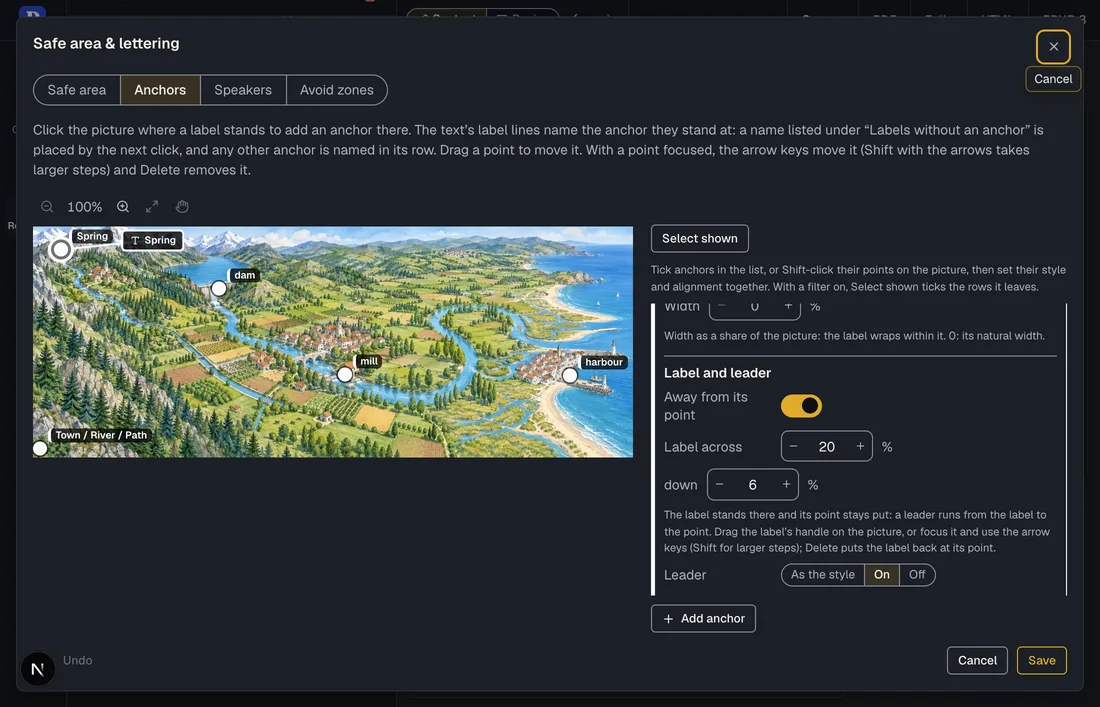
A name set away from its point, and the leader drawn back to it.
Pointers. A pointer is a line from a frame to an anchor of the picture another frame holds, as a map's notes point at its places. On a composed page in Design mode, the frame picked has a round grip beside the middle of its right side (its end side). Drag it: the anchors of the pictures in the page's other frames show, and a drop near one writes a straight connector with a dot at the anchor (pointer-<frame>-<anchor>), or keeps the one that already joins the two. The frame's Pointers group lists each pointer's frame and anchor (the anchors of the pages laid with the template, or typed), with Add pointer and a remove button: the way for the keyboard and for a finger. A pointer is written into the page's template, so every page it lays draws it; on a template based on another, an inherited pointer is changed under its id and removed by hiding it.
Keys and symbols. Design › Figures & tables › Label styles has three groups for them. Halo and plate gains an Outline and a Corner radius. Lines and key sets how the lines of a label line up (Lines aligned) and Key (legend): each line is a row, and the symbol that opens it stands in a column as wide as the widest. Leader sets the look of the leaders of labels in this style: colour (the text's while unset), width, line (Solid, Dashed, Dotted; another pattern shows as Custom and is kept), the marks at the label and at the point, their size and the route. The Symbol for a label button of the Text panel's toolbar writes a symbol at the caret: a picture of the book, a glyph (ten common map symbols, or any typed, with a face), or a line sample (Solid, Dashed, Dotted), with its colour, size in ems and the words a screen reader says. The engine reads symbols in figure labels and in the captions, notes and cells of resources.
Grid groups. A group of a template is Stacked, In a row or a Grid. A grid has Columns, Gap between columns and Gap between rows (the group's space between frames when unset) and Cells in a row (At the top, In the middle, At the foot, Stretched). Repeat a set of frames makes it lay one card per item of the page: the Main frame (one no other group holds), the Frames that go with it and Most items (0: no limit). A repeating grid hides the plain list of members.
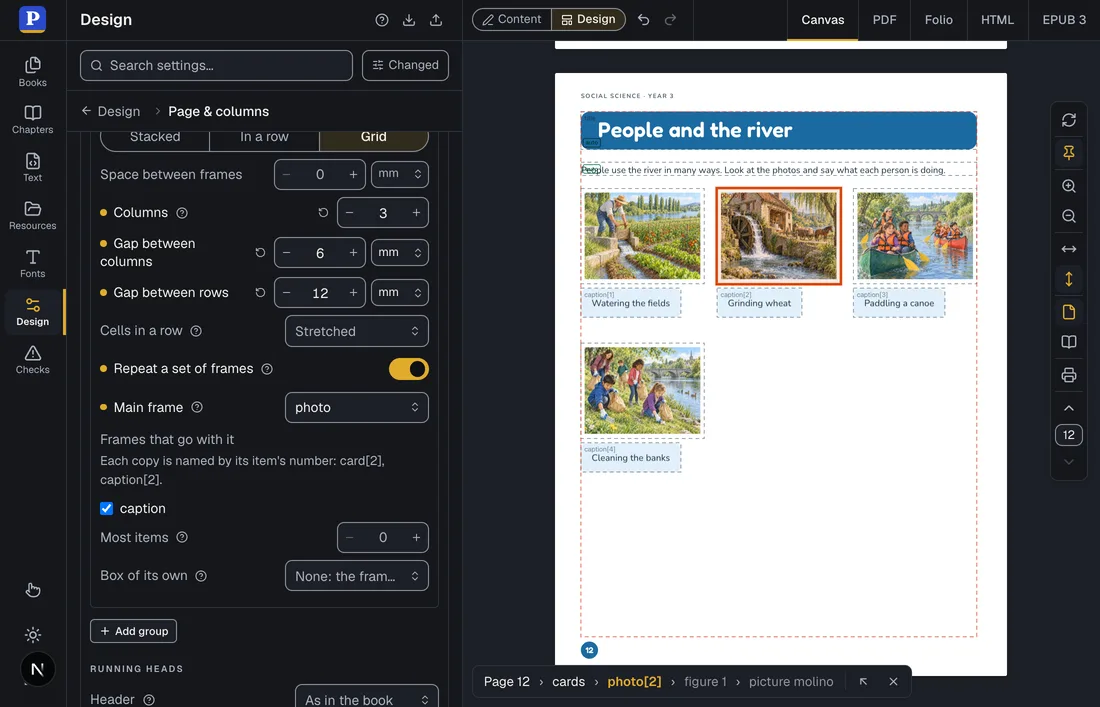
A grid that repeats the photo and its caption once per card the page writes.
On the canvas the cards are named by their number (photo[3]). A click on photo[3] puts the caret in the third card of the Markdown, a click on caption[3] in the caption written inside it (or writes an empty :::frame{slot="caption"} there), and the caret in a card marks its frames. A pick opens the frame of the template that draws it. The drag handles are not drawn on a card or a module's frame, since a drag would move every copy: edit them in the panel.
Modules. The Module switch of the template editor makes a template a module (role: 'module'): the fields a module has no use for (area, spread, gutter, running heads, added pages, variants, the template grid) go and are hidden. The list of page templates tags modules. A group switched to Takes the page's modules stacks the page's :::module blocks, with A module that does not fit goes on to the next page.
The module library. Design › Page & columns › Modules lists every module, drawn by its frames, with its id and N blocks on M pages (read from the Markdown of every chapter). New module adds one with a text frame; the pencil opens the template editor in place; the insert button writes :::module{template="…"} with an empty :::frame{slot} for each frame (none for a frame that takes a heading; a grid's set as one empty card) before the closing fence of the page chosen in Page to insert into (the page at the caret first), puts the caret in its first slot, and adds a modules group to the page's template when it has none. Renaming a module's id rewrites every :::module block that names it.
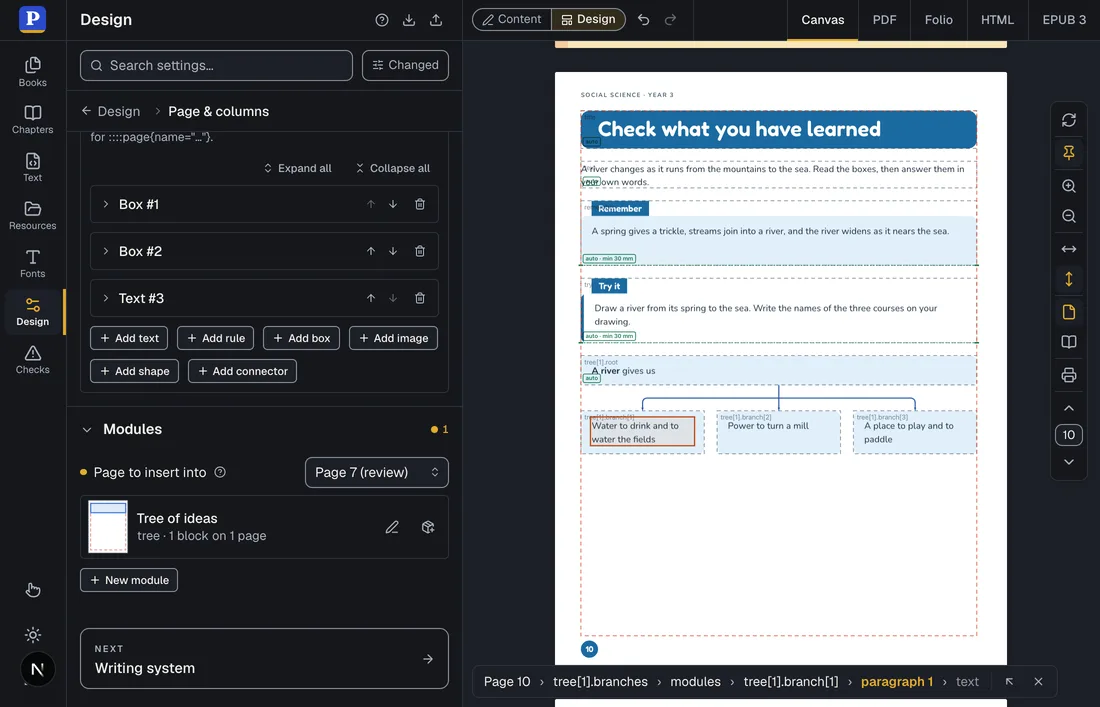
The module library of the book.
Reshape frames. A port often draws one frame per card (photo1, caption1, photo2…) or the same box on every template. Reshape frames, in the template editor, ticks frames and turns them into a grid or into a module, and rewrites every page set with the template so it keeps its look and its text:
-
Turn into a grid splits the frames ticked into cards and what hangs from each by their names without the number (
photo1,photo2one kind,caption1,caption2another), reads the rows and columns off the first page laid with the template, and writes one grid that repeats the first card's frames. Each page gets one item per card, in reading order, and anchors that named a card point at its instance (#photo2becomes#photo[2]). It says why when it cannot: too few cards, inherited frames, cards of other widths, cards off one lattice, members that differ. -
Extract a module moves the frames ticked, a group all of whose frames are ticked and the decoration hung from them into a new module (named in Module name), and puts a modules group where they stood. Each page gets the pieces of those frames wrapped in one
:::moduleblock where the first stood.
Both reshapes enter the history as one step per chapter rewritten and one for the design, and Undo in the section takes them back while they are the latest. See Moving a book to composed pages.
Overlap checks. The Checks panel lists Frame under another frame (frameCovered) and Frame runs past its edge (frameOutsideArea) with the composed pages, by page, frame and edition (see Composed pages in every edition). Each entry says what is covered (the first words, or the picture), the area hidden, or what the frame runs past and by how much. Selecting one draws it on the canvas until another check is selected or a fix is made: for a covered frame, its box (blue, dashed), the covering frame's (red) and the rectangle where they meet; for a frame that runs past its edge, the frame, the box it runs past and a band on each side it crosses.
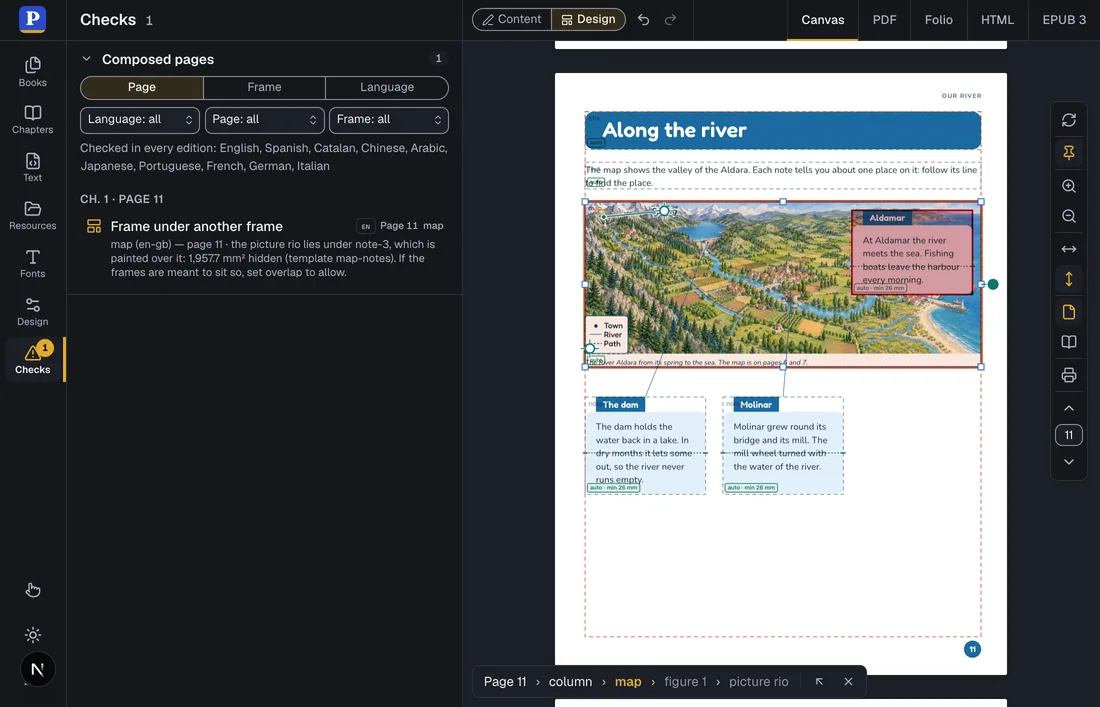
A note set on the map covers part of the picture: the check, its fixes and its marks.
The fixes are buttons, each one step of the history: put the covering frame's Layer under the covered one, let the other frames' text run round it (Other frames' text runs round it), a Smallest height for the frame it is anchored inside or a Largest height, continue it on the next page with the height that brings it in, or move the frame (its offset gets the shift, in millimetres). When the overlap is meant (art over a text, a badge that hangs off its card), the entry says how: switch on May overlap on purpose in the frame's properties, right after Layer (it writes overlap: 'allow'; reset removes it), or press the fix that lets the covering frame overlap on purpose, in Checks or in Reflow. The Reflow panel names the same events in words («map lies under note-3 (1957.7 mm²)») with the fixes under each frame.
Glyph tab icons. The label group of a box style has Tab icon kind: Picture (a resource) or Glyph, a character set in a font. A glyph shows its Tab glyph field, a row of common symbols (◉ ● ○ ■ □ ▲ ★ ✓ ✎ ➜, each a button Use …), its face, weight, size, colour (the words' when unset, so one style serves every tint of a book), placement and gap. Switching to a glyph with none set writes ◉. See Configuration › A glyph on the tab.
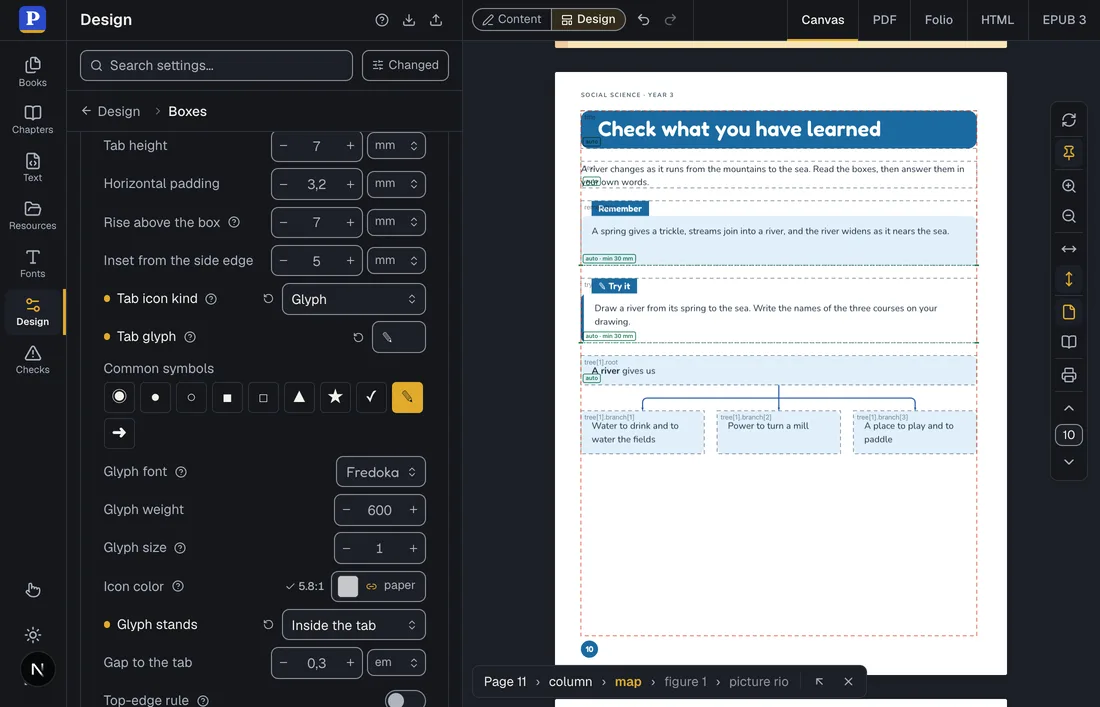
A glyph on the tab: no picture resource, and the colour of the tab's words.
Design › Boxes › Frame styles shows the box styles (calloutStyles) as a library. The frames of page templates are dressed with the same styles (frames[].style), so one style serves a :::callout box in the text and a frame on a composed page alike.
-
Each style is drawn by the engine with a sample paragraph, and a sample tab when the style has a label tab, the way a frame wears it: 80 mm wide (wider when its padding leaves less than 40 mm of measure), in the flow, without the fixed place a callout style may give its box. A style based on another (
extends) is drawn with the look it inherits from its parent, as the page draws it (since postext 1.40). Under its name the section says where the book uses it: template frames, composed pages laid with those templates, and boxes in the text. When opened, a style lists every frame (Open goes to it in Page templates) and every chapter with its boxes (Show selects the next fence in the Text panel; a fence with notypecounts for the first style, which the engine gives it), and Edit the style opens the Box styles editor in place. Show filters the list: In templates (the default once a template uses a style), In the text, Unused, All. - Kinds of box lists the styles that extend another, or differ from it only in colours (one box shape in seven tints), under the most used of them. Such a variant is not a duplicate, so it is left out of the merge suggestions (since postext 1.42).
- Merge suggestions group near-identical styles around the most used one: «These 3 styles differ only in padding: merge?». Styles are compared on what the engine resolves them to, setting by setting, leaving out their id and name. Lengths within 0.5 mm and colours within ΔE 2 count as equal, the four sides of a padding count as one setting, and Settings that may differ (2 by default) sets how many settings may differ.
- Where a
:::calloutbox stands (placement, fixed position, span, the space above and below) has to match, or merging would move the box. Compare the look only leaves it out, and the review then says how many boxes would move; while it is off, the section says how many more styles it would merge. Styles that only template frames use are always compared on their look: a frame takes its place from its template. -
Keep each box where it stands (with Compare the look only, on by default): a style whose boxes stand elsewhere is kept with only its place, based on the kept style (
extends), so its boxes take the kept look without moving. -
Review lists each style that goes, what it differs in, and the chapters and frames rewritten. Merge into (or Merge every suggestion) rewrites the
styleof every template frame, variants included, and thetypeof every fence of every chapter to the kept style, removes the others, and puts the kept style where the first of its group stood, so a fence with notypekeeps its look. The merge enters the Sandbox's undo history as one step per chapter rewritten and one for the styles and templates. Undo in the section takes the whole merge back while nothing was changed after it; Cmd/Ctrl+Z takes it back a step at a time, the styles first, so every state on the way names styles that exist. - Renaming a style in Box styles renames it in every fence and template frame as well.
The merge rewrites the chapters of the edition that is open: another language of the book, kept as a draft or a project of its own, keeps its own styles. Agents get the same library through sandbox_frame_styles and sandbox_merge_styles (see WebMCP).
In a book with page templates (pageTemplates), the panel opens with Composed pages: the checks of every composed page of every chapter, in every edition the book carries. A bundle in Spanish, English and Catalan is checked in all three while one of them is on screen. The editions not on screen are laid out in the background, each read the way opening it would read it: its draft when it was edited, else the bundle's text in that language. A line under the controls says which editions are being laid out and, once they are all done, which were checked.
The section lists:
-
Text does not fit its frame (
frameOverflow), with the steps the reflow ladder tried and the changes that would make the frame fit; -
Text still runs past its last added page (
frameContinuationLimit): the frame's content went on to the maximum number of pages a composed page may add and still does not fit; -
A story jumps to a page that does not follow (
continueTargetMissing): no later page fence has the id the frame'scontinueInnames; -
Label at an unknown anchor and Anchor without a label (
labelAnchorUnknown,anchorUnlabelled), filed under the frame that sets the figure; -
Label wider than its measure and Labels run into each other (
labelOverflow,labelOverlap), filed under the same frame: each edition's labels are measured with its own words, so a language with longer words overflows where another does not. A label that runs onto one of the picture's avoid zones, drawn in the Avoid zones mode of the picture's marks, is listed here too; on an SVG, Symbols of the drawing in that mode adds a zone over each element of the drawing whose id starts with a given prefix or that carries a given class (since postext 1.43); -
Slot with no frame, Empty frame, Unknown page template, Composed page with three colons and Spread flag and template disagree (
slotUnknown,slotEmpty,templateUnknown,pageFenceLength,spreadMismatch); -
Frame under another frame and Frame runs past its edge (
frameCovered,frameOutsideArea), with the covered words or picture, the area hidden or the overrun, and the fixes in one click; selecting one marks the two frames, or the frame and the box it runs past, on the canvas (since postext 1.48); -
More items than the grid holds (
repeatOverflow), filed with the markup (since postext 1.48); -
Unknown module, Module set as a page, Module inside a module and Module name not taken (
moduleUnknown,moduleAsPage,moduleNested,moduleNameRejected), filed with the markup (since postext 1.48); -
Contents block cut between columns (
tocGroupSplit); - the page templates' own warnings (a frame style or anchor that does not exist, sizes that contradict each other, a chain that loops) and design text that holds the book's content (
contentInConfig).
These entries are not repeated in the groups below.
Page, Frame and Language group the list by composed page (the same page in every edition, whatever number it carries there), by frame or by edition. The three menus under them keep one language, one page or one frame. Each entry shows the edition's tag (CA), the page number in that edition and the frame's name.
A click on an entry takes you to its frame in its edition. When another edition is on screen, the book switches to the entry's language; then the chapter and the page open, the frame is picked on the page (its path shows at the foot of the preview) and the caret goes to the start of its slot in the Text panel. A template's own warning opens the first page set with that template, with its frame picked; design text that holds content opens the Design panel.
A local project imported from a bundle in several languages keeps all of them, so its composed pages are checked in every language as a sample's are, and a check in another language takes you to it with the project switched to that language. A book in one language has one edition, and the line under the controls says so. The badge on the activity bar counts the warnings of the chapter on screen, in the edition on screen. A big book is checked only when you ask: when its number of chapters times its number of editions is more than 48, the panel checks only the chapter on screen and offers Check every edition, which lays out the rest in the background (since postext 1.40). The sandbox_get_composed_checks tool (see WebMCP) lists the composed checks of every edition without the panel.
A book made before composed pages may keep the text of whole pages in its heading styles: a hidden heading on each page whose running head places dozens of text elements, boxes and pictures where the printed page had them. The Checks panel then lists Text held in the configuration and offers Move the text to the Markdown at its head. A book imported from the Books panel with such styles opens the same dialog right after the import.
The dialog says what the move will do before it does anything:
- Each page design becomes a page template (
pageTemplates). Every text becomes a frame where the text stood; text blocks of one look set one under another at an even spacing become one frame. The boxes, rules and pictures become the template's decoration, painted over the page's running text as the running head was, and a picture that covers the page becomes the page'sbackgroundattribute, which the decoration reads ({attr.background}). - Each page of a chapter becomes a page fence,
::::page{template="…"}, holding the page's headings and running text and a:::frame{slot="…"}per frame with its text. Bold and italics stay; the line ends of the design stay as forced breaks. - The face, size, weight, colour, alignment and leading of each text become a paragraph style: the book's own when one matches exactly, else a new one named after the face and the size. A filled box under bold words becomes a chip of the book's chip style of that colour, or of a new one.
- Pages whose frames stand in the same places share a template (
page-base) that their own templates extend (extends); a page that adds nothing uses it as it is. - Heading styles that come out the same once their running heads have left are merged (
tema--p04,tema--p05→tema) and the headings are renamed; hidden headings that only switched the running head are dropped. A page that opened with a heading set to an even or odd page gets a:::pagebreak{parity="…"}before its fence.
The numbers under What changes are the texts and letters moved, the pages written, the templates proposed, the heading styles before and after, the styles created, the size of the configuration and the Text held in the configuration warnings, before and after.
Before and after lays each chapter out twice with the Sandbox's own layout and draws every page that changes, the old one beside the new one. The list beside them says which pages look different and why, when the reason is known: a text's own box, outline or drop cap, a page whose side was not known, running text now set in the template's flow frame. Mark in red what changed paints the pixels that differ.
The options: Pages with frames in the same places share a template, A highlight box under bold words becomes a chip, and, when there are some, Delete the heading styles with text that no heading uses.
With Words on pictures become their labels, offered when the design sets short words on the book's pictures (the names of a map, the figures of a diagram), those words become the ::label lines of a :::figure, the picture gets a frame of its own and its resource gets the anchors. The summary counts the labels, the pictures, the anchors and the label styles. The option is off until you turn it on, because these pages change the most: the labels are set again with the book's fonts, so look at them beside the old pages. The anchors are written to the picture's resource as one undo step each, between the text and the design, and Undo and Put the book back as it was take them back too.
Move the text writes the change into the book's one undo history: a step for each chapter rewritten, then one for the design. Cmd/Ctrl+Z takes the design back first, then the chapters, and the dialog's Undo takes back all of them while they are the latest. The book as it was also stays stored, across reloads, until Keep the move in the Checks panel; until then Put the book back as it was writes the old design and text back, as steps that can be undone in turn.
Left in the configuration, and listed under Left in the configuration: a text that mixes words with placeholders (Page {pageNumber}), a text hung from its running head's own box or from another element, and the text of a heading design (not a page). A heading set in a frame keeps its design there (the tab of a boxed heading, bands drawn around a heading; see Headings in boxes and frames). The contrast check reads a frame's text on the box of its frame or on the decoration box under it, so a white label on a coloured box is measured on that colour (see What is read).
The same migration is a function of the engine, moveTextToMarkdown({ config, chapters, metadata }, options), which returns the new configuration, the chapters and the report the dialog shows. See Composed pages.
Under Text does not fit its frame, the fixes the reflow ladder worked out for that frame are buttons, in the warning's own words:
-
let the text shrink to 60 % sets the frame's
fit.minScale(and turnsfit.shrinkTexton when it was off); -
raise maxHeight to 66 mm sets its
maxHeight; - lower the minHeight of … lowers the minimum height of another frame of its group;
-
continue it on the next page sets
overflow.continueIntonext-page, so what does not fit goes on to a page added after this one; -
set the page with template … rewrites the
templateof the page's::::pagefence in the text; - cut about 626 characters changes nothing: it selects the frame's text in the Text panel and says how many characters to cut.
The other buttons change the book's form, so each asks first, naming the setting and its value (tema-fija › dinero › maxHeight = 66 mm) or the template the page will take. A design change applies to every page set with that template. Change it makes the change as one step of the undo history: Cmd/Ctrl+Z, or the Undo button beside Content and Design, takes it back. The page is laid out again, and the warning goes, or gives way to what the change left (a box further down that no longer fits).
The same buttons follow the frame in the canvas's What moved and why panel. The warning of an edition that is not on screen offers to open that edition instead, where its fixes can be made. When the book changed after the layout proposed a fix (the template was edited, the fence names another template), the button says so and changes nothing. An agent makes the same fixes with sandbox_apply_proposal (WebMCP).
The HTML tab lays each composed page out on the print leaf, with its size and margins, and shows it whole, scaled to the width of the viewer: its frames stand where the template puts them in print. In the vertical scroll a composition is as tall as its leaf and the scroll goes on to the next one. In the columns view a composition taller than the screen scrolls down on its own, and the arrows move one page at a time. Before postext 1.47 the viewer laid the template on its own screen-sized page, and a composition could be cut.