SSH
One live terminal workspace. Every SSH-capable screen.

SuperTerm 4.2.1 can publish its interactive UI through a dedicated instance of the operating system's OpenSSH server. The viewing device needs only a normal interactive SSH client:
ssh -p 8022 user@serverThere is no SuperTerm-specific network client, plugin, private-key transfer or
special list of SSH options to install on that device. OpenSSH tries the
client's usual identities and, when the server policy permits it, can fall
back to a PAM-approved Unix-account password. A normal interactive ssh
allocates the required PTY automatically; use -tt only when calling it from
an environment without an interactive terminal and a PTY must be forced.
The resulting screen is an ordinary SuperTerm client attached to the same session engine as a local client. Detaching, closing the SSH terminal or losing the network removes that viewer, not the daemon or its PTY-backed panes. Reconnect to receive the live desktop as it now stands.
SuperTerm does not implement another encrypted transport. It asks the system's
OpenSSH implementation to provide the TCP listener, encryption, Unix-account
authentication, PAM and outer PTY. After authentication, a restricted
ForceCommand starts the normal SuperTerm client as that account:
standard ssh client
        |
        | encrypted TCP + authentication + outer PTY
        v
dedicated OpenSSH listener (for example server:8022)
        |
        | restricted ForceCommand, now running as the authenticated user
        v
SuperTerm client -> private 0600 Unix socket -> one live session daemon
                                              |-- PTY-backed pane 1
                                              |-- PTY-backed pane 2
                                              `-- shared canonical desktop
The private SuperTerm protocol never listens on the LAN. The encrypted TCP connection ends at OpenSSH on the host, and the authenticated local client then uses the user's protected Unix socket.
The dedicated service is separate from the host's normal SSH service:
| Ordinary host SSH | Dedicated SuperTerm SSH | |
|---|---|---|
| Typical endpoint | server:22 |
server:8022 (configurable) |
| Process, service and PID | Existing SSH service | Separate SuperTerm-owned service |
| Configuration and host keys | /etc/ssh |
/etc/superterm/sshd |
| Result after login | Normal shell/service | Forced SuperTerm UI |
| Intended facilities | Shell, commands, SCP/SFTP, tunnels | Interactive SuperTerm sessions |
superterm ssh-server setup never edits /etc/ssh/sshd_config, replaces the
normal host keys, stops or restarts the normal SSH service, or silently takes
port 22. The dedicated listener uses the trusted system OpenSSH binary found
under /usr/bin or /usr/sbin and can coexist with the ordinary SSH service
when their independently configured endpoints do not conflict.
The dedicated entry intentionally accepts only an interactive SuperTerm session with a PTY. It rejects remote commands, SCP/SFTP, subsystems, TCP or Unix-socket forwarding, X11, agent forwarding and client-supplied environment. Keep the ordinary SSH service for those facilities.
Install SuperTerm in a protected, root-owned system path on GNU/Linux or macOS.
The optional TCP entry also needs the operating system's OpenSSH server:
openssh-server on Debian/Ubuntu, while macOS includes /usr/sbin/sshd.
Prepare the separate instance:
sudo superterm ssh-server setup
sudo superterm ssh-server status
The initial generated configuration listens only on loopback:
[server]
config_version=1
listen=127.0.0.1:8022,[::1]:8022
allow_root=0
password_authentication=1
managed_authorized_keys=1
user_authorized_keys=1
To make it reachable from another device, edit the public configuration and
replace listen deliberately with an address owned by this server. For
example, using the documentation-only address below as a placeholder:
sudoedit /etc/superterm/sshd/server.ini[server]
config_version=1
listen=192.0.2.20:8022
allow_root=0
password_authentication=1
managed_authorized_keys=1
user_authorized_keys=1Validate the pending configuration before publishing it, restart the dedicated listener, and check its state:
sudo superterm ssh-server check
sudo superterm ssh-server restart
sudo superterm ssh-server status
Now connect from another interactive terminal, substituting the real account, address and port:
ssh -p 8022 user@serverIPv6 addresses in listen use brackets, for example [2001:db8::20]:8022.
Listening on all interfaces requires an explicit 0.0.0.0 or [::]; prefer
the narrowest intended interface and apply the host's normal firewall policy.
Accounts are normal users known to the host and must have an executable login shell. The three authentication switches are independent:
-
password_authentication=1lets OpenSSH authenticate normal users through the host's PAM policy. SuperTerm never receives or stores the password. -
managed_authorized_keys=1enables the root-managed public-key store under/etc/superterm/sshd/authorized_keys/USER. -
user_authorized_keys=1lets OpenSSH read each account's existing~/.ssh/authorized_keys. SuperTerm does not modify that file.
At least one password or public-key path must remain enabled. With
allow_root=1, root is still public-key-only and at least one public-key
source must be enabled; a root password is never accepted by this service.
To add a public key to the dedicated managed store:
sudo superterm ssh-server authorize user /path/to/id_ed25519.pub
sudo superterm ssh-server list-keys user
To remove one later, use the fingerprint reported by list-keys:
sudo superterm ssh-server revoke user SHA256:FINGERPRINTOnly the .pub file belongs on the server. The private key stays on the
client. Authorizing or revoking a key affects new authentications; it does not
disconnect a client that is already attached.
On the first connection, verify the dedicated host identity before accepting it. An administrator can display its fingerprint on the server with:
sudo ssh-keygen -lf /etc/superterm/sshd/ssh_host_ed25519_key.pubDo not remove a known_hosts warning blindly: first establish whether the
server identity really changed or the client reached a different endpoint.
An ordinary per-client ~/.ssh/config entry can reduce the command to
ssh superterm:
Host superterm
    HostName 192.0.2.20
    Port 8022
    User user
    RequestTTY force
Add IdentityFile ~/.ssh/NAME only when the intended private key has a
non-standard name. RequestTTY force is convenient for this host alias but is
not normally needed in an interactive direct command.
Each Unix account is routed independently. In
~/.superterm/superterm.ini:
-
ssh_session=last(the default) returns to the last still-live session that account entered successfully over SSH. If it no longer exists, SuperTerm triesdefault_session, thendefault_profile, thensession. -
ssh_session=defaultalways uses that default chain instead of the last SSH route. -
ssh_last_sessionis an automatically maintained routing hint, not a saved desktop, and normally should not be edited.
If the selected session is alive, the SSH client attaches without reshaping
it. Otherwise the first connection creates it from default_profile, or as an
empty desktop when no valid profile is configured. Simultaneous first logins
are serialized so they attach to one published session rather than creating
duplicates.
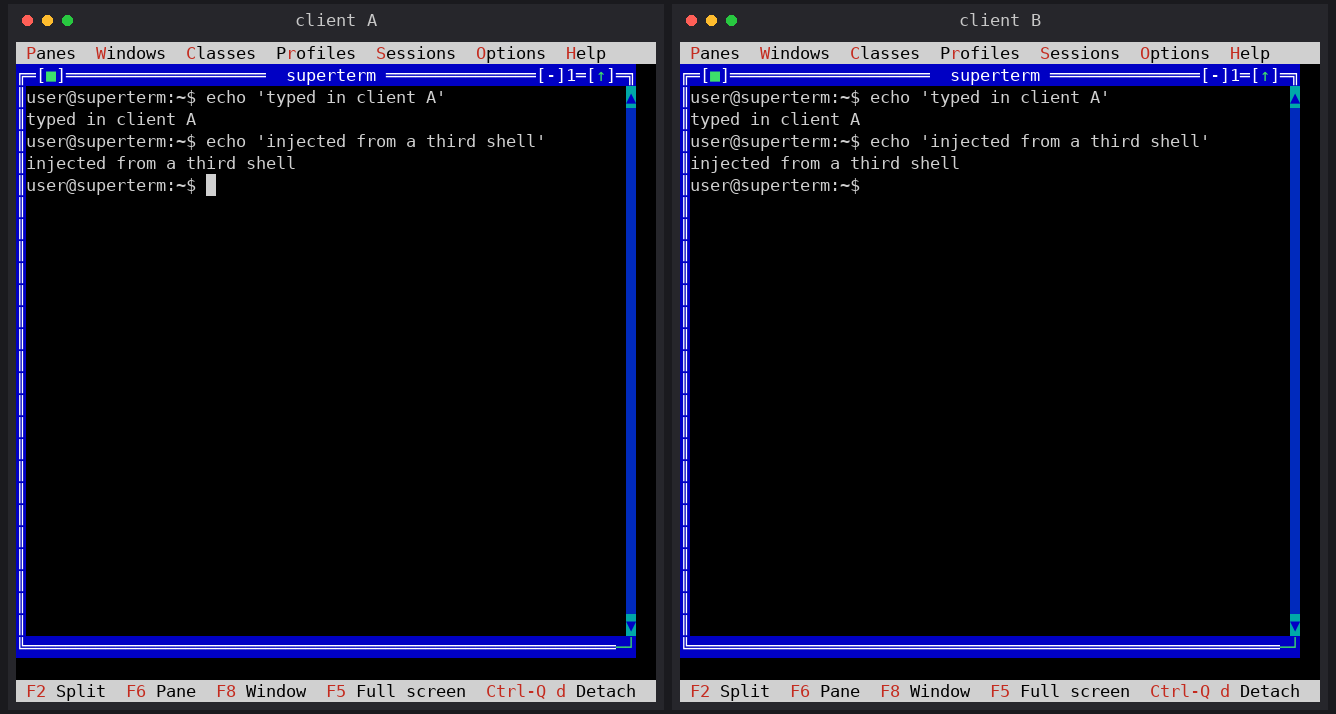
The illustration above shows the shared-client behavior: every attached viewer sees the same panes, focus, layout and input. A local viewer and a standard SSH viewer use the same session model. The image demonstrates the shared desktop; the encrypted transport itself is provided by OpenSSH.
Live sessions survive detaching, restarting the dedicated SSH listener and temporary network loss. They do not survive a host reboot because their processes live in memory; profiles, preferences, dedicated host identity and authorized keys do survive.
The public administration commands are:
sudo superterm ssh-server setup
sudo superterm ssh-server check
sudo superterm ssh-server enable
sudo superterm ssh-server disable
sudo superterm ssh-server restart
sudo superterm ssh-server status
sudo superterm ssh-server authorize USER KEY.pub
sudo superterm ssh-server list-keys [USER]
sudo superterm ssh-server revoke USER SHA256:FINGERPRINT
sudo superterm ssh-server uninstall-service
check validates pending server.ini state without publishing it. restart
validates, publishes and health-checks the candidate, attempting rollback if
activation fails. uninstall-service removes only the recognized service
integration and preserves /etc/superterm/sshd, including its configuration,
host identity and managed authorized keys.
Useful read-only checks are:
sudo superterm ssh-server check
sudo superterm ssh-server status
sudo superterm ssh-server list-keys user
ssh -vv -p 8022 user@server
Common symptoms:
| Symptom | Check |
|---|---|
Connection refused |
Confirm status, the exact listen endpoint and the host listener/firewall. |
| Timeout before authentication | Confirm the destination IP matches an explicit listen address. |
Permission denied (publickey) |
Use ssh -vv, inspect list-keys and check normal ~/.ssh ownership/modes. |
interactive SSH PTY is required |
Connect interactively or force a PTY with -t/-tt; do not use ssh -T. |
remote commands and subsystems are disabled |
Enter without a command; SCP/SFTP are intentionally outside this service. |
| The connection closes but panes continue | Expected: only the viewer detached. Reconnect. |
See Troubleshooting for the general checklist. The complete security
boundary, authentication matrix, platform service details, rollback behavior
and diagnostic procedure are maintained in
docs/SSH_SERVER.md.