Repository navigation
05. Planning
Overview. Every control on this screen has detailed built-in help: hover it, press F1, or click the ? beside the title. See Built-in Help.
The Planning section is where you decide what to observe. It has four sub-sections accessible from its secondary sidebar:
| Sub-section | What it does |
|---|---|
| What's Up Tonight | A ranked list of the best targets for tonight from your observatory |
| Targets | Searchable deep-sky catalog — criteria-driven filtering and manual lookup |
| Sessions | Build a sequence of observation blocks and schedule them |
| Schedule | A multi-night calendar view of all scheduled sessions |
| History | Review how past and running sessions went, frame by frame |
Click Planning in the left sidebar to reveal these choices in the secondary panel.
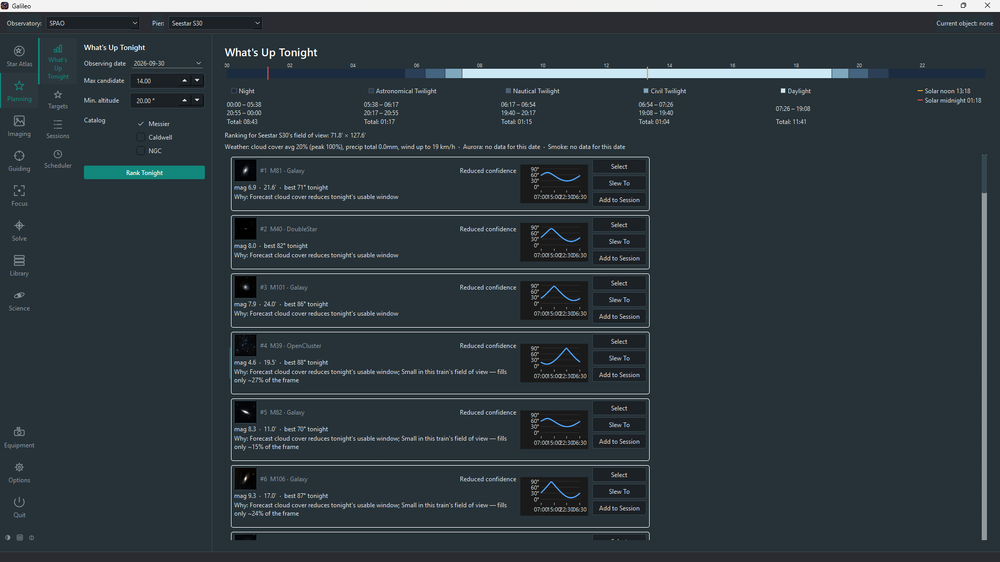
What's Up Tonight (WUT) ranks objects from the catalog for tonight at your Observatory and shows the top 50. It is a recommendation layer on top of the Targets catalog, not a separate catalog.
| Control | Effect |
|---|---|
| Observing date | Defaults to today. Change it to plan ahead for a future night. |
| Min altitude | Ignore objects that don't rise above this threshold tonight. |
| Object types | Tick the types to include: galaxies, nebulae, clusters, etc. |
| Max magnitude | Exclude objects fainter than this value. |
| Run | Re-computes the ranked list with the current criteria. |
Each result tile shows:
- Object name, type, magnitude and angular size
- A thumbnail image (fetched from an online sky survey for the first 12 results)
- The reason this object was ranked here (e.g. "High altitude all night", "No prior integrations in your Library")
- A mini altitude-over-the-night chart
- Rise, transit and set times for tonight
- A confidence badge when the ranking score was computed with incomplete data
| Button | What it does |
|---|---|
| Select | Makes this the Pier's current object (shown in the top bar) |
| Slew To | Slews the connected mount to this object |
| Add to Session | Appends a Light Frame block for this object to the open session in Planning > Sessions |
When the date is set to today, WUT fetches a brief advisory line (weather, aurora index, smoke) at the top of the results. This is a live network fetch and may be absent in offline use.
Targets is the full searchable deep-sky catalog — all Messier, Caldwell, NGC and IC objects bundled with Galileo.
Filter the catalog with any combination of:
| Criterion | Notes |
|---|---|
| Name / ID | Partial match on any identifier (M31, NGC 224, Andromeda…) |
| Object type | Galaxy, nebula, cluster, etc. |
| Constellation | Three-letter IAU abbreviation or full name |
| Magnitude | Maximum (faintest) to show |
| Minimum size | Minimum angular size in arcminutes |
| Min altitude tonight | Only objects that rise above this threshold |
| Catalog | Messier only, NGC only, etc. |
Click Search to run the query. Results are capped at 200; narrow the criteria if more objects match.
Each tile shows the same information as What's Up Tonight tiles (name, type, thumbnail, altitude chart, rise/transit/set) and the same three action buttons (Select, Slew To, Add to Session).
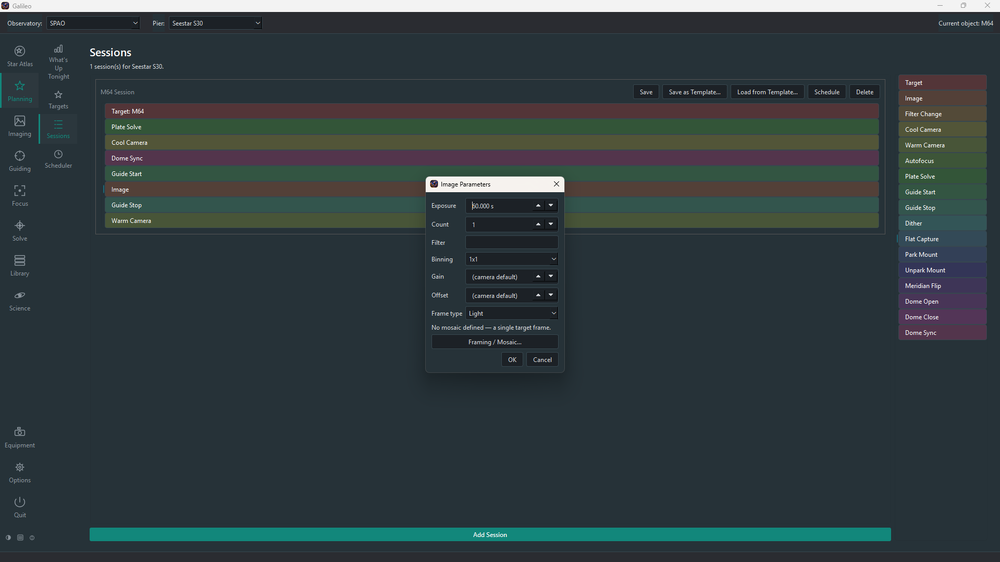
Sessions is the session authoring screen. A session is an ordered list of blocks — each block is one step of the night's plan (capture lights, take flats, autofocus, solve, send a notification, etc.).
- Open Planning > Sessions.
- Click Add Session — or use Add to Session on an object in the Star Atlas, Targets or What's Up Tonight, which creates a session that already starts with a Slew To block.
- Drag blocks from the palette on the right into the session. Drag within the session to reorder. Right-click a block to change its settings.
| Block | What happens at run time |
|---|---|
| Slew To | Slew to the target and start tracking |
| Image | Capture frames: exposure, count, filter, binning, gain, offset, frame type; can carry a mosaic (via its Framing / Mosaic dialog) |
| Filter Change | Move the filter wheel (applying any saved focus offset for that filter) |
| Cool Camera / Warm Camera | Cool the sensor to a set temperature, or warm it back up |
| Autofocus | Run an autofocus sweep, optionally on a named filter |
| Plate Solve | Solve and centre on the target (needs a Slew To block before it) |
| Guide Start / Guide Stop | Start (optionally calibrating first) or stop PHD2 guiding |
| Flat Capture / Dark Capture | Take flats or darks the way the Flats and Darks assistants do; Dark Capture can also close a connected dust cover / flip-flat panel for the darks |
| Park Mount / Unpark Mount | Park or unpark the mount |
| Dome Open / Dome Close / Dome Sync | Open or close the shutter, or line the slit up with the telescope |
| FOR Filter / FOR Object | Repeat the blocks indented beneath it once per filter, or once per object |
| Notification | Send a message to your notification channels |
Every block, and each setting in its dialog, has detailed built-in help.
FOR Filter and FOR Object repeat everything indented beneath them. A block dropped under a loop joins its body; drag it right to indent or left to unindent. A loop moves together with its body. For an object loop, right-click and search the catalog to build the list.
- A Plate Solve block needs a Slew To block somewhere before it.
- A scheduled session is locked: it is outlined in red and cannot be edited until it is descheduled.
Save as Template… stores a session's blocks under a name; Load from Template… fills a session from one. The template's first Slew To is a placeholder — your own target takes its place, so a session must already start with a real Slew To block to load one. Add Session from Template (bottom of the screen) skips that: pick a saved template and it creates a whole new session from it, placeholder Slew To included, for you to replace.
Run executes the session now: Galileo first checks that the equipment each block needs is connected and lists any problems instead of starting. While it runs the card shows the block and frame in progress, and has Pause/Resume and Stop. A bad frame is logged and skipped; a failed slew, solve, park or dome-open ends the session so the equipment is not left unsafe. If the safety monitor reports unsafe, only shutdown blocks (park, dome close, guide stop, warm) still run.
Schedule places the session on the Schedule calendar, where it can be given a start time and will run by itself when the time arrives, on whichever Pier it belongs to, while Galileo is running and that Pier's equipment is connected.
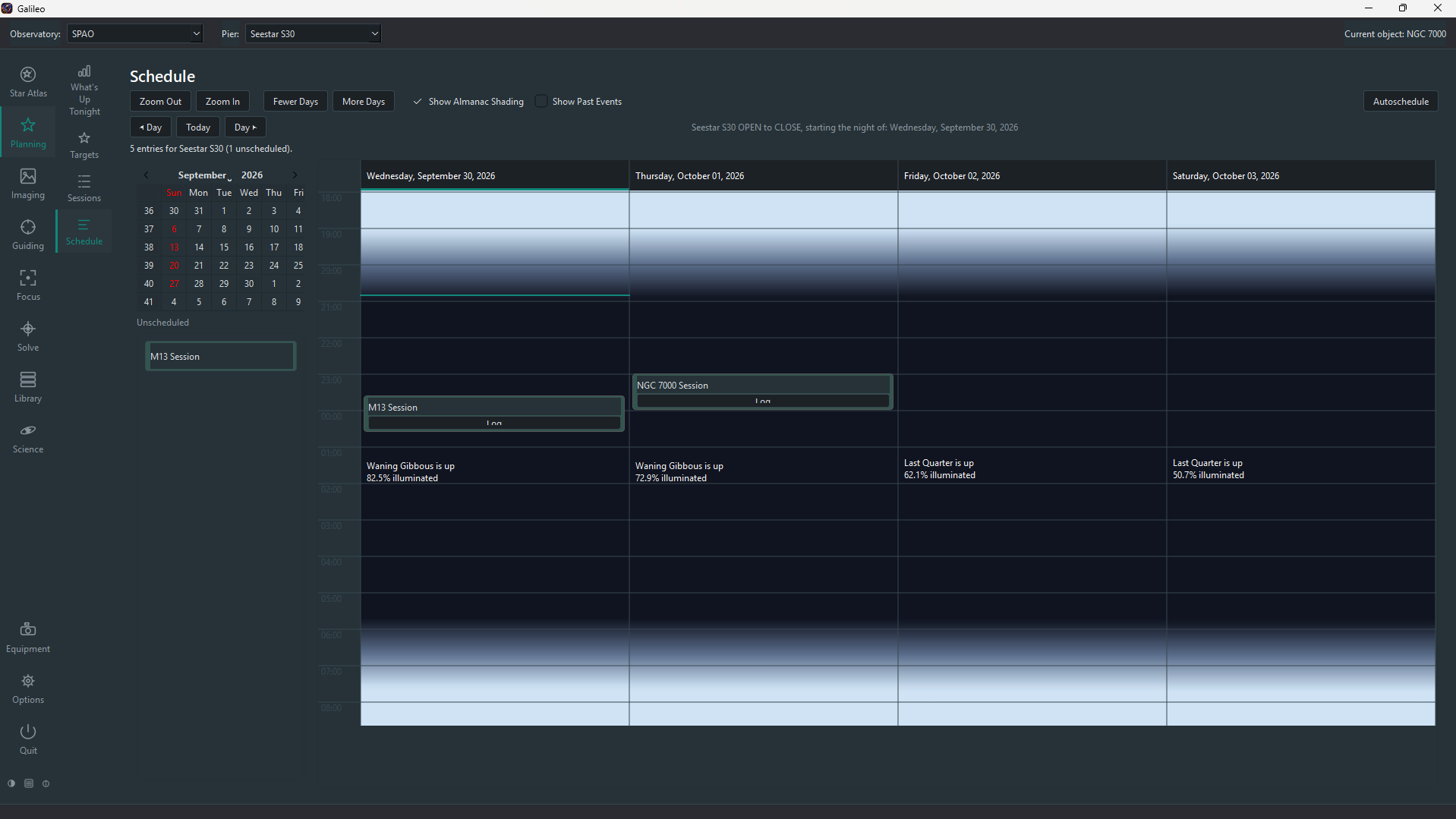
The Schedule is a multi-night calendar view of all sessions and pier operations queued for this Pier.
-
One column per observing night (a night runs from dusk to dawn, centred on midnight — the column is not split at midnight the way a plain calendar would be).
-
A shared hour axis on the left, running from dusk at the top to dawn at the bottom.
-
Each column is shaded by twilight depth (civil, nautical, astronomical) for that night's actual times at your Observatory.
-
The Moon phase icon appears at the top of each night's column.
-
Scheduled jobs appear as coloured blocks positioned by start time and sized by duration.
-
Right-click a session block to set its time, Edit… its priority, constraints, start/completion conditions and frames required, or Show Trajectory… to chart the target's altitude over the night. Every control has built-in help.
-
The Upcoming Sessions list under the calendar shows each scheduled entry still to run, soonest first, with its start time and a one-line summary of what it will do, starting with the target.
- In Planning > Sessions, click Schedule on the session you want. The session appears at the bottom of the Schedule grid as an Unscheduled block.
- Drag the block from the Unscheduled area onto the calendar column for the night you want.
- Drop it at the start time you want. The block snaps to 15-minute increments.
- To move a placed block, drag it to its new position.
If a connected Safety Monitor, or a Weather Station reading you marked safety-related, goes unsafe, the status line above the grid shows BLOCKED with the reason. Nothing new starts and a running scheduled session pauses; both carry on by themselves once conditions are safe again. A session you started with Run is not paused.
Click Autoschedule to have Galileo place every unscheduled session on the night shown. It works through the sessions in priority order and gives each the earliest free slot where the target is high enough, clear of your horizon, far enough from the Moon and in sufficient darkness, without overlapping anything else on the Pier. You get a preview to confirm; anything that cannot fit is listed with the reason. Entries you have already placed are never moved. Every control has built-in help.
When several Piers share one roof or dome, a Pier will not close the roof or slew the dome while another Pier is imaging: that Dome Close or Dome Sync step is skipped and noted in the session log, and the session carries on. Opening the roof is never blocked, and a close caused by unsafe weather always goes ahead.
Right-click any empty area on the calendar and choose Add Pier Operation. Options include:
| Operation | Effect |
|---|---|
| Open Dome | Commands the dome controller to open |
| Close Dome | Commands the dome controller to close |
| Park Scope | Parks the mount at its home position |
| Unpark Scope | Unparks the mount |
| Dome Sync | Synchronises dome azimuth with the mount |
A job's block changes colour based on its run state:
| Colour | Meaning |
|---|---|
| Grey | Scheduled, not yet run |
| Green | Completed successfully |
| Red | Completed with errors |
| Yellow | Currently running |
Click a block to see its run log (if execution has been attempted).
Note: Automated execution of scheduled sessions is planned but not yet implemented. The calendar tracks what should happen; actual automated execution requires future sequencer work.
History is where you review how a session went. Every light frame a session takes is measured and logged: its HFR (star sharpness — smaller is better), star count (a drop usually means cloud or dew) and, when PHD2 is connected, the guide RMS. Choose a session from the drop-down to see its summary, a chart of HFR and star count against frame number, and a table of every frame. A running session updates the page every few seconds.
The history is saved when a session ends and kept across restarts. Export CSV… writes a session's frames to a spreadsheet-friendly file, and Delete Session removes its record (never the images). Every control has built-in help.
If your Observatory has more than one Pier, the Dashboard (its own button in the left sidebar, below Solve) shows all of them at once: one row per Pier with its Equipment (connected or disconnected), Sequence (idle, running, paused, ...) and Scheduler (the job running and how many are queued). It refreshes itself every couple of seconds while you look at it, without slowing the rest of Galileo.
Double-click a row, or highlight it and press Open Pier, to make that Pier the working one; the other screens then show and control it. Every control has built-in help.
Each Pier keeps its own device connections when you select another one, so you can connect every Pier's equipment (select it, press Connect) and then leave them all working. Scheduled sessions start on every Pier whose equipment is connected, not only the one you are looking at, and every Pier is held by the Observatory's one weather station and safety monitor (set up once on the Safety page): unsafe weather pauses all of them together. A Pier with nothing connected simply waits until you connect it. A session you start with Run still runs on the Pier shown in the top bar. Pointing and guiding stay per Pier (one PHD2 instance each), and a shared roof or dome is arbitrated between Piers as described above.