Discord Bot Setup Guide
This guide covers how to create and configure a Discord bot to connect with AionUi, enabling AI assistant interactions through Discord.
AionUi connects to Discord over the Gateway (a WebSocket connection), so you don't need a public URL, reverse proxy, or webhook endpoint — everything runs from your local AionUi. This guide will walk you through:
- Creating a Discord app and generating a bot token
- Inviting the bot to your server
- Configuring credentials in AionUi
- Authorizing users and starting conversations
- A Discord server where you have Manage Server permission (create a free personal server if you don't have one — it's instant)
- AionUi application installed (with the Discord channel)
- Basic understanding of Discord apps
💡 Tip: Discord uses a single Bot Token — there's no second token to manage. The one thing people miss is the Message Content Intent in Step 3; without it your bot connects but can't read message text.
-
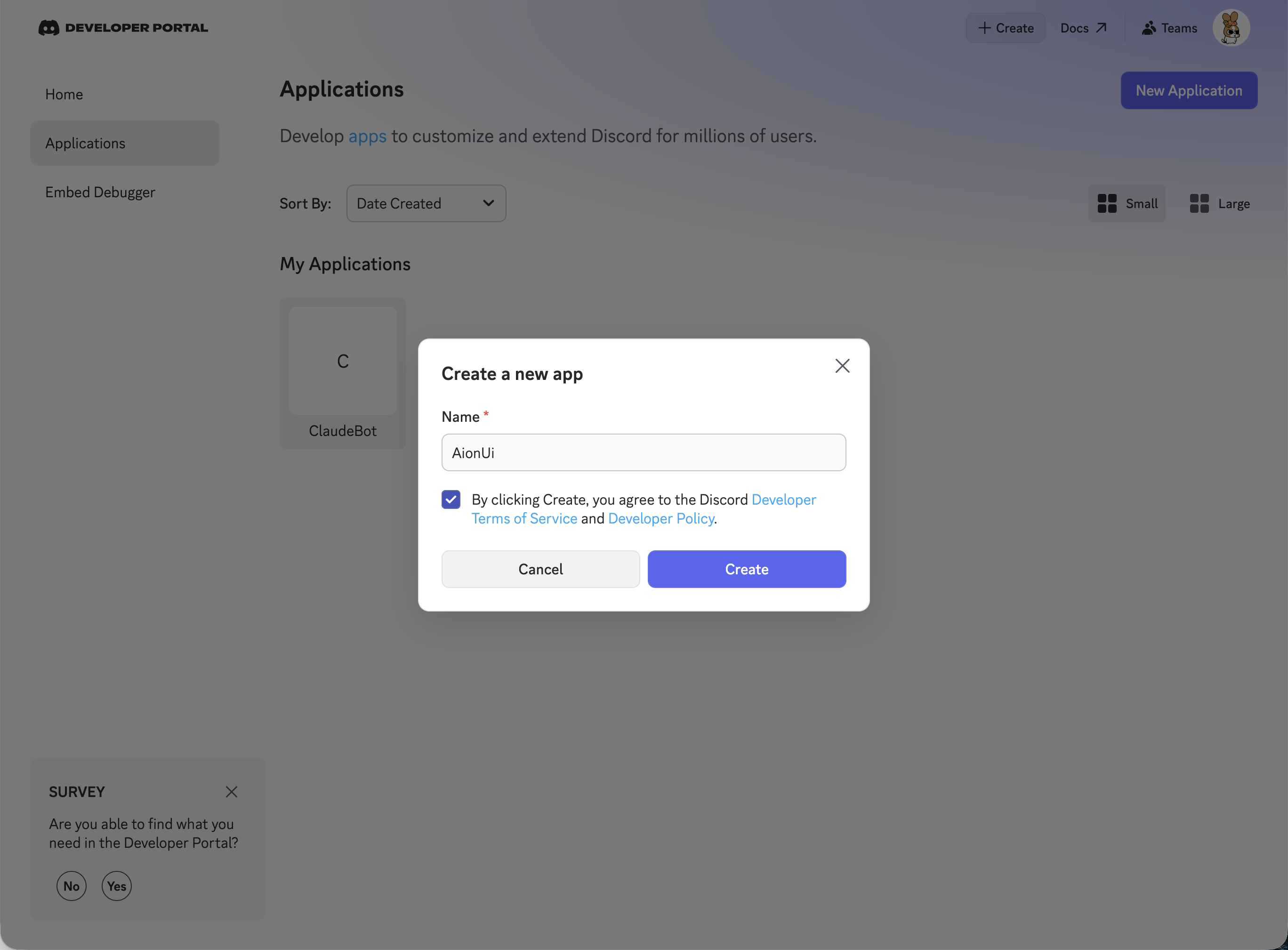
Create a new application
- Go to Discord Developer Portal
- Click New Application
- Name it (e.g.
AionUi) and click Create
-
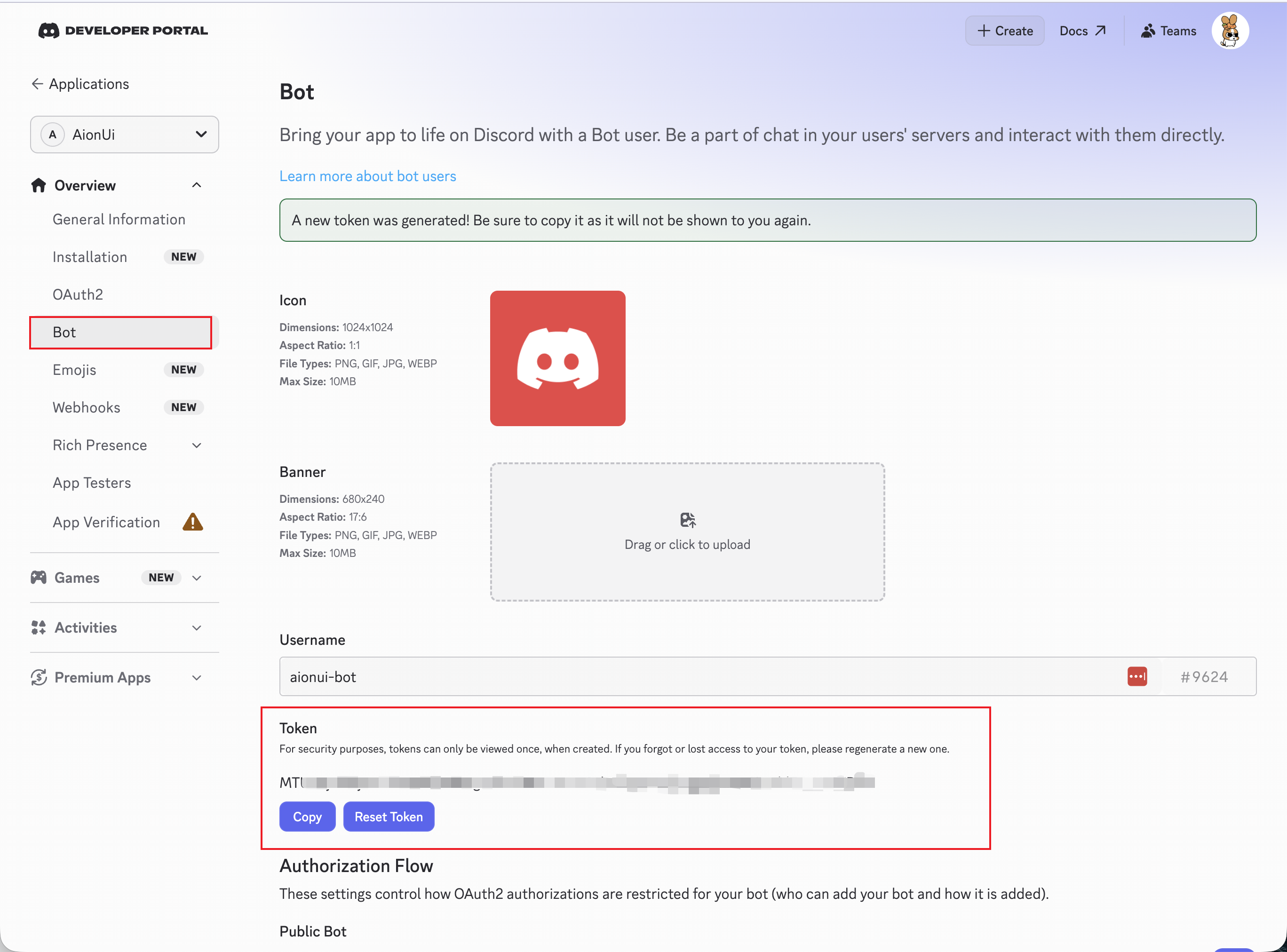
Open the Bot page
- In the left sidebar, click Bot
-
Reset and copy the token
- Click Reset Token → confirm → Copy
⚠️ Important: This is the only token you need — it's the Bot Token in the AionUi form. Store it now; you can't view it again after leaving the page.
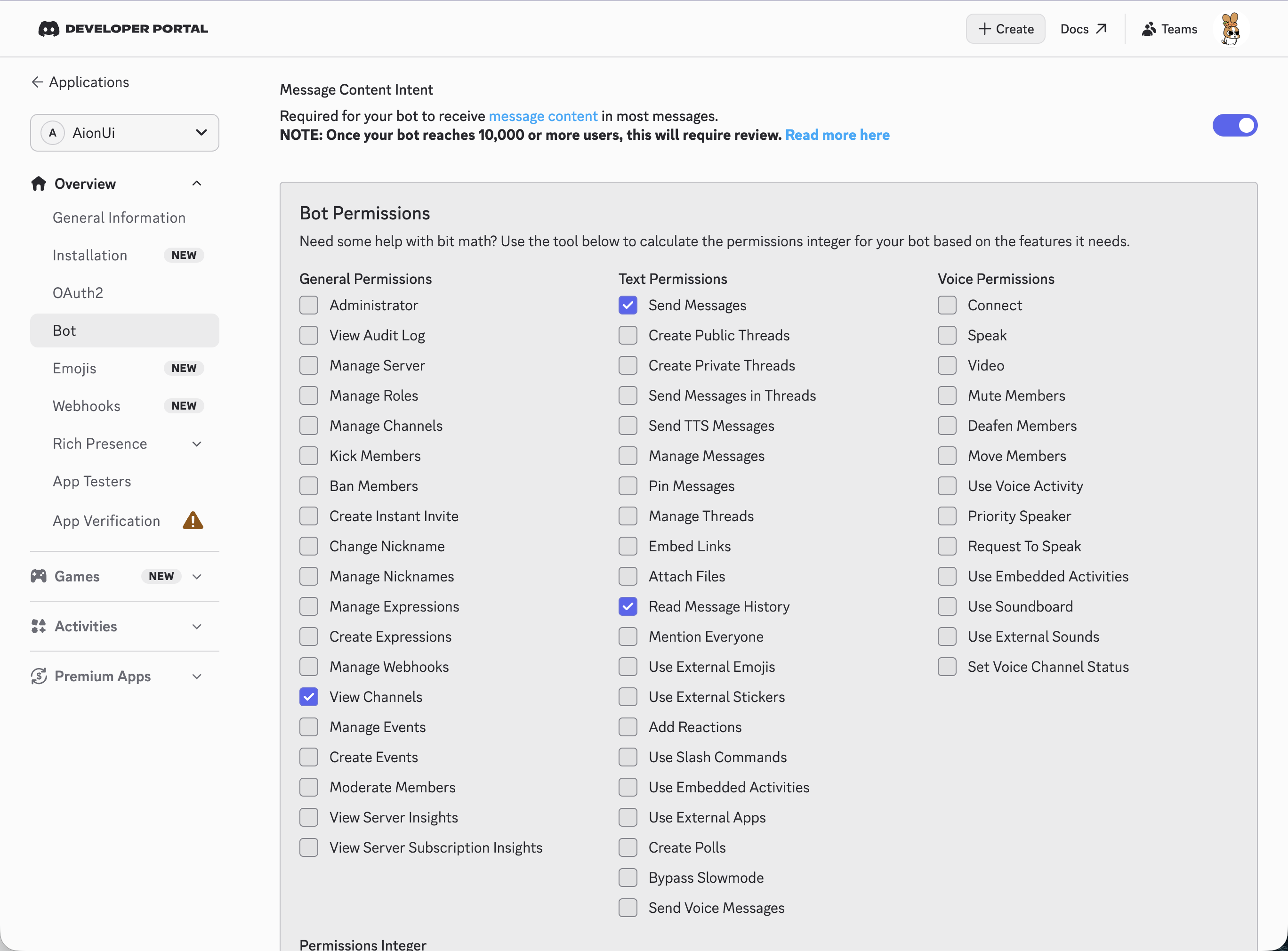
⚠️ This is the step people miss. Without it the bot connects but receives empty message text and never replies.
-
Open Privileged Gateway Intents
- Still on the Bot page, scroll to Privileged Gateway Intents
-
Turn on Message Content Intent
- Toggle MESSAGE CONTENT INTENT on and save
-
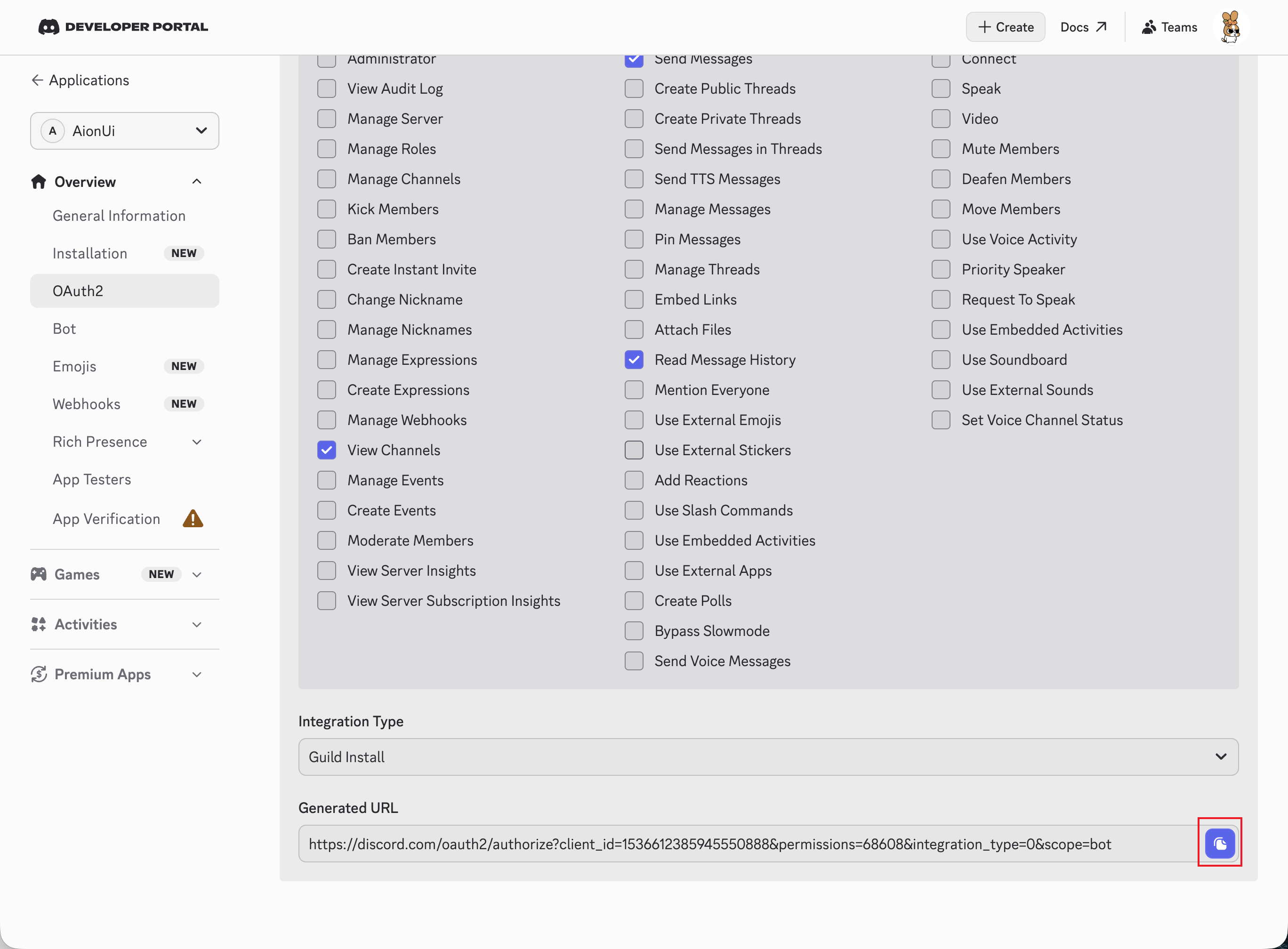
Open the URL Generator
- In the left sidebar, go to OAuth2 → URL Generator
-
Select scopes and permissions
- Under Scopes, check
bot - Under Bot Permissions, check:
Permission Purpose Send MessagesSend and edit replies Read Message HistoryRead messages in a channel View ChannelsSee the channels it's in - Under Scopes, check
-
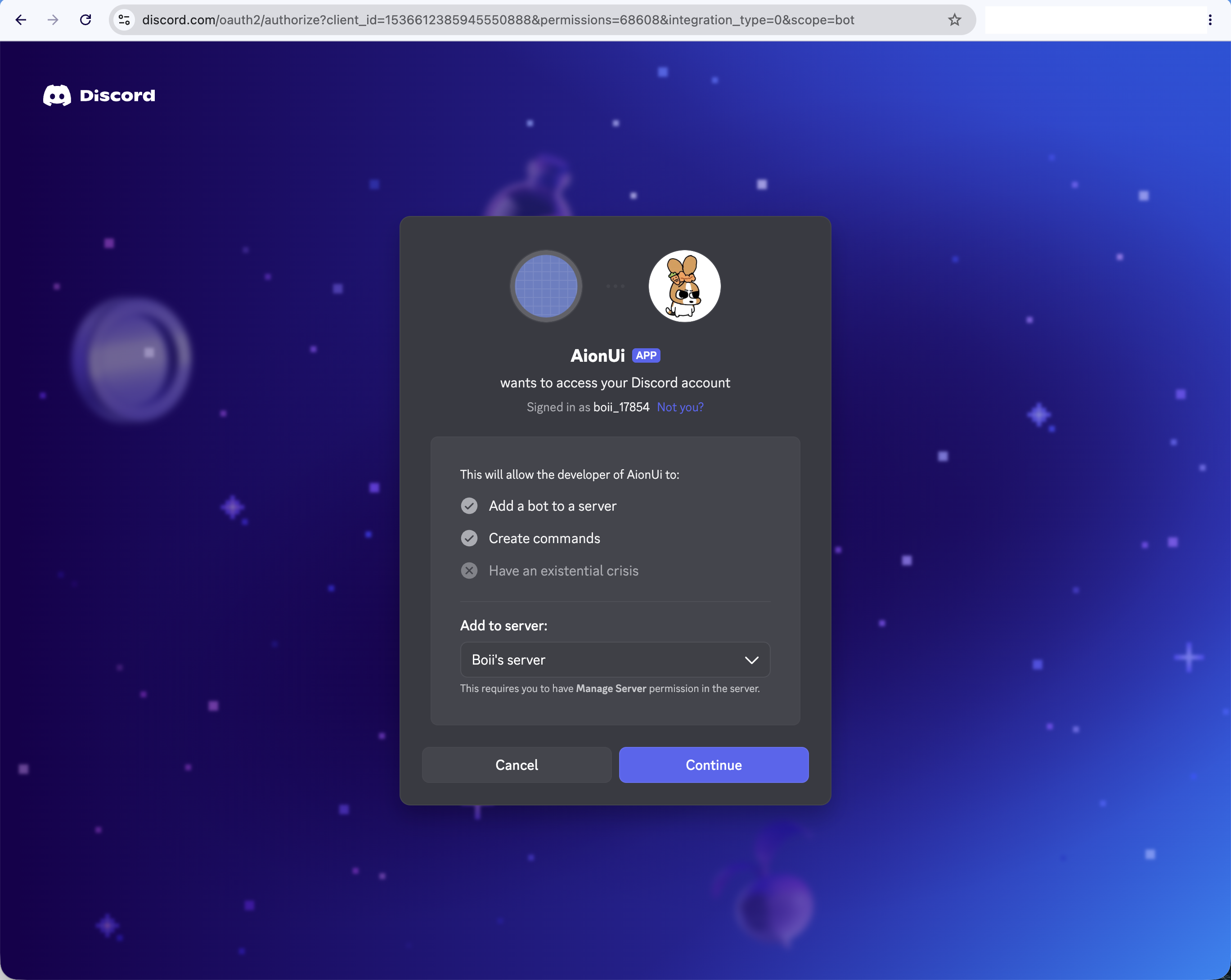
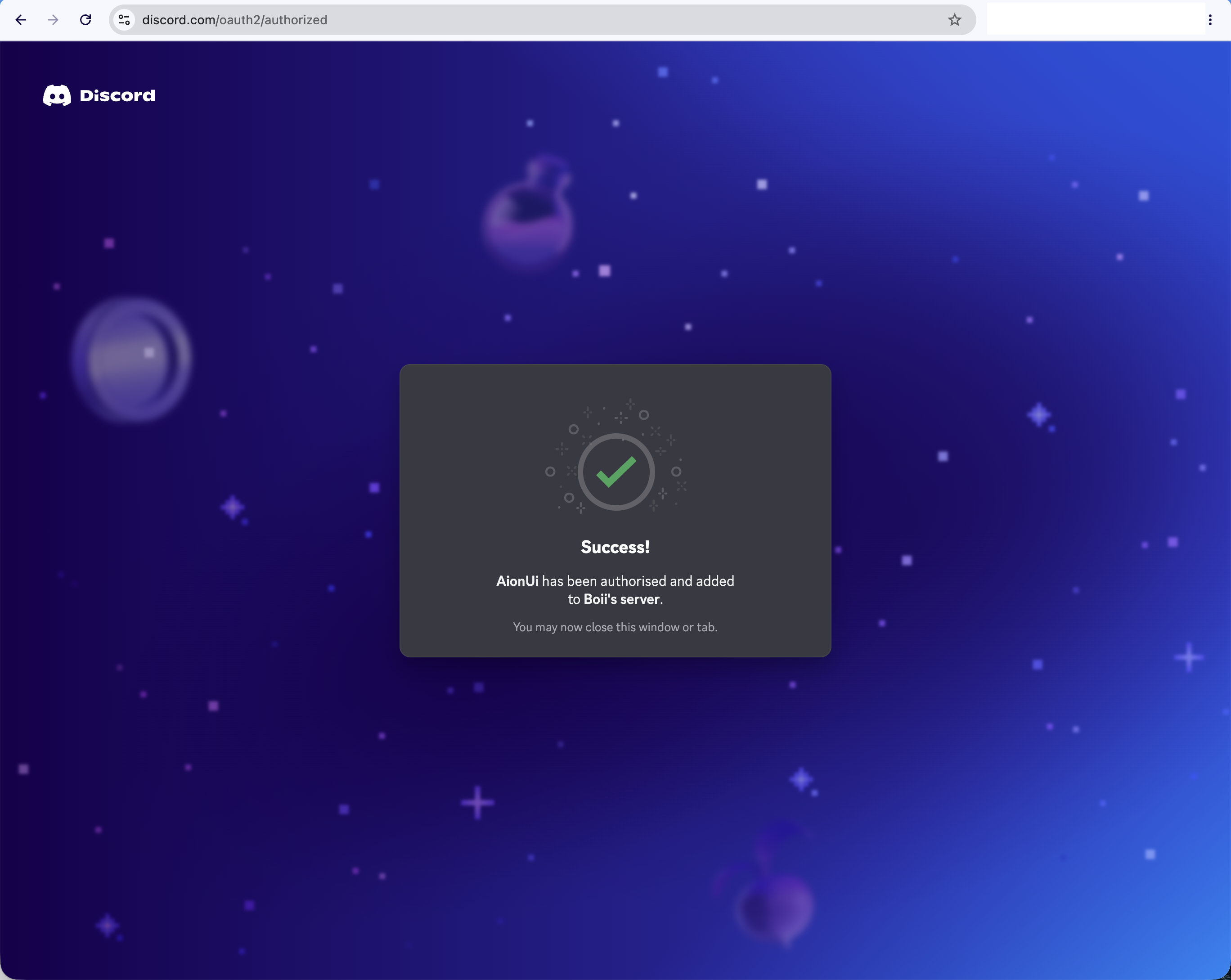
Authorize
- Copy the generated URL at the bottom → open it in a browser → pick your server → Authorize
1 2 3 4 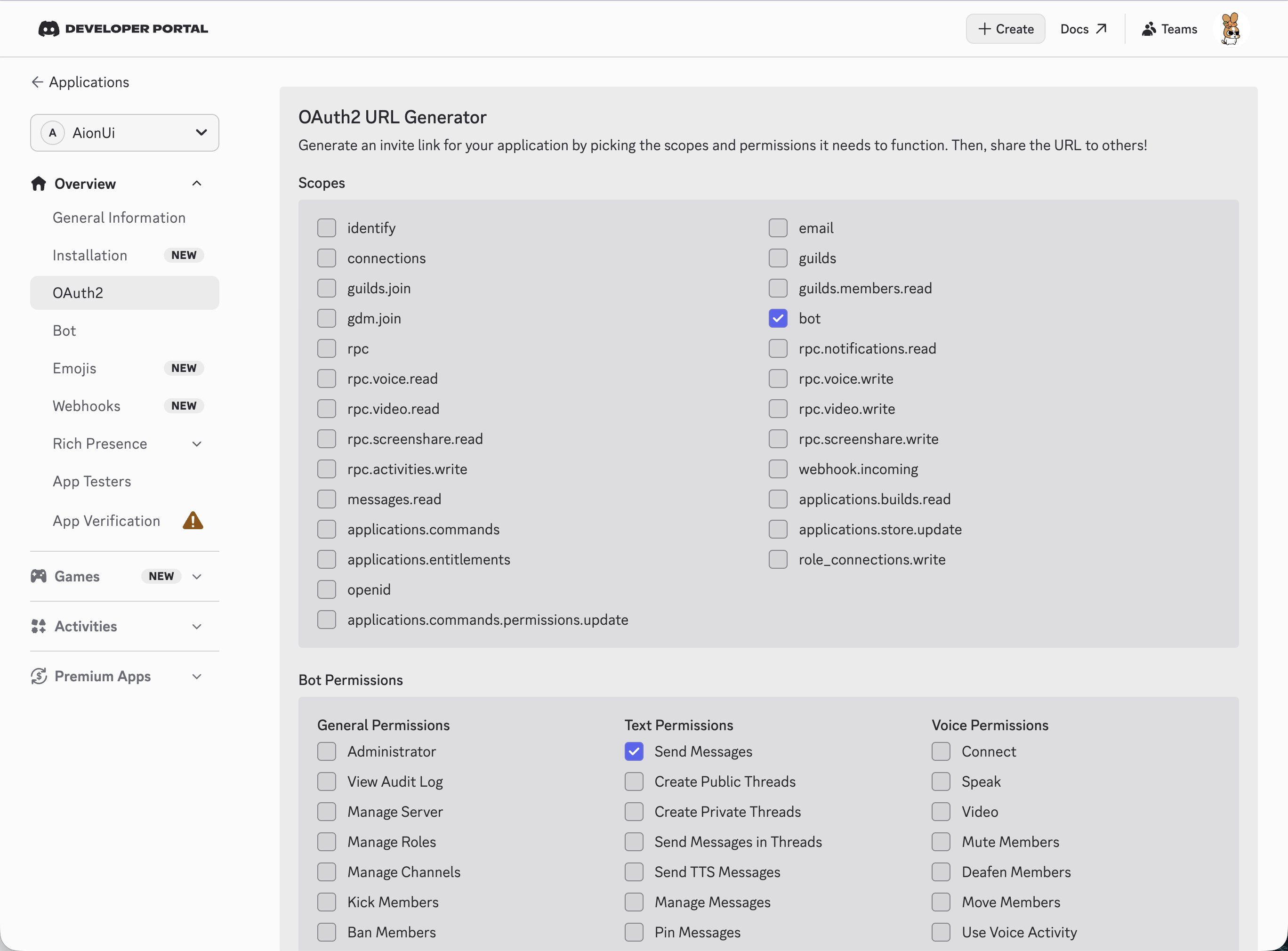
-
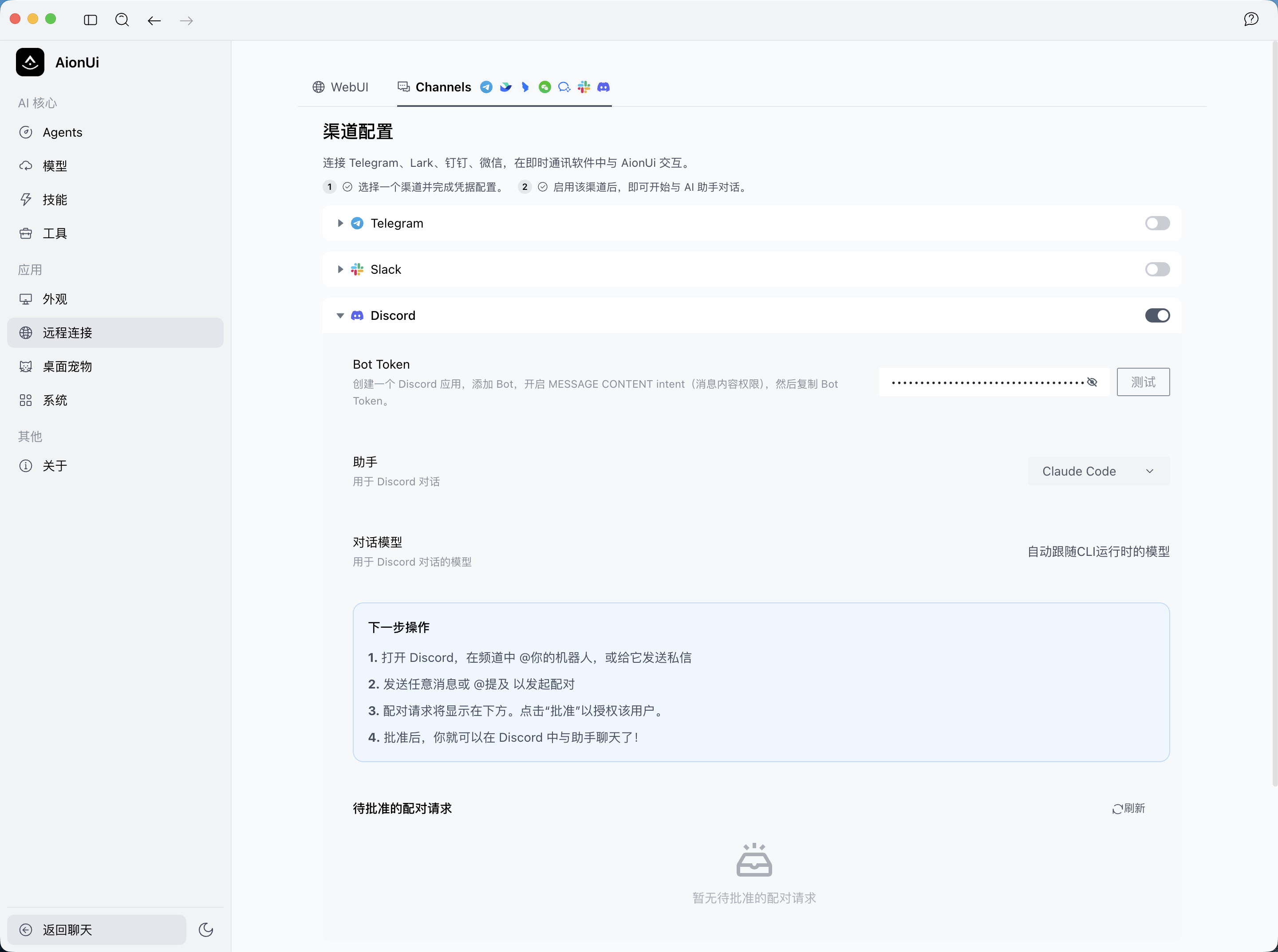
Open the Discord channel
- Launch AionUi and go to Settings → Remote → Channels
- Find the Discord card and expand it
-
Enter the Bot Token
- Bot Token: paste the token from Step 2
- Click Test — on success you'll see Connected! Bot: @your-bot and the channel auto-enables (the Gateway connection opens)
-
Configure assistant and model
- Select the Assistant for Discord conversations
- Choose the default model if applicable
-
Message the bot in Discord
-
DM the bot (you must share a server with it) or
@mentionit in a channel - The first message triggers a pairing request
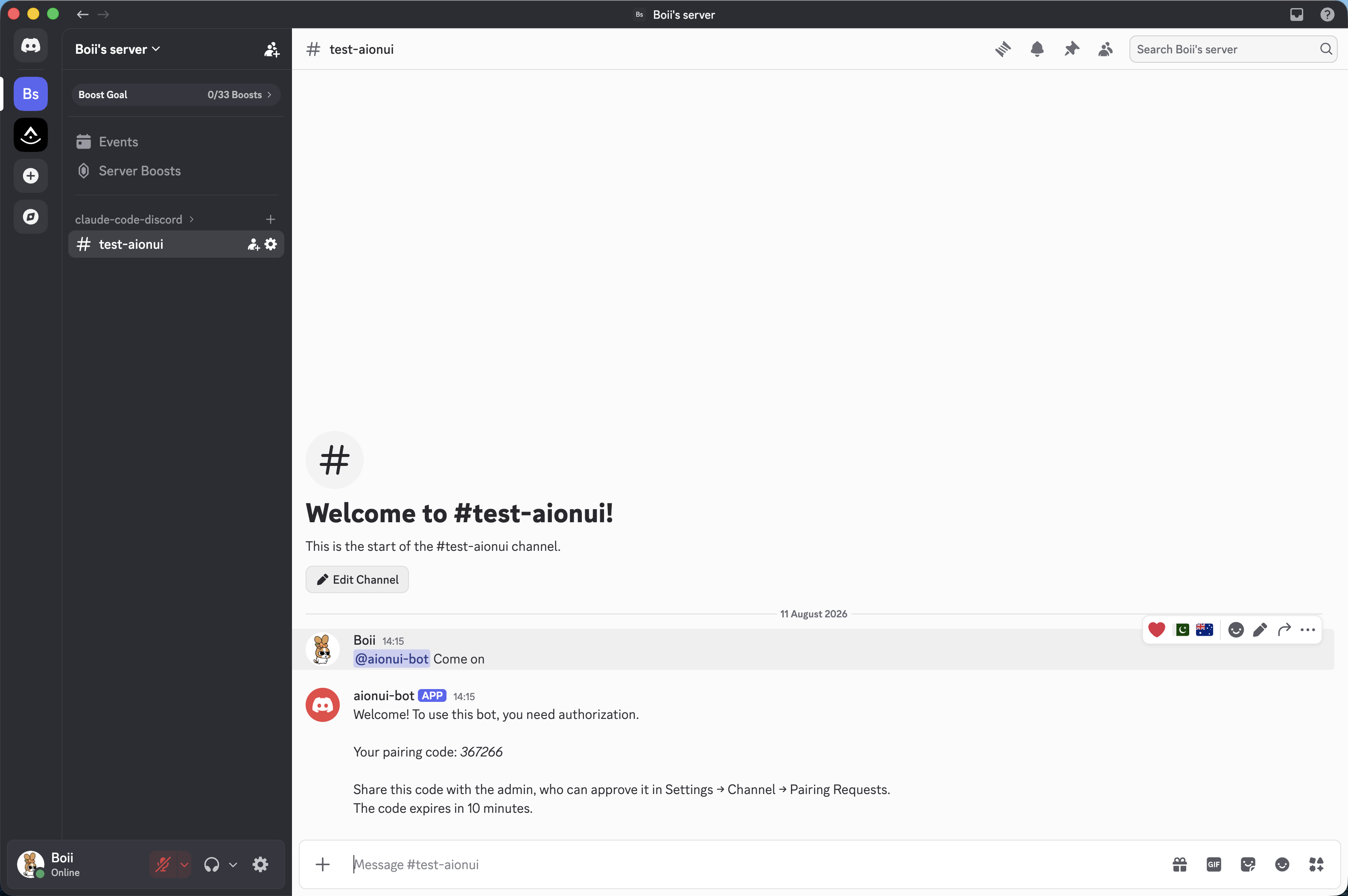
-
DM the bot (you must share a server with it) or
-
Approve the pairing request
- In AionUi, go back to Settings → Remote → Channels → Discord
- Find the Pending Pairings section and click Approve to authorize the user
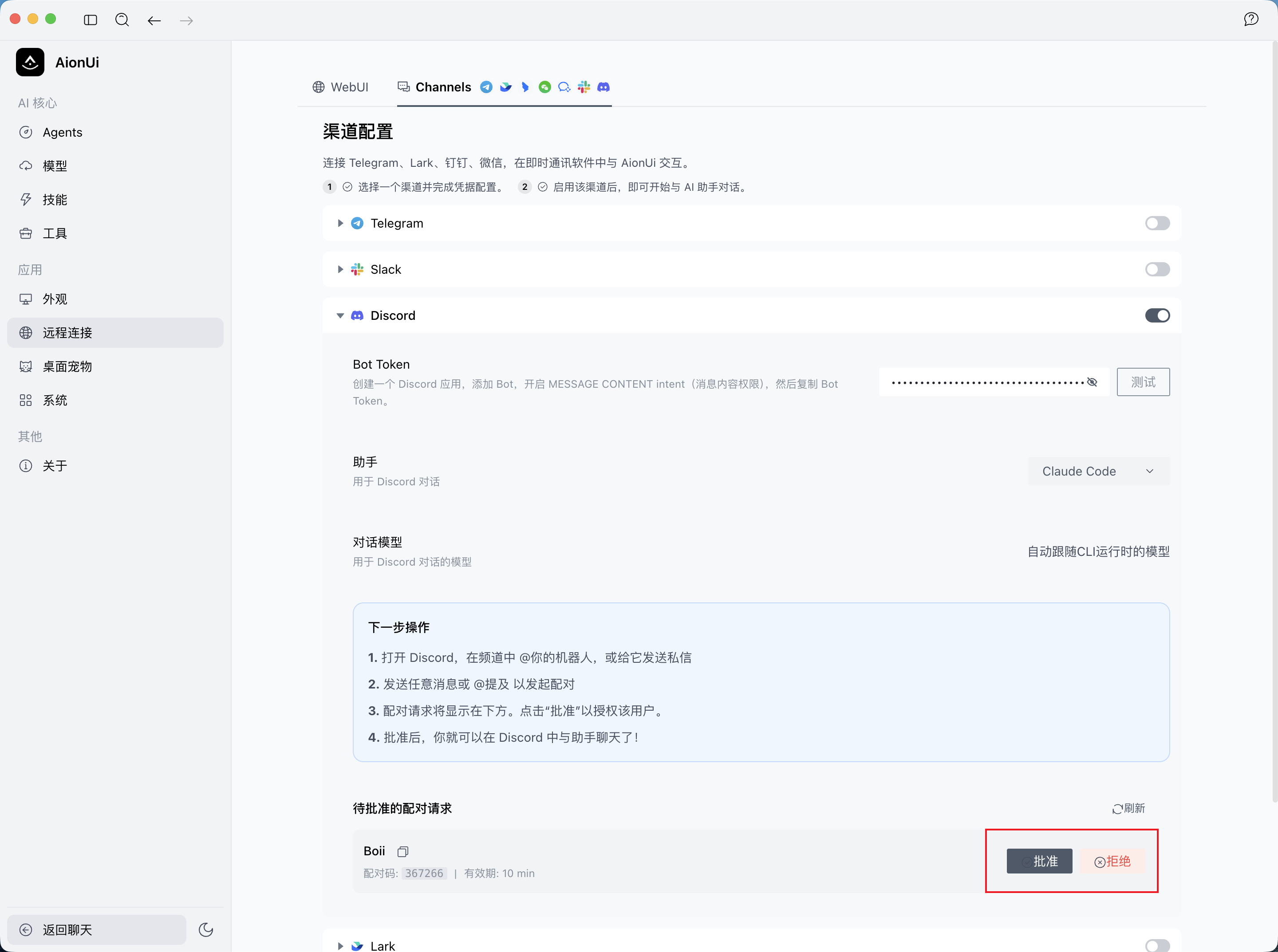
-
Start chatting
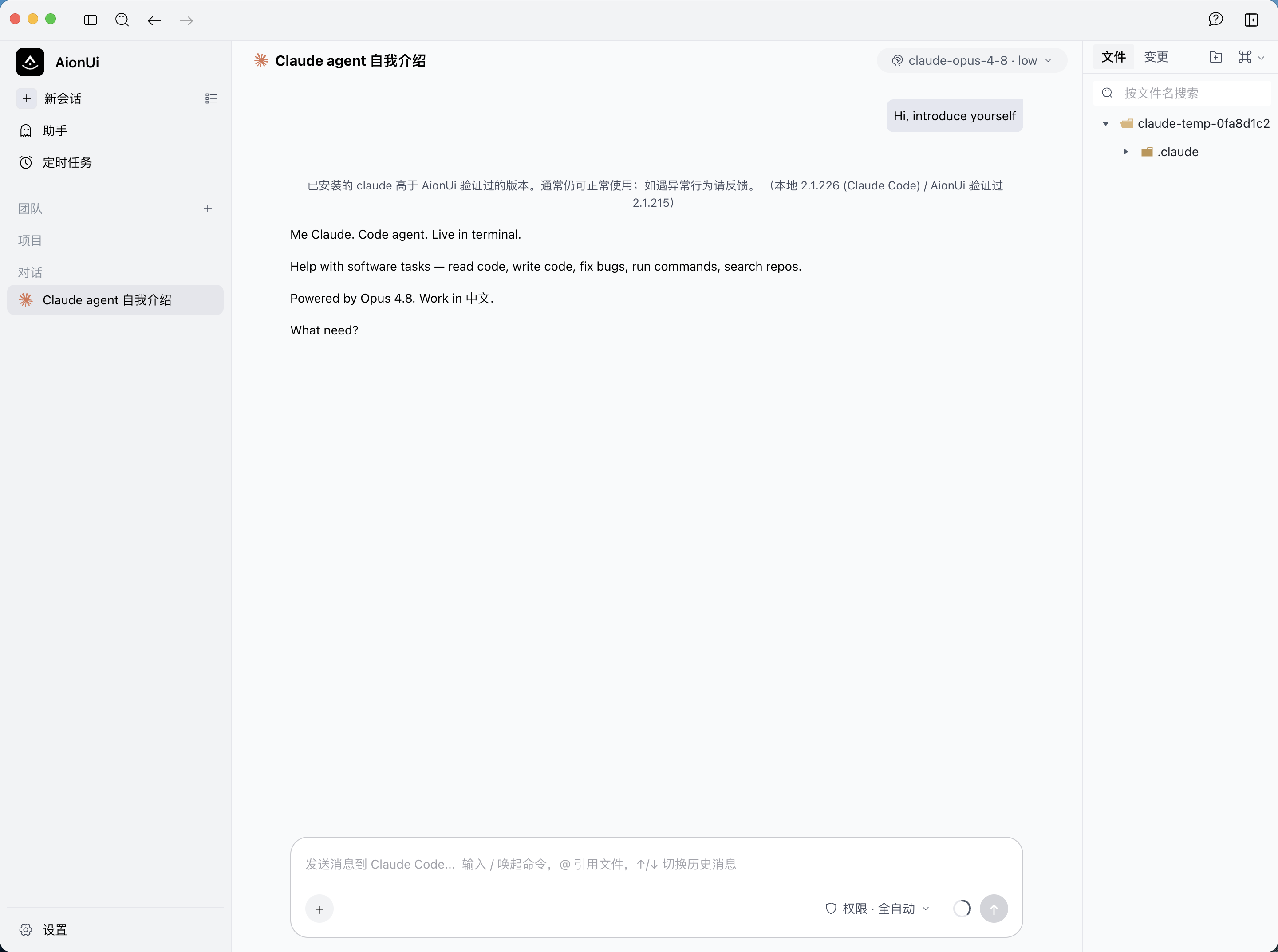
- Send another message — the assistant replies, streaming and updating in place
discord aionui 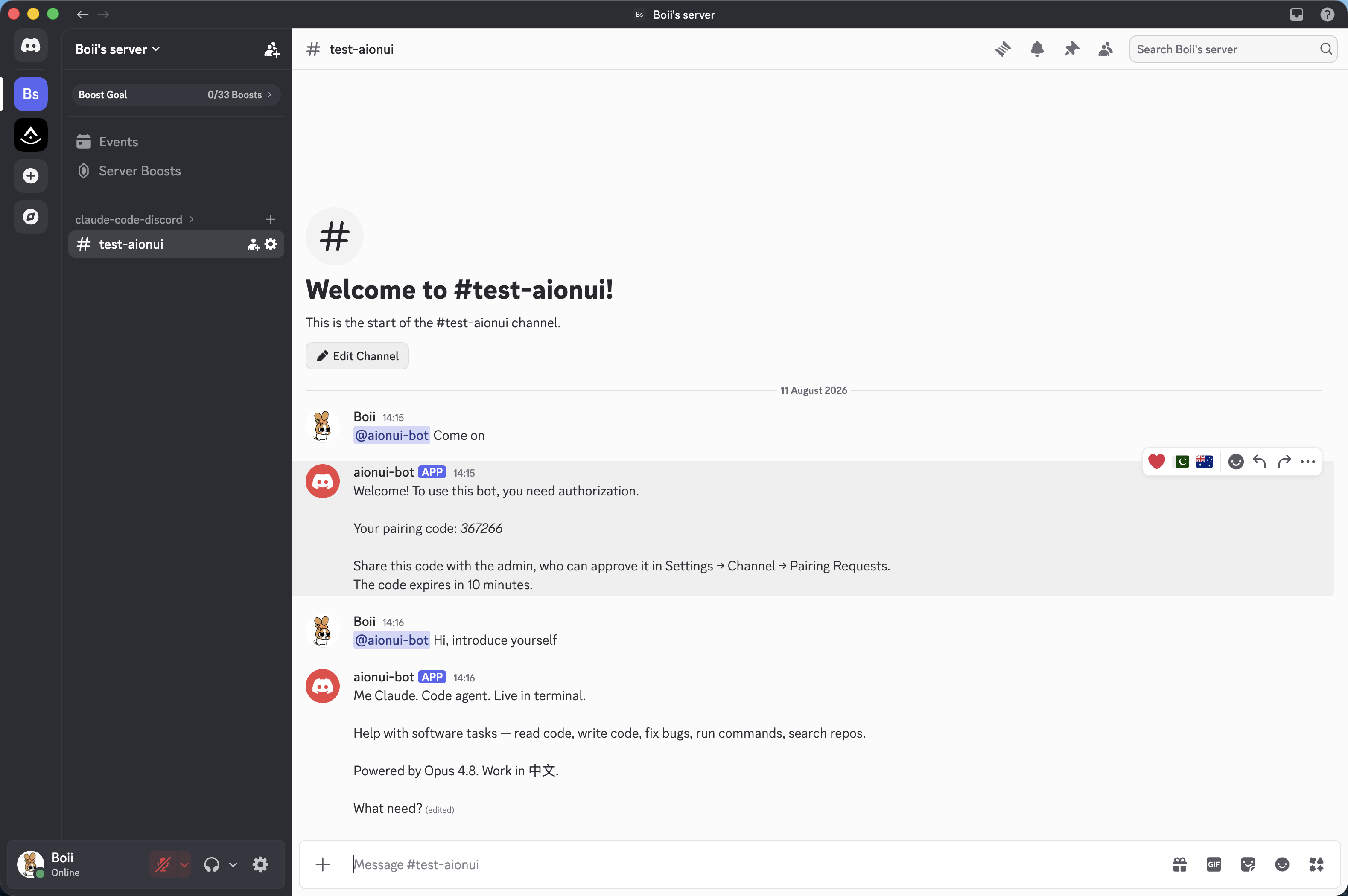
Problem: The bot connects but never responds
-
Solution:
- Confirm MESSAGE CONTENT INTENT is enabled (Step 3) — this is the most common cause
- Confirm the bot was invited with the Step 4 permissions and the channel is enabled + connected in AionUi
- Confirm the user has been approved in AionUi (Pending Pairings → Approve)
Problem: Direct messages to the bot don't trigger anything
-
Solution:
- You must share a server with the bot — invite it to a server first (Step 4), then DM it
- Only DMs and
@mentionsare handled; plain channel messages without a mention are ignored by design
Problem: Test fails / "invalid token"
-
Solution:
- Re-check the Bot Token — if in doubt, Reset Token again (Step 2) and paste the new value
- The Bot Token is the only credential; there is no second token for Discord
Problem: There's no Discord card under Channels
-
Solution:
- Update to an AionUi build that includes the Discord channel
-
Behavior: responds to DMs and
@mentionsonly (plain channel messages are ignored). Replies stream via in-place edits; an@mentioninside a thread replies in that thread. - Not supported yet: interactive buttons / embeds, file / attachment upload, streaming replies inside a thread.
- Discord Developer Portal
- Discord Gateway
- AionUi Configuration Guides
- AionUi FAQ
- 🚀 Getting Started
- ⚙️ LLM Configuration
- 💬 Slack Bot Setup Guide
- 🤖 DingTalk Bot Setup Guide
- 💻 WebUI Configuration
- ❓ FAQ