Slack Bot Setup Guide
This guide covers how to create and configure a Slack app to connect with AionUi, enabling AI assistant interactions through Slack.
AionUi connects to Slack over Socket Mode (a WebSocket connection), so you don't need a public URL, reverse proxy, or webhook endpoint — everything runs from your local AionUi. This guide will walk you through:
- Creating a Slack app and generating tokens
- Configuring credentials in AionUi
- Authorizing users and starting conversations
- A Slack workspace where you can install apps
- AionUi application installed (with the Slack channel)
- Basic understanding of Slack apps
⚠️ Note: Enterprise / managed workspaces usually require admin approval. When you click Install, Slack shows "submitted for approval" and you won't get a Bot Token until an admin approves it. For a first run, create a free personal workspace where you are the owner — installs are instant, with no approval queue.
-
Create a new app
- Go to Slack API: Your Apps
- Click Create New App → Blank app
- Name it (e.g.
AionUi) and pick your target workspace
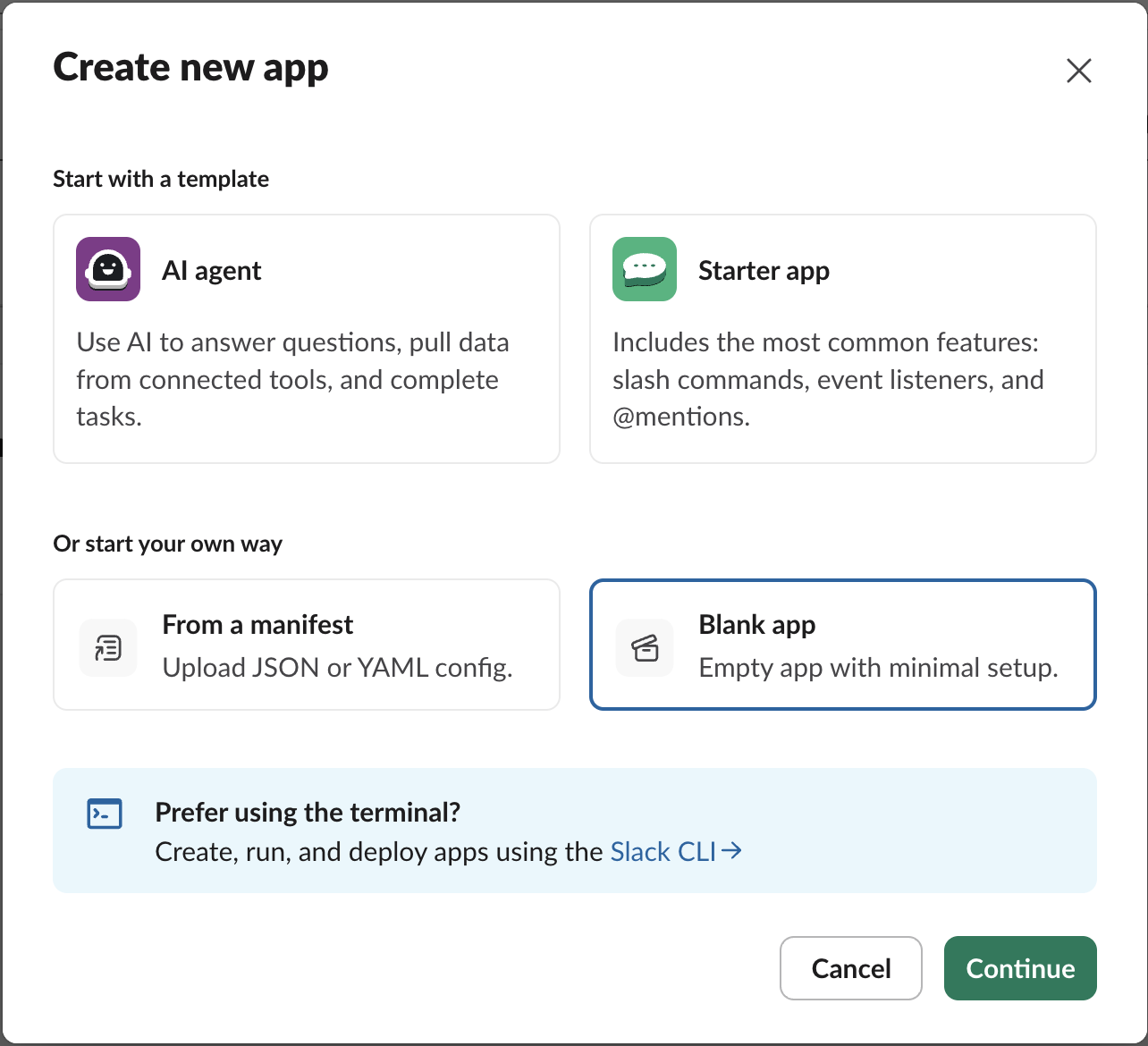
💡 Tip: Socket Mode routes events over a WebSocket, so no public Request URL is needed.
-
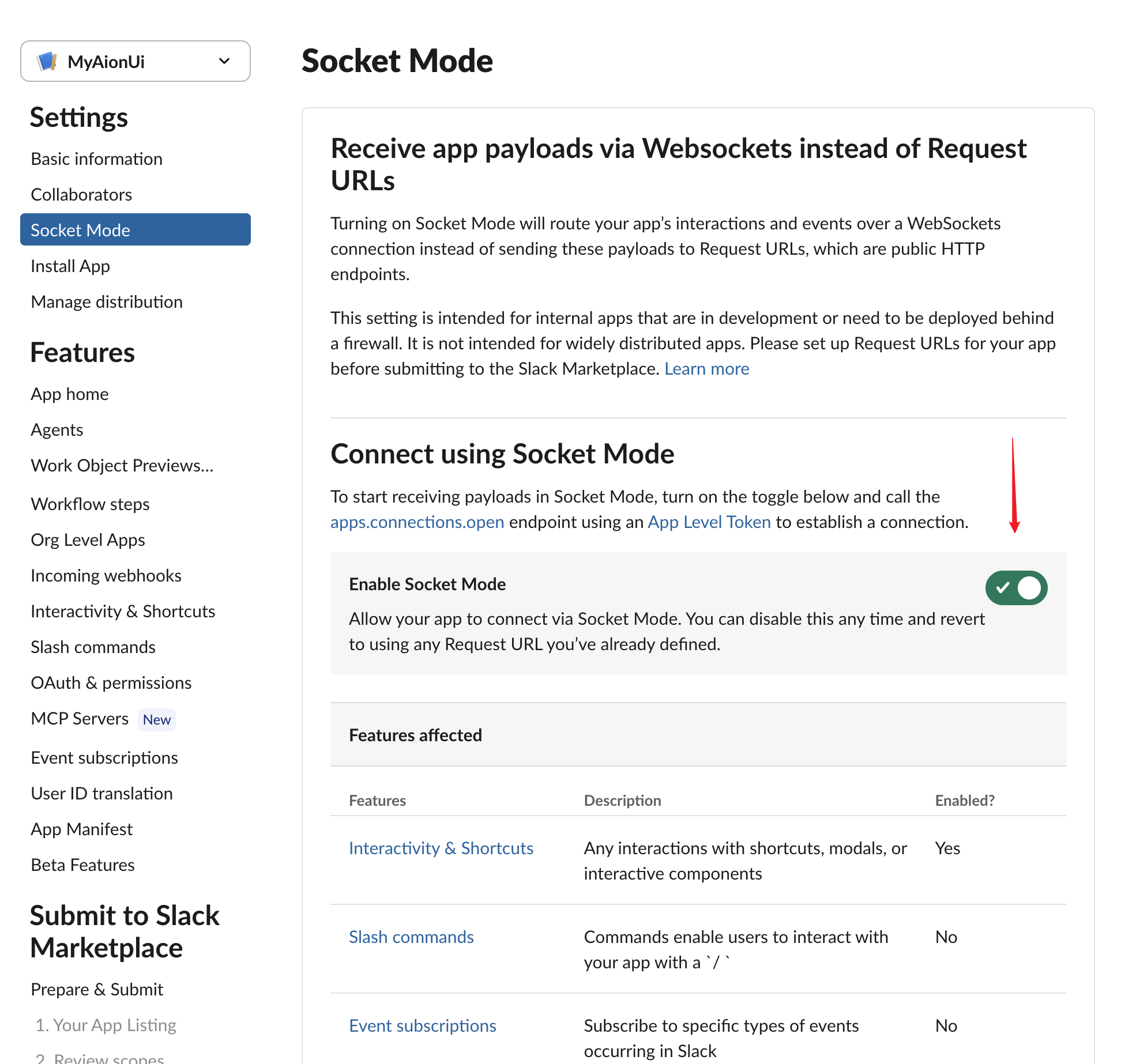
Confirm Socket Mode is on
- Open Settings → Socket Mode
- Make sure Enable Socket Mode is on (it is often on by default)
-
Generate the App-Level Token
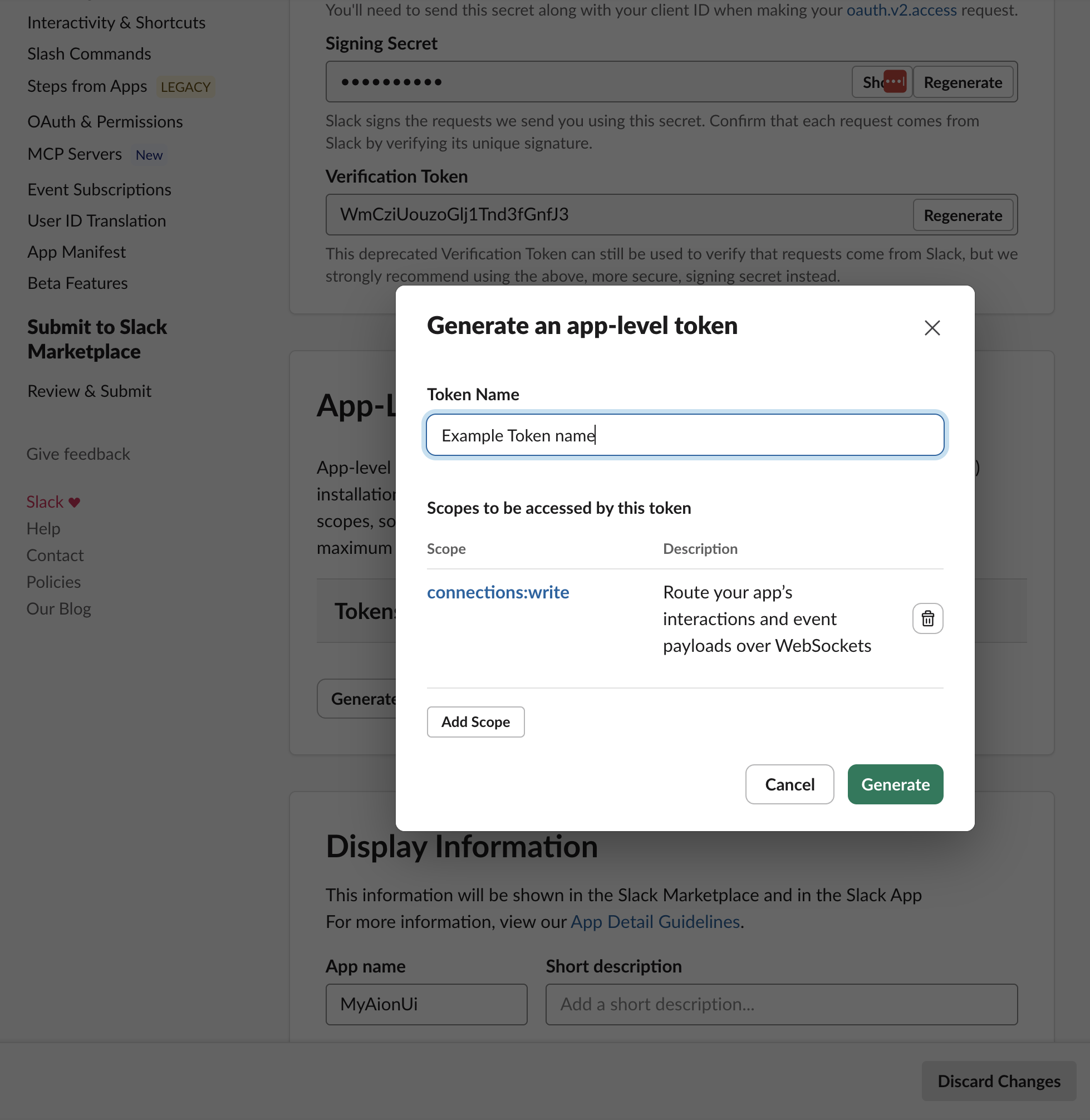
- Open Settings → Basic Information → App-Level Tokens → Generate Token and Scopes
- Enter a Token Name (e.g.
aionui-socket) - Click Add Scope and add
connections:write - Click Generate, then Copy the token (it starts with
xapp-) ⚠️ Important: Thisxapp-token is the App-Level Token in the AionUi form
-
Open scopes
- Go to Features → OAuth & Permissions → Scopes → Bot Token Scopes
-
Add these scopes
Scope Purpose chat:writeSend and edit messages app_mentions:readReceive @mentionsin channelsim:historyRead direct messages im:readAccess DM channels users:readResolve display names (optional) 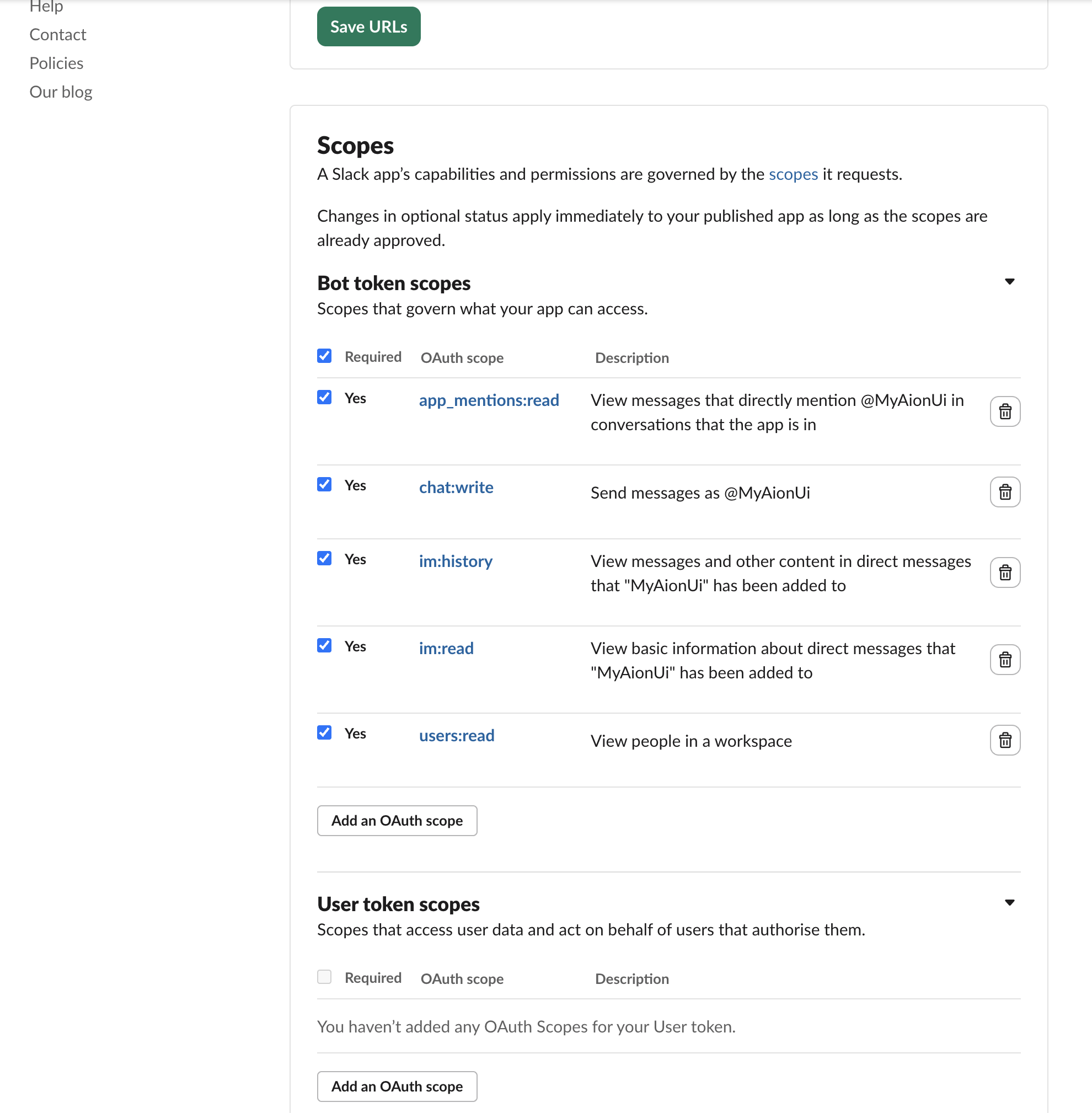
-
Enable events
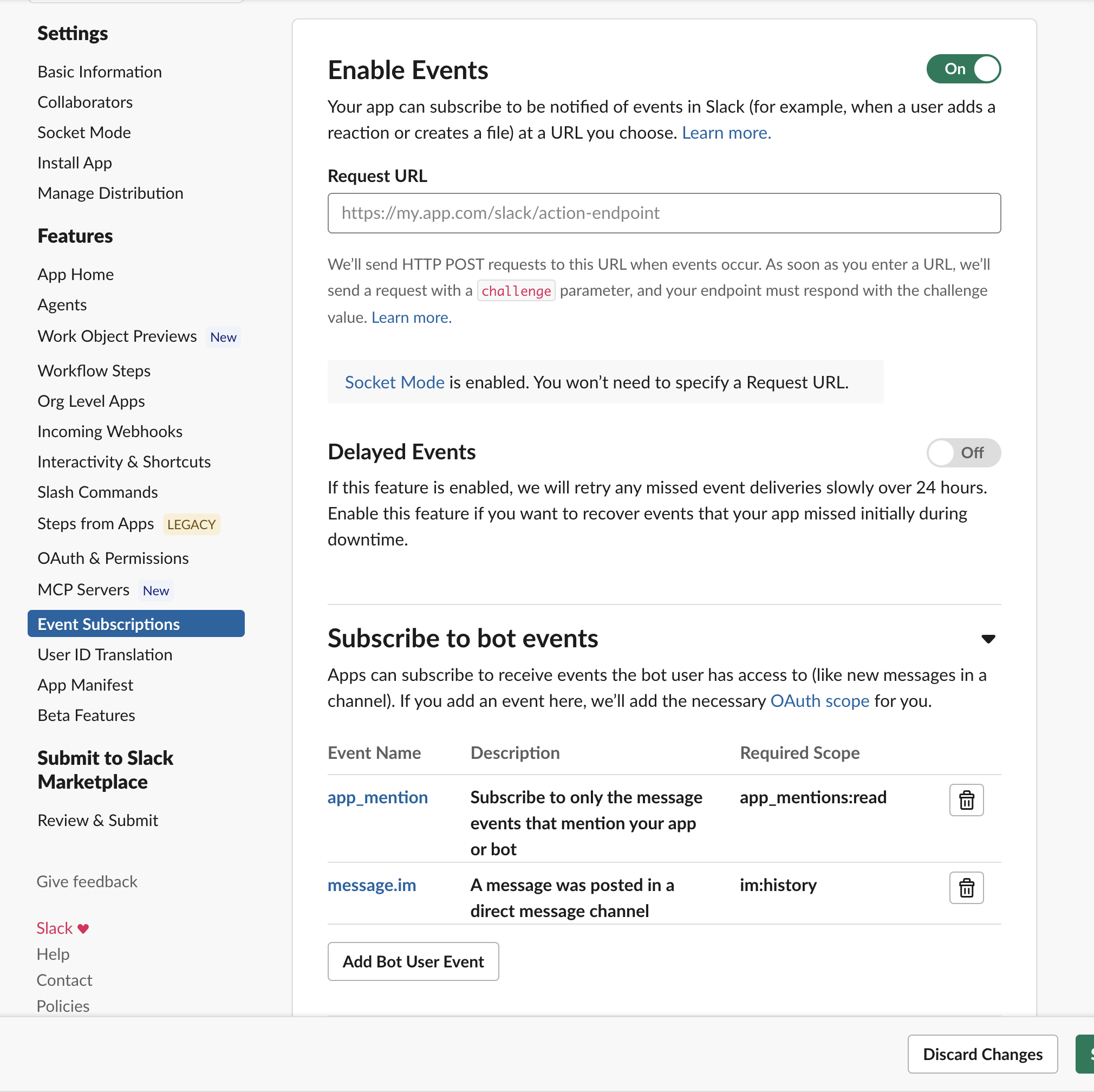
- Go to Features → Event Subscriptions and turn Enable Events on
- Under Socket Mode, no Request URL is needed
-
Subscribe to bot events
- Add
app_mention - Add
message.im ⚠️ Important: Subscribe to only these two. AionUi ignores non-mention channel messages, somessage.channelsgains nothing and won't reach your assistant.
- Add
-
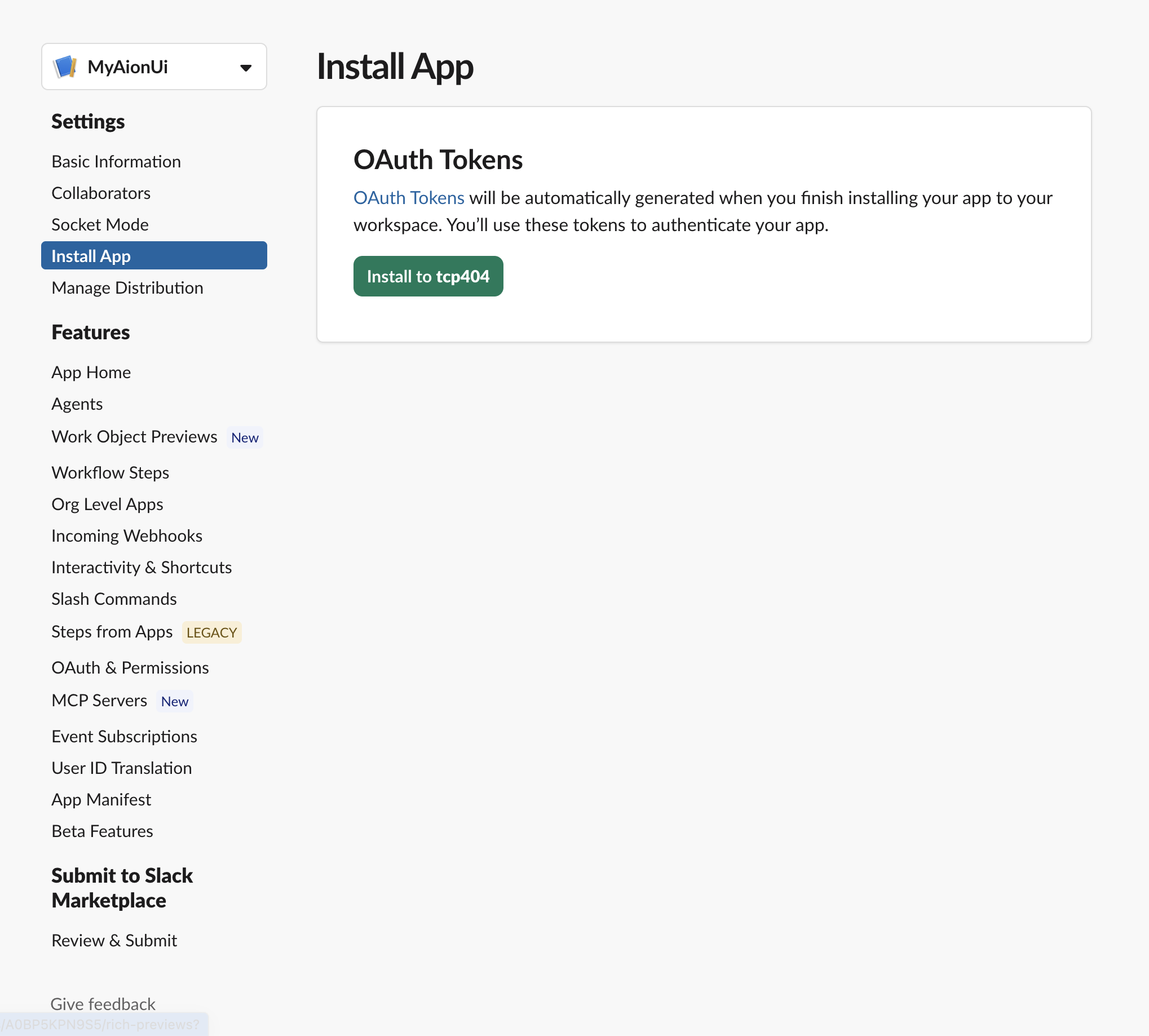
Install to workspace
- Go to Settings → Install App → Install to Workspace and authorize
-
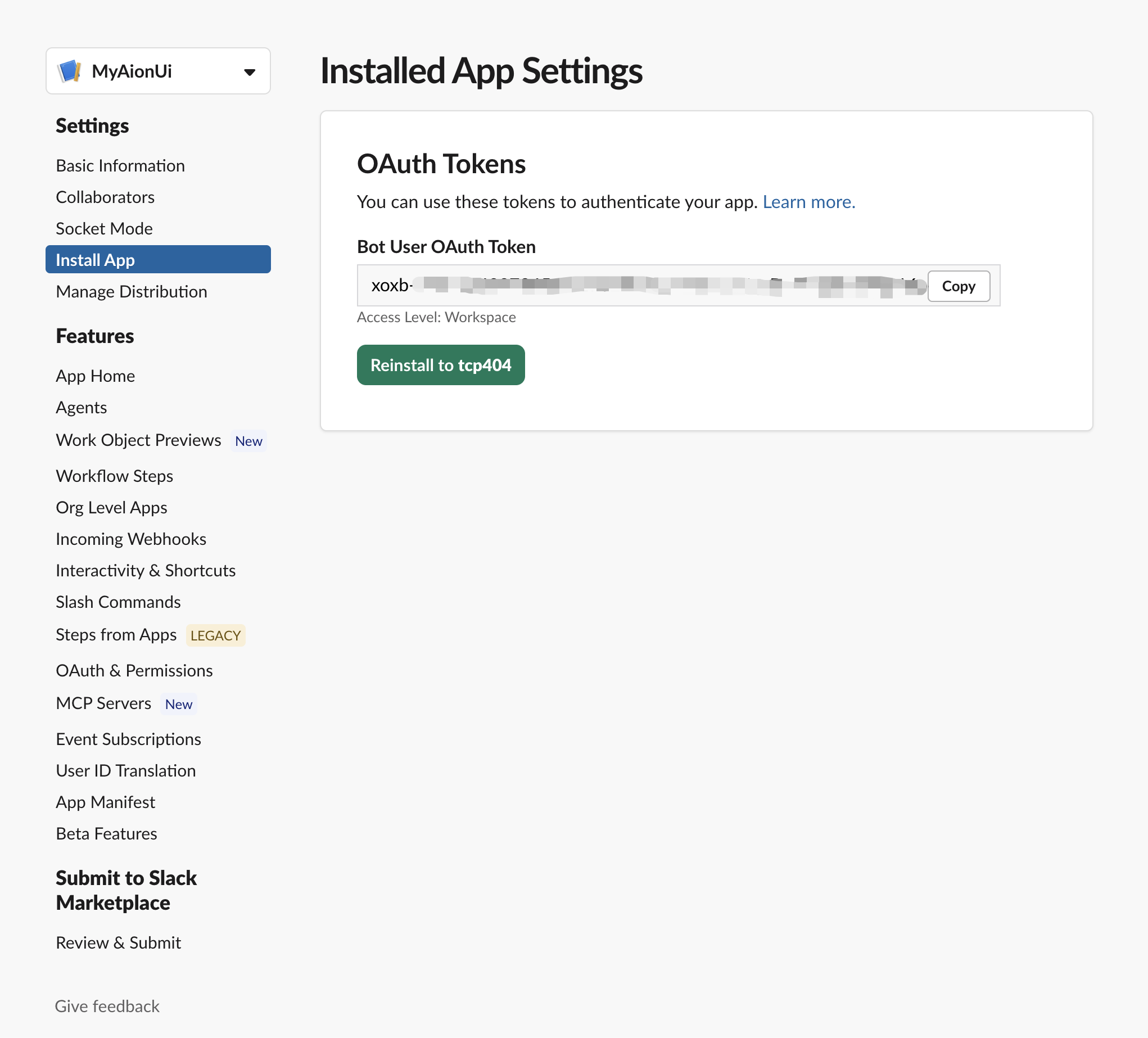
Copy the Bot Token
- Copy the Bot User OAuth Token (it starts with
xoxb-) ⚠️ Important: Thisxoxb-token is the Bot Token in the AionUi form
- Copy the Bot User OAuth Token (it starts with
-
Open the Slack channel
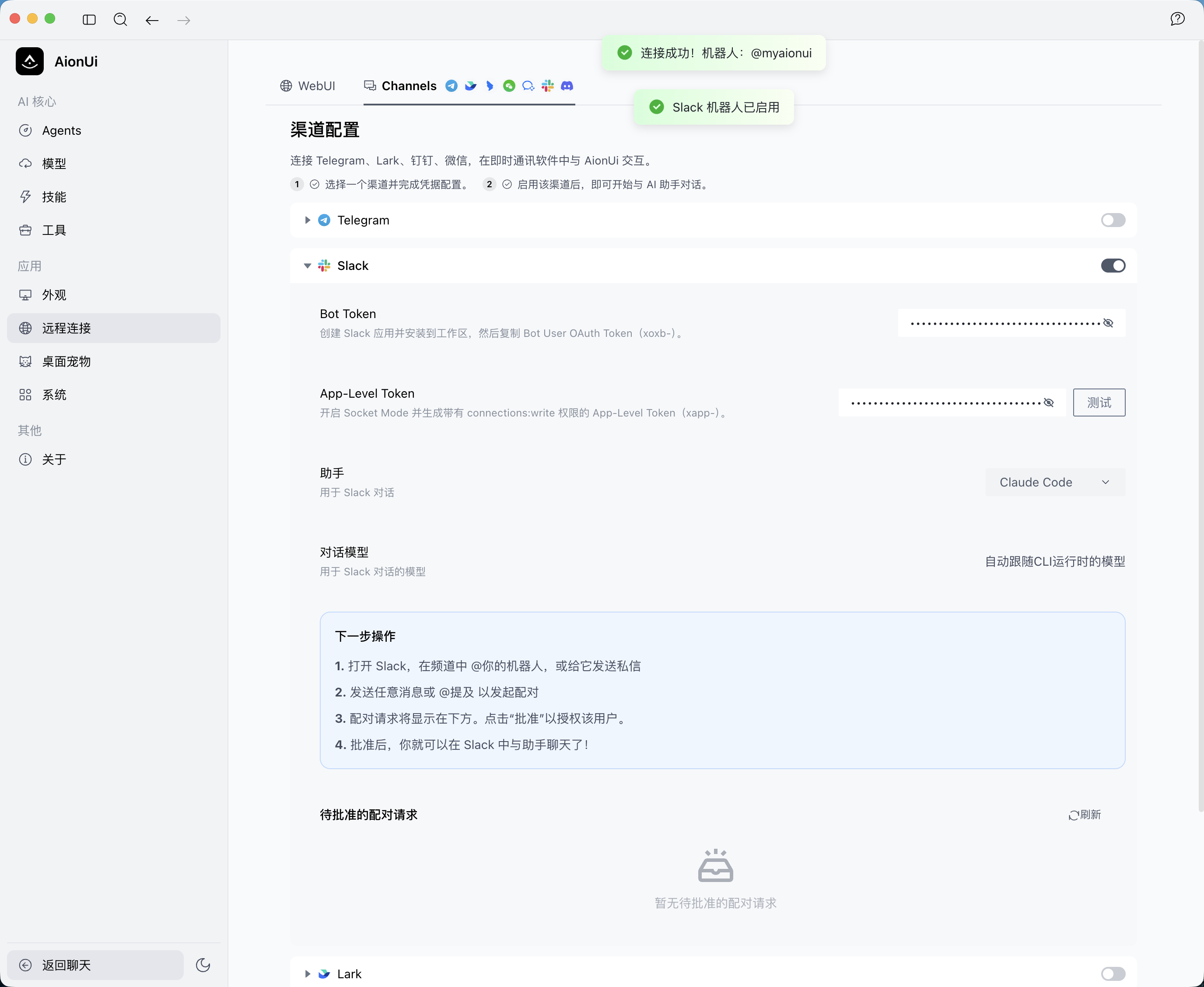
- Launch AionUi and go to Settings → Remote → Channels
- Find the Slack card and expand it
-
Enter credentials
-
Bot Token: paste the
xoxb-token -
App-Level Token: paste the
xapp-token - Click Test — on success you'll see Connected! Bot: @your-bot and the channel auto-enables (Socket Mode connects)
-
Bot Token: paste the
-
Configure assistant and model
- Select the Assistant for Slack conversations
- Choose the default model if applicable
-
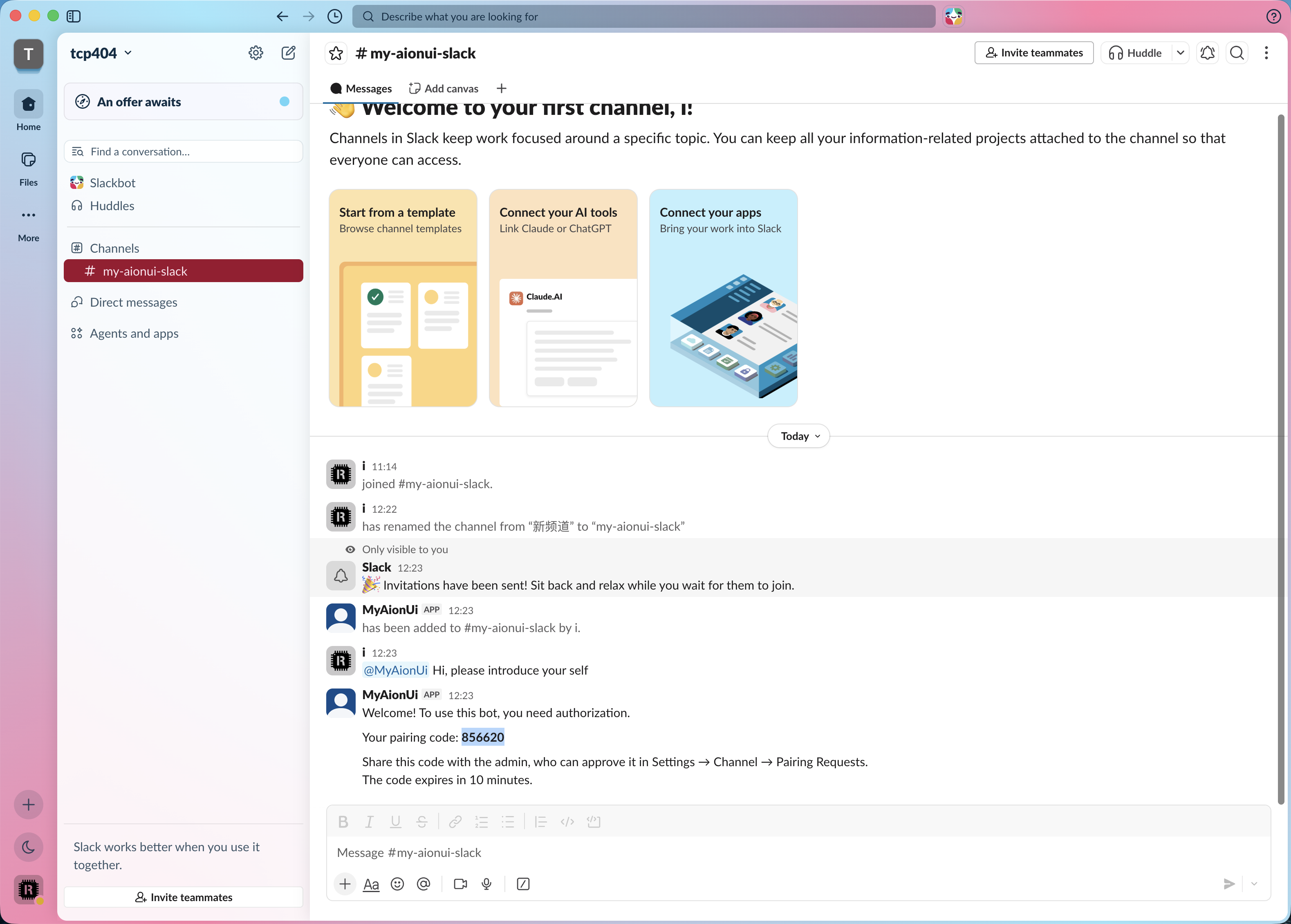
Message the bot in Slack
-
DM the bot or
@mentionit in a channel - The first message triggers a pairing request
-
DM the bot or
-
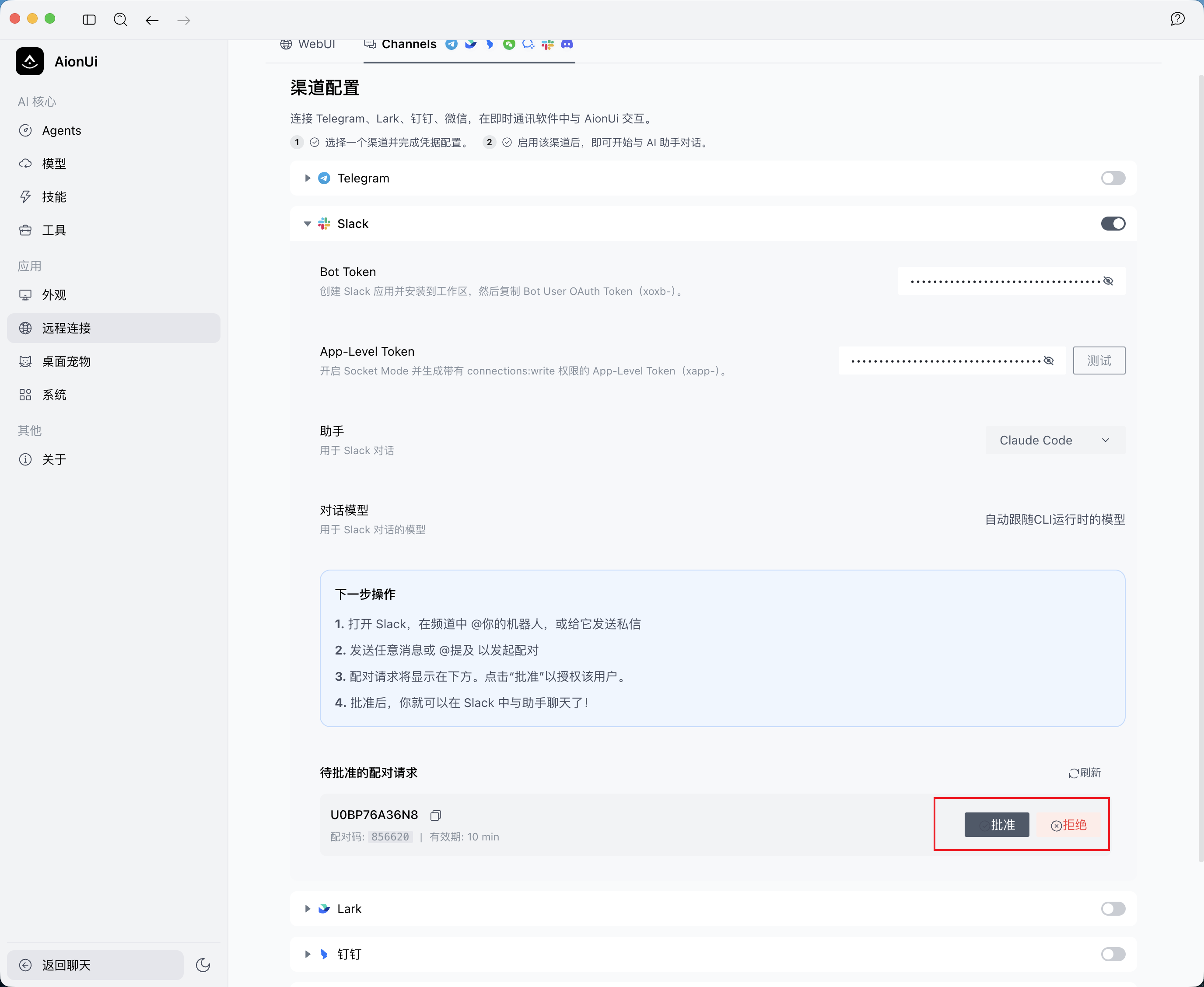
Approve the pairing request
- In AionUi, go back to Settings → Remote → Channels → Slack
- Find the Pending Pairings section and click Approve to authorize the user
-
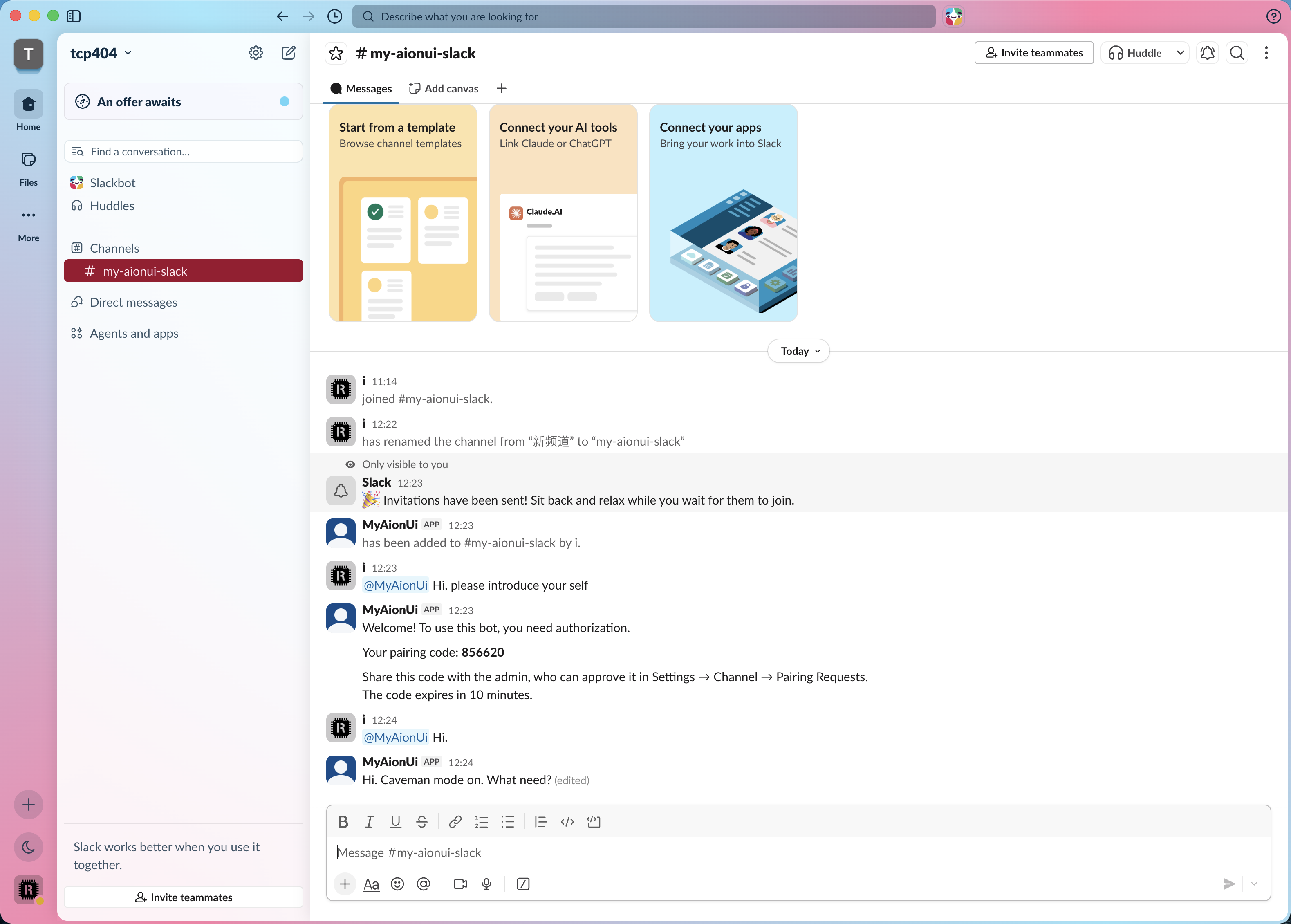
Start chatting
- Send another message — the assistant replies, streaming and updating in place
Problem: Test fails with "Missing Slack app-level token"
-
Solution:
- Update to the current build — the App-Level Token is only required when enabling (opening Socket Mode); Test validates only the Bot Token
Problem: Cannot connect / "invalid auth"
-
Solution:
- Verify the Bot Token (
xoxb-) is correct - Confirm the app is installed with the scopes from Step 3
- Verify the Bot Token (
Problem: Install shows "submitted for approval"
-
Solution:
- Your workspace requires an admin to approve the app; ask a workspace admin, or use a personal free workspace for testing
Problem: The bot doesn't respond to messages
-
Solution:
- Confirm Socket Mode is enabled and
app_mention+message.imare subscribed - Confirm the app is installed and the channel is enabled and connected in AionUi
- Confirm the user has been approved in AionUi (Pending Pairings → Approve)
- Confirm Socket Mode is enabled and
-
Behavior: responds to DMs and
@mentionsonly (plain channel messages are ignored). Replies stream via in-place edits; an@mentioninside a thread replies in that thread. - Not supported yet: Block Kit buttons, file / attachment upload, streaming replies inside a thread, and multiple Slack workspaces per AionUi instance.
- Slack API: Your Apps
- Slack Socket Mode
- AionUi Configuration Guides
- AionUi FAQ