Dashboard Cards
The Adaptive Cover Pro Card is a bundle of three companion dashboard cards for this integration. One reads a single ACP instance as a full glanceable panel, one shrinks it to a chip for dense dashboards, and one renders just the polar sun/FOV compass across several instances at once.
All three read the integration's existing entities over websocket and call its existing services. Zero integration-side changes required: the cards are pure frontend consumers and work against any Adaptive Cover Pro version ≥ v2.14.0.
The same JS file registers three custom elements in the dashboard card picker. Install once (see Installation below) and all three appear.
| Card | Type | Reach for it when | Reference |
|---|---|---|---|
| Adaptive Cover Pro | custom:adaptive-cover-pro-card |
You want the full dashboard panel for one ACP instance: compass, decision strip, cover bars, overrides, climate. | Panel Card |
| Adaptive Cover Pro — Tile | custom:adaptive-cover-pro-tile-card |
You want a compact chip-style row for dashboards packed with many ACP instances. | Tile Card |
| Adaptive Cover Pro — Sky Compass | custom:adaptive-cover-pro-sky-compass-card |
You want only the polar sun/FOV compass, optionally overlaying several instances on one plot. | Sky Compass Card |
custom:adaptive-cover-pro-card
The full diagnostic surface for a single instance. It answers what the integration is doing, why it landed there, and lets you override it inline — a sky compass with the live sun dot, the 24-hour elevation curve, all 10 decision-pipeline handlers with the winner highlighted, per-cover position bars you can click to set, override countdowns, and an auto-hidden climate panel. The visual editor picks the config entry from a dropdown and toggles each section with a checkbox.
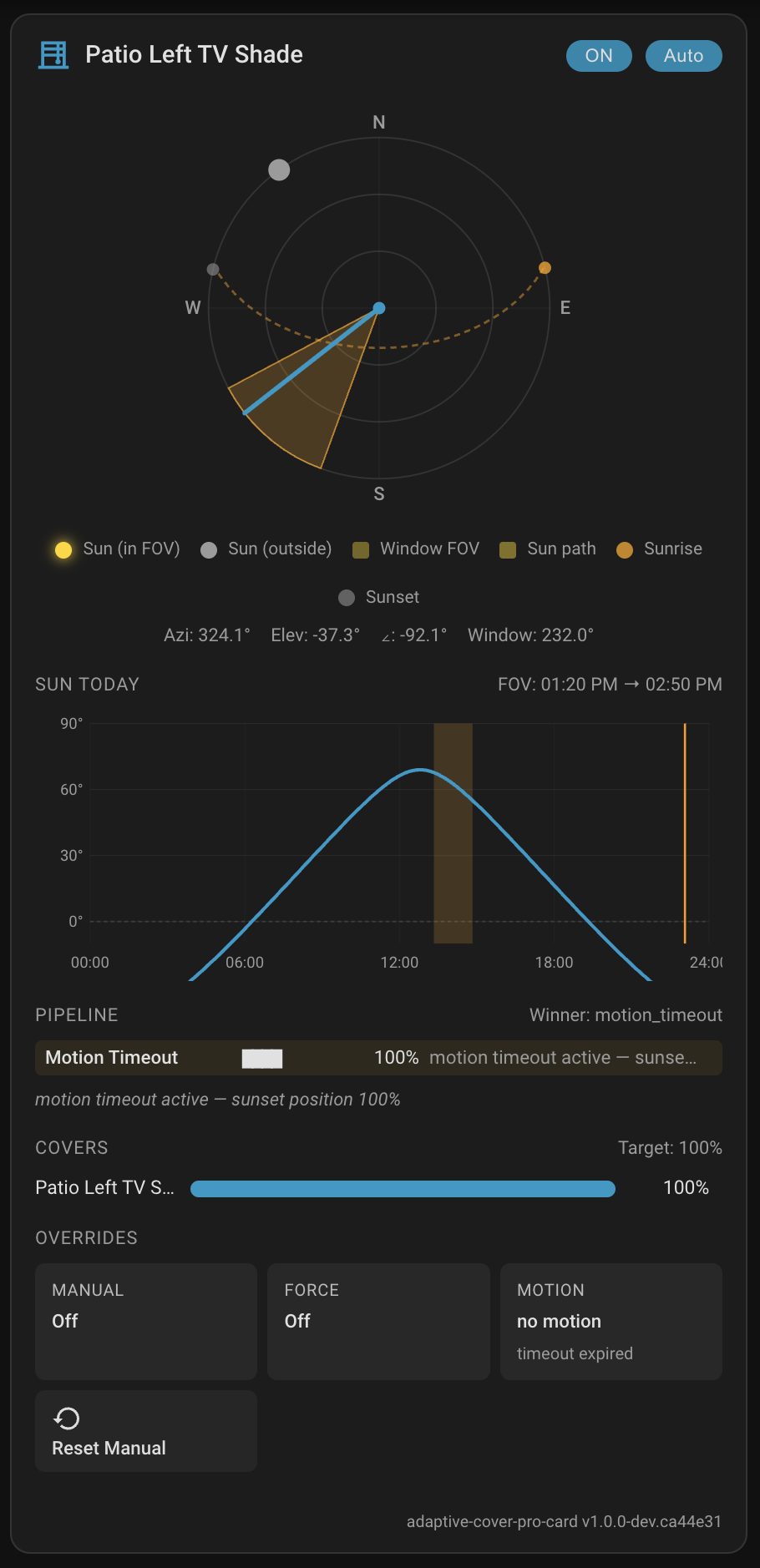
Full reference: Panel Card — section breakdown, the sky-compass legend and north_offset, every config option, the more-info dialog, forecast strip, and custom-position slot controls.
custom:adaptive-cover-pro-tile-card
A single-row chip for dashboards where eight or more instances sit side by side. It keeps only what you read at a glance: icon, name, position, an ↑■↓ control row, and one contextual badge that tracks the live pipeline winner. Tapping the tile opens the same diagnostic dialog the panel uses; while a manual override is active the badge turns into a one-tap ↺ resume.
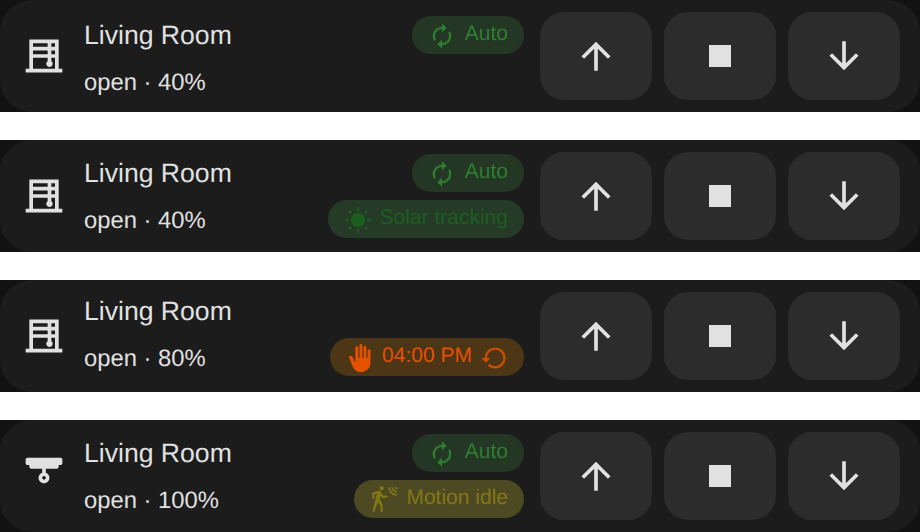
Full reference: Tile Card — YAML and visual editor, tap / hold / double-tap actions, per-badge toggles, the badge legend, and compact mode.
custom:adaptive-cover-pro-sky-compass-card
The polar compass on its own, and the only card that takes multiple config entries. Give it several windows and it overlays each one's field of view, blind spot, window-normal arrow, and cover-closure wedge on a single plot that shares one sun dot — a "which window sees the sun right now" overview for a whole façade.
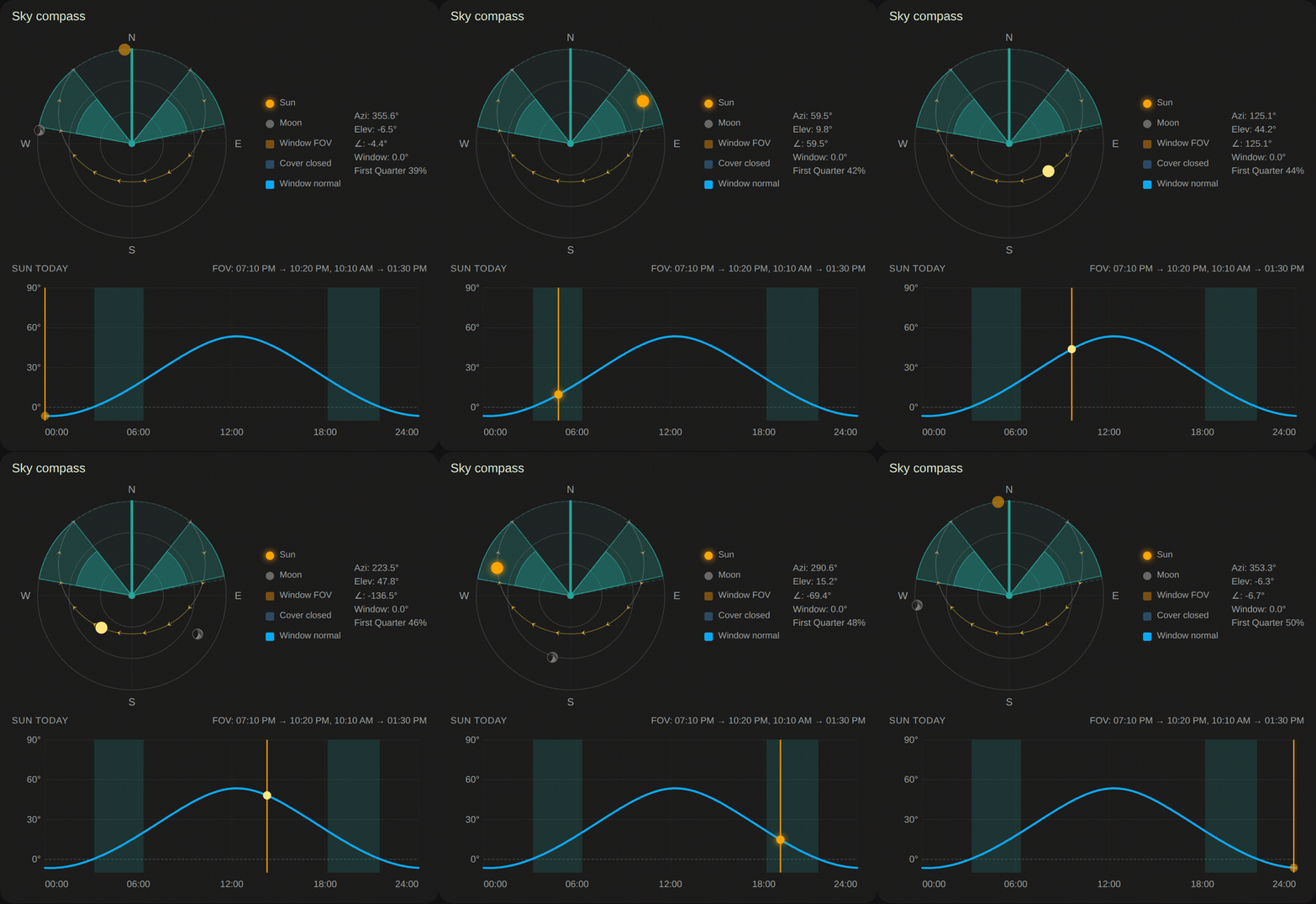
Full reference: Sky Compass Card — multi-entry overlay, every layer toggle, and single- vs multi-entry behaviour.
All three cards declare their own grid sizing, so Home Assistant's Sections view places and resizes them correctly without manual tuning. Each card reports a sensible default column span and row count along with min/max bounds; the full panel card also grows its row count with the number of sections you've enabled. Drag a card's resize handle in the Sections editor and it snaps to those bounds instead of the one-size-fits-all default HA applies to cards that don't advertise a size.
Installing the bundle once registers all three cards.
- In HACS, open the ⋮ menu → Custom repositories.
- Add
https://github.com/jrhubott/adaptive-cover-pro-cardwith category Dashboard. - Search for Adaptive Cover Pro Card, download, and refresh your browser.
- The cards register in the card picker as Adaptive Cover Pro - XXX.
Place the latest release asset into your Home Assistant www/community/ directory:
mkdir -p config/www/community/adaptive-cover-pro-card
wget -O config/www/community/adaptive-cover-pro-card/adaptive-cover-pro-card.js \
  https://github.com/jrhubott/adaptive-cover-pro-card/releases/latest/download/adaptive-cover-pro-card.js
Register the resource in Settings → Dashboards → ⋮ → Resources:
url: /local/community/adaptive-cover-pro-card/adaptive-cover-pro-card.js?v=1.0.0
type: module
Bump the ?v= query string every time you update: Home Assistant caches dashboard modules aggressively and a hard refresh alone does not invalidate them.
The browser often serves the old card version from its local cache even after HACS has delivered the new file. Two steps clear it reliably:
-
Reload dashboard resources in HA. Open Developer Tools → Actions, pick
lovelace.reload_resources, and press Perform action. This updates the internal version stamp HA uses for the JS file without needing a restart, and it works in both storage-mode and YAML-mode setups. (The Settings UI also exposes a Reload resources menu, but only on YAML-mode dashboards, which is why most installs won't see it. Restarting Home Assistant has the same effect.) - Hard-refresh the browser tab. Press Ctrl + Shift + R (Windows / Linux) or Cmd + Shift + R (Mac), or hold Shift and click the browser's reload button. A plain reload (F5 / Cmd + R) reuses the cached file and is not enough.
If the old version is still showing after both steps, open browser developer tools (F12), go to the Application tab → Storage → Clear site data, then reload.
- Home Assistant: 2024.5.0+
- Adaptive Cover Pro: v2.14.0+ (any release on this Wiki)
The cards use the unique_id of each ACP entity (via Home Assistant's entity registry) to identify sensors, so renames of entity IDs, devices, or friendly names do not break them.
The integration's "Only engage manual override from Adaptive Cover Pro commands" option (Automation → Manual Override, v2.23.0+) restricts manual-override engagement to commands routed through ACP itself. The cards are fully compatible: every command they send — click-to-set on the cover bars, position sliders in the more-info dialog, the Resume Auto pill, the custom-position slot toggles, and the integration's switches and buttons — goes through the ACP proxy entity or an adaptive_cover_pro.* service. With the option on, all card-driven actions continue to engage manual override exactly as before, while position changes from outside ACP (other automations, the default HA cover card, physical/RF remotes) are ignored. See Tips and Tricks → ACP-only manual override.
If a cover bar, tile, or the Sky Compass draws the cover as open when it's
physically closed (or the reverse), the cover is reporting its position
backwards — 0 = open / 100 = closed, the opposite of Home Assistant's
convention (100 = open / 0 = closed). The cards render exactly the position
the cover entity reports, so there is deliberately no per-card "invert"
toggle: flipping it on one card would still leave the default HA cover card,
voice assistants, and automations reading the cover wrong. Fix it once at the
source and every surface corrects together.
Option A — Integration Inverse State toggle (simplest). In the ACP entry's
Options → Position step, enable Inverse State. ACP then treats the cover
as 0 = open / 100 = closed, and the cards display the corrected position.
Inverse State can't be combined with Position Calibration — pick one. See
Inverse State.
Option B — Normalising template cover (most universal). Wrap the physical cover in a Home Assistant template cover that flips the position back to HA's convention, then point ACP (and your dashboards) at the template entity instead of the raw cover.
# configuration.yaml
cover:
  - platform: template
    covers:
      living_room_blind_normalised:
        device_class: blind
        friendly_name: "Living Room Blind (normalised)"
        # Source reports 0 = open / 100 = closed — flip it to HA's convention.
        position_template: >
          {{ 100 - (state_attr('cover.living_room_blind', 'current_position') | int(0)) }}
        open_cover:
          service: cover.close_cover
          target: { entity_id: cover.living_room_blind }
        close_cover:
          service: cover.open_cover
          target: { entity_id: cover.living_room_blind }
        set_cover_position:
          service: cover.set_cover_position
          target: { entity_id: cover.living_room_blind }
          data:
            position: "{{ 100 - position }}"
        stop_cover:
          service: cover.stop_cover
          target: { entity_id: cover.living_room_blind }
Point your ACP entry at cover.living_room_blind_normalised and the cards track
it correctly.
Which to choose: Option A is a single toggle and best when ACP is the only thing driving the cover. Option B normalises the entity for the whole of Home Assistant — worth the extra YAML when other cards, scripts, or voice assistants also touch the cover.
Card issues → https://github.com/jrhubott/adaptive-cover-pro-card/issues Integration issues → https://github.com/jrhubott/adaptive-cover-pro/issues
When filing a card issue, a browser devtools console screenshot is almost always the fastest path to a fix; the cards log their version and detailed diagnostics on every render.

🏠 Home · ✨ Features · 📰 What's New
🚀 Getting Started
- Installation
- Migrating from Custom Repository
- Migrating from Adaptive Cover
- First-Time Setup
- Cover Types
🧠 Core Concepts
📐 Cover Types
⚙️ Configuration
- Sun Tracking
- Position
- Glare Zones
- Automation
- Custom Position
- Force Override
- Weather Safety
- Climate
- Blindspot
- Summary Screen
- Debug & Diagnostics
🔌 Entities & Services
- Entities
- Proxy Cover Entity
- Position Verification
- My Position Support (Somfy RTS)
- Runtime Configuration Services
🛠️ Operations
🔧 Advanced Use Cases
- Dynamic Temperature Thresholds
- Dynamic Tracking Window
- Bedroom Sleep Mode
- Handling Variable Cloud Cover
- Venetian Tilt-Only on Overcast Days
🎨 Dashboard
🧪 Testing & Simulation
📚 Reference
👩💻 For Developers