Panel Card
custom:adaptive-cover-pro-card
The panel card is the full dashboard surface for a single Adaptive Cover Pro instance. It shows what the integration is doing right now, why it decided that, and gives you inline controls to override it: the sky compass, the decision pipeline, per-cover position bars, override countdowns, and — when climate mode is configured — the climate panel, all in one tile.
It is one of the three cards in the Adaptive Cover Pro Card bundle. Installing the bundle registers all three; see Dashboard Cards → Installation.
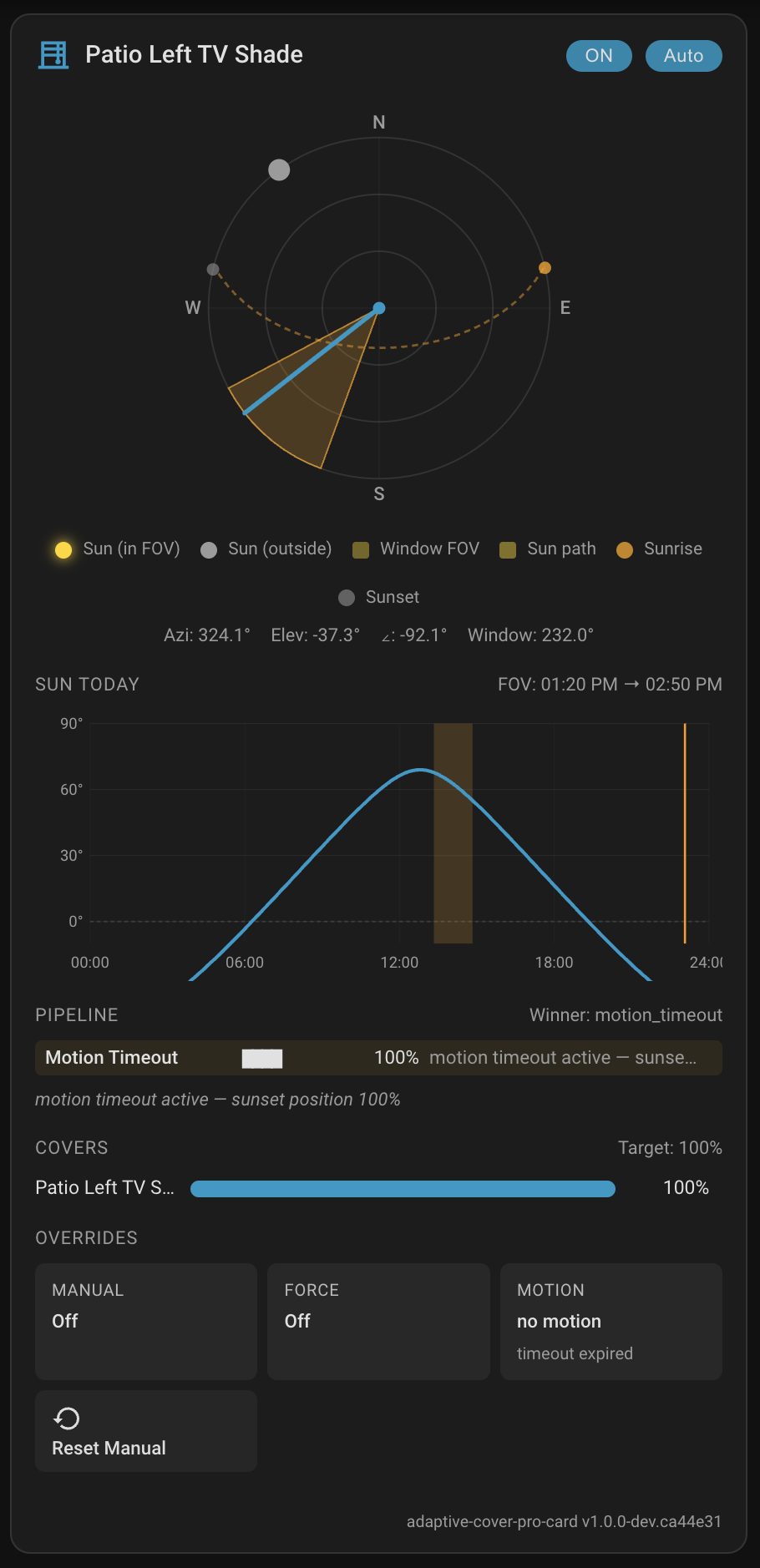
| Section | Contents |
|---|---|
| Header strip | Instance name · cover-type icon (blind / awning / tilt) · inline toggles for Integration Enabled and Automatic Control |
| Sky compass | SVG polar plot: window FOV wedge, blind-spot wedge, sun dot tracked live, cardinal labels; azimuth / elevation / gamma statline |
| Sun today | 24-hour elevation-vs-time curve with the in-FOV window shaded, horizon line, current-time cursor, live sun dot |
| Decision strip | All 10 pipeline handlers in priority order with matched / skipped state, the winning handler highlighted with its proposed position |
| Cover positions | Per-cover live-vs-target bars with mismatch indicator; click the track to set a position |
| Overrides | Manual-override countdown, force-override sensor count, motion-timeout status, one-click Reset Manual Override button |
| Climate panel | Auto-hidden unless climate mode is configured. Strategy (summer / winter / intermediate), active temperature, indoor / outdoor chips, condition chips (presence, sunny, lux, irradiance) |
The visual editor (dashboard picker → form) exposes a dropdown of your Adaptive Cover Pro config entries, a checkbox per section, and a compact-mode toggle. You never have to write the YAML by hand.
The Sky Compass is a polar (top-down) plot of the sky above your home. North is at the top, cardinal directions are labelled. The outer ring is the horizon; moving toward the center means higher elevation (zenith is the exact center). The sun is plotted by its azimuth (which way to look) and elevation (how high up), so the dot's distance from the center tells you how high the sun is right now.
The standalone Sky Compass Card renders this same compass on its own and can overlay several ACP instances on one plot.
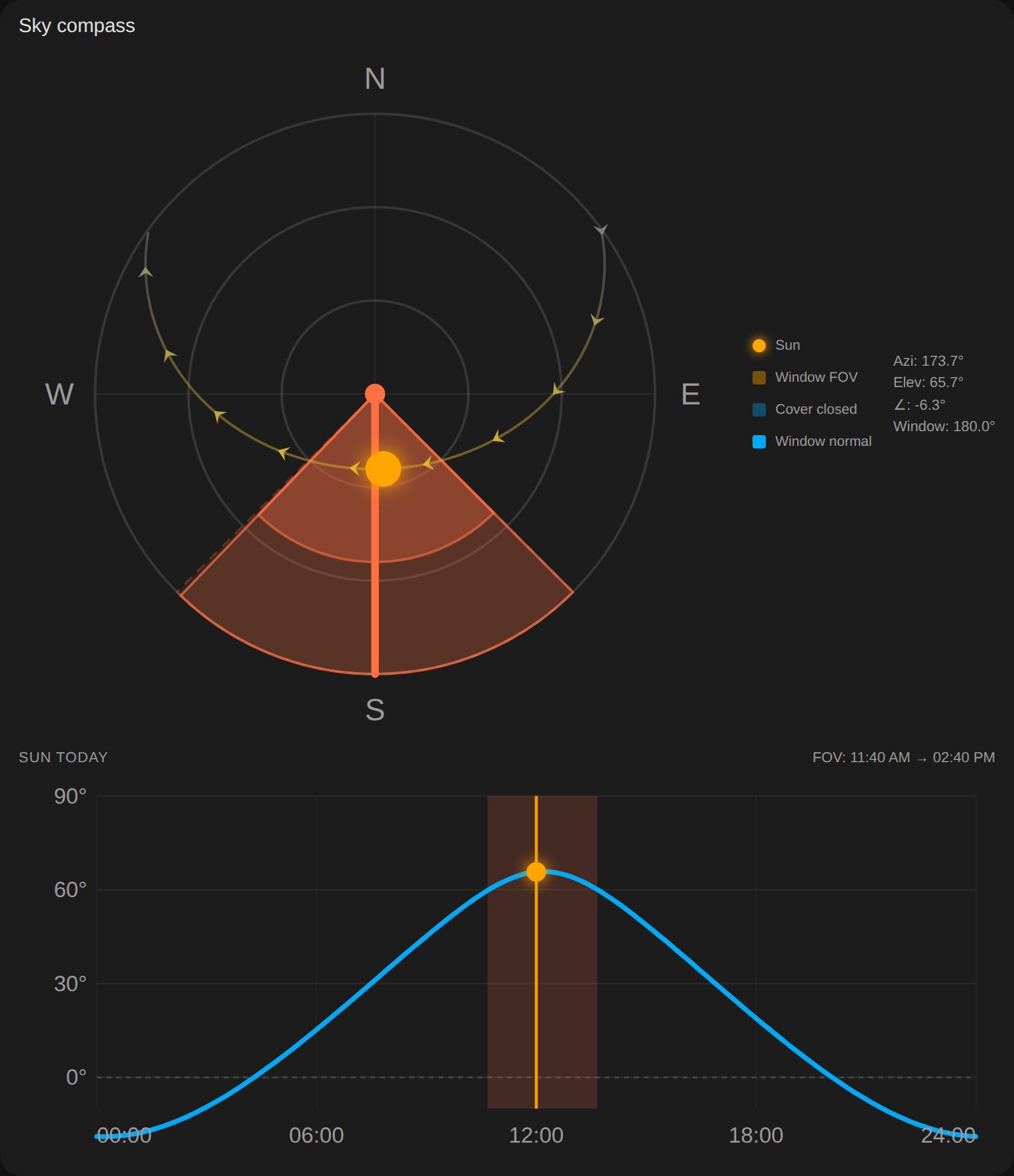
| Element | Description |
|---|---|
| Gold/orange wedge | Your window's field of view: the arc of sky the window actually faces. Bounded by the window's normal azimuth ± its left and right FOV angles. Any sun that falls inside this wedge can shine directly through the glass. |
| Hatched red wedge | Blind-spot zone (if configured). The integration cannot block glare here regardless of cover position. |
| Blue arrow | Window normal: the direction perpendicular to the glass, pointing outward. The arrow's azimuth is shown in the stats line as Window. |
| Gold dot | The sun, when it is above the horizon and inside the window FOV (direct sun shining through). |
| Grey dot | The sun when it is outside the FOV or below the horizon. |
| Dashed arc | Today's full solar path from sunrise to sunset. The arc traces where the sun travels across the sky during daylight hours so you can see at a glance when it will enter or leave your window's FOV. |
| Gold dot on the arc (edge) | Sunrise direction: where the sun rises above the horizon today. |
| Grey dot on the arc (edge) | Sunset direction: where the sun drops below the horizon today. |
| Blue inner wedge fill | Cover closure indicator: a filled wedge inside the FOV using the card's primary color. Its radius represents how closed the cover currently is: a fully closed cover (0 % open) fills the wedge all the way to the outer FOV ring; a fully open cover (100 % open) shows no fill. The value tracked is the integration's calculated target position, not the instantaneous physical position. |
| Moon dot (optional) | When Show moon on compass is enabled, the moon's current position is plotted as a small circle using the same azimuth/elevation projection as the sun. The circle shows the moon's current phase as a crescent: a dim outline only at new moon, a filled half-circle at first/last quarter, and a fully filled circle at full moon. The moon dot is only shown when the moon is above the horizon. |
By default North is at the top of the compass (12 o'clock). If your floor plan or wall map uses a different reference orientation, set north_offset to a positive number of degrees to rotate the compass clockwise:
| Value | Result |
|---|---|
0 (default) |
North at top |
90 |
East at top |
180 |
South at top |
270 |
West at top |
All compass layers rotate together: the sun dot, window FOV wedge, blind-spot wedge, window-normal arrow, sun path, and N/E/S/W labels all shift by the same amount. The Azi, Window, and Elev values in the stats line always show true azimuth (unaffected by the rotation) so your numbers stay meaningful.
north_offset: 90 # East at the topThe visual editor exposes this as a Compass north offset (°) field in both this card and the standalone Sky Compass card.
Below the compass (when stats are enabled) a row of four values updates live:
| Label | Meaning |
|---|---|
| Azi | Current sun azimuth in degrees (0 = North, 90 = East, 180 = South, 270 = West) |
| Elev | Current sun elevation in degrees above the horizon (negative = below horizon) |
| ∠ | Gamma: the horizontal angle between the sun and the window normal. 0° means the sun is directly in front of the window; ±90° means it is at the very edge of any possible FOV. |
| Window | The azimuth the window faces (the direction the blue arrow points) |
| Phase (optional) | When moon overlay is enabled, the moon's current phase name (e.g. "Waxing Crescent") and illuminated fraction percentage are appended to the stats line. |
- Sun inside the wedge, gold dot → direct sun is hitting the glass right now; the integration will deploy the cover unless something else overrides it.
- Sun outside the wedge, grey dot → no direct sun through this window at the moment.
- Dot near the outer ring → sun is low in the sky (morning, evening, or winter).
- Dot near the center → sun is high overhead (midday or summer).
- Arc entering/exiting the wedge → the times the arc crosses the wedge boundary are roughly when the sun will start and stop hitting the window during the day.
Drop the card onto a dashboard and the visual editor walks you through it. Or edit YAML directly:
type: custom:adaptive-cover-pro-card
entry_id: YOUR_CONFIG_ENTRY_ID           # Settings → Devices & Services → click the ACP instance → URL bar
show_sections:                           # optional; defaults to all six
  - sky
  - elevation
  - decision
  - covers
  - overrides
  - climate
compact: false                           # optional
show_compass_stats: true                 # optional; hide the Azi/Elev/∠/Window stats line
show_compass_legend: true                # optional; hide the color key below the compass
show_moon: false                         # optional; overlay moon position and phase on the sky compass
north_offset: 0                          # optional; rotate compass clockwise (degrees). 90 = East at top
hide_inactive_handlers: false            # optional; show only the winning decision-strip handler
show_decision_summary: true              # optional; render a plain-English "why this position?" line above the decision strip
Since v2.1.0 the card version is shown automatically in the visual editor footer; the old
show_versionoption was removed.
When show_decision_summary is on (the default), the decision strip prefixes its row grid with a one-line sentence that walks the matched handlers in priority order so the winner reads last. For example:
Solar Tracking 100% → Custom Position #1 60% floor → Manual Override 60%
Each segment names the handler, the position it would have produced, and — for custom-position slots that are floor-constrained right now — a trailing floor. When a slot's bound binary sensor has a friendly name (and the integration is v2.22.1 or later), the slot label uses that name instead of #N, so a slot bound to binary_sensor.table_extension reads as Custom Position · Table extension rather than Custom Position #1.
If no handler matched (rare — usually means the integration is still warming up), the line falls back to the trace's raw reason text. Set show_decision_summary: false to hide the line entirely if you find it noisy on small dashboards.
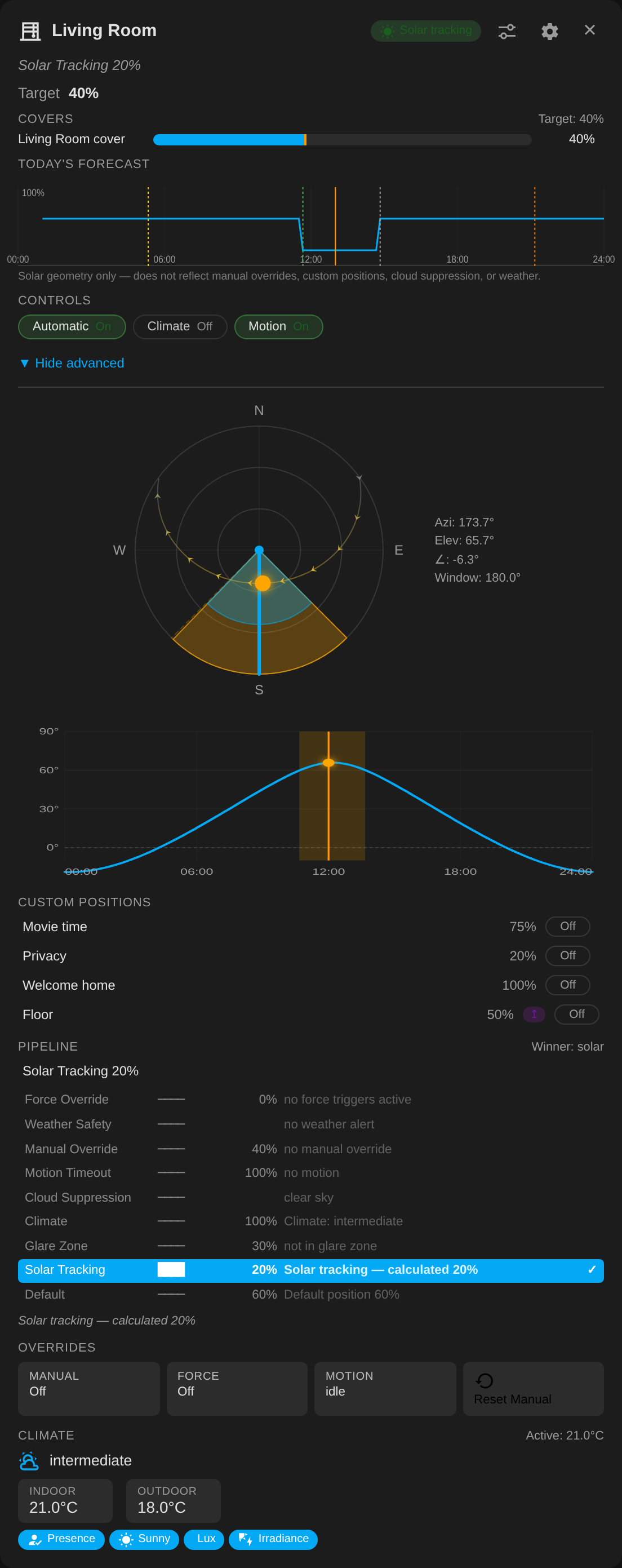
The dialog opened on a tile that's currently under manual override. Header shows the Manual badge, the target row reads the override's held position, the forecast strip plots today's projected curve, the controls block toggles Automatic / Motion and the Resume Auto pill, and Advanced is expanded to show the sky compass, pipeline trace, and overrides.
Tapping a Tile card (or anywhere on this panel card's chrome) opens an ACP-specific dialog rendered by the card itself — HA's built-in more-info dialog is entity-bound and can't carry the ACP context the diagnostic surface needs. The dialog stacks:
- Header — cover icon, instance title, and all currently matched handlers as badges (priority-ordered so the winner reads on the right). A ✕ button closes; clicking the backdrop outside the dialog body does the same.
-
Plain-English decision summary — the same
Solar Tracking 100% → Custom Position #1 60% floor → Manual Override 60%sentence the decision strip uses inline. - Target position — the integration's computed target, with a divergence indicator when the physical position lags (the existing position-mismatch indicator).
-
Cover bars — one row per managed cover with the live-vs-target track and click-to-set, identical to the panel card's
coverssection. -
Today's forecast (when the integration exposes the
position_forecastsensor) — an SVG strip plotting the projected solar position for the next 12 hours with vertical markers for sunrise, sunset, and FOV entry/exit events. See Forecast strip below. -
Resume Auto — visible whenever the integration's
Reset Manual Overridebutton is discovered. One tap clears any active override and returns the cover to its autonomous decision. - Advanced (collapsible) — expands to the full decision strip, overrides panel, and climate panel from the panel card, plus per-slot custom-position controls when the integration provides them. See Custom-position slot controls below.
When the integration is v2.22.1 or newer, the dialog's Advanced section gains a per-slot row for each configured custom-position slot, driven by the new custom_position_slots snapshot attribute on the decision-trace sensor. Each row shows:
- The slot label — bound-sensor friendly name when set, falling back to
#N. - The configured slot position.
- A purple
floorchip when the slot'smin_modeis currently constraining the cover above the autonomous calculation. - An
On/Offtoggle. Tapping it callsadaptive_cover_pro.set_custom_positionwith{slot: N, enabled: <new>}, which writes a newcustom_position_enabled_<N>config option and triggers a coordinator reload so the next pipeline tick reflects the change. Disabling a slot leaves itssensor,position,priority, andmin_modeconfiguration intact — re-enabling it returns the slot to its prior behaviour without re-entry.
Slot editing (position, min-mode, sensor binding) still lives in the integration's options flow — the dialog is a read + enable surface, not a configuration editor.
The forecast strip plots today's expected position over the next 12 hours in 15-minute increments, using the integration's sensor.<entry>_position_forecast diagnostic sensor. It answers "where will this cover sit through the rest of the day if nothing changes" — useful at a glance when you're deciding whether to schedule something around expected sun coverage.
Vertical markers call out boundary events on the timeline:
| Marker | Meaning |
|---|---|
| Gold | Sunrise — astronomical sunrise time today. |
| Orange | Sunset — astronomical sunset time today. |
| Green | Sun enters FOV — the time the sun first becomes "directly visible" through this window's configured field of view. |
| Grey | Sun exits FOV — the matching exit time, when direct-sun tracking stops applying. |
The forecast only projects solar tracking forward — manual overrides, motion, weather safety, and custom positions depend on inherently real-time inputs (someone touches the cover, a sensor flips) and would mislead a forecast if naively held at their current state. Read the strip as "what the integration would do today if nobody touches anything and no safety conditions fire" — that's the realistic upper bound.
The strip is hidden when the integration is older than the forecast-sensor release, when the entry has no forecast data yet (first refresh after restart), or on geometries the integration can't forecast cleanly (polar regions during midnight sun / polar night fall back to sentinel times).
Open Settings → Devices & Services, click the Adaptive Cover Pro instance you want to show, and the URL in your browser's address bar ends in config_entry=…. That value is your entry_id. The visual editor lists them all in a dropdown, so you typically don't need to look this up manually.
Card issues → https://github.com/jrhubott/adaptive-cover-pro-card/issues Integration issues → https://github.com/jrhubott/adaptive-cover-pro/issues
When filing a card issue, a browser devtools console screenshot is almost always the fastest path to a fix; the card logs its version and detailed diagnostics on every render.

🏠 Home · ✨ Features · 📰 What's New
🚀 Getting Started
- Installation
- Migrating from Custom Repository
- Migrating from Adaptive Cover
- First-Time Setup
- Cover Types
🧠 Core Concepts
📐 Cover Types
⚙️ Configuration
- Sun Tracking
- Position
- Glare Zones
- Automation
- Custom Position
- Force Override
- Weather Safety
- Climate
- Blindspot
- Summary Screen
- Debug & Diagnostics
🔌 Entities & Services
- Entities
- Proxy Cover Entity
- Position Verification
- My Position Support (Somfy RTS)
- Runtime Configuration Services
🛠️ Operations
🔧 Advanced Use Cases
- Dynamic Temperature Thresholds
- Dynamic Tracking Window
- Bedroom Sleep Mode
- Handling Variable Cloud Cover
- Venetian Tilt-Only on Overcast Days
🎨 Dashboard
🧪 Testing & Simulation
📚 Reference
👩💻 For Developers