Repository navigation
First Start
Open the app grid and search for minecraft. There are two apps:
- Minecraft: the launcher. This is the one you play from.
- MC Mods: sets up mods. You only need it for Mods.
Right-click Minecraft and choose Add to Favorites to keep it in the dock.
The first time, a small window downloads the official Minecraft launcher. It takes a few seconds.
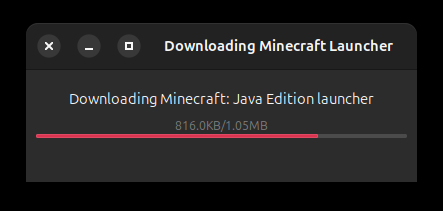
This happens again whenever Mojang releases a new launcher, so you always have the current one. If the download fails, the window says so and has a Retry Download button: check your internet connection and press it.
The launcher asks you to sign in. Choose Microsoft account and sign in with the account that owns Minecraft. Children's accounts work too, if a parent has allowed multiplayer and online play in the Microsoft family settings.
You only sign in once: the launcher remembers you.
After signing in you land on the launcher's Home page. The green Play Java button at the top starts Minecraft straight away.
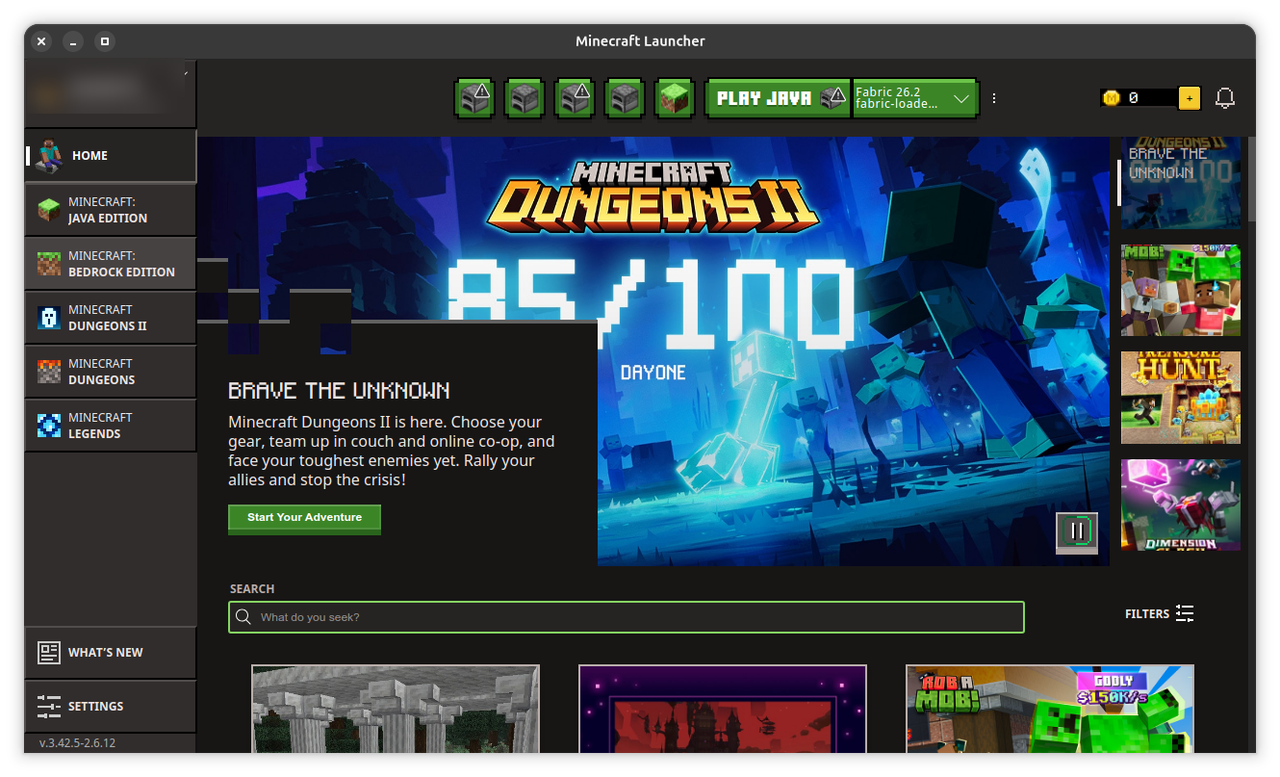
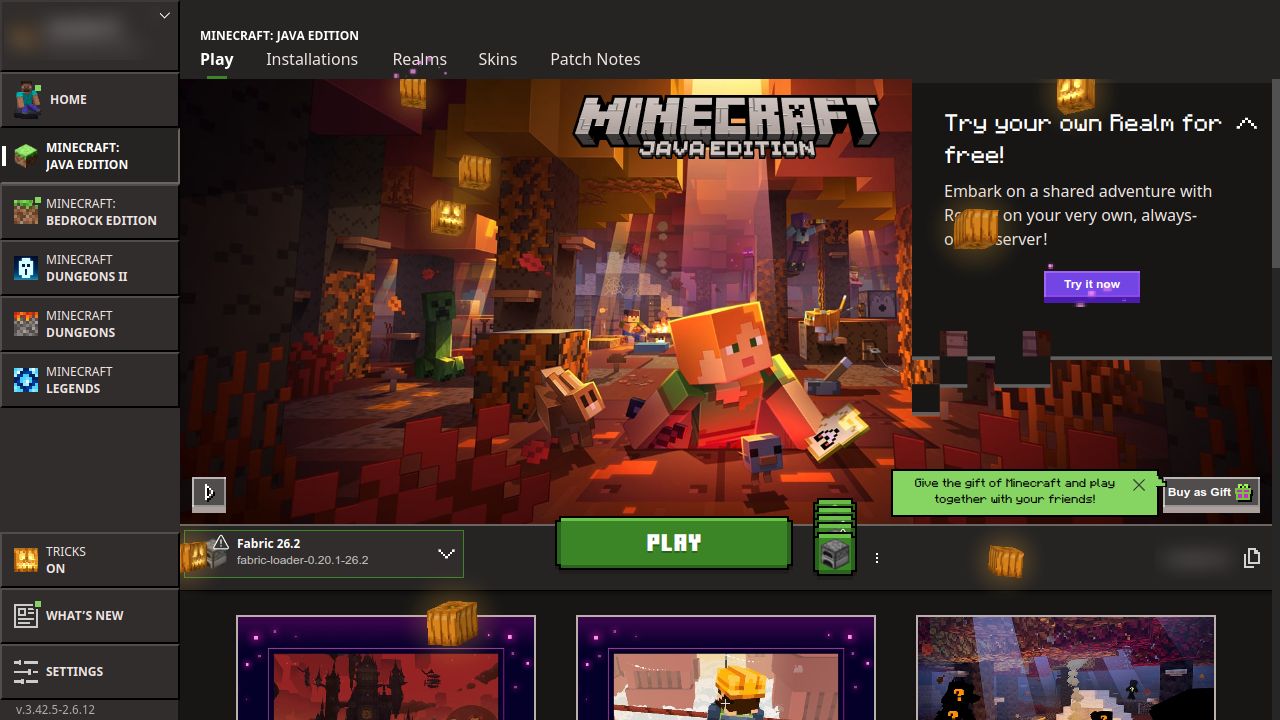
On the left, choose Minecraft: Java Edition for its own page: the big green Play button, the version picker next to it, and the Installations tab. The first start downloads the game, which takes a few minutes.
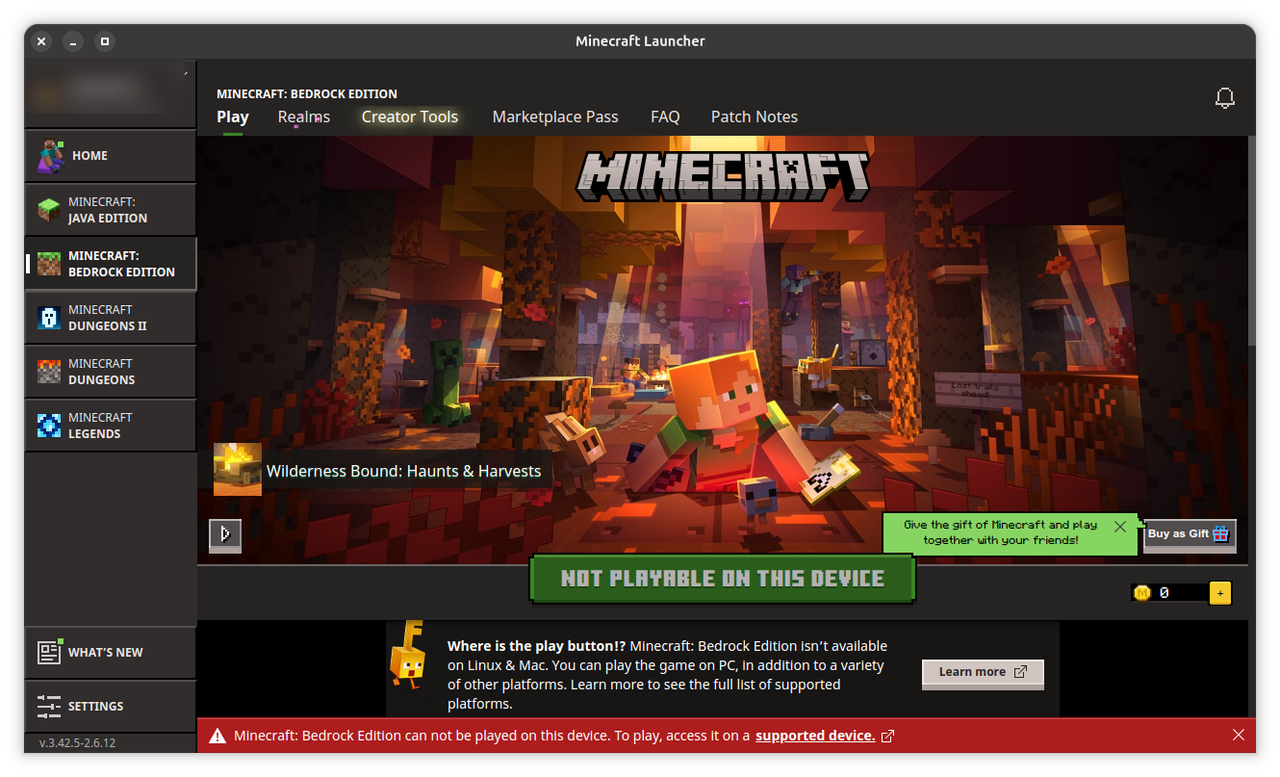
The other games on the left (Bedrock Edition, Dungeons, Legends) don't run on Linux. Their pages say Not playable on this device, and that's expected.
Go on to Playing.