Repository navigation
Playing
Next to the Play button is the version picker. Latest release is the newest Minecraft, and it updates by itself. You'll also see any profiles you've made, such as a Fabric one.
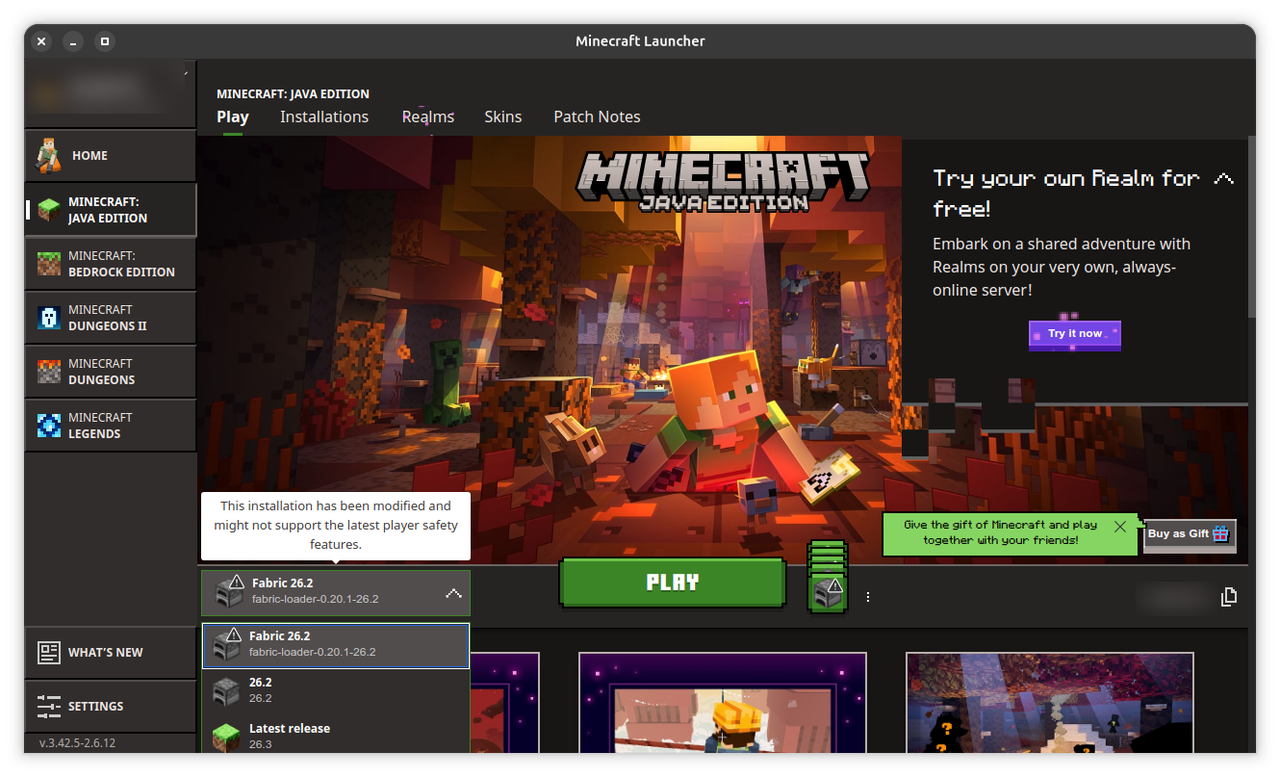
On a modded profile the launcher shows a note: This installation has been modified and might not support the latest player safety features. That's expected for Fabric and nothing to worry about.
To play an older Minecraft, for example to match a server, open Installations at the top and press New installation.
Give it a name, choose the Version, and press Create. It then shows in the version picker.
Press Play. A few seconds later Minecraft's title screen opens.
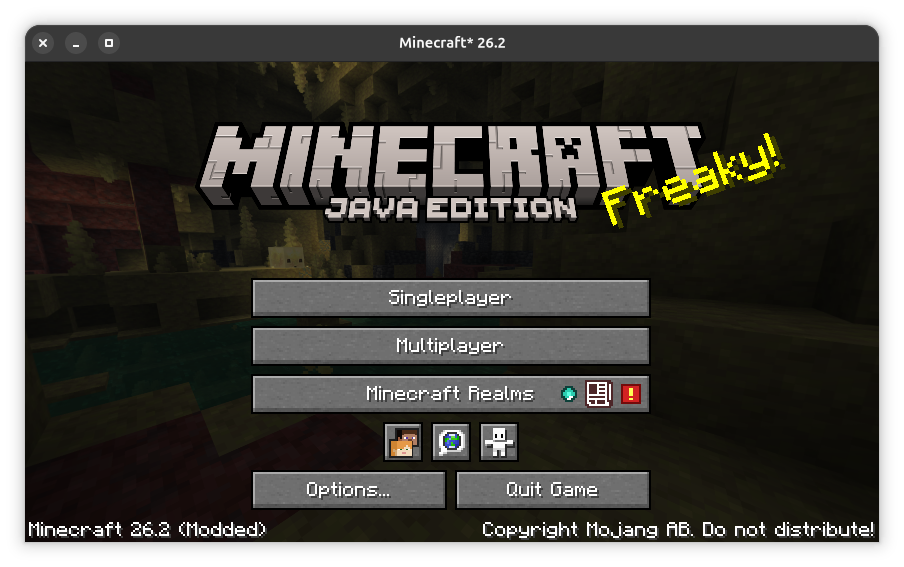
- Singleplayer: your own worlds, on this computer
- Multiplayer: servers. See Playing on a Server.
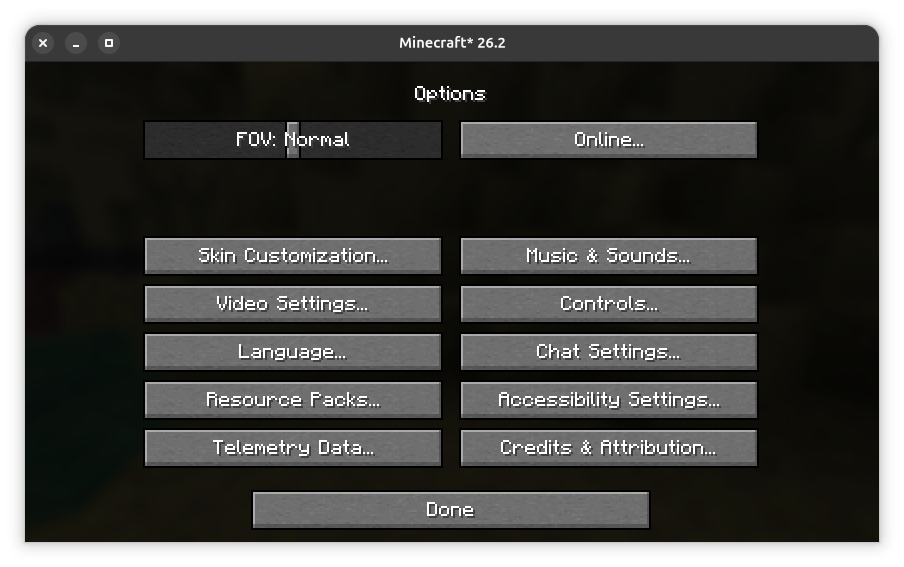
- Options: graphics, sound, controls and more
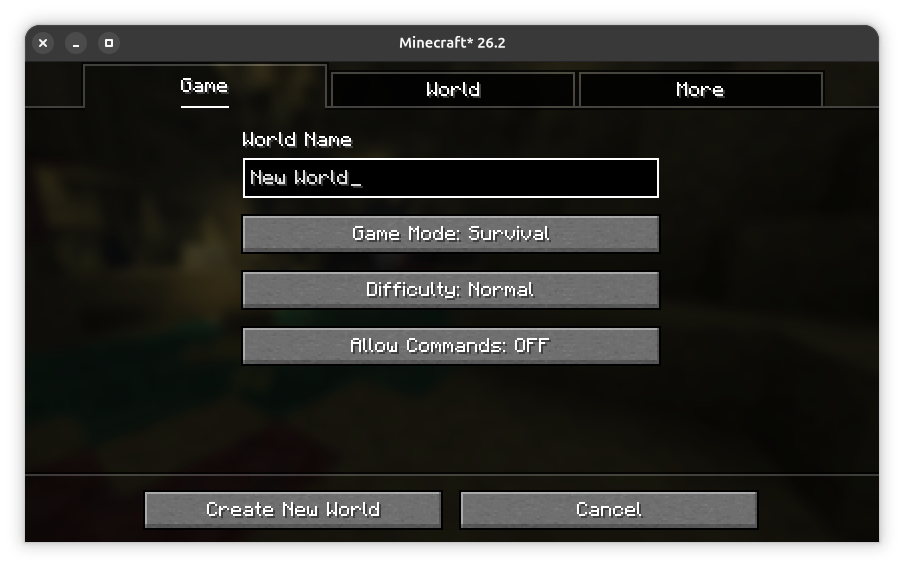
Choose Singleplayer, then Create New World. Name it, pick a game mode (Survival, Creative or Hardcore) and press Create New World.
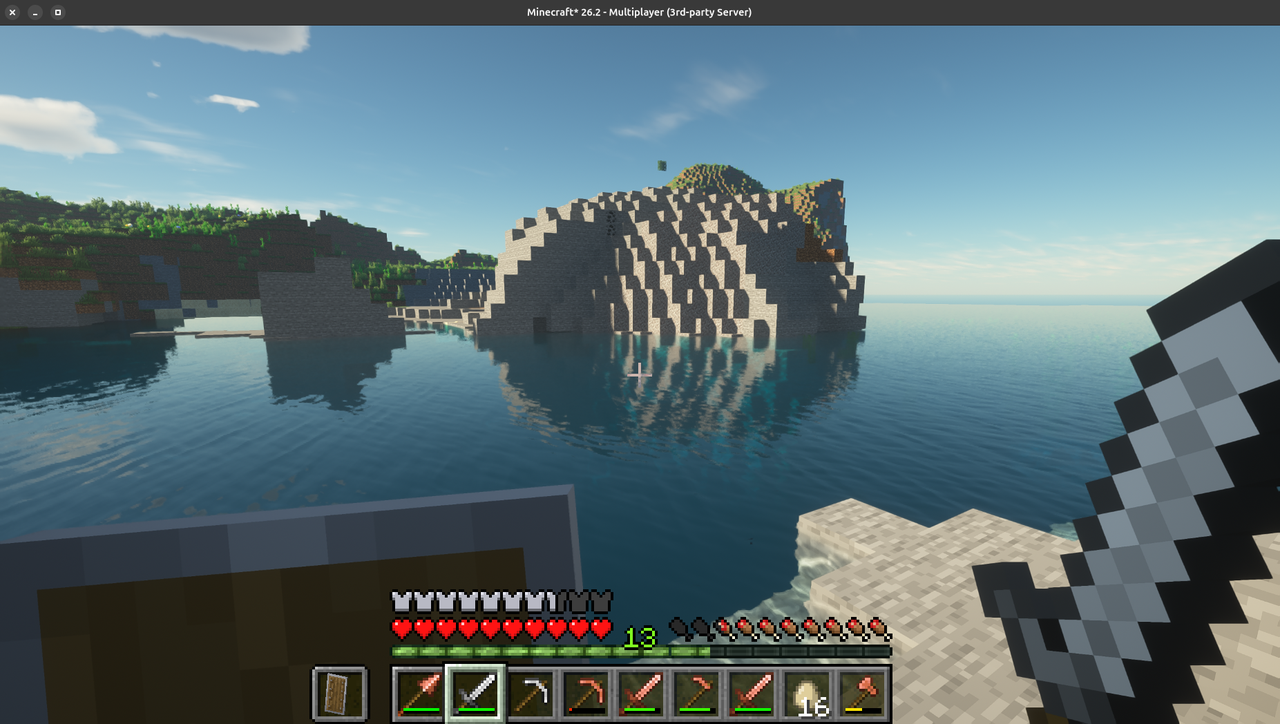
Worlds are saved automatically. Press Esc in the game and choose Save and Quit to Title when you're done. To back them up, see Files and Backups.
On one computer, open your world, press Esc and choose Open to LAN. Others on the same Wi-Fi or network find it under Multiplayer after a few seconds. For a world that's always there, even when that computer is off, see Playing on a Server.