Repository navigation
Playing on a Server
On the title screen choose Multiplayer. Servers you've added are listed, and below them any worlds someone on your network has opened to LAN.
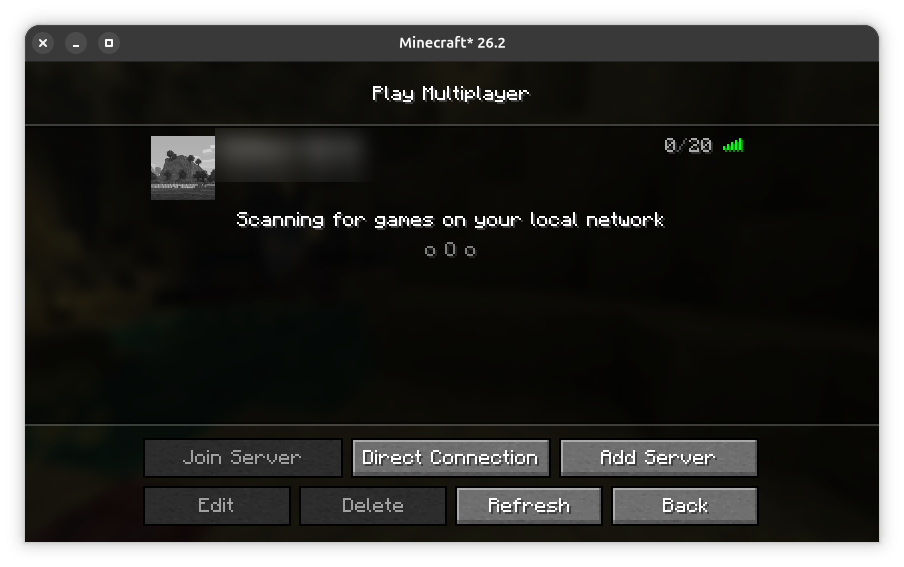
Press Add Server, type a name you'll recognise and the Server Address the owner gave you, then Done.
The address is a name like play.example.com or a number like 192.168.1.23. If the owner gave you a port too, add it after a colon: 192.168.1.23:25566. Without one, Minecraft uses the usual port, 25565.
Choose the server in the list and press Join Server.
Each server runs one Minecraft version, and you must play that version to join. If the server list says Incompatible version or Outdated client, ask the owner which version it runs, then make an installation for it (see Choose a version) and start that.
Some servers need you to have the same mods. Without them you're disconnected straight away with Connection Lost, often mentioning registry entries or a mod's name.
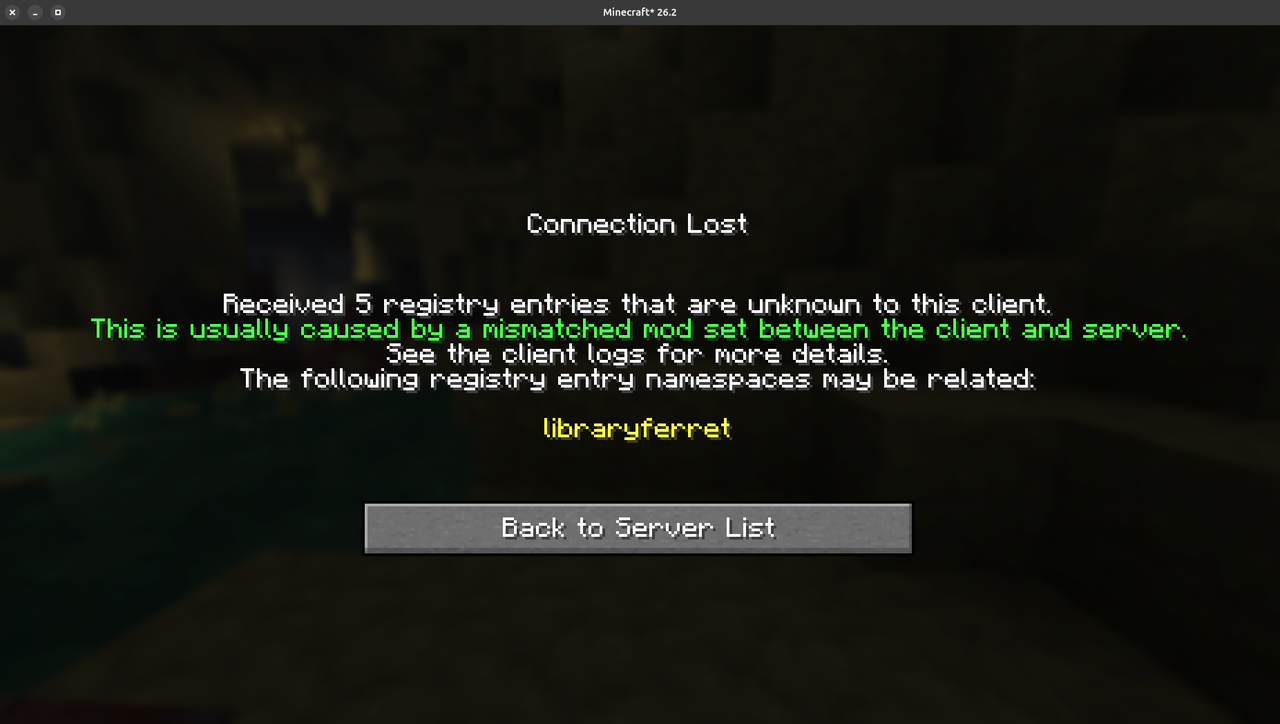
To fix it, set up Fabric for the server's Minecraft version and add the mods the owner says players need. Mods walks through it, under Joining a server that has mods.
Minecraft Server Installer is the companion snap for running a server at home, on a PC or a Raspberry Pi, so the family can share one world.