Repository navigation
Mods
Minecraft can't load mods on its own: it needs a mod loader. Putting .jar files in the mods folder does nothing until one is installed. From 15.0 the snap includes a mods app, MC Mods, that installs the Fabric loader for you, with no Java or installer download needed. From 16.2 it also finds and installs mods and resource packs from Modrinth, and imports Modrinth modpacks.
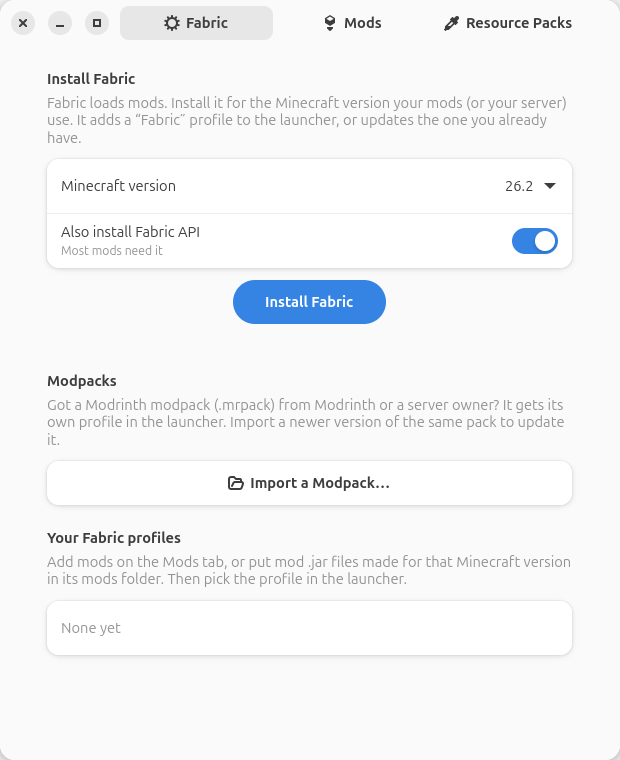
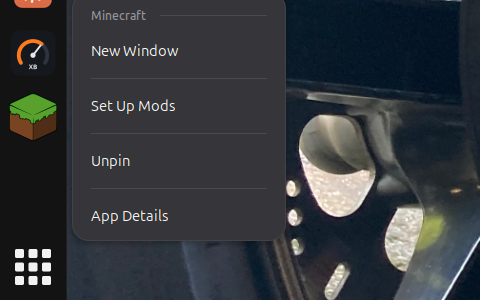
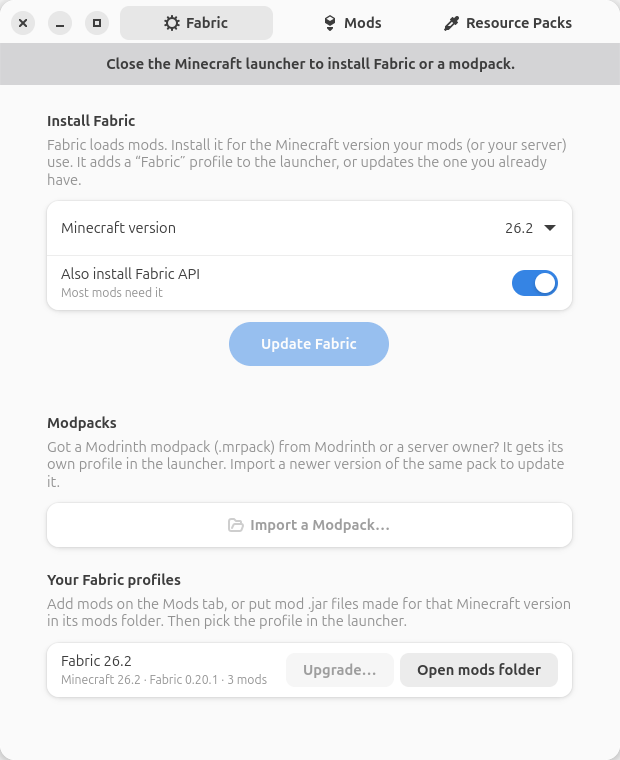
It has three tabs: Fabric, Mods and Resource Packs. It can also upgrade a profile and its mods to a new Minecraft version. Open it from the app grid (MC Mods; it was called Minecraft Mods before 16.3), or right-click the Minecraft icon and choose Set Up Mods. In a terminal it's mc-installer.mods.
- Close the Minecraft launcher. It rewrites its list of profiles when it closes, which would undo the change. While it's open, the app says so and the button waits.
- Choose the Minecraft version your mods are made for. If you're joining a server, choose the server's version.
- Leave Also install Fabric API on. Most mods need it.
- Press Install Fabric.
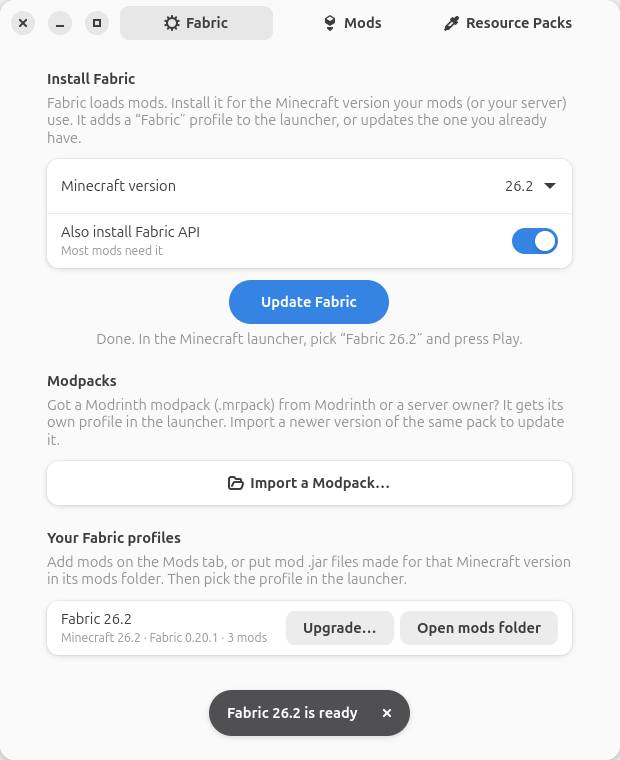
The launcher now has a Fabric profile for that version, for example Fabric 26.2. Choose it next to the Play button and press Play. The first start takes a little longer while the launcher downloads Fabric's files.
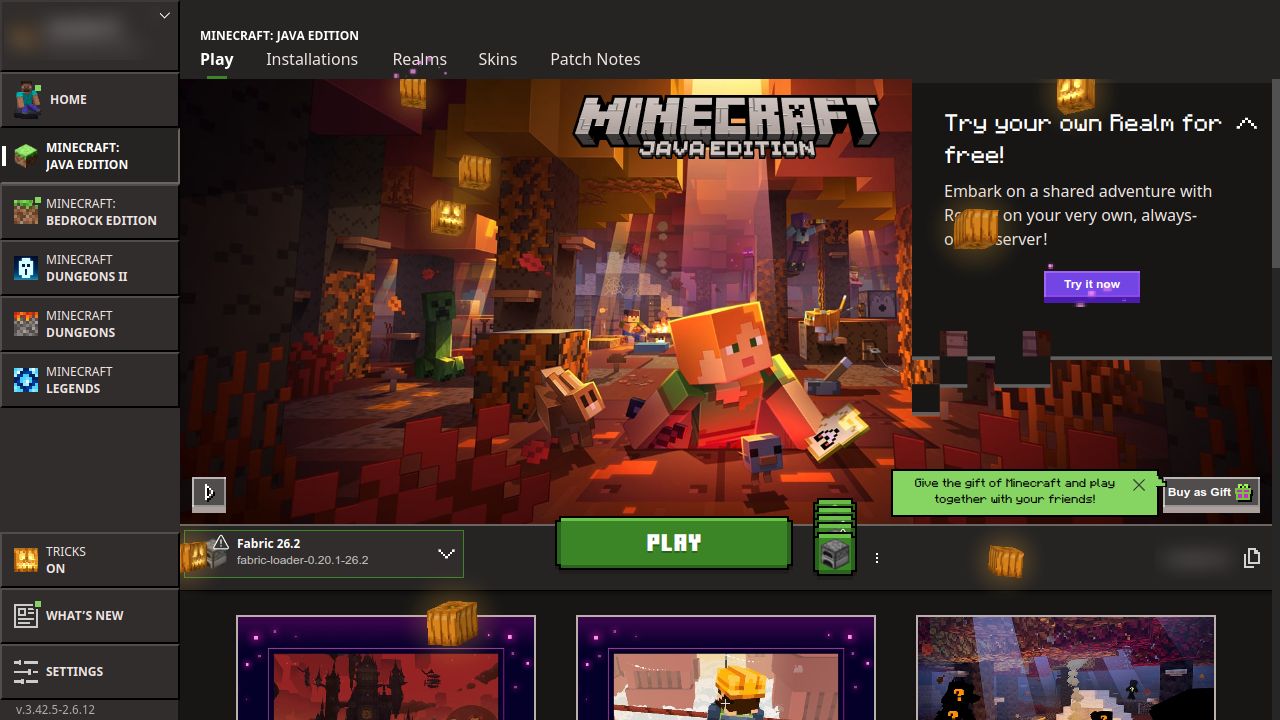
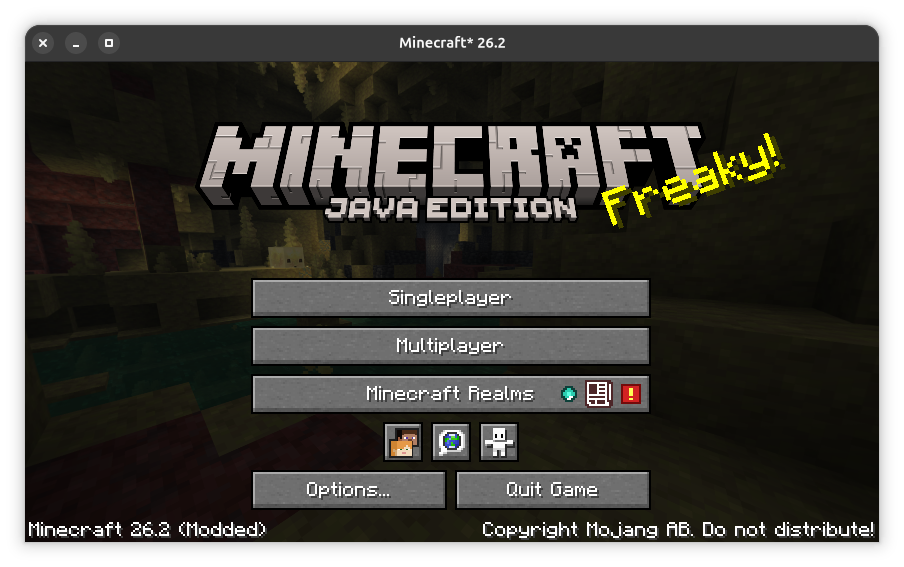
The title screen says it's modded, in the bottom-left corner.
The app finds every Fabric profile in the launcher, including ones made with Fabric's own installer, and lists them under Your Fabric profiles with their mods. When you choose a version that already has one, the button says Update Fabric: it updates that profile's Fabric loader (and Fabric API, if switched on) and keeps its name, its mods folder, your other mods and your worlds.
When a new Minecraft comes out, don't install Fabric for it from scratch: move your profile, mods and all.
- Close the Minecraft launcher.
- Under Your Fabric profiles, press Upgrade… on the profile.
- Pick the Minecraft version and press Check Mods.
- The app shows what will happen: which mods get a build for the new version, any mods they now need, which resource packs are updated, and which mods can't come along yet. Press Upgrade.
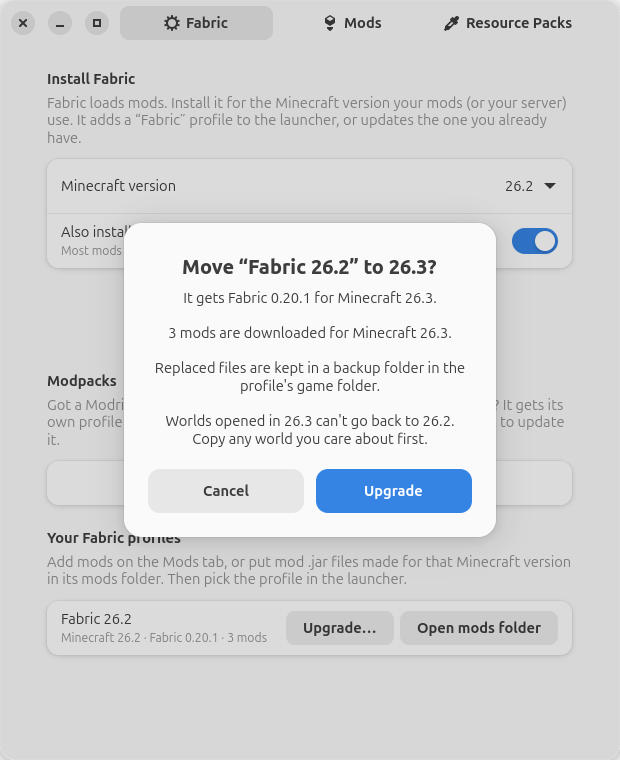
The profile keeps its game folder, worlds and settings, and is renamed (for example Fabric 26.2 becomes Fabric 26.3). Everything replaced, and every mod that has no build for the new version yet (or that isn't on Modrinth), goes to a backup-<old version>-<date> folder next to mods. When the missing mods catch up, install them on the Mods tab.
Worlds opened in a newer Minecraft can't be opened in the older one again, so copy any world you care about first.
To update all the mods in a profile without changing Minecraft version, pick the profile's own version, marked just update the mods.
Open the Mods tab.
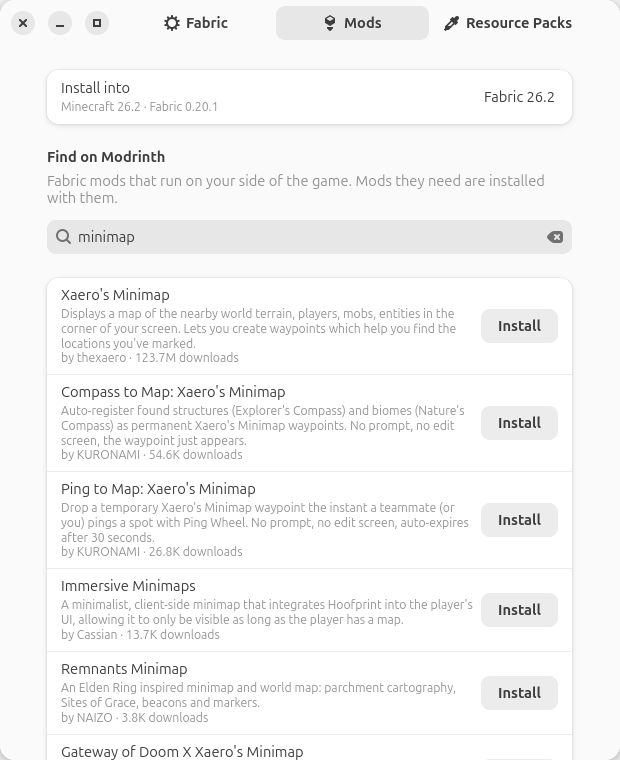
- Under Install into, pick the Fabric profile (it says which Minecraft version it's for).
- Type in the search box. With nothing typed, the most downloaded mods show.
- Press Install next to a mod.
Only Fabric mods that have a build for that profile's Minecraft version, and that run on the player's side, are shown, so whatever you find will load. If a mod needs other mods (Sodium Extra needs Sodium, say), they're installed with it. Pressing Install on a mod you already have updates it.
Installed, further down, lists every mod in the profile by name, including ones you put there yourself, with a button to remove each. Open folder opens the profile's mods folder.
Everything comes from Modrinth's own servers and is checked against Modrinth's checksum before it's used. You can still put mod .jar files in the folder by hand. Each must be:
- a Fabric mod (Forge, NeoForge and Quilt mods don't work with Fabric)
- made for the same Minecraft version as the profile
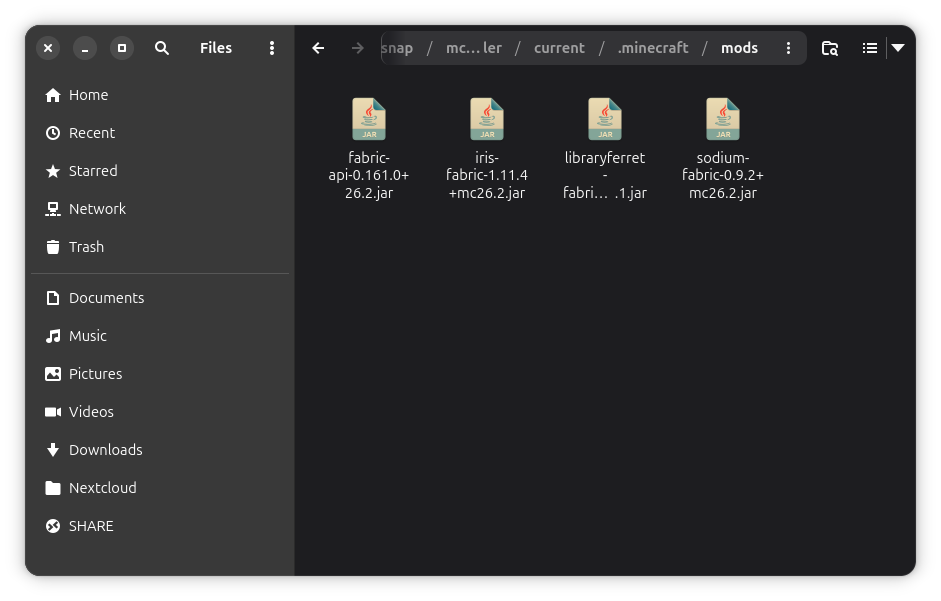
Download mods only from sites you trust, such as Modrinth. A mod is a program, and it can do anything you can do on your computer.
Resource packs change how the game looks and sounds (textures, animations, sounds). They don't need Fabric. Open the Resource Packs tab.
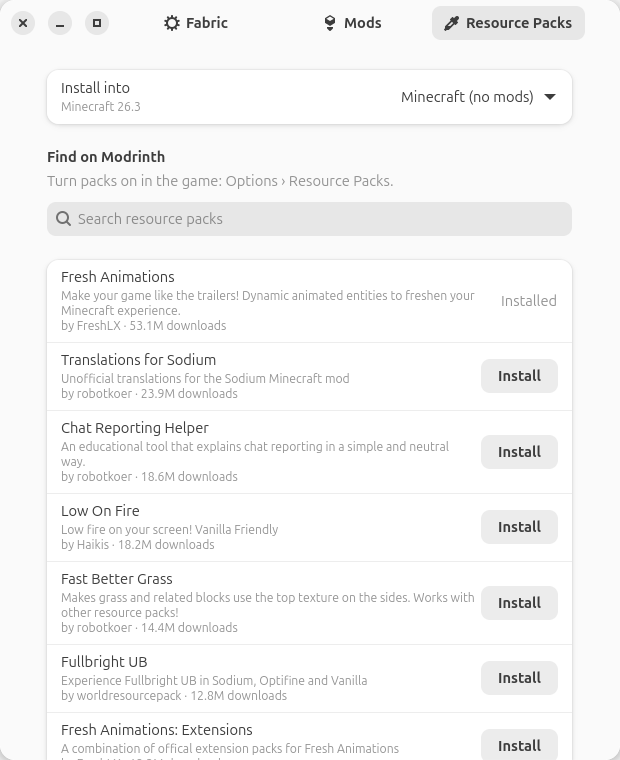
- Under Install into, pick Minecraft (no mods) for the normal game, or a Fabric profile.
- Search, and press Install.
- In the game, open Options › Resource Packs and move the pack to the right-hand side to turn it on.
Remove packs from the Installed list, the same as mods.
A modpack is a set of mods (and their settings) that someone put together, often for a server. The app imports Modrinth modpacks: .mrpack files from Modrinth or a server owner.
- Close the Minecraft launcher.
- On the Fabric tab, press Import a Modpack… and choose the
.mrpackfile. - In the launcher, pick the pack's profile (it has the pack's name) and press Play.
The pack gets its own profile and game folder, ~/snap/mc-installer/current/.minecraft/profiles/pack-<name>/, with the Fabric version it asks for. To update it, import the newer .mrpack of the same pack: mods it no longer has are removed, and your worlds and anything you added stay. Only Fabric packs whose files are all on Modrinth are supported.
Your resource packs, settings, worlds and saved servers don't show up in the new profile at first, because it has its own folder. Nothing was deleted: they're still in your usual profile. To use your resource packs there too, copy them over, then turn on the one you want under Options → Resource Packs:
cp -a ~/snap/mc-installer/current/.minecraft/resourcepacks/. ~/snap/mc-installer/current/.minecraft/profiles/pack-<name>/resourcepacks/
A Fabric profile the app makes has its own game folder, ~/snap/mc-installer/current/.minecraft/profiles/fabric-<version>/, with its own mods, settings and worlds. (A profile made with Fabric's own installer usually shares the normal .minecraft/mods folder instead; Open mods folder always opens the right one.) Mods for one Minecraft version never load on another, and your normal (unmodded) Minecraft keeps its own worlds.
To play a world from your normal Minecraft with mods, copy its folder from ~/snap/mc-installer/current/.minecraft/saves/ into the profile's saves folder. Make a copy rather than moving it: some mods change worlds in ways that can't be undone.
Some mods only run on the server, and you don't need anything. Others add new blocks, items or creatures, and every player needs them too. If you're missing one, the server disconnects you with Connection Lost, often mentioning registry entries and the name of a mod (here, libraryferret).
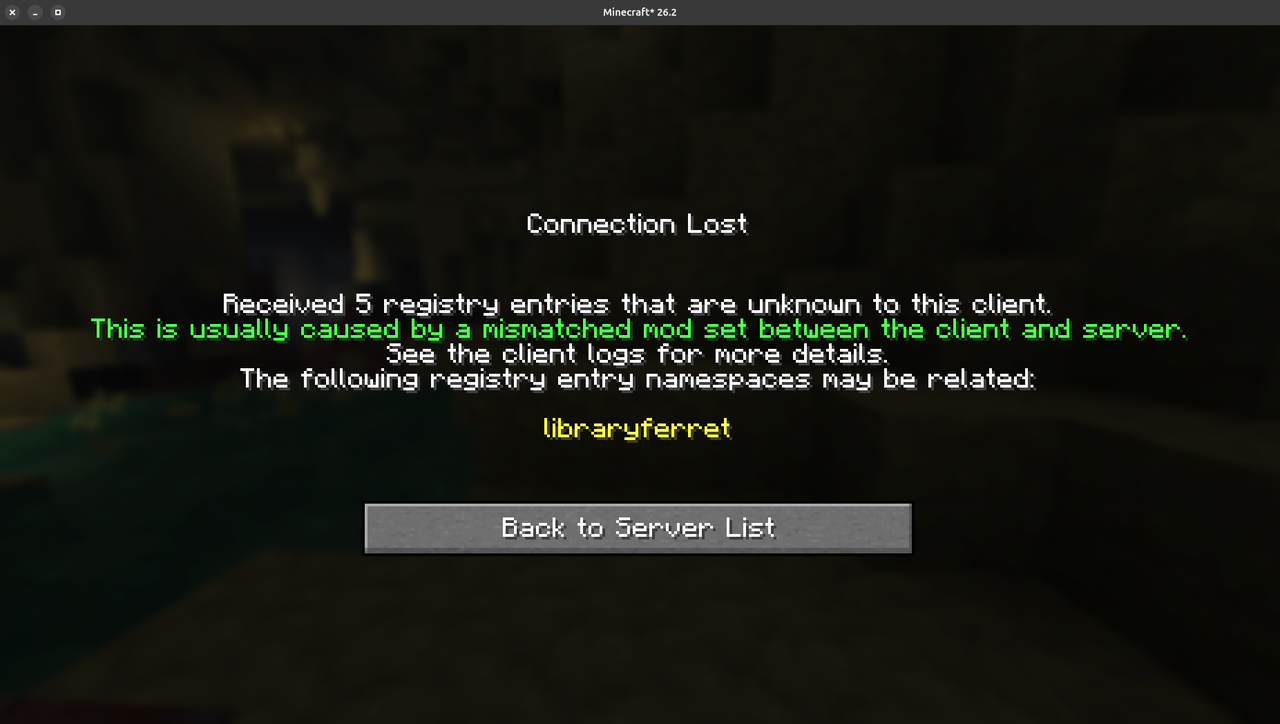
If the server owner gives you a modpack (.mrpack), import it and you're done. Otherwise:
- Ask the server owner for the Minecraft version and the list of mods players need. (Servers run with Minecraft Server Installer show it on their Mods screen as players need it too.)
- Install Fabric for that version, as above.
- On the Mods tab, search for each mod and install it.
- Start the Fabric profile and join the server.
| You see | What to do |
|---|---|
| Close the Minecraft launcher to install Fabric or a modpack | Quit the launcher (and the game) and wait a moment. The buttons come back by themselves. Mods and resource packs can be installed while it's open; they take effect next time the game starts. |
| Open Minecraft once and sign in first | The launcher hasn't been set up yet. Open Minecraft, sign in, close it, then try again. |
| Couldn't reach … | Check the internet connection. The app needs meta.fabricmc.net, modrinth.com and piston-meta.mojang.com. |
| There's no Fabric version of this mod for Minecraft … | The mod hasn't been updated for that version yet. Pick a profile for an older Minecraft version, or wait: mods usually catch up within days or weeks. |
| … needs …, which has no Fabric version … | A mod it needs hasn't caught up yet, as above. |
| Only Fabric modpacks are supported | The pack is for Forge, NeoForge or Quilt. Look for a Fabric version of the pack. |
| A resource pack doesn't show in the game | Check that you installed it into the profile you're playing, then turn it on in Options › Resource Packs. |
| There's no Fabric profile in the launcher | Make sure the launcher was closed while you installed, then install again. |
| Minecraft shows an Incompatible mods screen | It names the mod. Remove that mod, or get the build made for the profile's Minecraft version. Some mods also need other mods: the screen says which. |
| Minecraft closes straight after starting | Open the profile's logs/latest.log (next to its mods folder). The last lines usually name the mod at fault. |
Still stuck? Open an issue and attach logs/latest.log.