Repository navigation
Backups
Your hours, projects, places and settings are kept on the phone. Make a separate copy before changing phones or uninstalling the app.
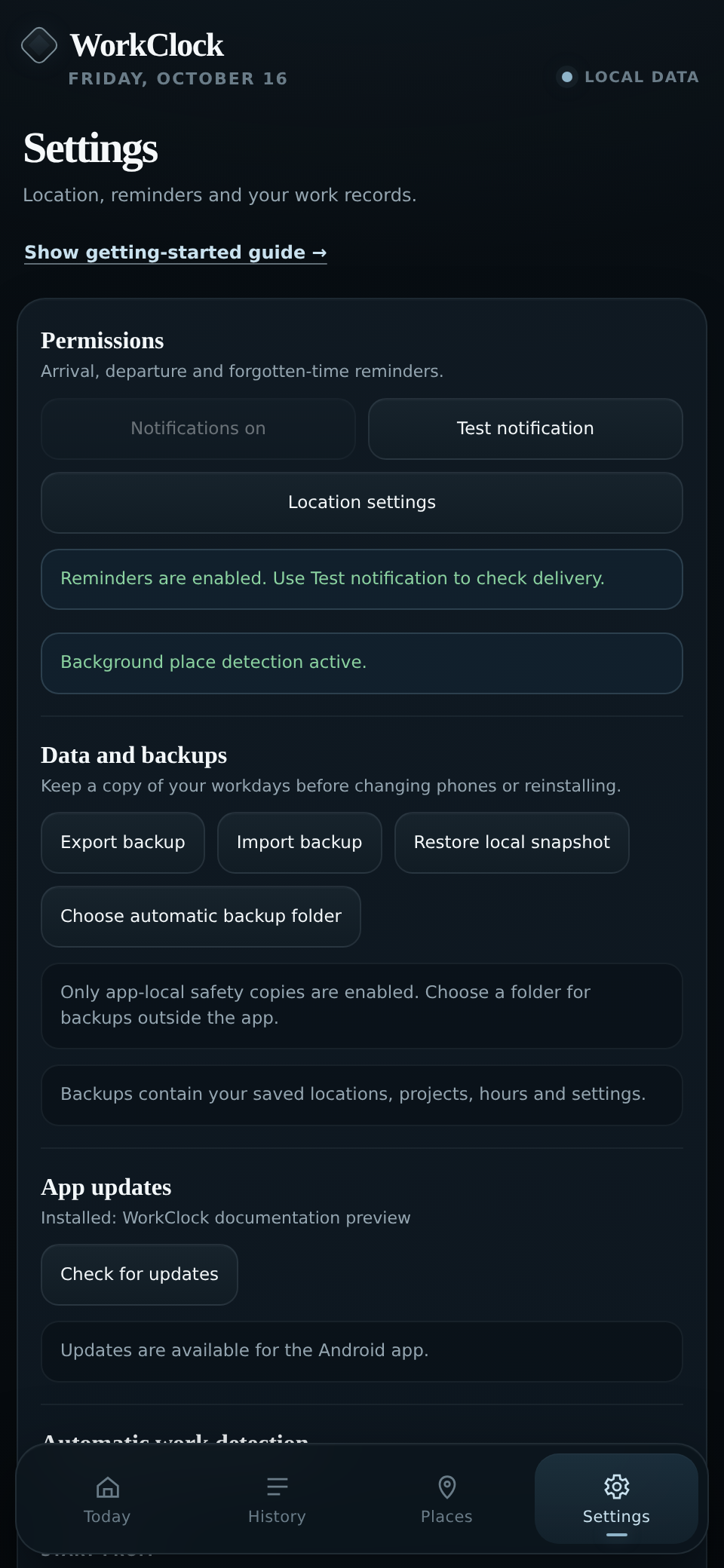
To save a copy:
- Open Settings → Data and backups.
- Tap Export backup.
- Save the JSON file somewhere you can find it later.
To restore it, tap Import backup and choose the file. Existing records will be replaced, so check the file before confirming.
Choose automatic backup folder can save daily copies to an Android folder you select. WorkClock also keeps a few local safety snapshots, but those are not a substitute for a file outside the app.
Updating a signed WorkClock release normally keeps your data. Uninstalling the app can erase local records, so export a backup first.