Repository navigation
Files and Offline
Your Proton Drive appears on this computer as a folder, ~/ProtonDrive. Every file and folder in
it is listed straight away, but a file only downloads when a program opens it. This page covers
working in that folder, keeping files on this computer, the Trash, and earlier versions of a
file.
- Your Drive as a folder
- Keep files available offline
- Browse in the app
- Trash
- Earlier versions of a file
- Choose which program opens a file
~/ProtonDrive is your Proton Drive, called My files in the app. It is not a copy. A file you
change there changes on Proton Drive, and a file you delete there goes to the Proton Drive
Trash. Every program can use it, from your file manager to a terminal.
- Only what you read is downloaded. A video player that seeks, or a tool that reads only the start of a file, downloads only those parts. Videos and music start playing before the whole file is down.
- Changes are instant, online or offline. Creating, renaming, moving and deleting return at once. When a program saves and closes a file, the new content is stored on this computer and sent to Proton Drive in the background. Changes survive a lost connection, a crash or a reboot. See Changes waiting for Proton Drive.
- Recently opened files are cached up to a size limit (5 GiB by default, set in Preferences → Storage). The oldest are removed first to make room.
-
Shared with me is a folder inside
~/ProtonDrivethat holds what other people share with you. Shares where you are a viewer are read-only.
Proton Drive cannot store symbolic links, hard links, device files or FIFOs. A program that tries to create one gets an error at once. For a project that needs them, use a synced folder and exclude those paths.
To move the folder somewhere else, change Preferences → General → Location.
Files you mark Available offline are downloaded completely and stay on this computer, so they open without a connection.
- In the app: select a file or folder in My files and turn on Available offline.
-
From a terminal:
pdfs pin ~/ProtonDrive/Documents/Taxes
For a folder, every file in it and in its subfolders downloads in the background. The tray and
the app show the progress. Preferences → Storage → Available offline and pdfs pins list
what is kept.
Turn it off again with the same switch, or pdfs unpin PATH. This frees the space. The files stay
on Proton Drive. A file inside a folder that is kept offline stays with its folder: turn the
folder off instead.
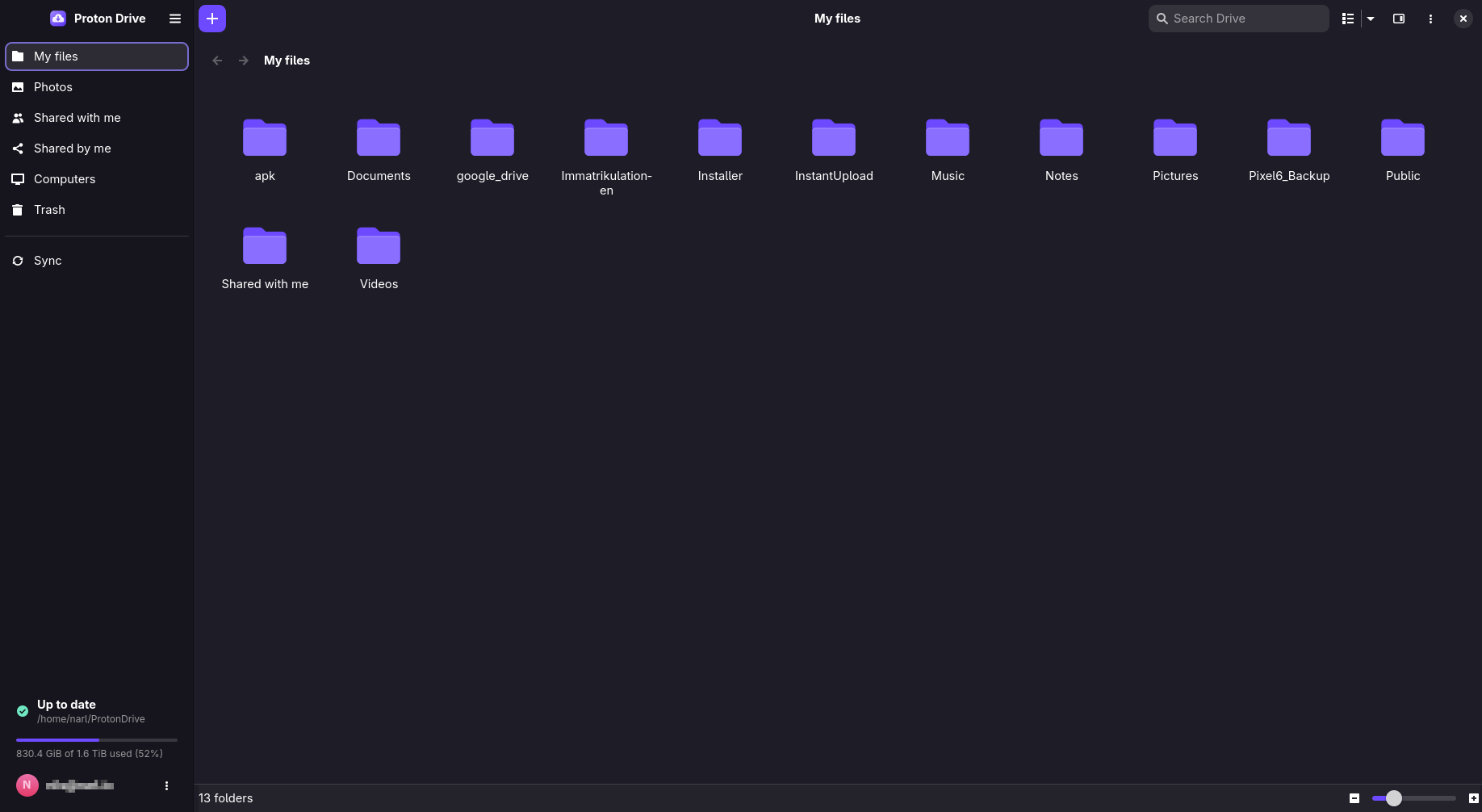
The My files page shows the same files without going through the folder. It has a grid and a list view, sorting, thumbnails (including camera RAW previews), multi-select, and drag and drop to upload. Details (Alt+Enter) shows the size, dates, sharing and version history of the selected item.
Deleted files go to the Trash, both from ~/ProtonDrive and from the app. The Trash page
lists them with the date they were deleted.
- Restore puts an item back where it was, together with any trashed folders above it.
- Delete Forever and Empty Trash are permanent.
From a terminal: pdfs trash lists the Trash with an ID for each item, and pdfs restore,
pdfs delete-forever and pdfs empty-trash take those IDs.
Proton Drive keeps earlier versions of every file. Open them with Details → Versions… in the
app, or pdfs versions list PATH. You can:
- Restore a version. This happens on Proton Drive, so nothing is uploaded again.
- Save a version to a separate file, without touching the current one.
- Delete an old version permanently. The current version cannot be deleted.
The app and the search launcher open files with your desktop's default program (xdg-open). To
open some file types differently, for example text files in Neovim inside a terminal, add
open_with rules to config.json. See Configuration → open_with.