Repository navigation
Getting Started
From installing to your first synced folder in a few minutes.
Important
Proton Drive for Linux is an unofficial client, built by the community and not by Proton. Try it first with files you also have somewhere else.
| Distribution | Command |
|---|---|
| Fedora 44 or newer |
sudo dnf copr enable narl-rs/proton-drive-linuxsudo dnf install proton-drive-linux
|
| Arch Linux |
paru -S proton-drive-for-linux (or any other AUR helper) |
| Debian, Ubuntu 24.04 or newer | Download the .deb from the latest release, then sudo apt install ./proton-drive-linux_*_amd64.deb
|
| NixOS | See Installation → NixOS |
On GNOME, also install the AppIndicator extension to see the tray icon. Installation has every option, building from source, and the optional extras.
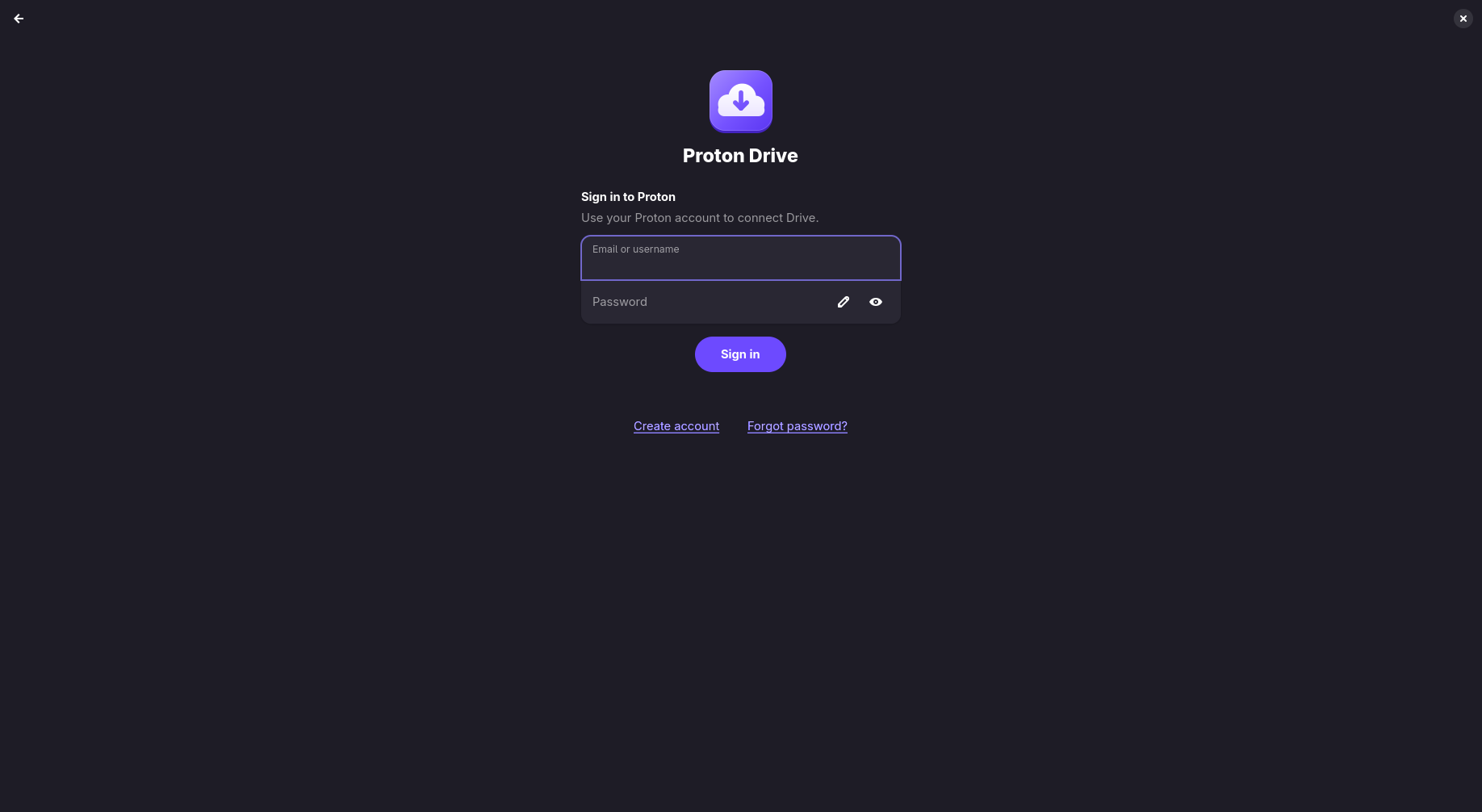
- Open Proton Drive from your applications menu.
- Sign in with your Proton email and password, and the two-factor code if your account has one. If Proton asks you to prove you are human (common on a VPN), solve the challenge in the window that opens.
- Wait a moment. Your Proton Drive appears as the folder
~/ProtonDrive.
The app starts the Proton Drive service for you, and the service starts by itself whenever you log in. Your session is kept in the system keyring (GNOME Keyring, KWallet or KeePassXC), so you sign in only once.
There are three ways to have your files on this computer. You can mix them freely.
| Takes disk space | Works offline | Use it for | |
|---|---|---|---|
Online only (the default in ~/ProtonDrive) |
Only for files you opened recently | Only files still in the cache | Most of your Drive: archives, media, anything large |
| Available offline | Yes | Yes | Files and folders you need on the road |
| Synced folder | Yes, a full copy | Yes | Folders that live on this computer, such as ~/Documents, backed up to Proton Drive |
-
Online only: open
~/ProtonDrivein your file manager. Files download when you open them. - Available offline: select a file or folder in the app and turn on Available offline. More about offline files.
- Synced folder: in the app, open Computers and choose Add Folder to Sync. More about synced folders.
- Tray icon: shows whether everything is up to date, and pauses or resumes sync.
- Sync → Overview in the app: what is uploading, what is waiting, and anything that needs you.
-
Search launcher: bind
pdfs-promptto a keyboard shortcut to find any file in Proton Drive or your home folder. See Search launcher and tray.
Warning
~/ProtonDrive is your Proton Drive, not a copy. Deleting a file there moves it to the Proton
Drive Trash on every device. You can restore it from Trash in the app.
- User guide: everything the app, tray and launcher do.
- FAQ: short answers to common questions.
- Troubleshooting: when something does not work.
- Recovering on a new computer: read this before you rely on the client for backups.
- Prefer a terminal?
pdfs statusshows the state of everything, and the command-line reference lists every command.