Repository navigation
Launcher and Tray
The search launcher finds files in Proton Drive and in your home folder from a keyboard shortcut. The tray icon shows whether everything is up to date and gives quick access to the app.
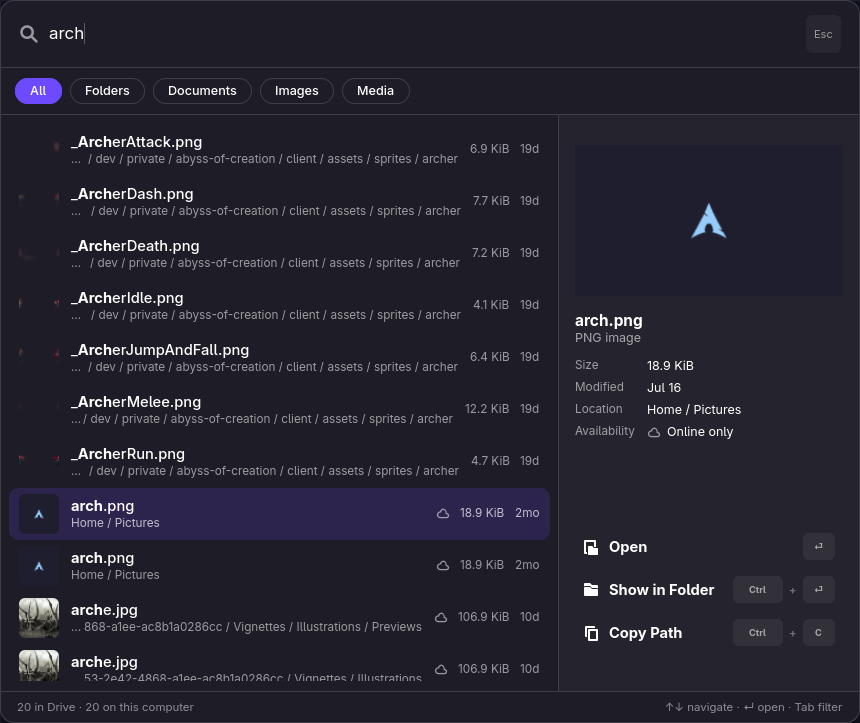
pdfs-prompt searches Proton Drive and your home folder together, in one list with the best
matches first. It copes with prefixes, abbreviations, typos and swapped letters, and also matches
the names of parent folders.
To set it up, bind pdfs-prompt to a keyboard shortcut in your desktop's settings.
The window stays loaded after the first use, so later shortcuts open it instantly. Folders, music
and videos open straight from ~/ProtonDrive, so players can start before the whole file is down.
Other files from Proton Drive download first, then open.
To make even the first shortcut instant, start the launcher hidden when you log in.
pdfs-prompt --preload loads the window without showing it, and does nothing if the launcher is
already running. For example, in Hyprland:
exec-once = pdfs-prompt --preload
bind = SUPER, space, exec, pdfs-prompt
Which program opens a file can be changed per file type. See Choose which program opens a file.
pdfs-prompt --dmenu shows the results in fuzzel, rofi, wofi, tofi, bemenu or dmenu, whichever is
installed:
pdfs-prompt --dmenu
pdfs-prompt --dmenu --menu 'fuzzel --dmenu --width 60'
pdfs-prompt --dmenu --query invoice
These launchers filter a fixed list and cannot ask for new results while you type, so the search takes two steps:
- The first list,
Search Drive ›, shows your available-offline files. Type a search and press Enter. - The second list,
Drive: invoice ›, shows the results. Enter opens one. Typing something else searches again.
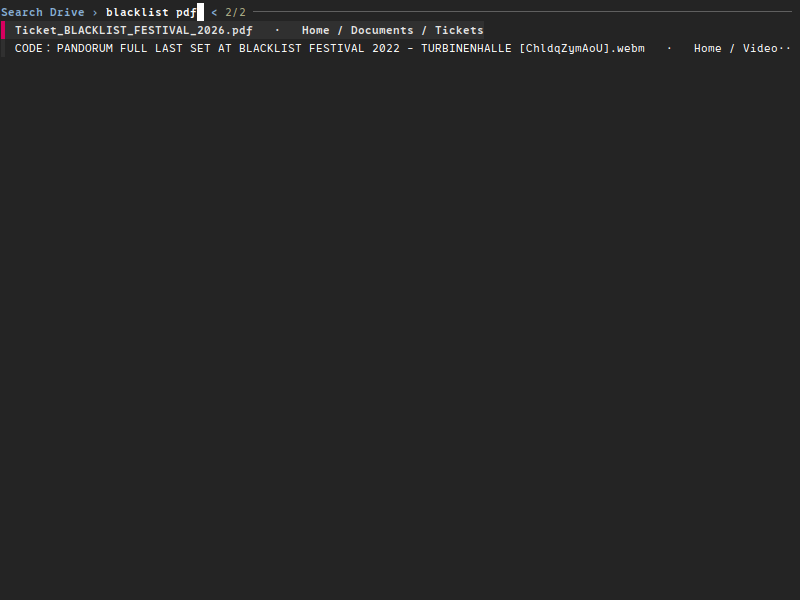
pdfs-prompt --fzf searches again on every key press, like the built-in window. It needs fzf.
Started from a keyboard shortcut, it opens a terminal by itself (foot, ghostty, kitty, alacritty,
wezterm or xterm) with the app ID pdfs-prompt, so one window rule covers all of them. For
example, in Hyprland:
windowrulev2 = float, class:^(pdfs-prompt)$
windowrulev2 = size 900 500, class:^(pdfs-prompt)$
windowrulev2 = center, class:^(pdfs-prompt)$
bind = SUPER, space, exec, pdfs-prompt --fzf
To make --dmenu or --fzf the default without changing your shortcut, set prompt.mode in
config.json (see Configuration → prompt). --gtk always opens the
built-in window.
pdfs-tray starts when you log in and shows whether your files are up to date, syncing, paused or
offline. Its menu opens the app or ~/ProtonDrive, pauses or resumes sync, and stops or connects
the service.
- GNOME shows tray icons only with the AppIndicator extension. KDE Plasma and most other desktops show it without help.
- Hide Tray Icon in its menu removes it until you turn it back on under Preferences → General → Appearance → Show tray icon.