Repository navigation
Photos
The Photos page of the app shows your Proton Photos library. Photos are stored apart from
My files, so they do not appear in ~/ProtonDrive.
- Timeline
- Albums
- Places
- Viewer and duplicates
- Importing from Google Photos
- Fixing photos filed under the wrong date
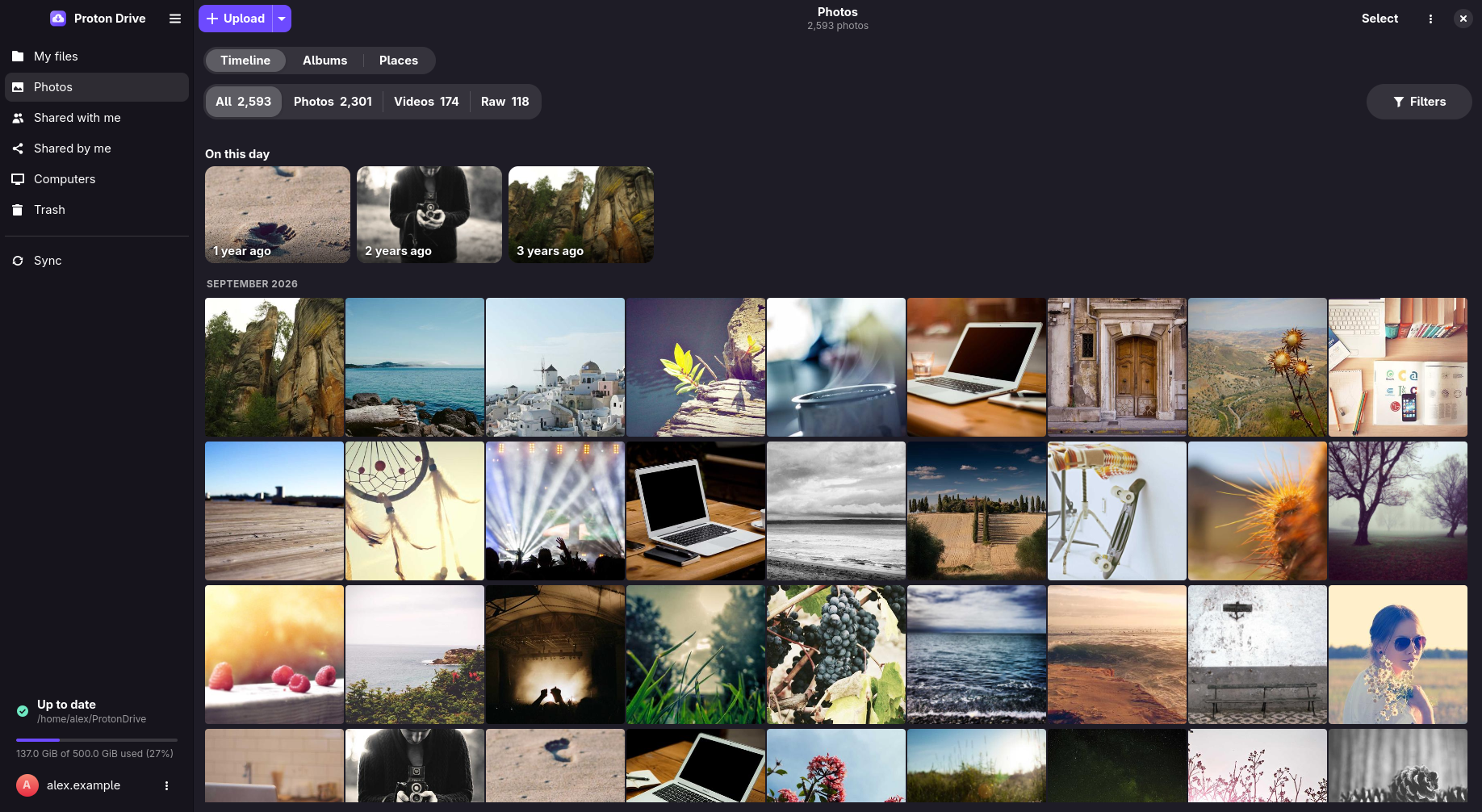
- The timeline groups photos by day, month or year as you zoom. Drag the scrubber on the right edge to jump through the years.
- On this day shows photos taken on the same date in earlier years.
- Filters narrow the timeline to images, videos or RAW files, to favorites, or to photos that are in no album.
- RAW + JPEG pairs of the same shot show as one tile. The viewer switches between the two, and moving the tile to the Trash removes both.
- Upload adds photos from this computer.
Albums lists your own albums and the albums others share with you. Create, rename and delete albums, and add or remove photos. Deleting an album keeps its photos in the timeline.
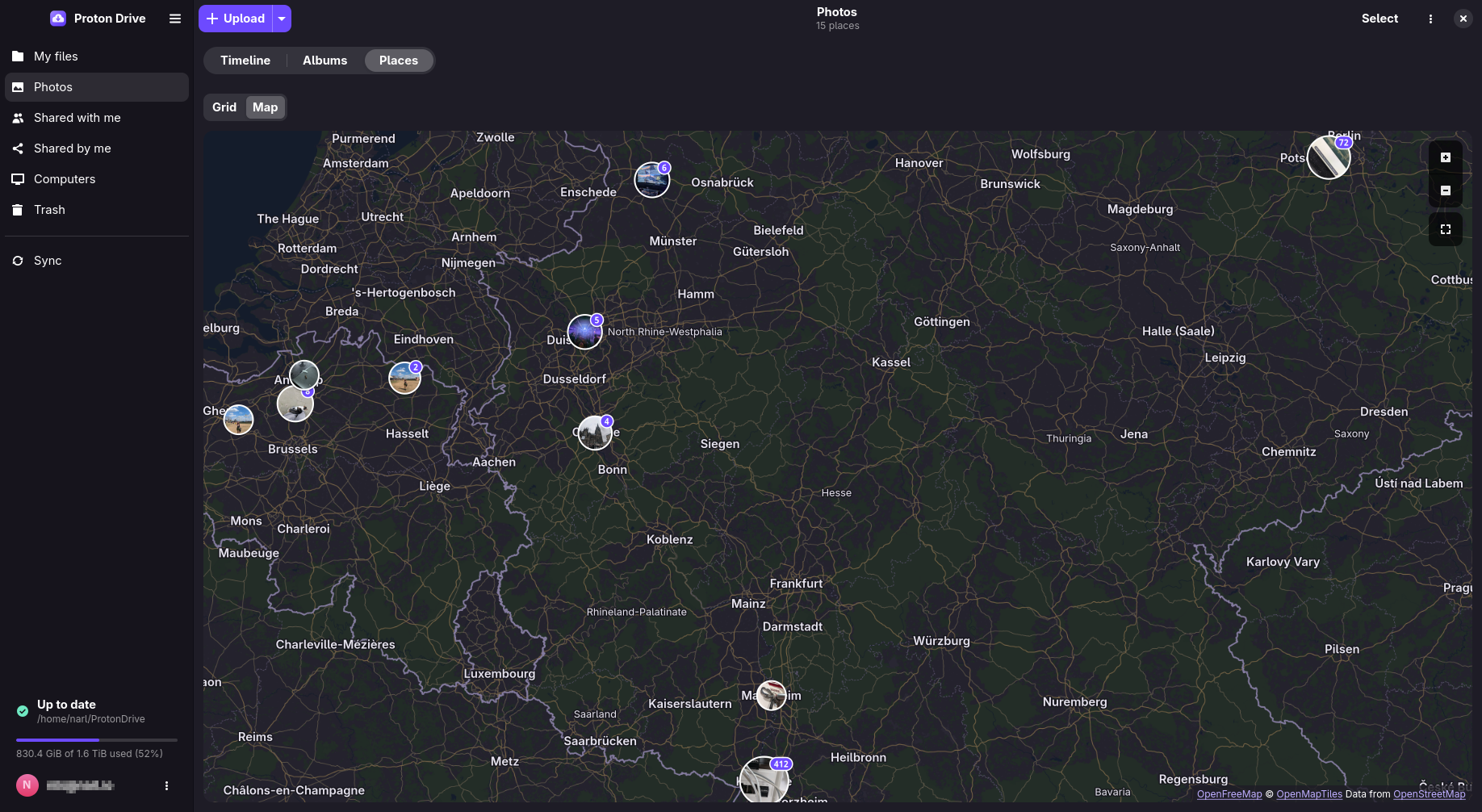
Places groups photos by the town they were taken in, as cards or on a map. Town names come from GeoNames data (CC BY 4.0) and the map from Natural Earth (public domain). Both ship with the app, so nothing is fetched online.
A street map from OpenFreeMap (© OpenStreetMap contributors) can be turned on under Preferences → General → Appearance. It is off by default, because the map server learns which areas you look at.
- The viewer marks favorites, shows EXIF details, shows a photo on the map, and runs a slideshow (F5).
- Find Duplicates… in the page menu lists byte-identical copies. Turn on Similar to also find resized or re-encoded copies and burst shots.
- Request a Google Takeout export of Google Photos and download
every
.zipof it. - In the app, open the Upload menu on the Photos page and choose Import from Google
Photos…. Select all the
.zipfiles at once, because a photo and its details are often in different parts of the export.
From a terminal:
pdfs import-google-photos --dry-run ~/Downloads/takeout-*.zip   # show what would happen
pdfs import-google-photos --wait ~/Downloads/takeout-*.zip
The import recreates your albums and takes capture dates and locations from the export. Photos
already in your library are skipped, so an interrupted import can simply be run again.
pdfs import-status shows how far an import is, and pdfs cancel-import stops it.
Photos from an earlier import sometimes sit under the day they were uploaded instead of the day
they were taken. pdfs redate-photos --dry-run finds those whose file name carries a different
date, and pdfs redate-photos fixes them.
Proton cannot change a capture date in place. So each fix uploads the photo again with the right date and moves the original to the Trash. Favorites and albums are kept.