How To: Share Your Tags
You own some AirTags. Somebody else wants to see where they are, on their own Android phone.
You can do the whole thing from your phone — no computer, no Mac. The app exports the tags you
choose as a .zip, and they import that file.
Warning
This is not a share that can be taken back. The file contains the keys to those tags. Whoever holds it can locate them for as long as those tags exist, whether or not they still have your permission, and the only way to revoke it is to unregister the tag from your Apple account and register it again.
Send it to people you would hand a key to. If you want something revocable, use Apple's own Share this Device in Find My instead — but note the person receiving that needs an Apple device, which is usually the reason people end up here.
Your tags need to be in the app already, which for the owner means reading them from iCloud.
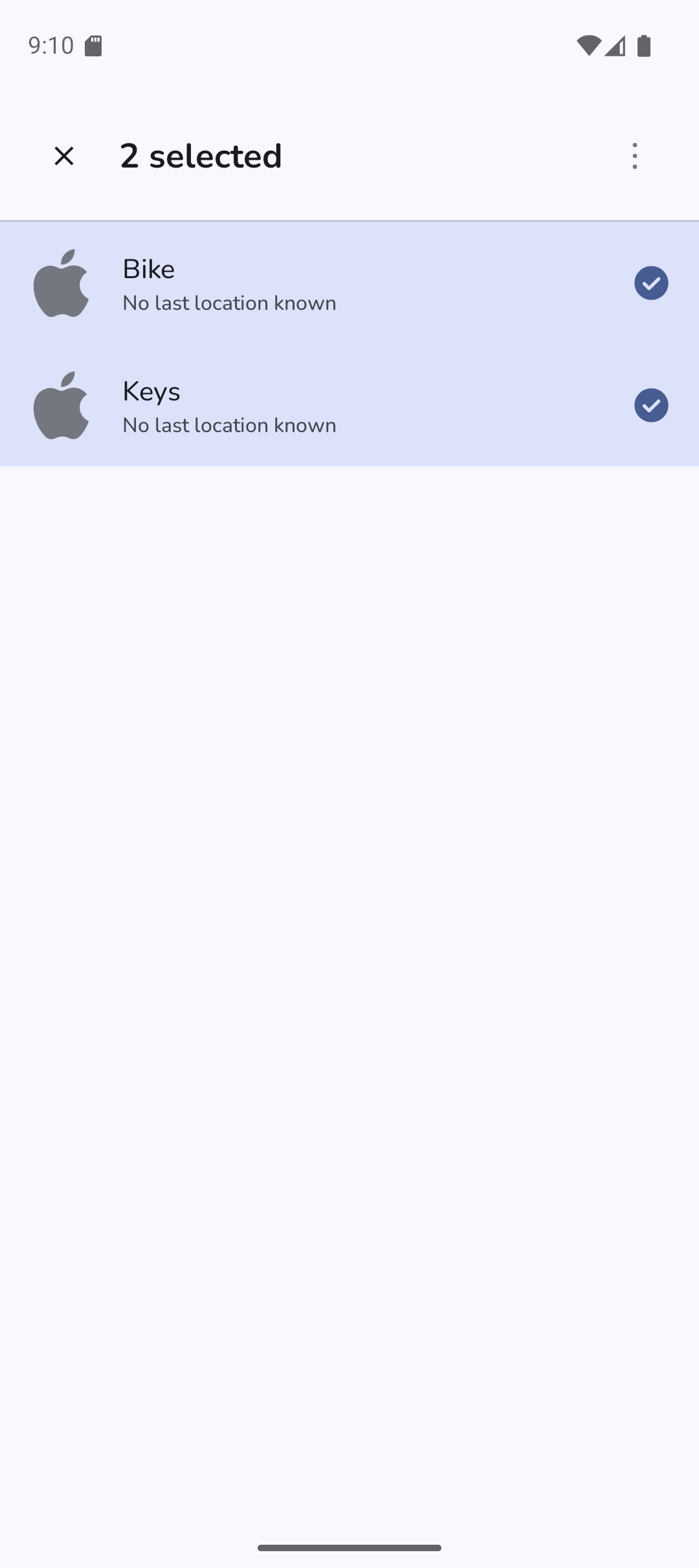
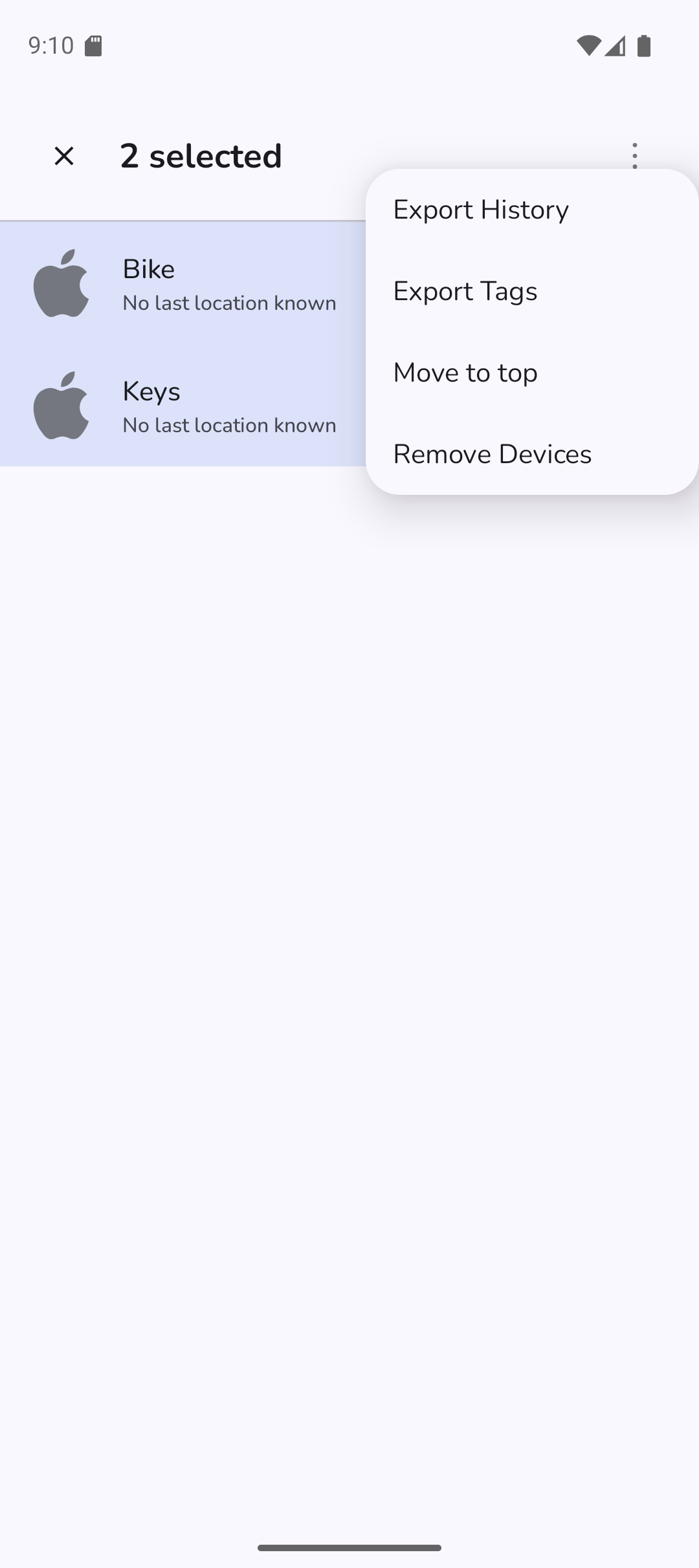
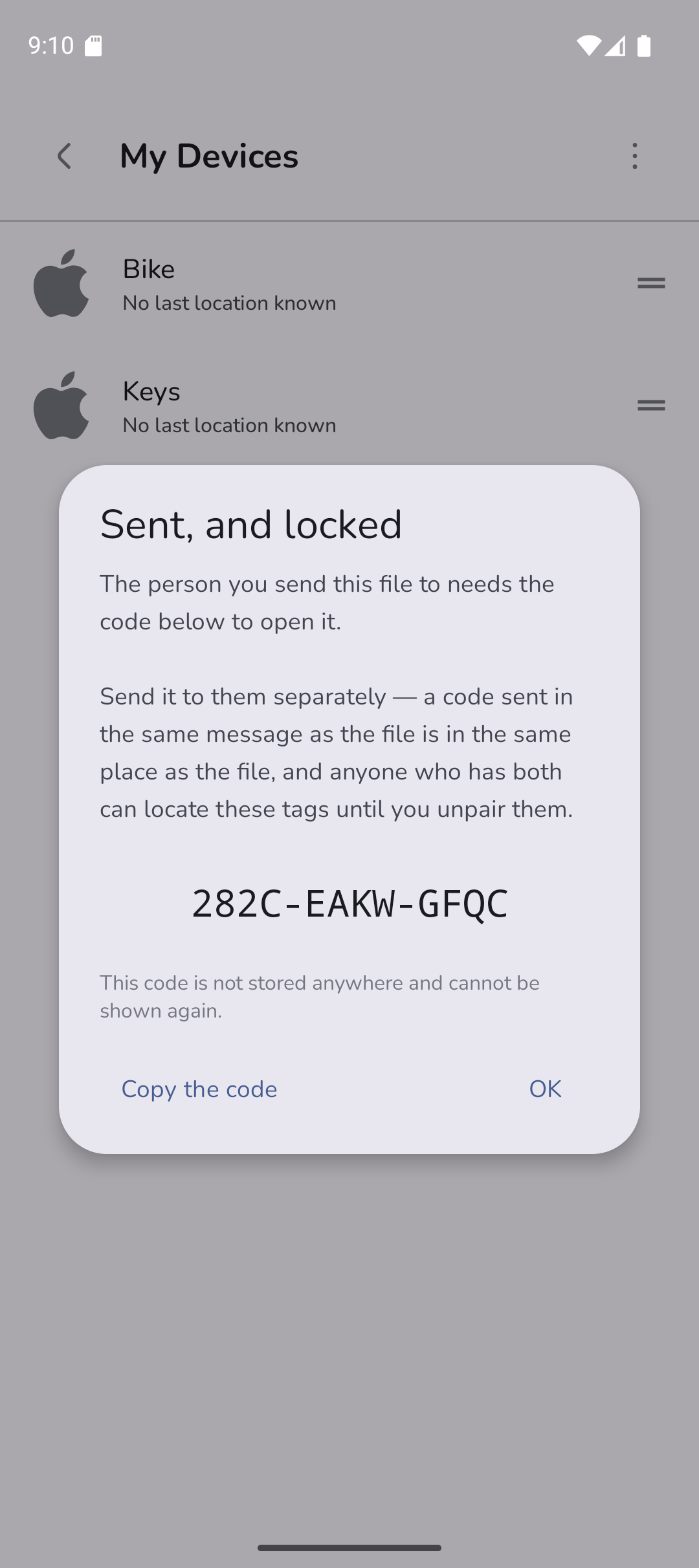
On My Devices, select the tags you want to share, export them, and copy the code the app gives you. Only the tags you select go in the file — this is per tag, so sharing one does not share the rest.
| 1. Pick what to send | 2. Export | 3. The code, which you only see once |
|---|---|---|
 |
 |
 |
Important
This code is not stored anywhere and cannot be shown again. Copy it before you dismiss the screen. If you lose it, the file is unopenable and you export again — no harm done, but it is avoidable annoyance.
Send the code separately from the file. A code in the same message as the zip is in the same place as the zip: anyone who sees that message has both, and both is all it takes. File by one route, code by another.
They install the app, sign in to any Apple account — their own, or a free one made for the purpose, it does not need to be yours and cannot be — then choose Import tags from a file on My Devices and enter the code.
Full instructions for them: Import a zip into the App.
Will they see the tags update? Yes. They are querying Apple's Find My network directly, the same as you are. They are not seeing a copy of your screen.
Will I know they are watching? No. Nothing reports back to you.
Can I stop it later? Only by unregistering the tag from your Apple account and registering it again, which gives it new keys and makes every previous export of it useless — including your own.
Do they need my Apple account? No, and they should not have it. The file is the only thing that changes hands.
Can they re-share it? Yes. The file works for anybody who has it. Treat it as you would a key you cannot change the lock on.