How To: Connect Your iCloud Account
No computer, no zip file. The app signs in to the Apple account your tags are registered to, reads them out of it, and adds them.
This is the shorter of the two ways to get tags into the app. It only works for tags on an Apple account you control — self-made tags were never on one, so they go the file route.
- The Apple account the tags are registered to, with 2FA by SMS or trusted device
- The screen-lock passcode of one Apple device on that account — its PIN or login password. Not your Apple ID password.
Note
Why a device passcode? Apple keeps the keys to your tags in your keychain, locked behind the passcode of one of your devices. Nothing can read them without it — not this app, not Apple's own support. It is used once, on your phone, and is not stored.
Three places, all the same flow:
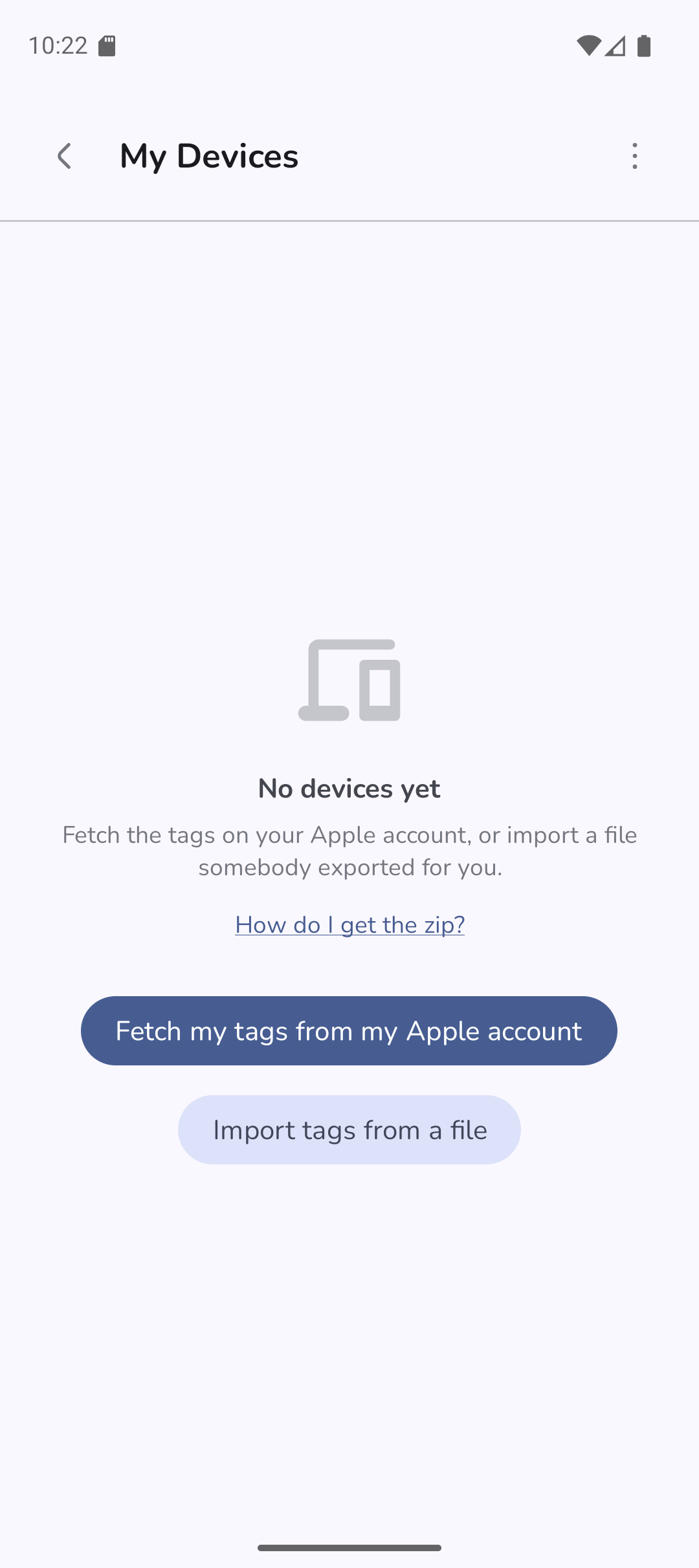
- the My Devices screen — Fetch tags from my Apple account
- the Read your tags from iCloud? prompt over the map, if the app offers it
- Settings, at any time
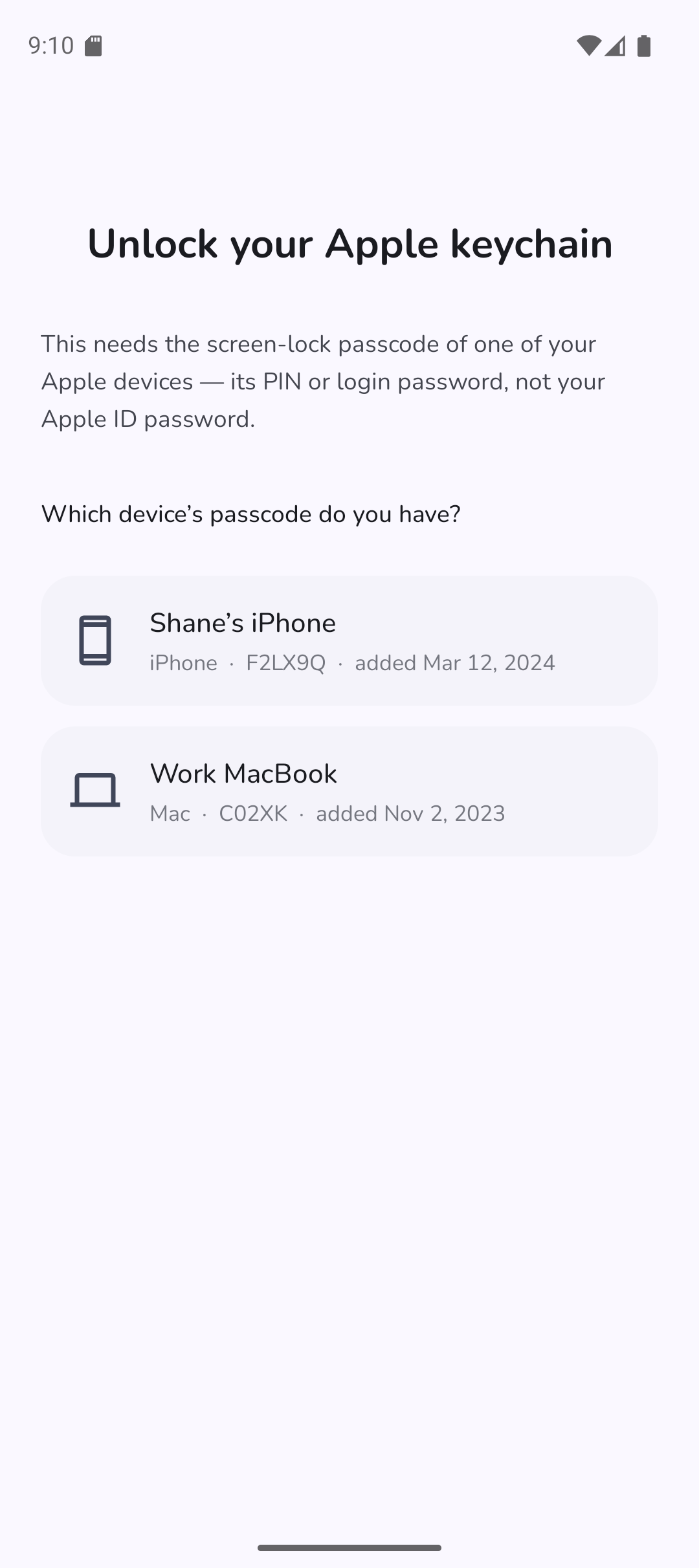
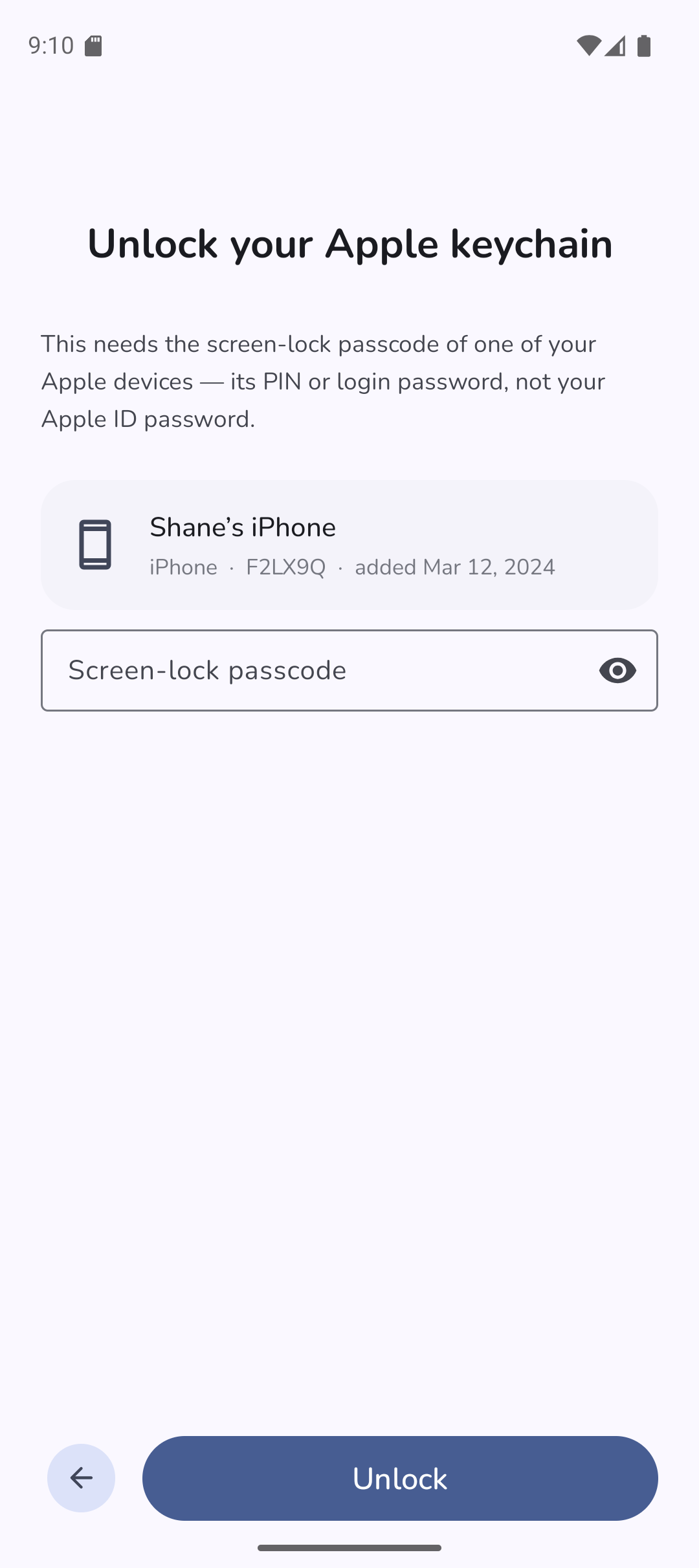
The app lists the devices on your account it can unlock through, with when each was added. Pick one whose passcode you actually know, and enter that device's screen-lock passcode — not your Apple ID password.
| 1a. Pick a device | 1b. Enter its passcode | 1c. If it is not accepted |
|---|---|---|
 |
 |
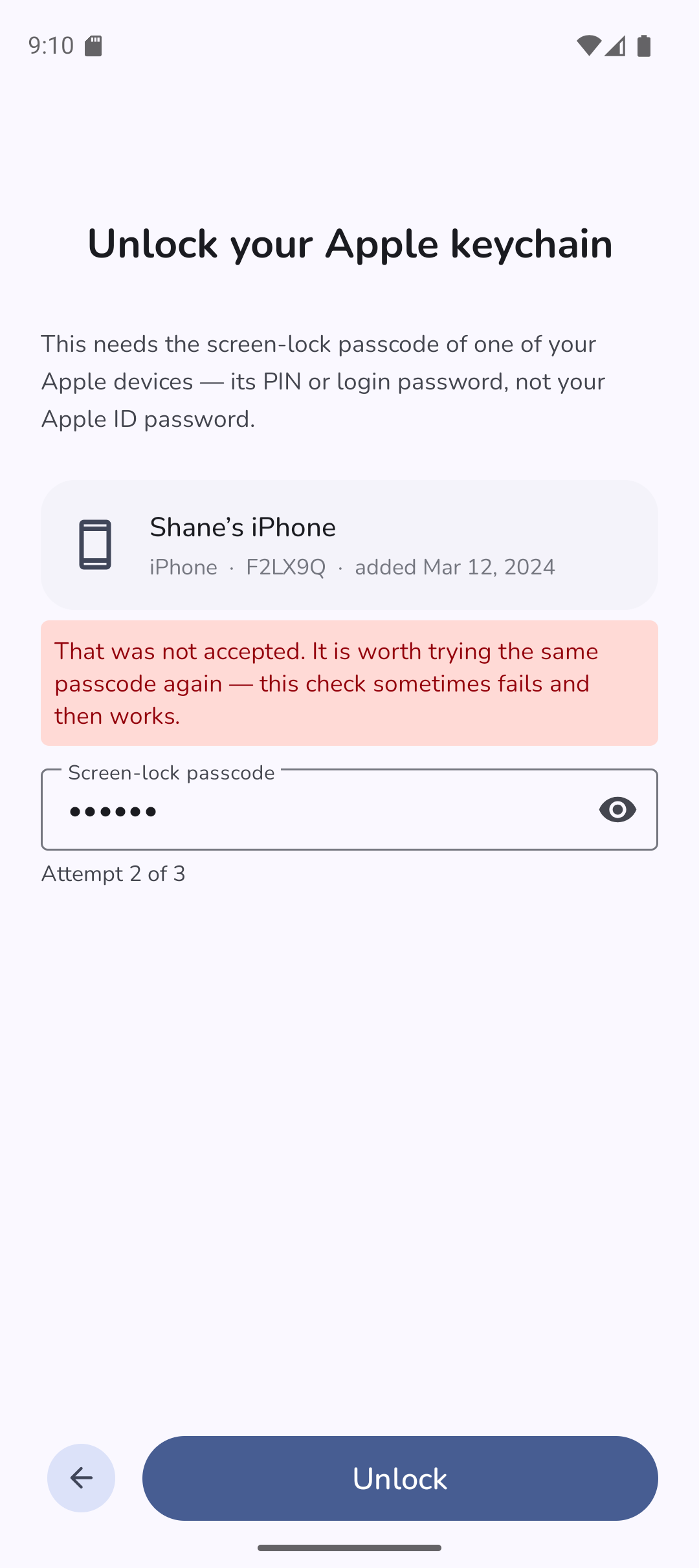 |
If it says the passcode was not accepted, try the same one again first — the check genuinely does fail and then work. After that, make sure you are not entering your Apple ID password, and going back to choose a different device is fine. You get three attempts.
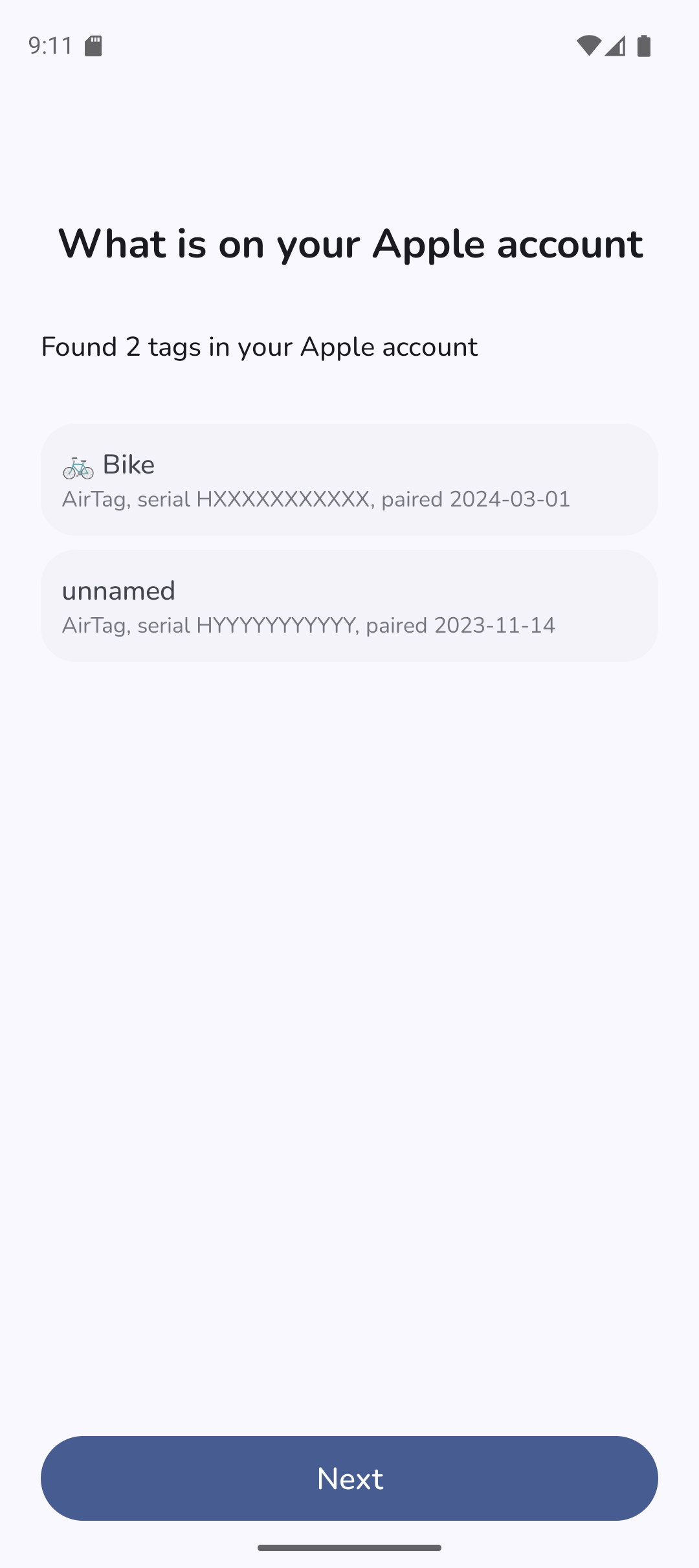
Everything on the account that can be located shows up. Then the app tells you what signing in has just added to your Apple account.
| 2. What is on your account | 3. This app is now a device on it |
|---|---|
 |
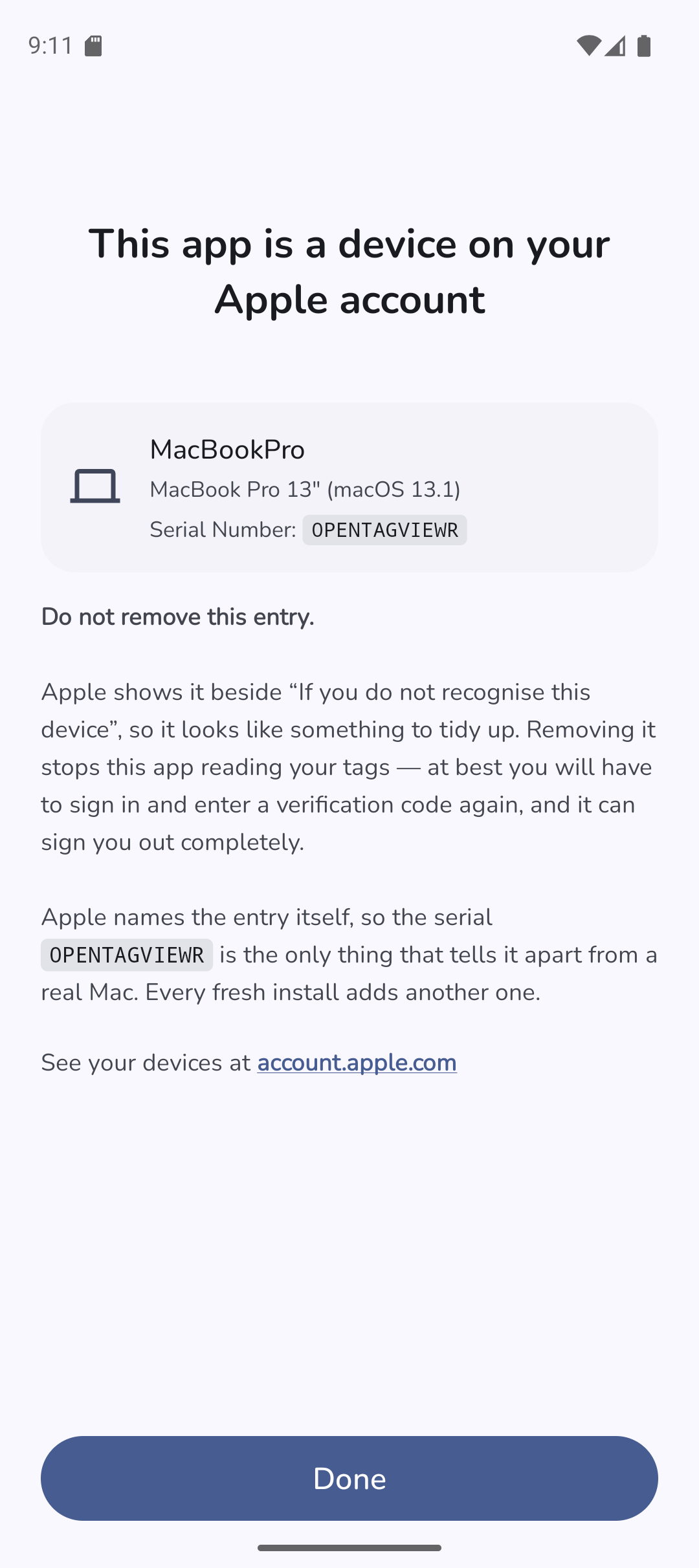 |
That second screen is the one worth stopping on. Signing in adds the app to your Apple account's
device list, as a MacBookPro with the serial 0PENTAGVIEWR. Apple shows it beside "If you do not
recognise this device", so it looks like something to tidy up — removing it signs the app out,
and you would set this up again from the beginning.
More on that, including what to do if you find several: What this registers on your Apple account.
| "No tags found" | "Could not tell whether this can be unlocked" |
|---|---|
 |
 |
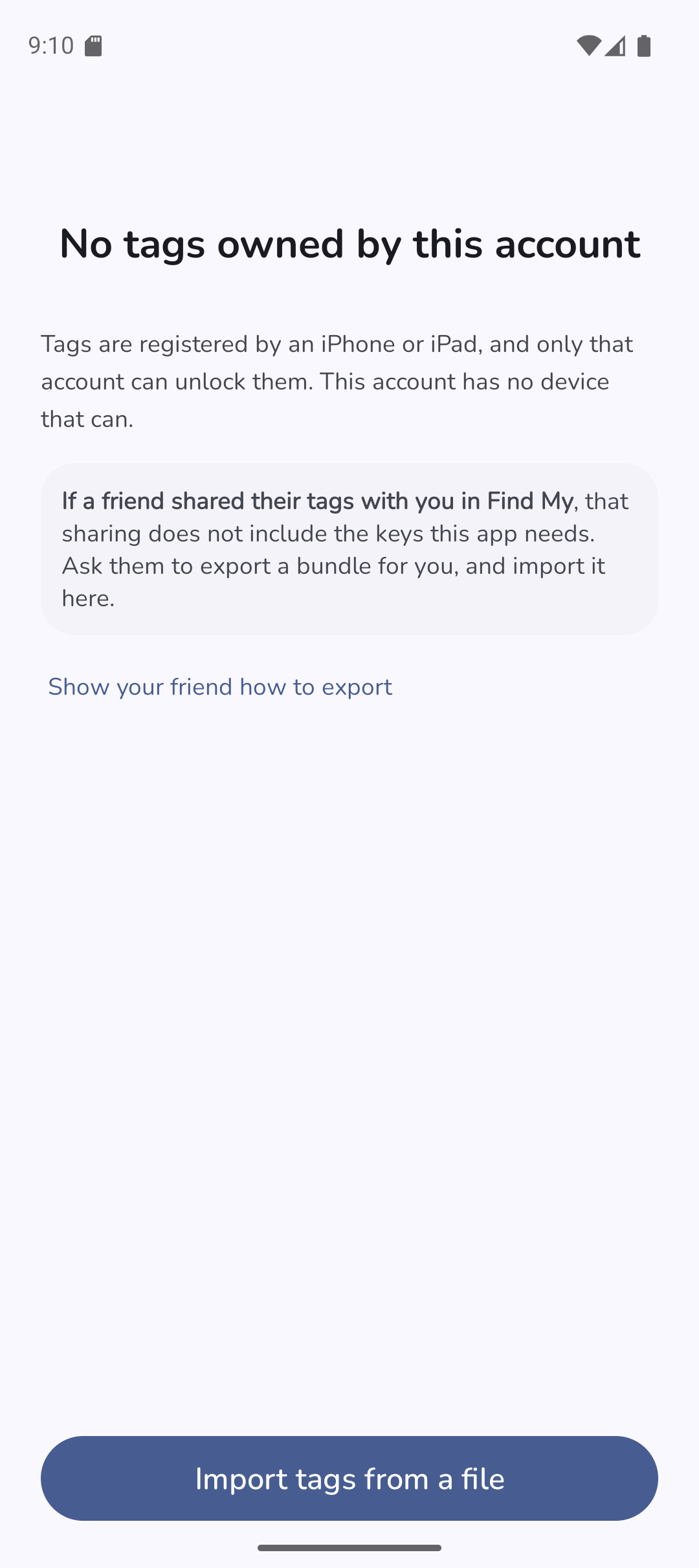
No tags found — the account was read and had nothing locatable on it. Usually the tags are registered to a different Apple account than the one you signed in with: the one you first paired them from. Tags that were shared with you by somebody else do not count, since only the owning account can read them out.
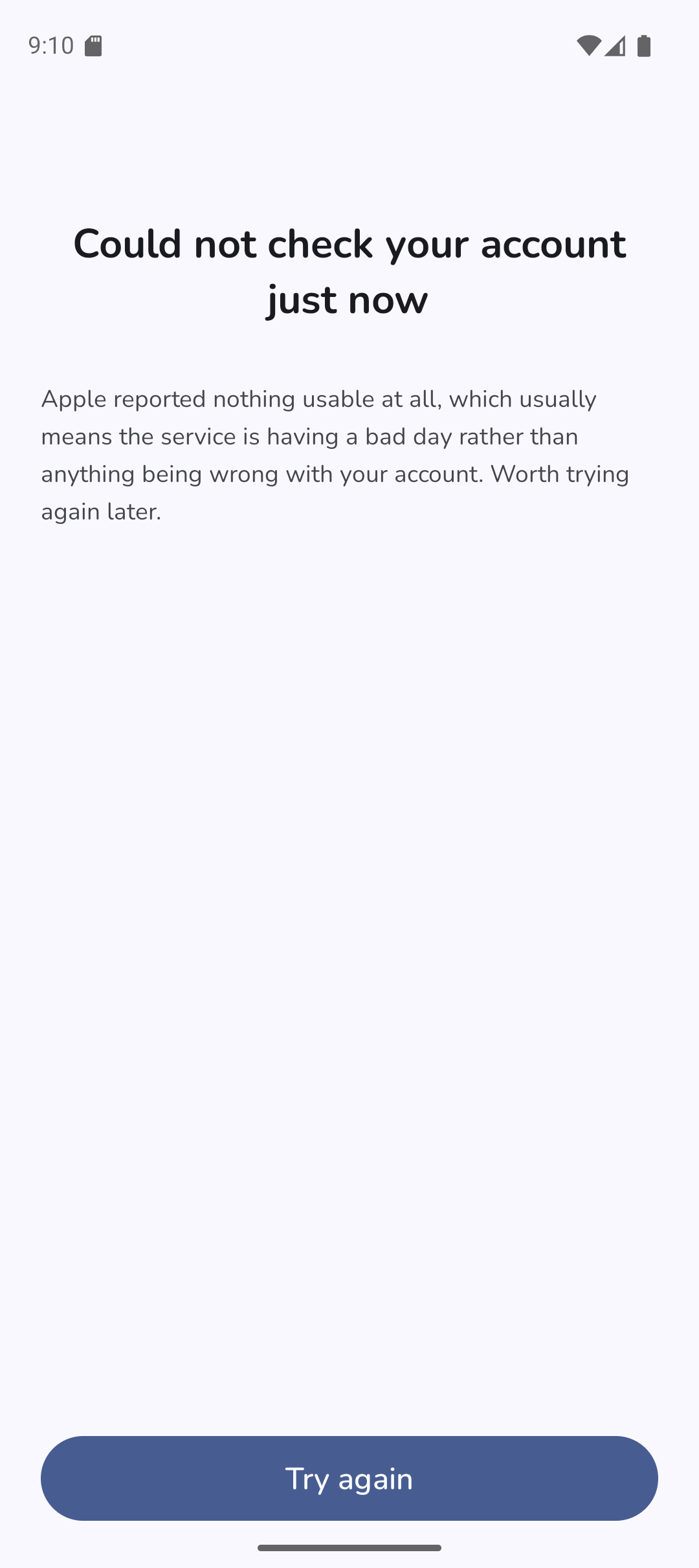
Could not tell — Apple did not give a usable answer. Generally a service having a bad day rather than anything about your account, and worth trying again later.
The log will say more than the screen does.
👉 How to export logs from the app, then report a problem with that file attached.
New tags you register later appear on their own, and renaming a tag in Apple's Find My is reflected here. There is nothing to re-export and nothing to keep in step by hand.
If you would rather not stay signed in to the owning account, you can export your tags to a file and import that instead — after which the app can be signed in to any Apple account at all.