Runbook Schedules
This page explains how to link the pre-created schedules in the Automation Account to the analytics runbooks. It is step 2 of Reports deployment for Activity & Usage Analytics.
Schedules are pre-created in the automation account; they just need linking to the right runbooks. Link the schedules by going to the Automation account in Azure portal.
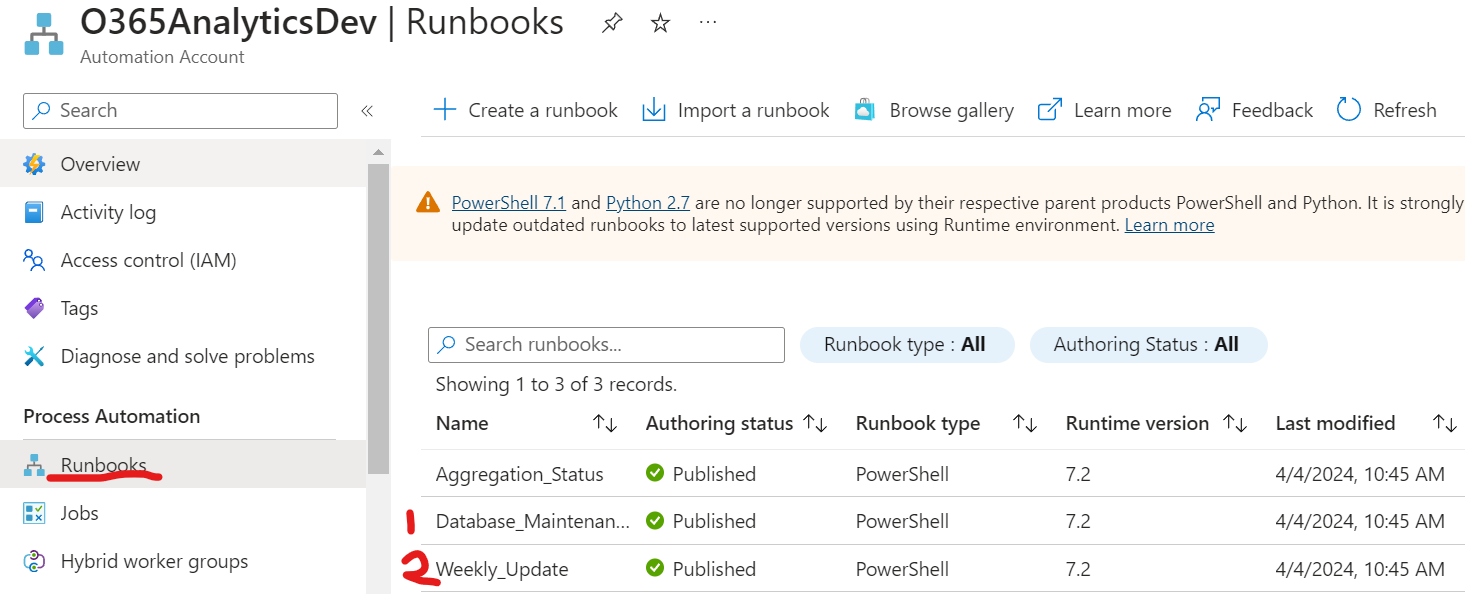
Find the runbooks and click on Database_Maintenance.
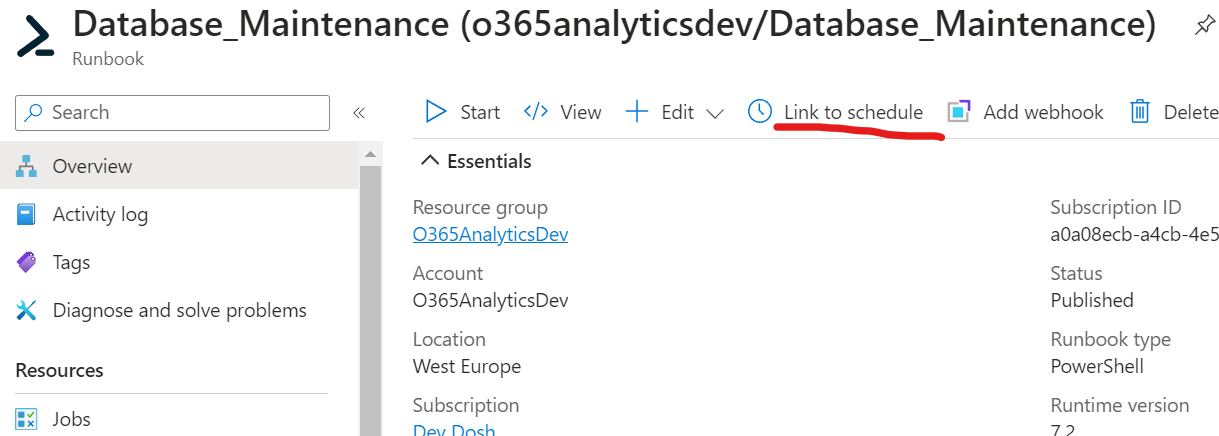
Link the runbook to a schedule – we’ll add this runbook to two schedules, one by one. First one is activitylog maintenance, every Sunday at 1pm:
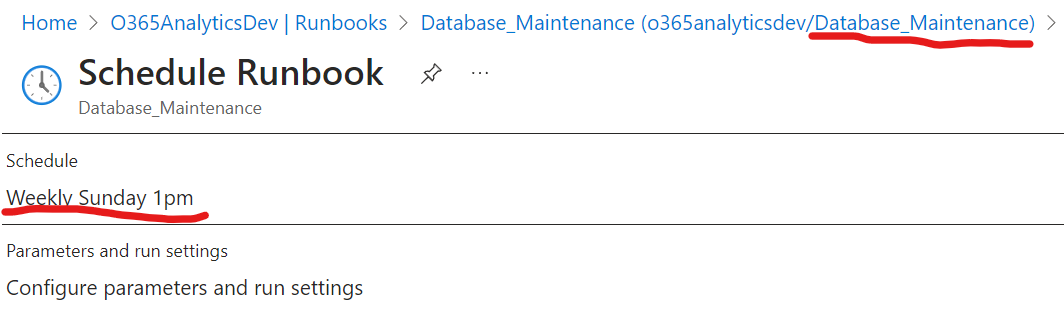
Now set the parameter to start. Click "configure parameters and run settings" and enter activitylog in the MAINTENANCETYPE parameter box:
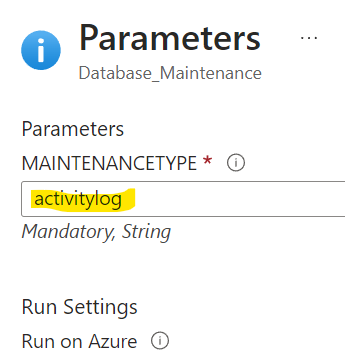
Click OK to confirm parameters. Click OK to confirm this schedule.
Now link another schedule for this runbook to create one for weekly DB maintenance:
-
Schedule:
Weekly Sunday 11pm -
Parameters:
- MAINTENANCETYPE =
weekly
- MAINTENANCETYPE =
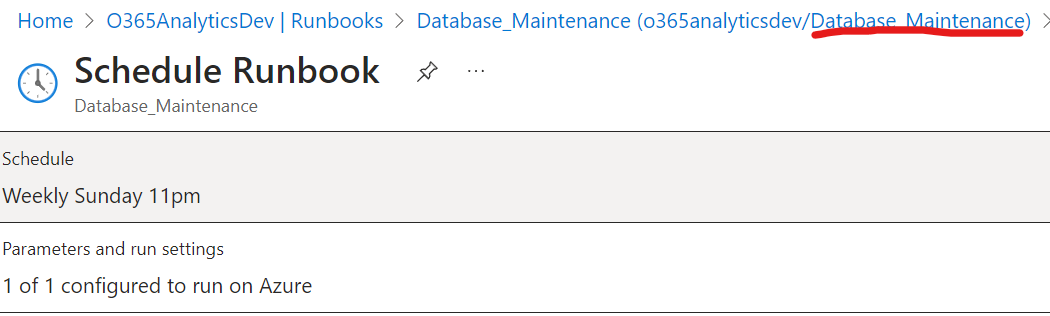
Click OK to save.
Confirm you see both schedules for the maintenance runbook:

Link a new schedule for the runbook Weekly_Update:
- Schedule:
Weekly Sunday 6pm - No parameters
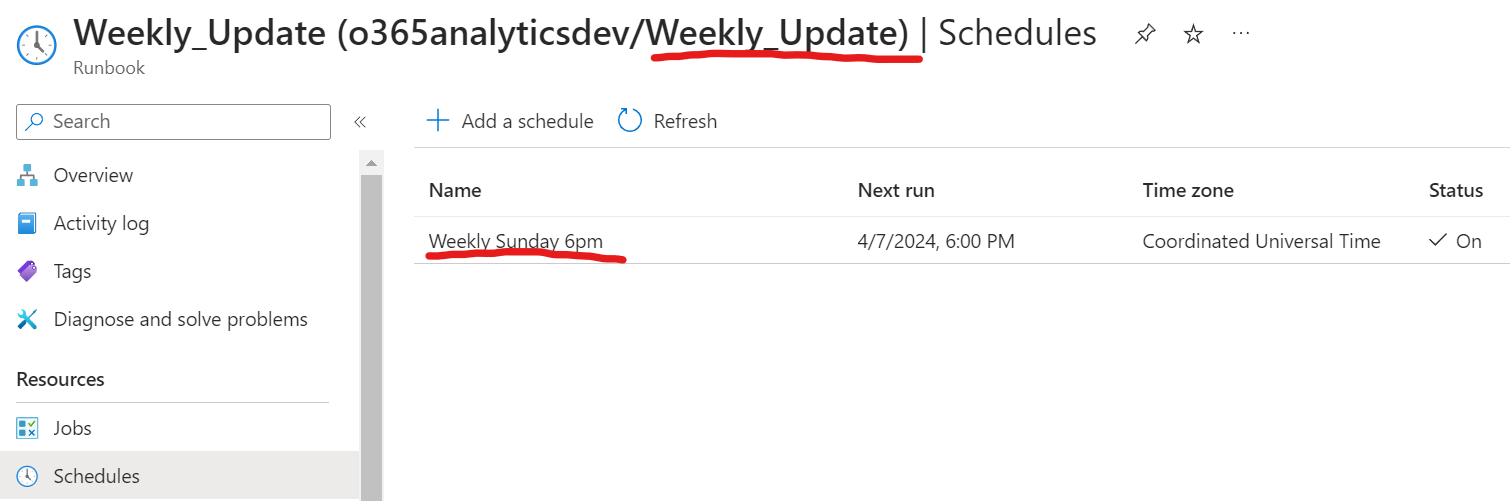
Both these jobs should run without errors but should only be run out of peak hours.
Continue with step 3: Wait for runbooks to run.