Connections
Vector Watcher uses connections to access supported databases or data sources.
This page describes the general connection workflow.
📷 Screenshot placeholder: Create connection screen
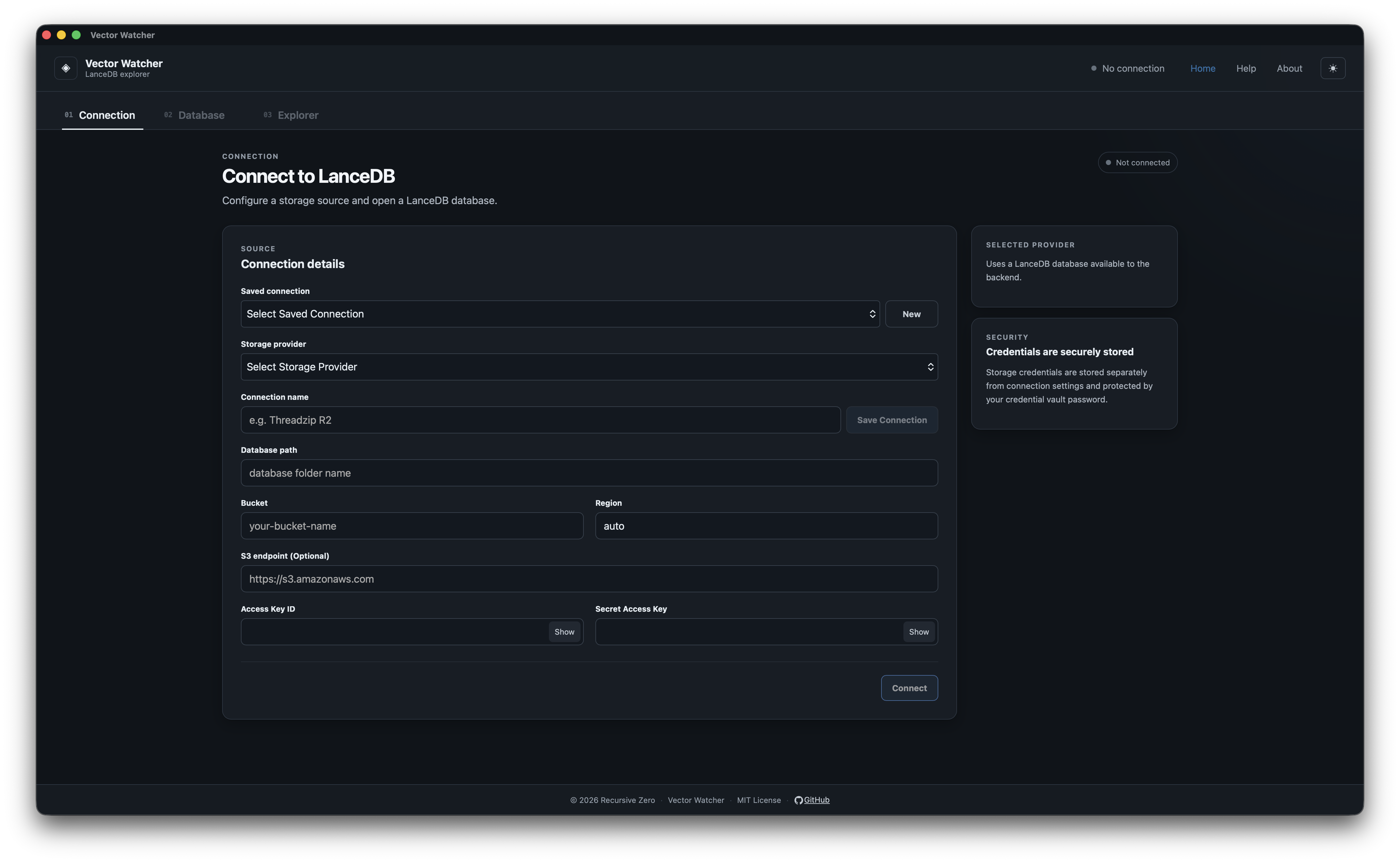
To create a connection:
- Open the connection section.
- Enter the required connection information.
- Save or connect using the available action.
The application may require connection information such as:
- Connection name
- Database location or URI
- Storage configuration
- Endpoint
- Credentials
- Other connection-specific settings
After configuring a connection, you can se the connection using master password and these credentials will be stoared in your system
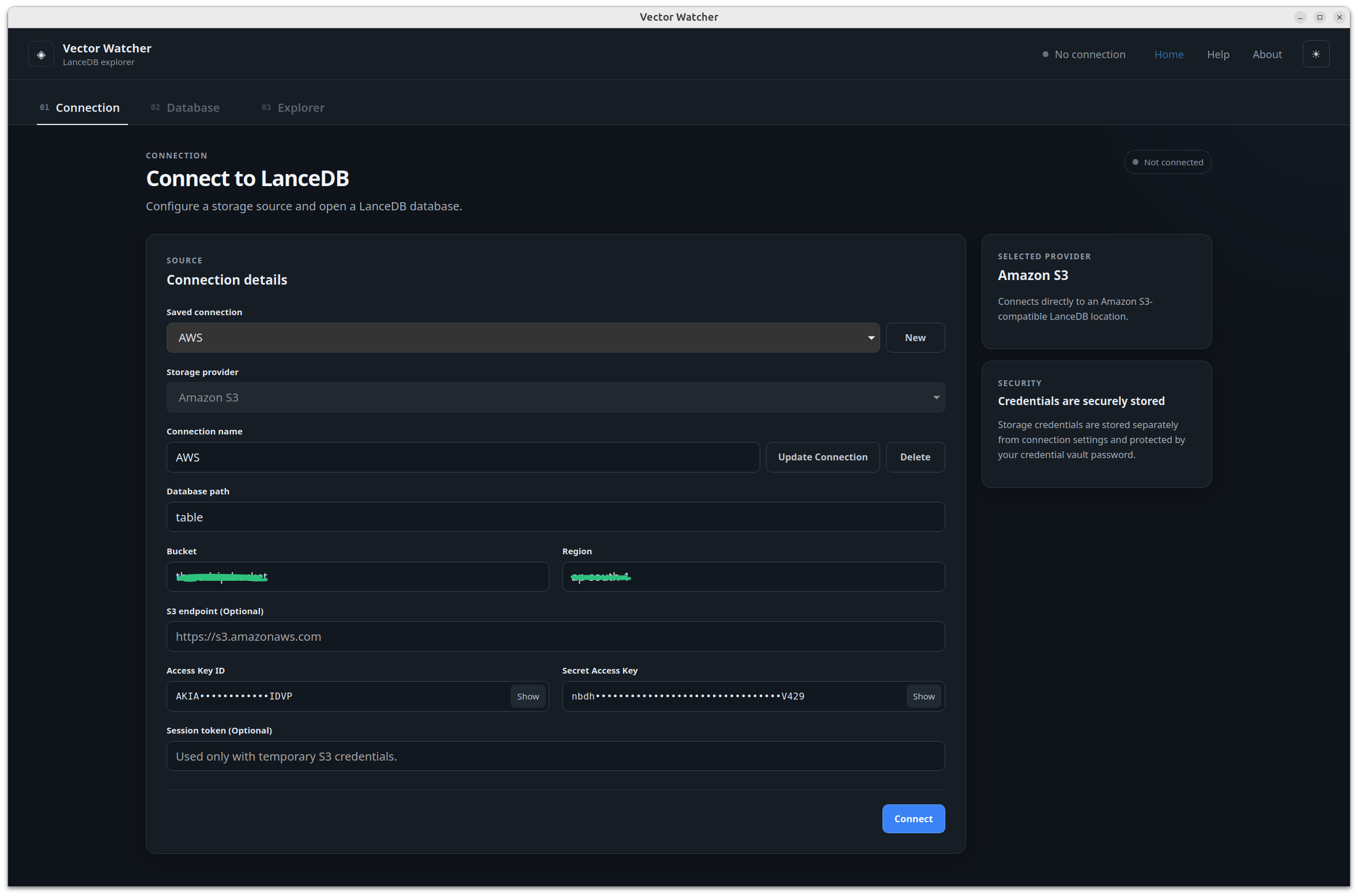
When successfully connected, Vector Watcher should make the available database resources accessible through the application.
If a connection fails:
- Verify the connection information.
- Verify that the database or storage location is accessible.
- Verify any required credentials.
- Check the application error message.
- Review Troubleshooting.