Getting Started
This page walks through first-time setup and explains the ideas the rest of Rostrum is built on: buses, the two mixes, and destinations. It takes about five minutes.
If you have not installed Rostrum yet, start with Installation.
The first time Rostrum starts, it opens Setup with eight steps listed on the left. Every choice applies as soon as you make it, and everything can be changed later in Settings.
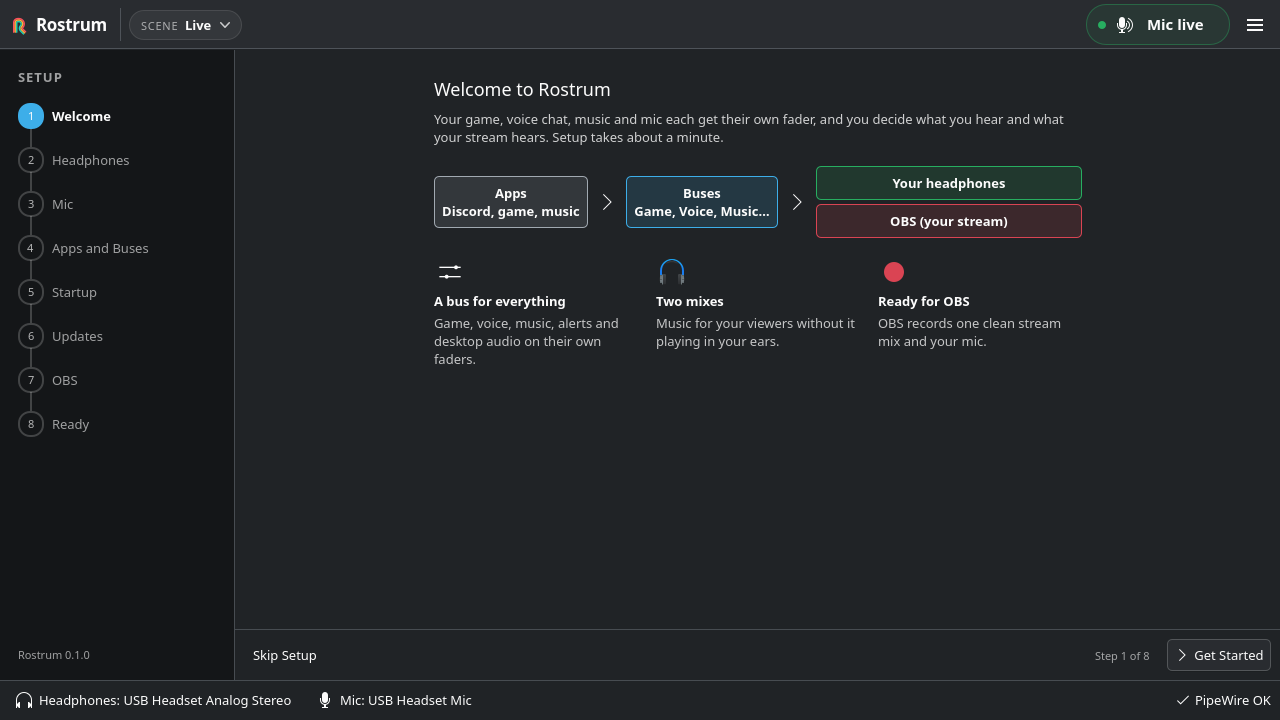
This screenshot is from before the OBS step was added, so it lists seven steps.
| Step | What you do |
|---|---|
| 1. Welcome | A short overview. Press Get Started. |
| 2. Headphones | Pick your headphones. Press Test to play a short chime only on that device: the first note on the left, the second on the right, so you can check both ear cups. |
| 3. Mic | Speak and watch the meter under each mic, then pick yours. Mute Mic here does the same as the mic button in the header (and Ctrl+M). |
| 4. Apps and Buses | Choose whether to Put apps on buses automatically, and see which kind of app each bus receives and where it goes. |
| 5. Startup | Launch Rostrum at login (recommended) and Start hidden in the tray. This step also shows the first three hotkeys. |
| 6. Privacy and Updates | Crash reports and update checks. In builds without crash reporting (including copies you build yourself) this step is called Updates and only has the update switches. See Privacy and Crash Reports. |
| 7. OBS | If OBS is installed, Set Up OBS… creates Rostrum's devices, then shows the same preview as the OBS page. Press Skip if you use another recorder. Under While you stream: Follow OBS while it runs and Warn me when a stream starts with a problem, both on. See OBS Setup. |
| 8. Ready | Each choice in one list. Click one to go back and change it, then press Create Mix. |
Create Mix adds Rostrum's buses to PipeWire and opens the Mixer. If PipeWire cannot create them, the Ready step says why; check that PipeWire and WirePlumber are running and try again.
Skip Setup keeps the choices you have made so far, uses the defaults for the rest, and goes straight to the Mixer.
If you set Rostrum up with an earlier build, you do not see setup again. Instead, a one-time dialog over the Mixer asks about the choices added since (for example "Crash Reports, Updates and OBS"). Press Done when you have picked.
Your mix keeps playing while Rostrum is closed, but apps find their bus and hotkeys work only while Rostrum runs. Launching at login means the mix is ready before Discord or OBS start. With Start hidden in the tray on, Rostrum waits in the tray instead of opening its window. That option needs a system tray, and is unavailable if your desktop does not show one.
- The header has the scene switcher on the left. On the right are the LIVE and REC badges (only while OBS streams or records; see OBS Setup), the mic button (it reads Mic live or Mic muted) and the menu.
- The header menu has Save Scene, Undo and Redo (named after the last change, for example "Undo Game Volume"), Manage Scenes…, Compact View, Settings and Quit.
- The sidebar opens the pages: Mixer, Apps, Scenes, Devices, OBS and Settings.
- The status bar shows your headphones, your mic, and the PipeWire connection (PipeWire OK when all is well). Click the headphones or mic to open the Devices page.
Quit from the tray menu, from the header menu, with Ctrl+Q, or with Settings → Quit Rostrum. Your mix keeps playing after Rostrum quits, but apps are no longer moved and hotkeys stop.
For a small window that can stay on top of a game or OBS, use Compact View; see Mixer and Buses.
If your desktop shows a system tray, Rostrum puts an icon there. Two switches in Settings → General decide what the window buttons do:
| Setting | Default | What it does |
|---|---|---|
| Hide to tray when closed | On | Closing the window keeps Rostrum running in the tray, with hotkeys working. Off, closing quits Rostrum. |
| Hide to tray when minimized | Off | Minimizing hides the window from the task bar. Click the tray icon to bring it back. |
Without a tray, both switches are unavailable and closing the window quits Rostrum.
The tray icon shows a slashed-mic badge while the mic is muted. Its tooltip shows the mic state and the scene, for example "Mic live · Scene: Live", and adds "Stream muted", "LIVE since 20:04" or "REC since 20:10" when they apply.
| On the tray icon | What happens |
|---|---|
| Left-click | Show or hide the window. |
| Middle-click | Mute or unmute the mic. |
| Scroll | Move the Stream master up or down, 2 % per wheel step. |
| Right-click | The menu: Show Rostrum (or Hide Rostrum), Mute Mic, Mute Stream, Previous Scene, Next Scene, a Scenes submenu, Restart Rostrum and Quit. |
Restart Rostrum (also in Settings → General) quits and starts Rostrum again, for example after you install a new build. Audio keeps flowing meanwhile. Scene changes from the tray follow the same rules as the header, including Confirm before switching scenes.
A bus is a fader that a group of apps plays into. Rostrum starts with six:
| Bus | Receives automatically | Default destination |
|---|---|---|
| Mic | Your mic (no apps) | Stream |
| Game | Games | Both |
| Voice | Voice chat | Both |
| Music | Music players | Stream |
| Alerts | Stream alerts | Both |
| Desktop | Everything else that Rostrum recognises | Both |
Each bus has a fader, M (mute) and S (solo), and a destination. You can rename buses, change their colors, choose what kind of app each receives, and add more, up to 12 in total. See Mixer and Buses.
Rostrum builds two mixes from the same buses:
- Headphones, "What you hear": the mix that plays in your headphones.
- Stream, "What your audience hears": the mix OBS records, as a device called Rostrum Stream Mix.
Each has a master fader at the top of the Mixer. Your mic does not go through the Stream mix. It reaches OBS separately, as a device called Rostrum Mic, after Rostrum's gain and mute.
Each bus has three destination buttons:
| Destination | Caption under the strip | Result |
|---|---|---|
| Headphones | Headphones only | You hear it; your audience does not. |
| Stream | Stream only | Your audience hears it; you do not. |
| Both | Headphones + Stream | Everyone hears it. |
The defaults mean that music plays for your viewers without playing in your ears, and everything else goes to both. For the Mic bus, sending it to Headphones means hearing yourself (sidetone), which is off by default.
Start Discord, a game and Spotify. Rostrum recognises most apps and puts them on the matching bus by itself. Each one appears as a chip on its bus strip. To move an app, drag its chip onto another bus. For everything else about routing, see Apps and Routing.
Open the OBS page and press Set Up OBS…. Rostrum shows a preview of every change before it makes it, and Undo OBS Changes puts OBS back as it was. See OBS Setup.
- Learn the strip controls: Mixer and Buses.
- Make scenes for different parts of your stream: Scenes and Presets.
- Learn the hotkeys: Keyboard Shortcuts.