Mixer and Buses
The Mixer is Rostrum's main page. This page explains every control on it, plus auto-ducking, undo, Compact View and the Devices page.
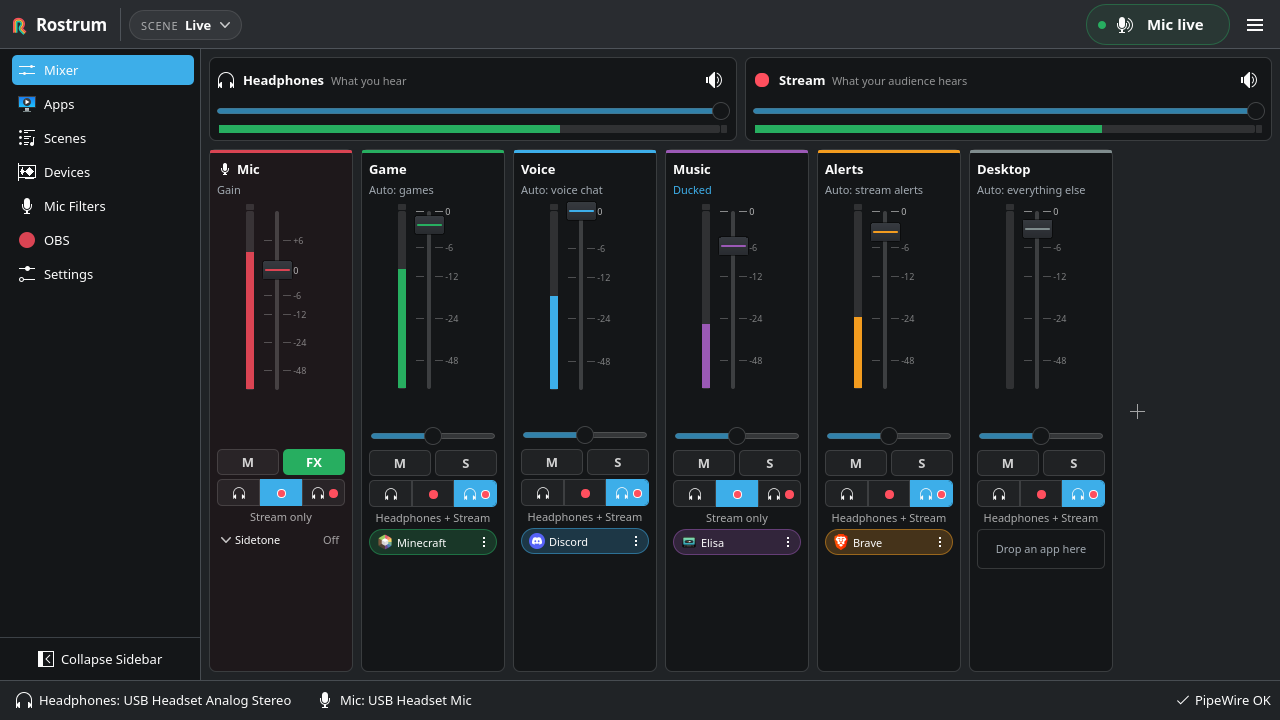
The two faders across the top set the overall level of each mix:
- Headphones, "What you hear".
- Stream, "What your audience hears". This is the level of Rostrum Stream Mix, the device OBS records.
Each master has its own mute button. Double-click a master fader to reset it to 0 dB. A master multiplies every bus sent to it, so lowering Stream lowers everything on stream without touching what you hear. The global shortcut Mute all playback to stream (Meta+Alt+S) mutes the Stream master. Your mic reaches OBS as a separate device, so that shortcut does not mute your voice; Panic mute mutes both. See Keyboard Shortcuts.
Each playback bus has a strip with:
| Control | What it does |
|---|---|
| Name | Click it to rename the bus. |
| Status line | "Muted", "Dimmed by solo", "Solo" or "Ducked"; otherwise what the bus receives automatically, for example "Auto: music". |
| Fader and meter | The bus level. Double-click the fader to reset it to 0 dB. The meter turns amber from −12 dB and red from −6 dB. |
| Balance | The small slider under the fader. See Balance. |
| M | Mute. A muted strip says "Muted". |
| S | Solo. Every other playback strip is silenced and says "Dimmed by solo". |
| Destination | Three buttons: Headphones, Stream, Both. The caption below reads "Headphones only", "Stream only" or "Headphones + Stream". |
| App chips | The apps currently on the bus. See below. |
Solo is a live monitoring aid. It is never saved in a scene, and nothing is soloed after a restart.
Fader positions follow a perceptual curve, like pavucontrol: the top of the fader is 0 dB (unity), and the middle of the fader is about −18 dB. Turn on Settings → Mixer → Show dB readouts to print the level under every fader; with it off, the level shows on hover or focus.
If scrolling the window moves faders by accident, turn off Settings → General → Scroll to adjust faders.
Each playback bus has a balance slider under its fader. Drag it left or right; its tooltip shows the setting, for example "Balance: Left 40%". To centre it, double-click the slider or choose Centre Balance from the strip's right-click menu.
Balance works like PulseAudio's: the far side is turned down and the near side stays at the fader level. It applies to the bus itself, so it reaches your headphones and the stream alike. Balance is saved in the scene, like a fader level. The Mic strip has no balance.
The Mic strip is always first, and it works a little differently:
- Its fader is Gain, from 0 to 150 %. 100 % (0 dB) leaves your mic as it is. Double-click it to go back to 100 %.
- It has M but no solo and no balance, and apps cannot be dropped on it.
- Its destination decides where your voice goes. Stream (the default) sends it to OBS through Rostrum Mic. Headphones alone takes your voice off stream and only lets you hear yourself. Both does both.
- Sidetone (hearing yourself) is behind the expander at the bottom of the strip. Turn it On and raise its volume, which starts at zero. Turning sidetone on adds Headphones to the mic's destination; turning it off sets the destination back to Stream.
The mic button in the header does the same things from any page. Click it to mute or unmute. Right-click it (or press the Menu key) for Gain, Sidetone (hear yourself), its volume, and Choose Mic…. Double-click the gain slider there to reset it to 100 %.
The header button reads Mic live, Mic muted, No mic (no microphone found, or your chosen mic is unplugged) or Mic offline (PipeWire is not reachable). The tray icon shows a slashed-mic badge while the mic is muted.
Each app playing into a bus shows as a chip on the strip, with the app's icon:
- Drag a chip onto another strip to move the app. Drag it onto the empty space between strips to take it off its bus; it then plays on your default output, as it would without Rostrum.
- The chip's options button offers Move to and Unassign, so you can do the same from the keyboard.
- When the name is too long for the strip, hover the chip to see it in full. A chip for an app Rostrum placed by itself also explains why in its tooltip.
- When a strip has more apps than fit, +N more opens the Apps page showing only that bus.
- An empty strip says Drop an app here.
Moving or unassigning apps also changes how Rostrum treats that app later. To change one app's volume or mute it without touching the rest of its bus, use the Apps page. See Apps and Routing.
- Add a bus with the + button (Add Bus) after the last strip. A scene can have at most 12 buses, including Mic.
-
Right-click a strip (or focus its fader or balance slider and press the Menu key) for the
items below. On the Mic strip only Rename and Color can be used.
- Rename (F2 on a focused fader does the same).
- Color…
- Receives Automatically: Games, Voice Chat, Music Players, Stream Alerts, Everything Else, or Nothing. Each kind of app goes to at most one bus. The strip shows what it receives, for example "Auto: music".
- Centre Balance: unavailable when the balance is already centred.
- Duplicate
- Remove…: asks first. Apps on the removed bus go back to your default output.
Bus names, colors, added and removed buses are saved to the current scene right away.
Renamed a bus but other apps still show the old name? The name other programs see is fixed when the device is created. Settings → Advanced → Rebuild virtual devices recreates the devices with the new names. Audio through Rostrum stops for a moment, and OBS reconnects on its own.
Press Ctrl+Z to undo and Ctrl+Shift+Z to redo, or use Undo and Redo in the header menu. The menu names the change, for example "Undo Game Volume" or "Undo Rename Bus to “Chat”". A long fader drag is one step.
Undo covers changes to the live scene: fader levels, mutes, balance, destinations, the masters, sidetone, adding, removing, renaming and recoloring buses, what a bus receives, app rules, and app mutes saved with a rule. It never touches:
- Solo, push to talk, push to mute, panic mute, auto-ducking and scene fades.
- The mic mute. Undoing a fader move never unmutes your mic.
Loading another scene clears the undo history. Inside a text field, such as a rename box, Ctrl+Z undoes the typing instead.
Auto-ducking turns chosen buses down while someone speaks, and brings them back when they stop. It is off by default. Turn it on in Settings → Ducking → Turn music down while someone speaks.
| Setting | Choices | Default |
|---|---|---|
| When | You speak (mic), Someone speaks in voice chat, Either | You speak (mic) |
| Turn down | A checkbox for each playback bus | Music |
| By | −6, −9, −12, −18 or −24 dB | −12 dB |
| Turn down over | 20 to 500 ms | 100 ms |
| Come back over | 250 to 3000 ms | 800 ms |
Things to know:
- A ducked strip says "Ducked". Its fader does not move, and you can still move it while ducked.
- Ducking is not saved in scenes and never marks a scene as changed.
- With the mic as the trigger, Rostrum only listens while your mic can be heard on stream: not muted, with a destination that includes Stream, and not unplugged.
- The bus that receives voice chat is never turned down by voice chat.
- The music comes back half a second after the speaking stops, so it does not pump between words.
- While ducking listens to your mic, your desktop's microphone indicator stays lit whenever your mic is live, even with Rostrum in the tray. Muting the mic turns it off.
- Quitting Rostrum while a bus is ducked puts it back to its full level first.
Compact View in the header menu shrinks Rostrum to a small mixer you can keep beside a game or OBS. It has the mic button, the scene switcher, the Headphones and Stream masters, and one slim fader with a mute button for each bus. Double-click a slim fader to reset it. Manage Scenes… in its scene menu, or Full View, opens the full window again.
- Keep on Top keeps the compact window above other windows. Some Wayland desktops ignore this; on Plasma, use the window menu's Keep Above Others instead.
- The compact and full windows each remember their own size. If you quit in Compact View, Rostrum opens in Compact View next time.
- Closing or minimizing the compact window follows the tray settings in Getting Started.
- Compact View is available once first-time setup is finished.
The Devices page is where you pick your headphones and mic after setup. Clicking the headphones or mic in the status bar opens it too.
- Headphones: where you hear the mix. Press Test next to a device to play a short chime on it. System default follows the default device in your desktop's sound settings.
- Mono headphones (off by default): both ears hear the whole mix, for one earbud or hearing on one side. Only your headphones change; the stream stays stereo. It is not part of any scene.
- Mic: speak and watch the meters to find the right one.
- Use another mic while mine is unplugged (off by default): see below.
- Advanced nodes lists the virtual devices Rostrum created, with a Copy name button for each, for use in other apps.
If a Bluetooth headset is in headset mode (HSP/HFP), the page warns that it sounds muffled and offers Open Sound Settings, so you can switch it to A2DP when you do not need its mic.
If the mic you chose disappears, the stream mic goes silent until it comes back. Rostrum does not switch to another mic, so a webcam or laptop mic never goes live on stream by surprise. You see:
- A banner: "Mic disconnected. Your stream mic is silent until it comes back.", with Choose Mic.
- No mic on the header button, and the mic marked as unplugged in the status bar.
- One desktop notification: "Mic disconnected, stream mic silent."
When the mic comes back, Rostrum uses it again with the scene's mute and gain. Your choice of mic is never changed by an unplug.
If you prefer to keep talking on another mic, turn on Use another mic while mine is unplugged. Then the system default mic goes to stream until yours comes back, and the banner says "Mic disconnected. Using … until it comes back." That can be a webcam or laptop mic.
Unplugged headphones work differently: Rostrum always plays your headphone mix on the system default output until they come back. See Troubleshooting.
Meters run only while the page that shows them is visible and the window is open. Settings → Mixer → Meter speed → Low (uses less power) halves the update rate. While a mic meter is on screen, Plasma's microphone indicator shows that Rostrum is listening. Auto-ducking runs its own meters whenever it is on, whatever is on screen.
For how the buses are built in PipeWire, see docs/audio.md.