OBS Setup
OBS should record exactly two things from Rostrum:
- Rostrum Stream Mix: every bus you send to Stream or Both, at the level of the Stream master.
- Rostrum Mic: your mic after Rostrum's gain and mute.
Everything else that records audio in OBS (desktop audio, your headphones, your hardware mic, a single app) skips Rostrum and doubles your audio. The OBS page sets this up for you and shows what OBS actually records.
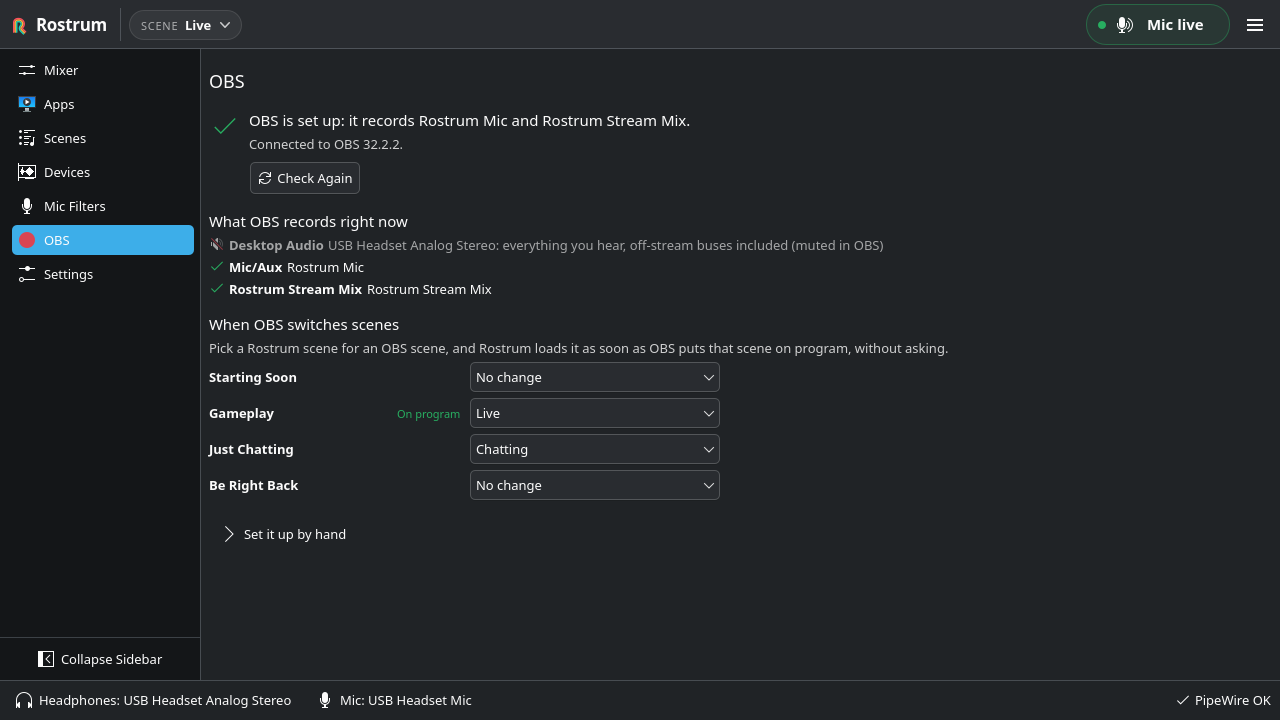
First-time setup offers the same one-click setup in its OBS step. You can also do it any time from the OBS page:
- Open the OBS page.
- Press Set Up OBS… (it reads Fix OBS… when the only problem is doubled audio).
- Read the preview. It lists every change, for example:
- Switch your mic source to Rostrum Mic. The source keeps its filters, tracks and scenes.
- Add a Rostrum Stream Mix source to all your scenes, or switch your Desktop Audio device to it.
- Mute sources that would double your audio. Each mute has a checkbox, so you can leave one alone.
- Press Apply.
Nothing is ever deleted. Muted sources stay in OBS, and Undo OBS Changes puts everything back. When OBS is set up, the page says "OBS is set up: it records Rostrum Mic and Rostrum Stream Mix."
Rostrum makes the changes live through obs-websocket, which is built into OBS 28 and newer.
Rostrum reads the WebSocket port and password from OBS's own settings, so you do not need to enter
them, and it only connects to your own computer (127.0.0.1).
Rostrum edits OBS's active scene collection directly. It first writes a backup copy next to the
file, named <collection file>.rostrum-<date>-<time>.bak, and the changes show up the next time OBS
starts. OBS must have been
started at least once; if it has not, the page says "Start OBS once, then come back here."
Undo OBS Changes restores each source's previous device and mute state and removes what Rostrum added. It works whether OBS is running or closed. If OBS is running with its WebSocket server off, Rostrum asks you to turn the server on or close OBS first.
While OBS is running, the page lists every audio source OBS is recording, read from PipeWire rather than from OBS's settings, with a check mark for the right ones and a warning for the rest. This works even without obs-websocket. Typical warnings:
| Warning | Problem |
|---|---|
| "…directly: your voice skips Rostrum" | A source records your hardware mic, so your voice would be doubled and Rostrum's mute would not work. |
| "…: everything you hear, off-stream buses included" | A source records your headphones or "Default", so viewers hear buses you keep off stream. |
| "…directly, skipping its bus" | A source records one app, which would be doubled and its bus ignored. |
| "…a single bus that Rostrum Stream Mix already includes" | A source records one Rostrum bus, which viewers would hear twice. |
| "It's set to Rostrum Mic, but something moved it" | Another tool, often Easy Effects, moved OBS's mic source. Add OBS to Easy Effects' excluded apps. |
Only sources that are currently playing appear in the list. Press Check Again to refresh.
If you prefer, or use another recording app, open Set it up by hand on the OBS page. It has a Copy button for each device name. The steps are:
- In OBS, add an Audio Output Capture source (or Audio Capture (PipeWire)) to every scene, and pick Rostrum Stream Mix.
- In Settings ▸ Audio, set Mic/Aux to Rostrum Mic, or add an Audio Input Capture with it.
- Mute every other audio source that records your mic, your headphones (often called "Default") or a single app. In Settings ▸ Audio, leave Desktop Audio disabled or on Rostrum Stream Mix. Never pick a single bus such as Rostrum Desktop or Rostrum Game: the Stream Mix already has it.
- Optional, for separate VOD audio: in OBS, open Advanced Audio Properties. Send Rostrum Stream Mix to track 1, and Rostrum Mic to tracks 1 and 2.
Any recorder that can capture an audio device can record Rostrum Mic and Rostrum Stream Mix. OBS is not required.
Speak with nothing else playing and watch the OBS Audio Mixer. Exactly one mic meter should move, and it should belong to a source on Rostrum Mic. If two move, your voice will be doubled on stream; mute or remove the extra source.
| Message | What to do |
|---|---|
| OBS isn't installed. | Nothing, if you use another recorder. Follow the manual steps above with it. |
| Start OBS once, then come back here. | Start OBS so it creates its settings, then return. |
| OBS is running, but its WebSocket server is off. | In OBS, open Tools ▸ WebSocket Server Settings and tick Enable WebSocket server. Or close OBS, and Rostrum will set it up directly. |
| OBS refused the WebSocket password saved in its settings. | If you just changed the password in OBS, press Apply there. Or close OBS, and Rostrum will set it up directly. |
| Rostrum can't reach OBS. | The page shows the error. Check that OBS is still running, then press Check Again. |
| The Rostrum nodes are not there yet. Create the mix first. | Press Create Mix on the page. |
With Follow OBS while it runs on (the default; Settings → OBS), Rostrum stays connected to
OBS's WebSocket server whenever OBS is open, even with the OBS page closed. It only reads from OBS,
and only on your own computer (127.0.0.1). It connects only while an OBS process is running with
its WebSocket server turned on, and it changes nothing in OBS: only Set Up OBS and
Undo OBS Changes do that.
Turn the switch off and Rostrum talks to OBS only while the OBS page is open.
While OBS streams, the header shows a red LIVE badge with the time since the stream started. While OBS records, a REC badge shows the recording time (REC paused while paused). The times come from OBS, so they carry on correctly if you restart Rostrum mid-stream. Click a badge to open the OBS page. The tray tooltip says the same, with the start time, for example "LIVE since 20:04".
With Warn me when a stream starts with a problem on (the default, in Settings → OBS; it needs Follow OBS while it runs), Rostrum checks your mix when a stream starts, or when it connects to a stream that is already running. It warns you if:
- Your mic is muted, at zero, or its destination leaves out Stream.
- Nothing reaches the stream: the Stream master is muted or at zero, or every bus sent to Stream is muted, at zero or silenced by solo.
- OBS is not recording Rostrum Stream Mix or Rostrum Mic.
You get one red banner, for example "You're live, but: Your mic is muted or kept off the stream.", and one desktop notification, "Check your stream audio". The banner offers Unmute Mic, Open Mixer or Open OBS Page, depending on the problem, and Dismiss. Each problem drops off the banner once you fix it, and the banner goes away when the stream stops. A problem that starts later in the stream (for example muting your mic on purpose) does not raise a new warning.
After setup, OBS gets one stream mix that is the same in every OBS scene. If you used to mute a source in some OBS scenes and not others, do that with Rostrum scenes instead, and let OBS switch them for you.
Under When OBS switches scenes on the OBS page, Rostrum lists your OBS scenes. The one viewers see now is marked On program. For each OBS scene, pick a Rostrum scene, or No change. When OBS puts a mapped scene on program, Rostrum loads the Rostrum scene at once, and a message names both, for example "OBS switched to “BRB”, so Rostrum loaded “Be Right Back”."
- The switch never asks first, even with Confirm before switching scenes on, because a dialog during a live scene change would be worse. With Save scene changes automatically on, the current scene is saved first. With it off, fader moves you have not saved are discarded, and the page says so.
- Nothing happens when Rostrum first connects, only when OBS changes scene.
- An OBS scene you renamed or deleted shows as "(not in OBS)" with a Forget button.
- OBS has to be running for its scenes to show ("Start OBS to see its scenes."). Mapping works while Rostrum follows OBS; with Follow OBS while it runs off, the page says "Rostrum only follows OBS while this page is open." and offers Follow OBS While It Runs.
Your OBS audio filters are not affected by any of this: when Rostrum switches your existing mic source to Rostrum Mic, the source keeps its filters.
How the plan is built, what is recorded for undo, and how Rostrum follows OBS while it runs: docs/audio.md, OBS.