Copy Text (OCR)
3DSnickerStream can read text straight off the live stream and copy it to your clipboard — handy for item names, dialogue, friend codes, or RNG/HUD seed readouts.
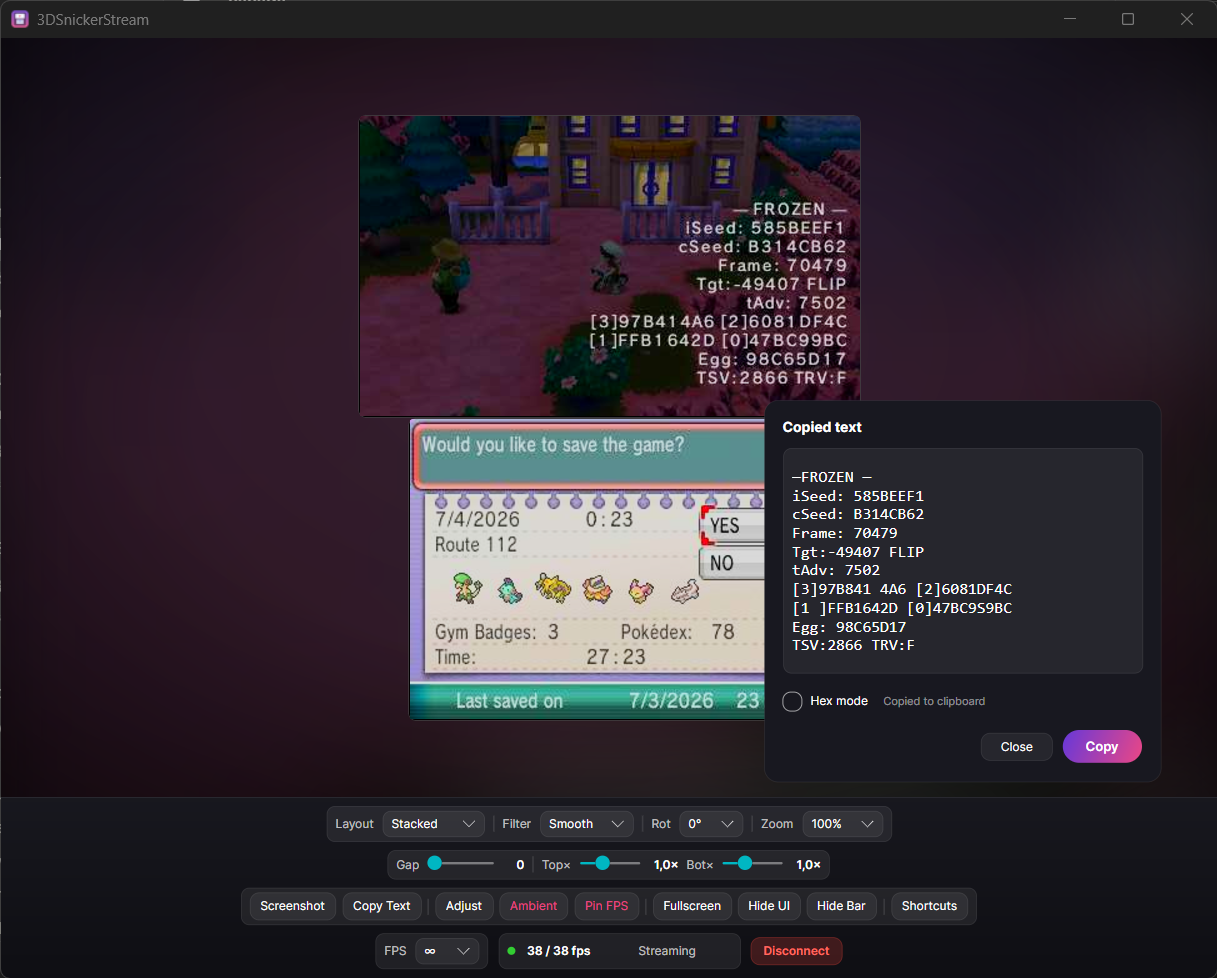
- Click Copy Text in the control bar (or press
T). - The stream dims and a crosshair appears. Drag a box over the text you want.
- Release. The recognised text is copied to your clipboard and shown in a small result panel.
- In the panel you can edit the text, Copy it again, or Close (
Esc).
The result panel is draggable — grab it anywhere except the text box / buttons to reposition it.
Toggle Hex mode in the result panel to re-read the same crop with settings tuned for dense RNG / HUD readouts (hex seeds and similar). Use it when normal OCR misreads tightly-packed alphanumerics.
💡 Tip: pause on a screen where the text is large and high-contrast for the best results. In games, the save menu often dims the top screen — a clean backdrop that reads well.
OCR uses Tesseract. It's bundled on Windows, but on macOS/Linux the app uses your system Tesseract, so install it once:
-
macOS:
brew install tesseract -
Debian/Ubuntu:
sudo apt install tesseract-ocr -
Fedora:
sudo dnf install tesseract
Without it, OCR reports that it needs Tesseract; every other feature keeps working. See Installation.