Stream View
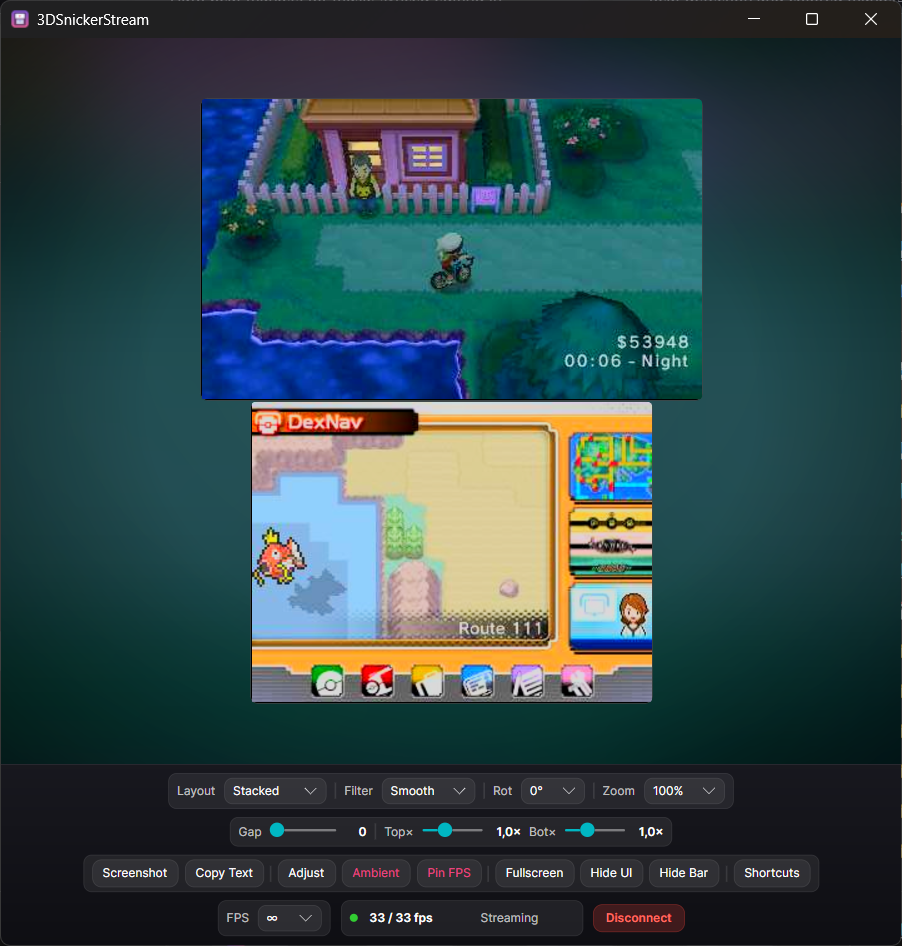
Once connected, the stream view shows your live screens with a control bar along the bottom. Most controls also have a keyboard shortcut — see Keyboard Shortcuts.
-
Layout — how the two screens are arranged: Stacked, Side by side, Top only, or
Bottom only. (
Lcycles.) -
Rot — rotate the screens by 0° / 90° / 180° / 270°. (
Rcycles.) - Zoom — Fit fills the window; a fixed % renders at native scale and grows the window to fit. Shrinking the window below a fixed-zoom picture scales it down so it's never clipped.
- Gap — spacing between the two screens.
- Top× / Bot× — scale each screen independently.
The Filter controls upscaling: Sharp (nearest, crisp pixels), Linear, or Smooth.
(F cycles.)
Click Adjust to open colour panels for the top and bottom screens independently: brightness, contrast, saturation, highlights and shadows. Use Reset to restore defaults, or Copy Top / Copy Bottom to mirror one screen's settings onto the other.
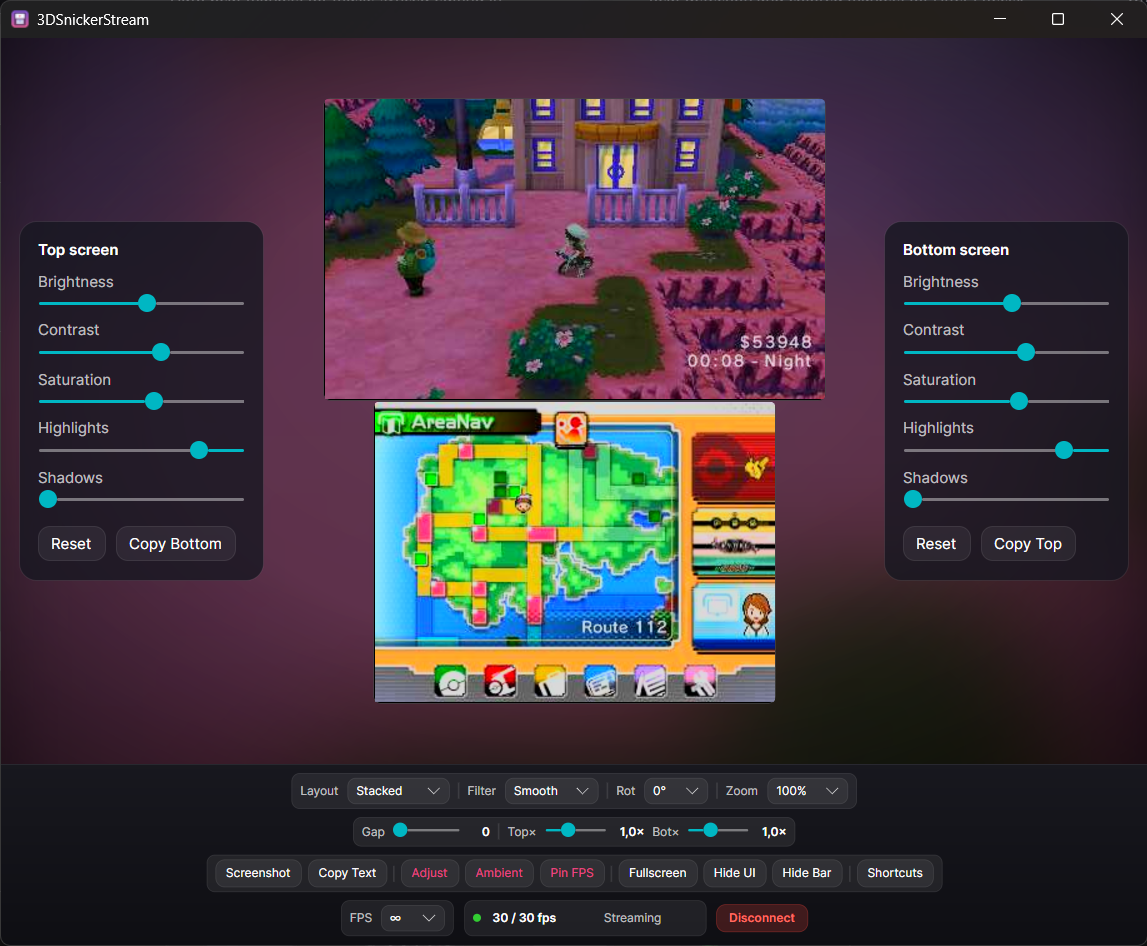
Ambient paints an ambilight-style blurred backdrop behind the screens, fed live from the top screen — nice for a cinematic, full-window look.
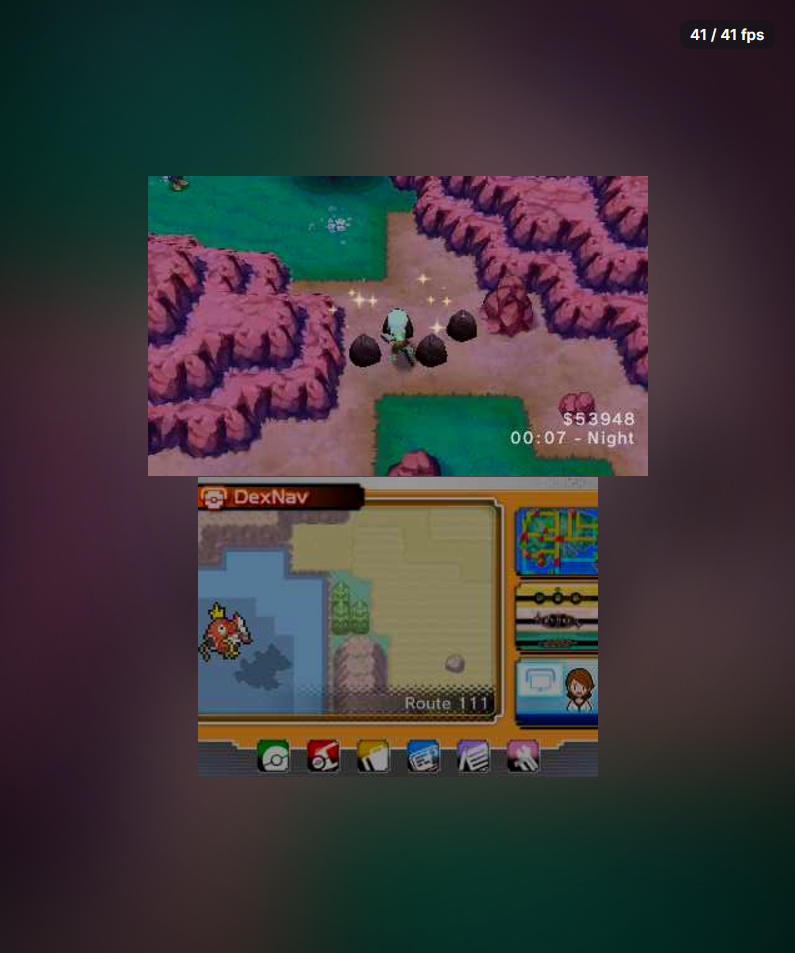
- Hide UI — a borderless "clean" mode: all chrome disappears and the picture is fitted flush to the window. Drag the picture to move the window (there's no title bar). Press Esc (or the toggle shortcut) to restore the UI. Optionally Pin FPS to keep a small FPS counter visible here.
-
Fullscreen — borderless fullscreen. (
F11.) - Hide Bar — collapse just the control bar; a small Show bar button brings it back.
-
Screenshot saves a PNG to your chosen folder (set it on the connect screen).
Ssaves; on Windows,Shift+Scopies to the clipboard instead.
The bottom bar shows rendered / received fps and a live status. The FPS dropdown caps the frame rate; ∞ shows the console's real rate.
Copy Text runs OCR on a region you drag over — see Copy Text (OCR).
Disconnect (or Esc) stops the stream and returns to the connect menu.