Cards
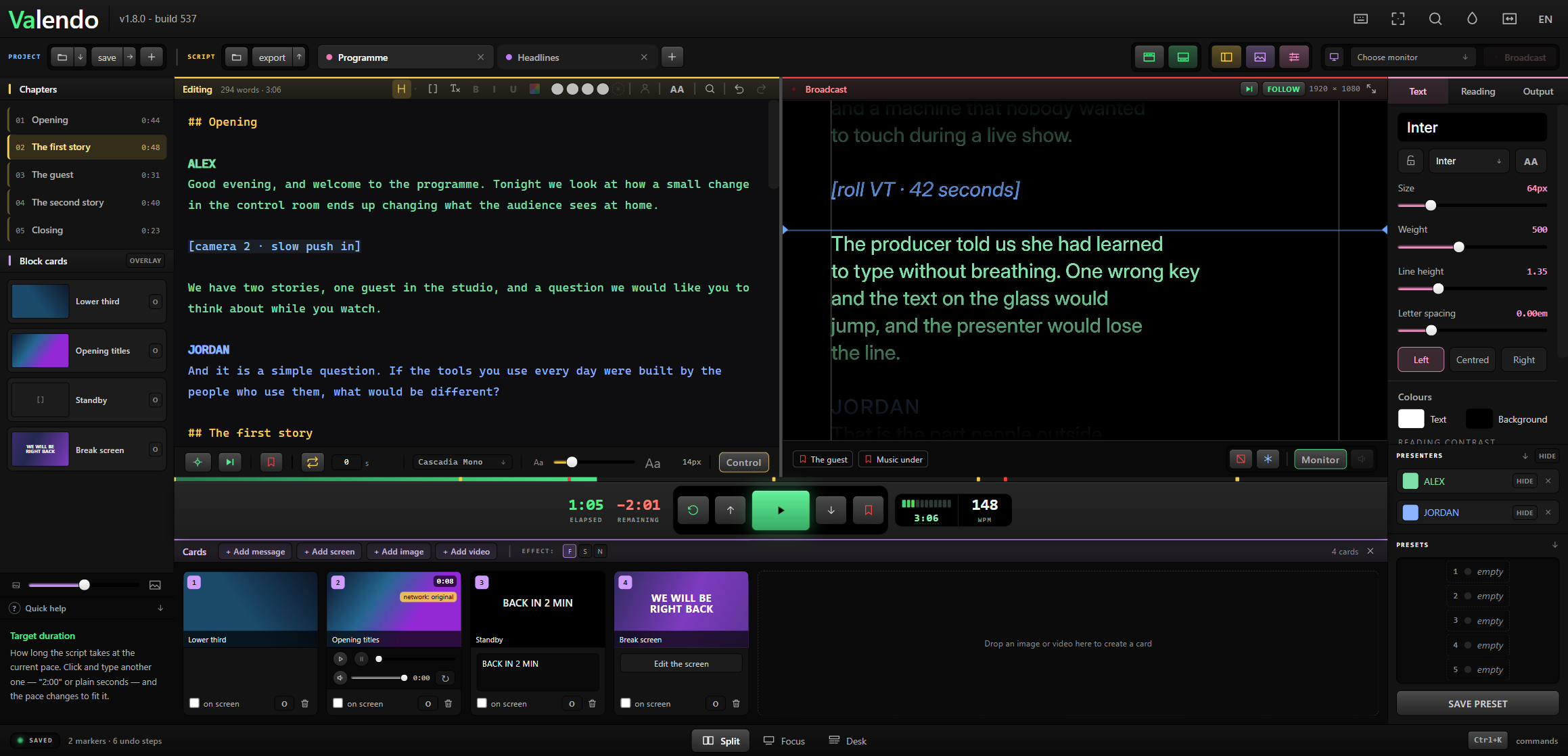
A card is something that goes to the presenter's screen with one click: an image, a video, a message, or a screen the app draws itself. Cards belong to the programme, not to a tab, so they survive switching scripts.
Open the drawer with F6, or drop a file anywhere on it.
- Click the card's on screen checkbox.
- Or press
Ctrl+Shift+1…Ctrl+Shift+9for the first nine cards. -
Ctrl+Shift+0clears whatever is on screen.
Drag a card to reorder it — the number, and therefore the shortcut, follows the position.
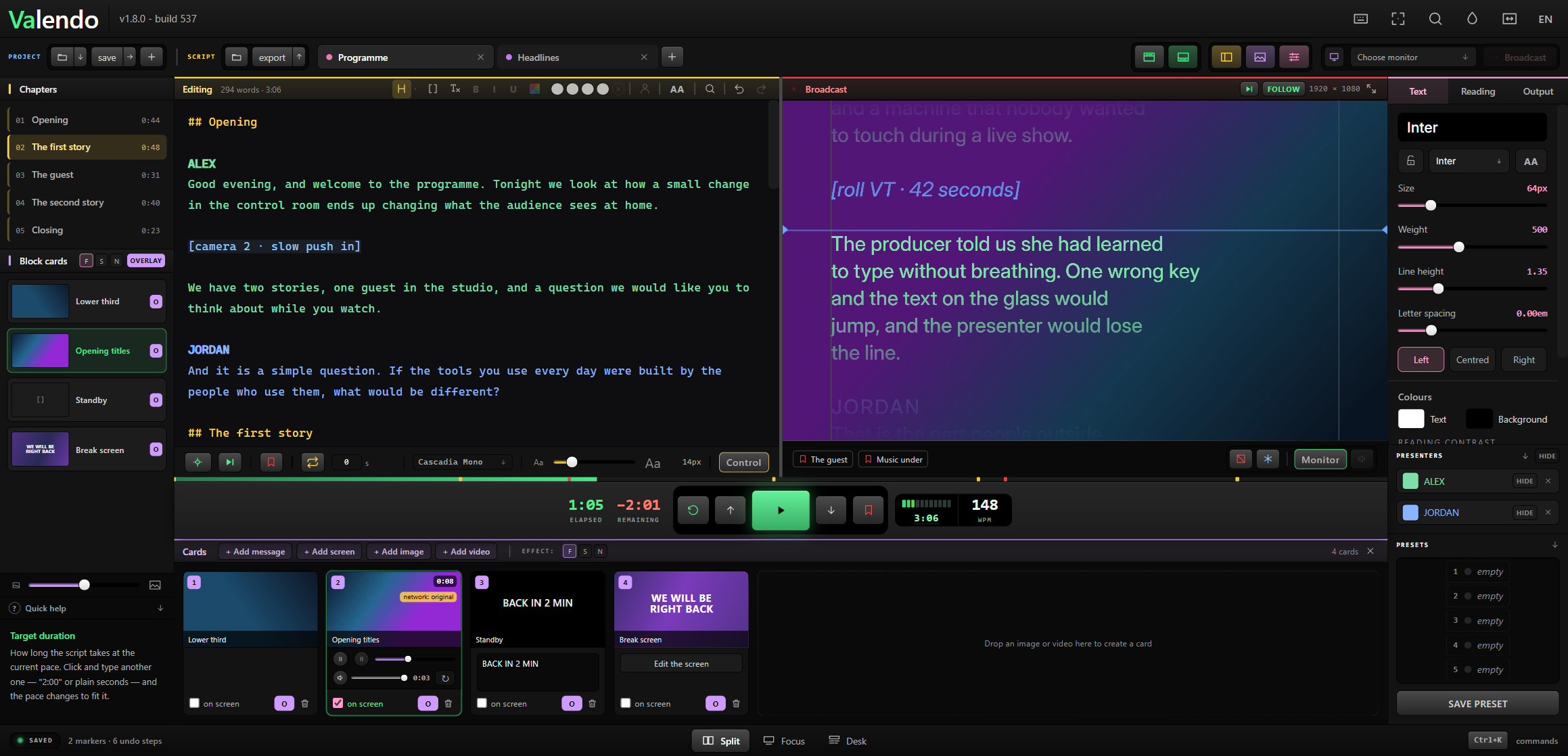
Above: a clip on air with the script scrolling over it, on a dark band. Below: the same with a still.
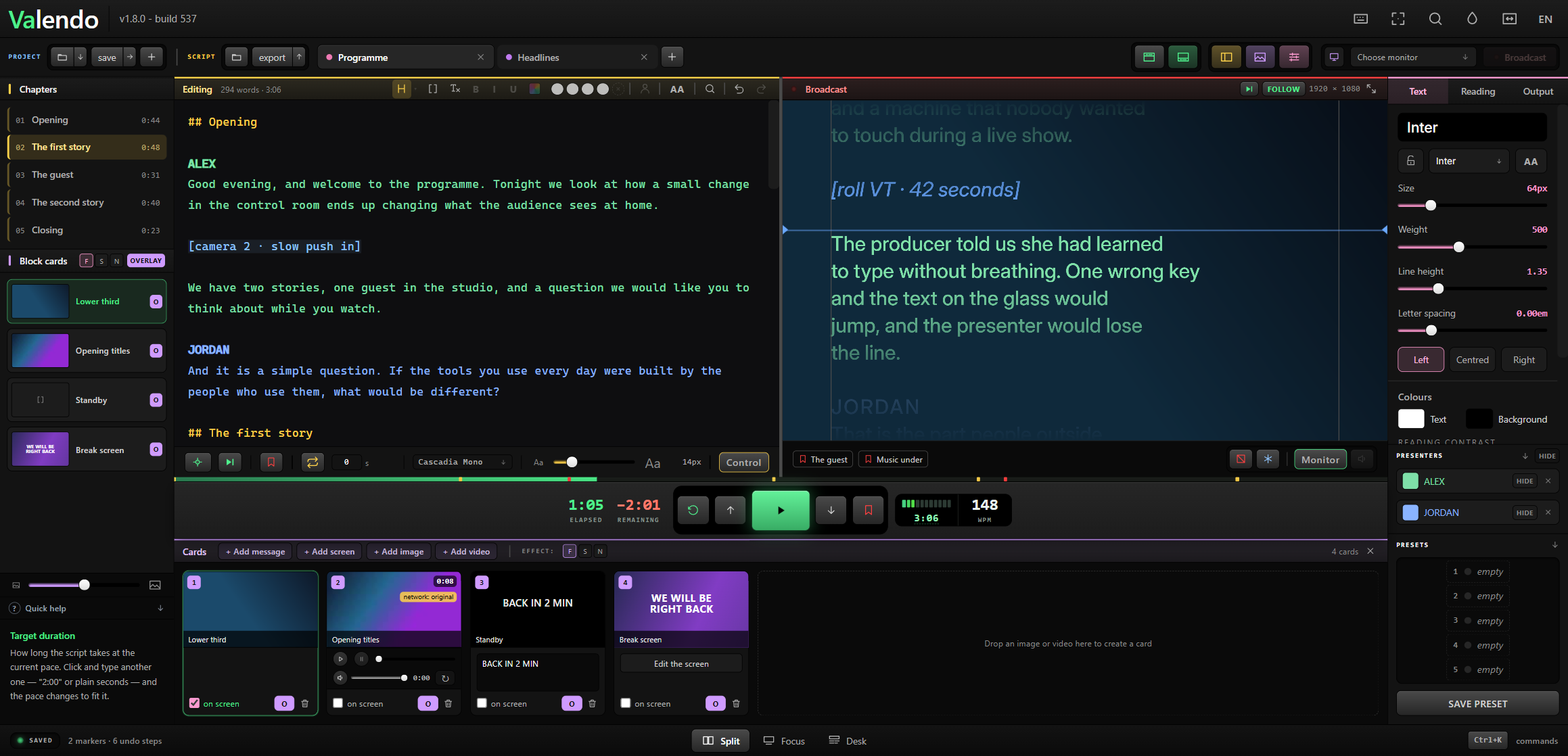
By default a card replaces the script: the presenter sees the card and nothing else. Turn on overlay and the script keeps scrolling over the card, which is how a lower third and a caption share one screen.
Two levels of switch:
-
Per card — the small
Opill on each card. -
Global — the
OVERLAYswitch in the Assets column and in the drawer header. When it is on, every card overlays, whatever its own pill says. That is deliberate: it is the guarantee that you can put anything on screen mid-show and still have the text visible.
The formula is effective overlay = global || card's own.
Three choices, in the F S N selector beside the OVERLAY switch:
| Treatment | When | |
|---|---|---|
| F | A dark band behind the whole text | Safe over anything. The default. |
| S | A shadow behind each letter | Keeps more of the art visible |
| N | Nothing | When the art already has the contrast |
Valendo plays the file as it arrived whenever the browser can handle it — most phone .mov files play untouched, because inside they are the same format as an mp4 with a different label. Nothing is copied and nothing is converted.
When the browser cannot (ProRes from an edit bay, matroska, avi), ffmpeg steps in: first trying to change only the container, which takes seconds and does not touch a pixel, and re-encoding for real only when the content genuinely will not fit an mp4.
The playable copy lives in userData/convertidos, belongs to that card, and disappears with it. The original is never copied or moved.
Each video card carries a small player: play, pause, a scrub bar, the time, volume with mute, and a loop toggle. Scrubbing while the card is on air moves the presenter's screen with it — the surfaces hold the frame while your hand is on the bar, and follow when you let go.
The PAUSE button puts the card on air stopped on the frame it is on, for pre-positioning before it really goes out.
Audio plays only in the operator's preview, never on the presenter's screen.
Video cards reference the file where it lives, so the link can break — a disconnected drive, a renamed folder. The card says Video not found and offers Relink, which points it at the file's new home without losing anything else about the card.
Images do not have this problem: they are copied into the app and travel inside the .valendo.
A card that is just text — BACK IN 2 MIN, WRAP, STRETCH. Big, centred, no file to manage. Same overlay rules as the others.
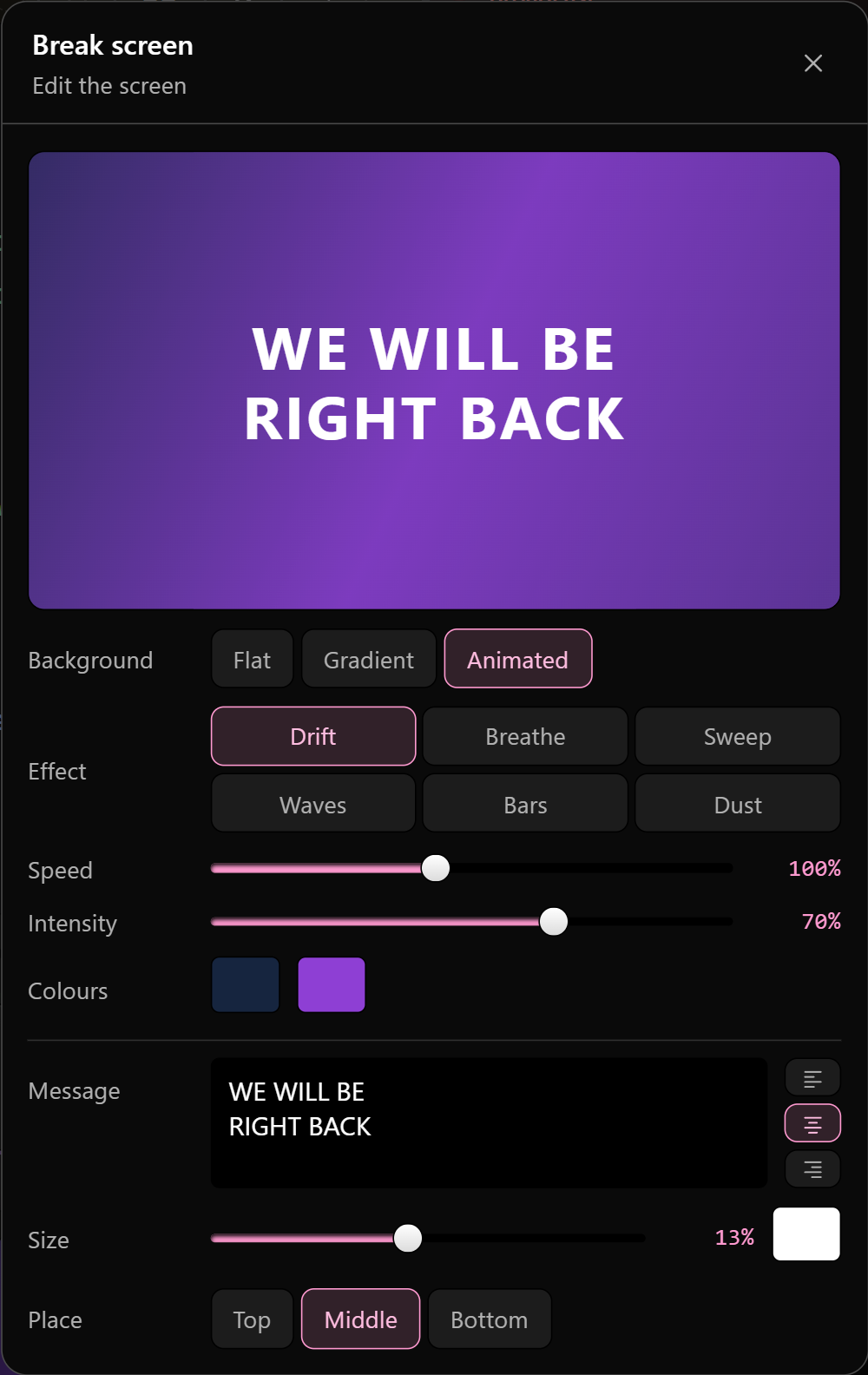
A card the app draws, rather than one that points at a file. + Add screen makes one; Edit the screen on the tile opens the window above.
That distinction is the whole point. An image card holds a copy of a file; a screen card holds a handful of numbers. From that follows everything it gets for free:
- It weighs nothing inside the
.valendo. - It has no link that can break — no relink, ever.
- It needs no lighter copy prepared for the network.
- The same numbers draw it at 176 pixels on the drawer tile and at full resolution on the glass, so what you approve on the tile is what goes out.
| Mode | What it is |
|---|---|
| Flat | One colour. |
| Gradient | Two colours, an angle, and a fade slider for how much of the frame the transition takes — full is edge to edge, zero is a clean line between two solid halves. |
| Animated | Two colours in motion, in one of six ways. |
The six effects are Drift, Breathe, Sweep, Waves, Bars and Dust.
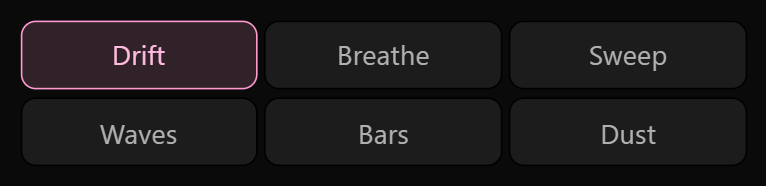
They are all slow on purpose — a restless background argues with whoever is reading, and this card is usually on screen for minutes at a time. Two sliders scale the set:
- Speed multiplies the pace of whichever effect is on. It scales each one's own timing rather than forcing a single duration on all six, because they were not tuned to the same number — one figure for everybody would leave Drift frantic and Bars crawling.
- Intensity decides how much the movement shows over the base colour. Low is barely there, which is usually what a background wants.
Each screen runs its own copy of the animation, so two of them are not frame-locked to each other.
Optional — leave it empty and the card is just a backdrop. What you set:
| Control | Note |
|---|---|
| Text | Where you press Enter is where it breaks on air |
| Size | A share of the screen height, not a pixel size — which is why the tile and the 55-inch monitor agree |
| Colour | Any |
| Alignment | Left, centre, right — how the lines sit against each other |
| Place | Top, middle, bottom. None of them touches the edge: behind glass, the last centimetre of the screen is what goes first |
Inside the .valendo
|
|
|---|---|
| Images | Yes, embedded |
| Messages | Yes |
| Screens | Yes — they are only numbers, so there is nothing else to carry |
| Video | The path, not the file — a colleague opening the project needs the clip too |