Keyboard Shortcuts
Every binding below is the default and every one can be changed: Ctrl+, opens the key map. Ctrl+K opens the command palette, which finds any command by name without needing a key at all.
On macOS, read Ctrl as Cmd.
| Shortcut | Command |
|---|---|
Space |
Play / pause |
Ctrl+Home |
Back to the start |
↑ |
Jump back a few words |
↓ |
Jump forward a few words |
Ctrl+Shift+F |
Freeze |
| Shortcut | Command |
|---|---|
→ |
Faster |
← |
Slower |
Ctrl+Alt+1 2 3
|
The three pace presets |
The mouse wheel changes the pace anywhere in the app.
| Shortcut | Command |
|---|---|
Ctrl+M |
Drop a marker here |
Ctrl+↓ |
Next marker |
Ctrl+↑ |
Previous marker |
Ctrl+Shift+↓ |
Next chapter |
Ctrl+Shift+↑ |
Previous chapter |
Chapter and marker jumps stop at the ends. At the last chapter, "next" does nothing rather than wrapping round to the first — a jump to the top of the script in the middle of a programme is never what anyone meant.
| Shortcut | Command |
|---|---|
Ctrl+= |
Larger type |
Ctrl+- |
Smaller type |
Ctrl+Shift+= |
Wider margin |
Ctrl+Shift+- |
Narrower margin |
Alt+= |
More words per line |
Alt+- |
Fewer words per line |
Ctrl+I |
Invert colours |
These are the presenter's screen, not the editor.
| Shortcut | Command |
|---|---|
Ctrl+Enter |
Broadcast on / off |
Ctrl+B |
Blackout |
Ctrl+Alt+M |
Mirror |
Ctrl+Alt+R |
Rotate |
Ctrl+Shift+1 … 9
|
Put card 1–9 on screen |
Ctrl+Shift+0 |
Clear the screen |
| Shortcut | Command |
|---|---|
Ctrl+S |
Save the project |
Ctrl+Shift+Alt+S |
Save the project as… |
Ctrl+O |
Open a project |
Ctrl+N |
New project |
Ctrl+Shift+S |
Export the script |
Ctrl+Alt+S |
Export the script as… |
Ctrl+Shift+C |
Insert a chapter mark |
Ctrl+Shift+D |
Wrap as a stage direction |
Ctrl+F |
Find, replace and paint in the script |
Ctrl+Shift+L |
Strip formatting |
Ctrl+Z |
Undo |
Ctrl+Shift+Z |
Redo |
Ctrl+T |
New tab |
Ctrl+W |
Close tab |
Ctrl+D |
Duplicate the active tab |
| Shortcut | Command |
|---|---|
F1 |
Split |
F2 |
Focus |
F3 |
Desk |
F5 |
Assets column |
F6 |
Cards drawer |
F7 |
Settings |
F8 |
Transport at the top / in the footer |
F11 |
Toggle focus mode |
Ctrl+Alt+= |
Interface larger |
Ctrl+Alt+- |
Interface smaller |
Ctrl+Alt+0 |
Interface back to 100% |
Ctrl+K |
Command palette |
Ctrl+, |
Key map |
Ctrl+Shift+K |
Map shortcuts on screen |
Ctrl+Shift+P |
Change the theme |
Ctrl+Shift+K turns on mapping mode. The app paints a lit rectangle over every control that accepts a shortcut, with its current key printed inside. Click the one you mean, press the key, done.
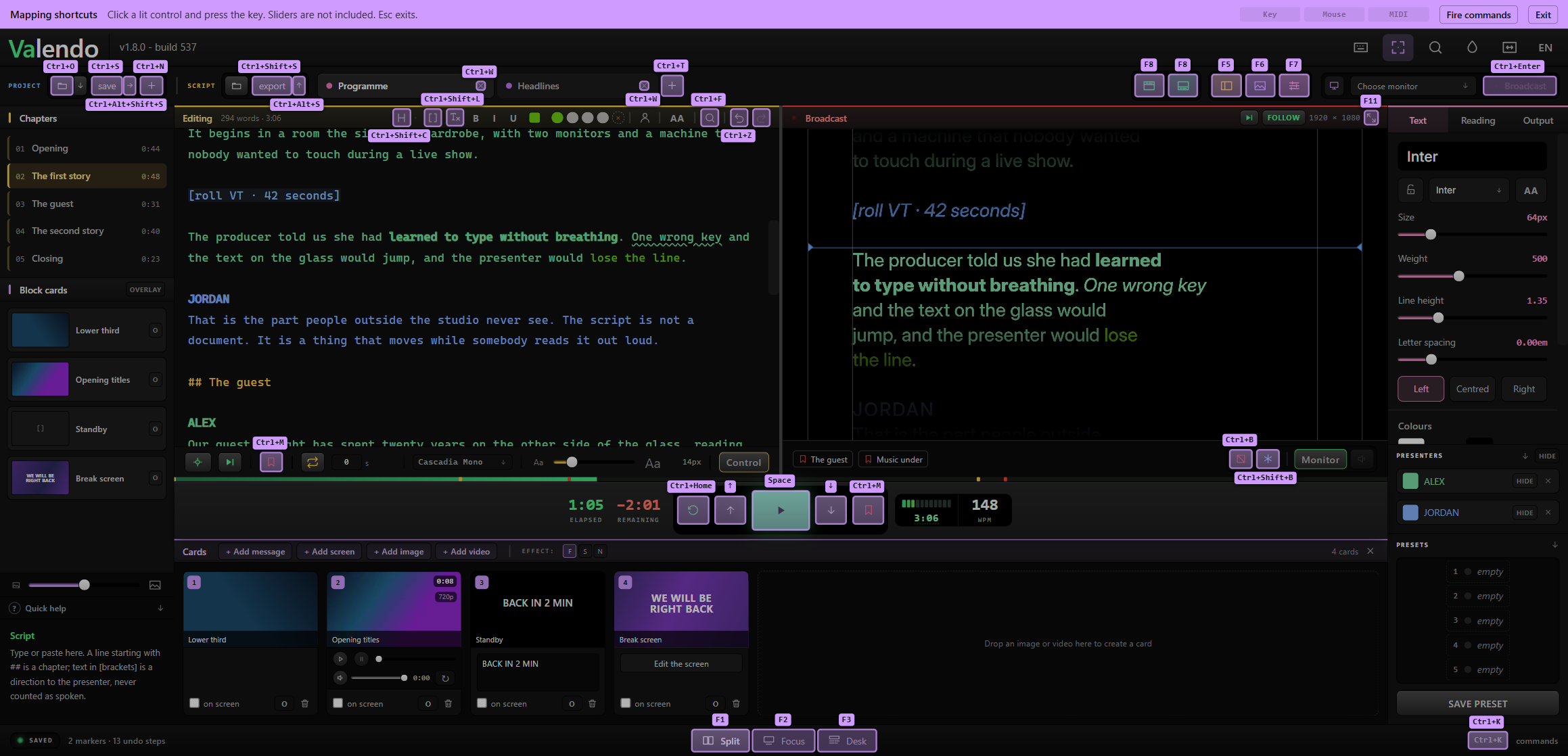
That is the answer to the question the list above cannot give: what is this button's key? You are looking at the button, not scrolling ninety command names hoping to recognise one.
Three things worth knowing before you turn it on:
-
The layer swallows clicks, including the play key. A band across the top stays visible the whole time saying so and how to leave.
Escexits from anywhere, and the header key stays lit while the mode is on. - Sliders are not included. Pace, type size, margin, volume — nothing continuous is mappable. Deliberate: a key can only step a slider, and a step is not what those controls are for.
- It works with the show on air. Blocking it there would be deciding for you, and mapping a pad during a rehearsal is a legitimate thing to want.
The same mode accepts a pad instead of a key: click a lit rectangle and press the button on the surface. The binding is stored beside the keyboard one, so a command can have both.
The full list has three columns — keyboard, mouse and control surface — and the search finds a command by any of them.
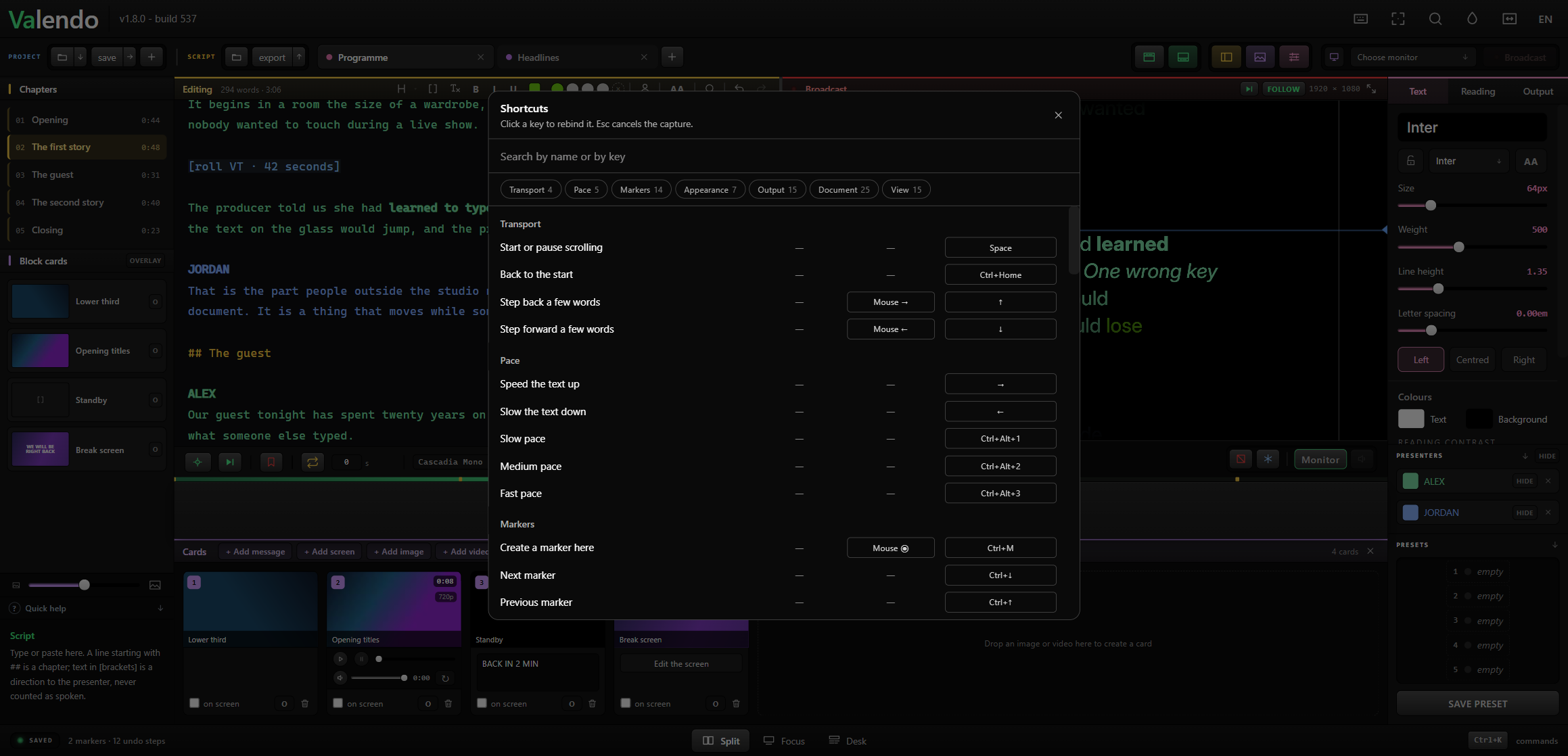
Only note-style messages are read, which is to say pads and buttons, not faders or knobs — the same reason sliders are out. Permission is asked once, and only the operator window ever listens.
F1 F2 F3 are the three modes — whole screens, mutually exclusive. F5 F6 F7 F8 are the panels, which toggle on top of whatever mode you are in. They are kept apart on purpose: a key that sometimes replaces the screen and sometimes toggles a panel would be a key you cannot press without looking.